
Open & close register
A register session bookends a shift: opening records the cash you put in the drawer; closing reconciles every sale, refund, staff‑paid expense, and the cash you take out for the bank or the owner against the cash you actually count at the end. The POS can take orders only while a session is open.
1. Open the register
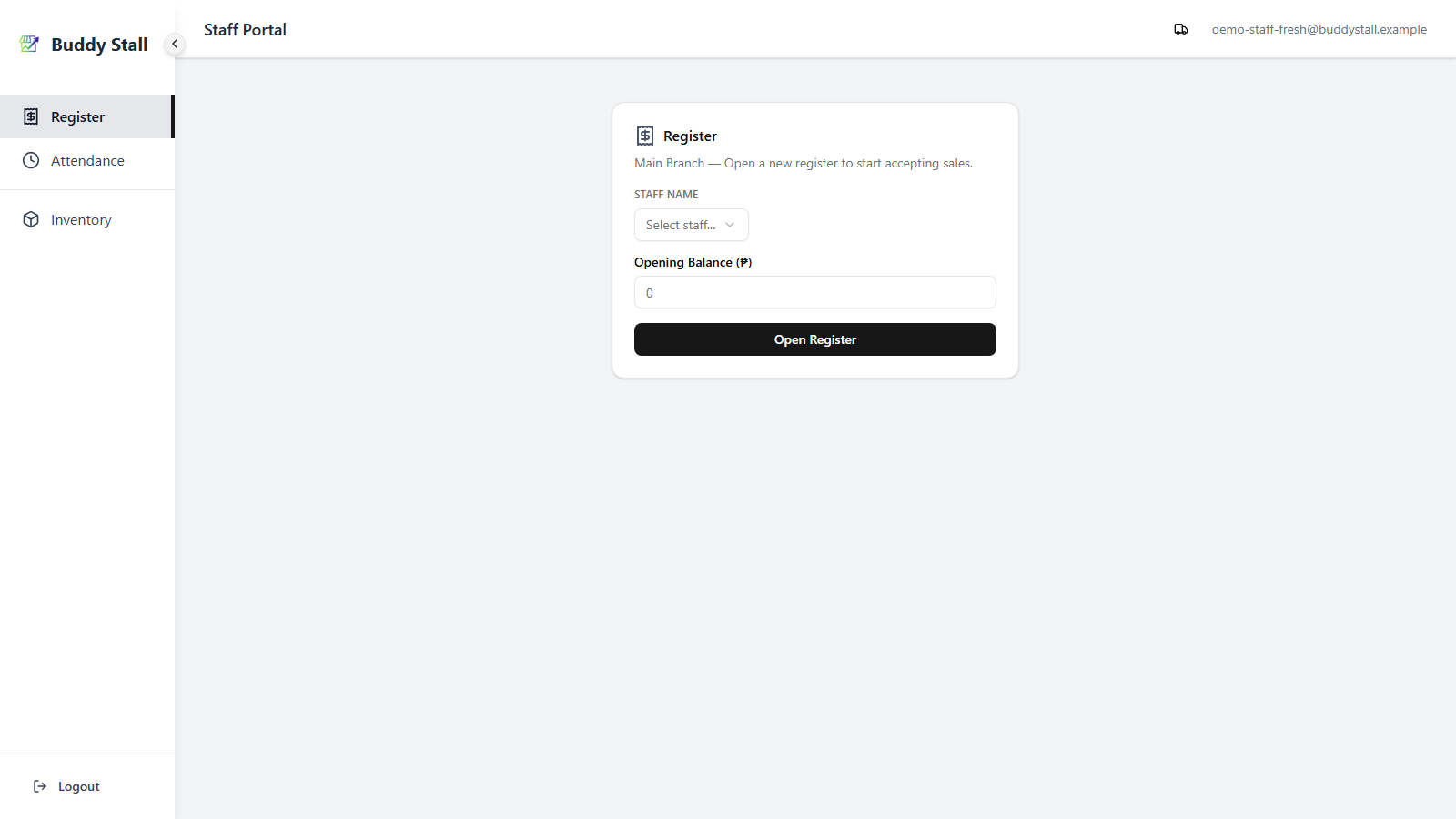
Log in with the store's store code and the password the owner set for it (see POS Login). Whenever no register session is open, the staff portal lands on the register screen's open form. Two fields:
- Staff Name — pick the employee starting the shift.
- Opening Balance — the cash placed in the drawer to start. Enter
0if you start empty.
Click Open Register. The portal routes to the POS and the store is ready to accept sales.
2. While the register is open
Re‑visit the register screen any time during the day to see the live shift dashboard. This view only exists while a session is open — once you close, the page returns to the open form in step 1.
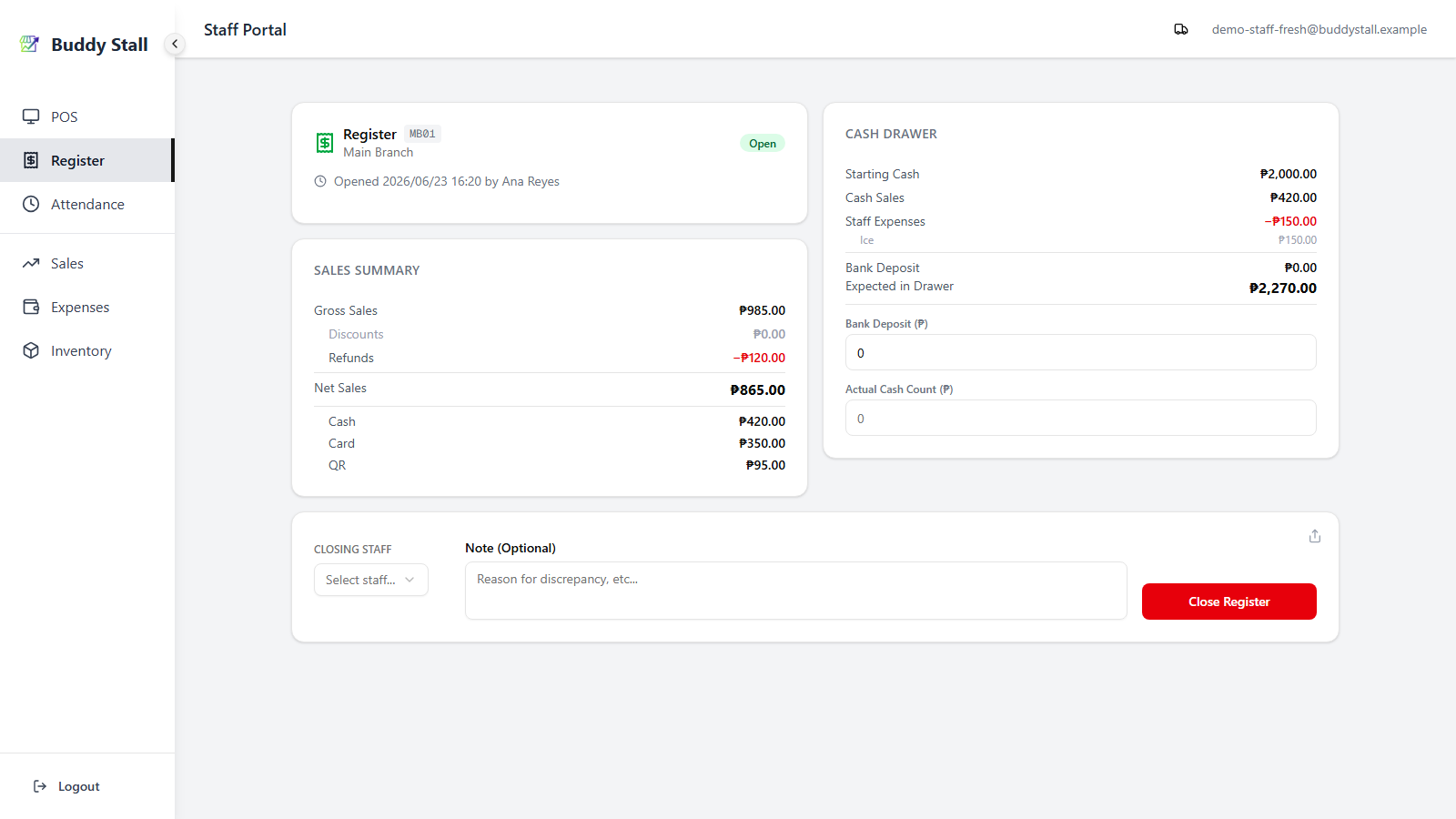
What's shown in the open-state layout:
- Header strip — session number, a green Open badge, and the time the session opened with the employee who opened it.
- Sales Summary (left panel) — Gross Sales, Discounts, Refunds, Net Sales, then a breakdown by payment method (Cash, Card, QR, Other). Updates live as orders post.
- Cash Drawer (right panel) — Starting Cash + Cash Sales − Staff Expenses − Bank Deposit / Remittance = Expected in Drawer. Each staff‑paid expense is itemised under the Staff Expenses row; see Recording expenses.
- Close Register card (bottom) — the inputs covered in step 3.
- Share icon (top‑right of the close card) — captures the summary as a PNG you can save or send. Online only.
3. Close the register
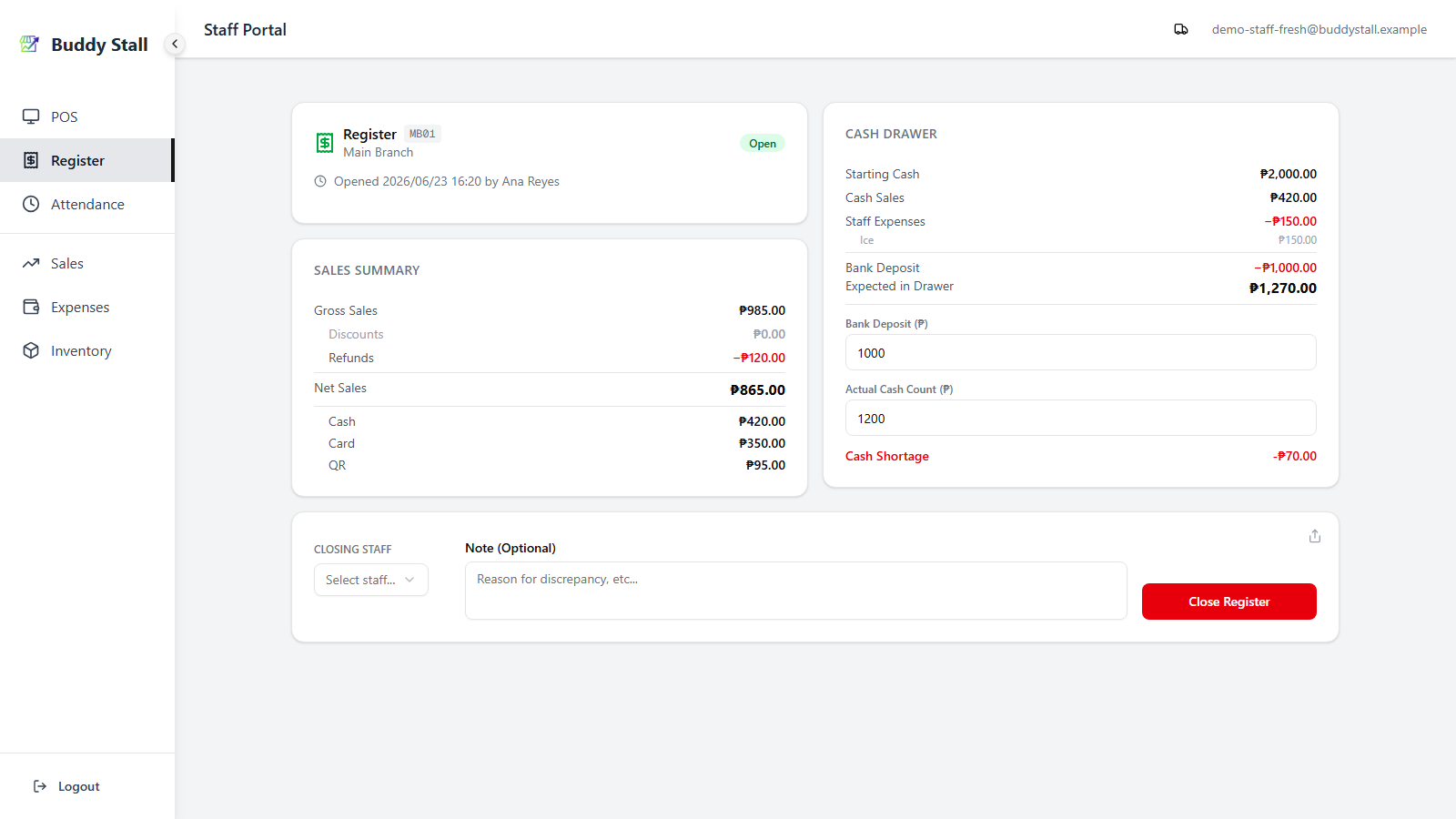
Fill in the Close Register card at the bottom of the page:
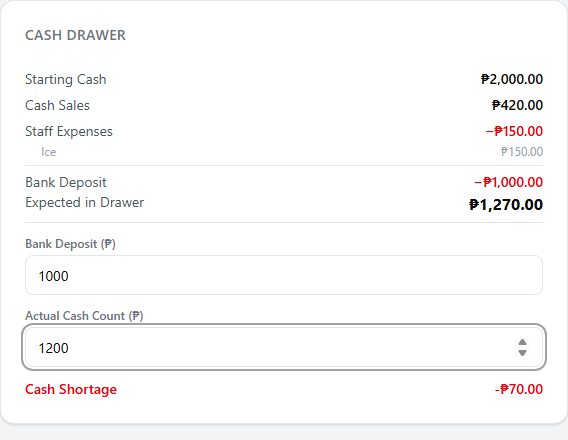
- Bank Deposit / Remittance — the cash you take out of the drawer before counting: money for the bank, or money you keep safe or hand to the owner. This cash leaves the drawer, so it's subtracted from the Expected in Drawer figure. Leave only tomorrow's change in the drawer, so the amount you count matches the next Opening Balance. The info icon next to the field repeats this on the register screen.
- Actual Cash Count — what's physically left in the drawer. The card
immediately shows Cash Overage (blue,
+), Cash Shortage (red,−), or Difference (zero). - Closing Staff — the employee performing the count.
- Note — optional; record the reason for any discrepancy here.
Click Close Register, then Confirm Close in the dialog.
After closing, the page returns to the open form. That's the closed-state layout — only the staff and opening‑balance inputs are shown (plus the Resume card in step 5 when applicable). The live dashboard and Close card are gone until the next session opens.
4. Closing after working offline
If the device went offline during the shift, every sale, refund, and staff‑paid expense was still saved on the device and queued for upload — nothing is lost. See Working offline for the status badge that tracks the queue.
When you reconnect, the queue uploads on its own. If you reach the Close Register card while items are still going up, closing is held back until the queue clears:
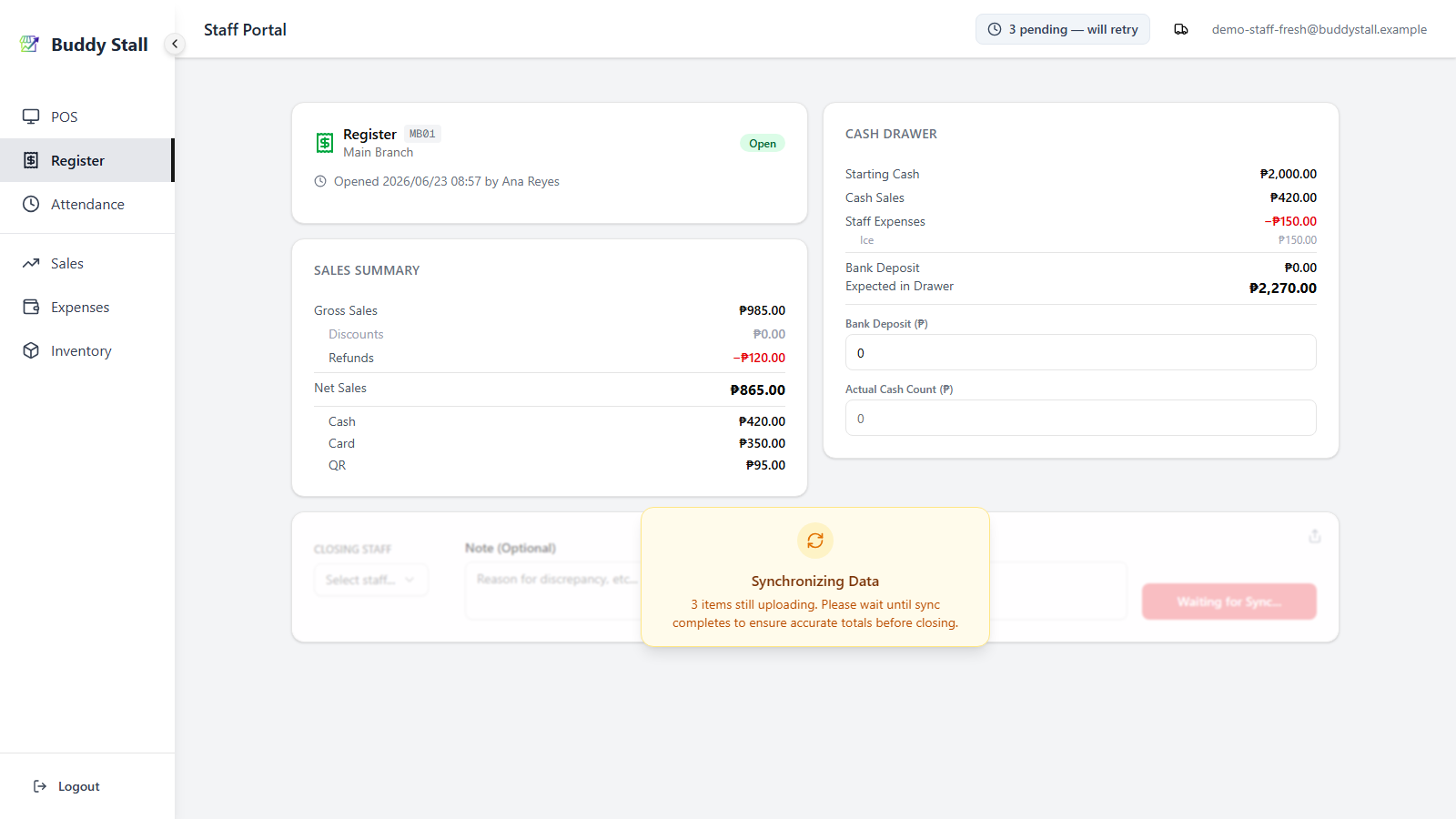
- The Close Register card is covered by a Synchronizing Data overlay that tells you how many items are left ("N items still uploading"). On a weak connection it reads Slow Connection — Synchronizing instead.
- The close button reads Waiting for Sync… and is disabled. Tapping close early just shows "Unsynced data detected — please wait for all transactions to sync before closing the register."
This is on purpose: it guarantees the closing totals include every queued sale, so the cash count reconciles against the full day.
The 60‑second rescue
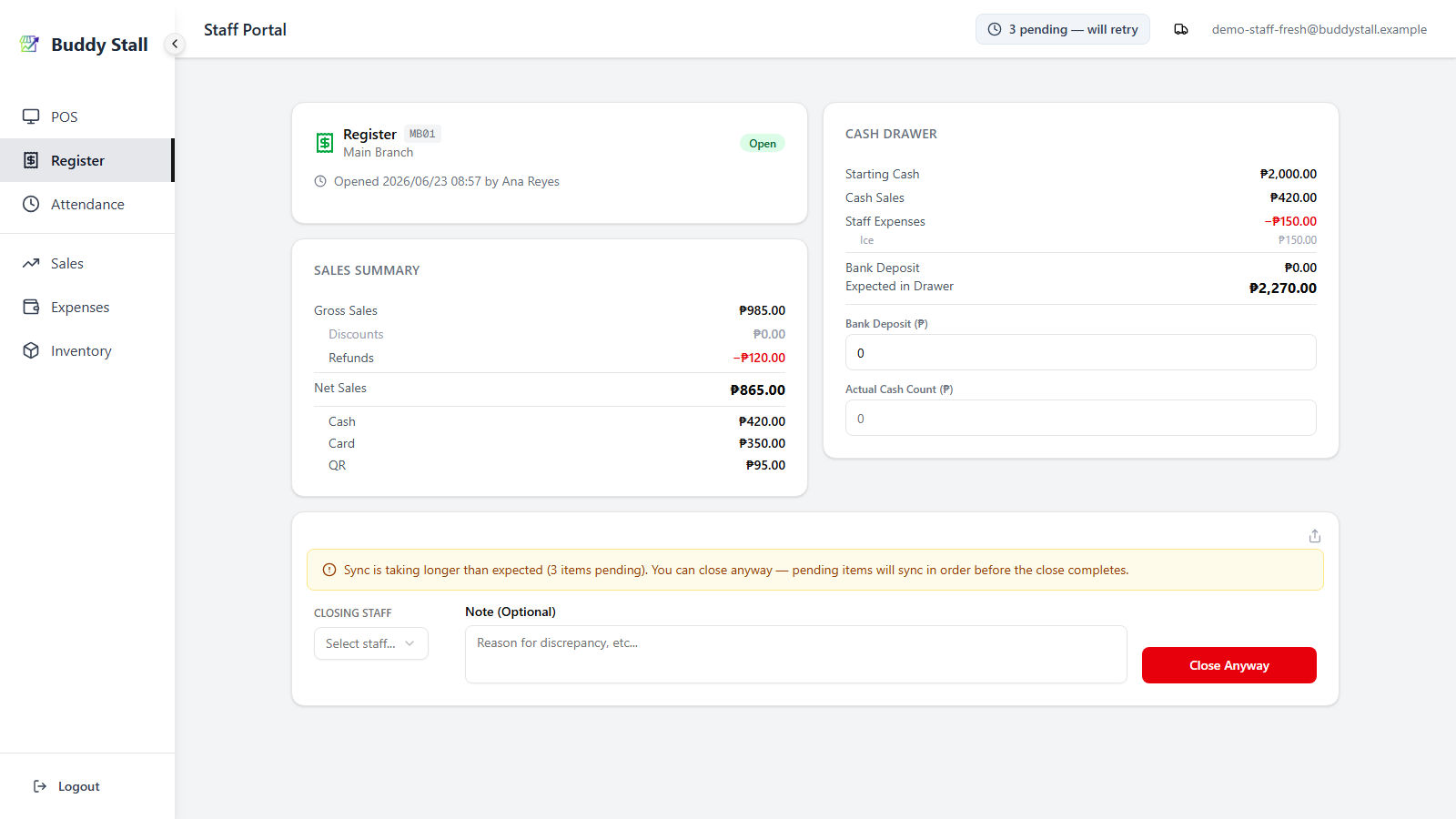
Very rarely the upload stalls on a barely‑there connection. So you're never stuck waiting, the block lifts automatically after about one minute:
- The overlay disappears and an amber notice appears — "Sync is taking longer than expected … You can close anyway — pending items will sync in order before the close completes."
- The button becomes Close Anyway. Using it queues the close behind the still‑pending items: they upload first, in order, and the close is applied after them. So the totals stay correct and the session can never close ahead of its own sales.
5. Resume a recently closed session
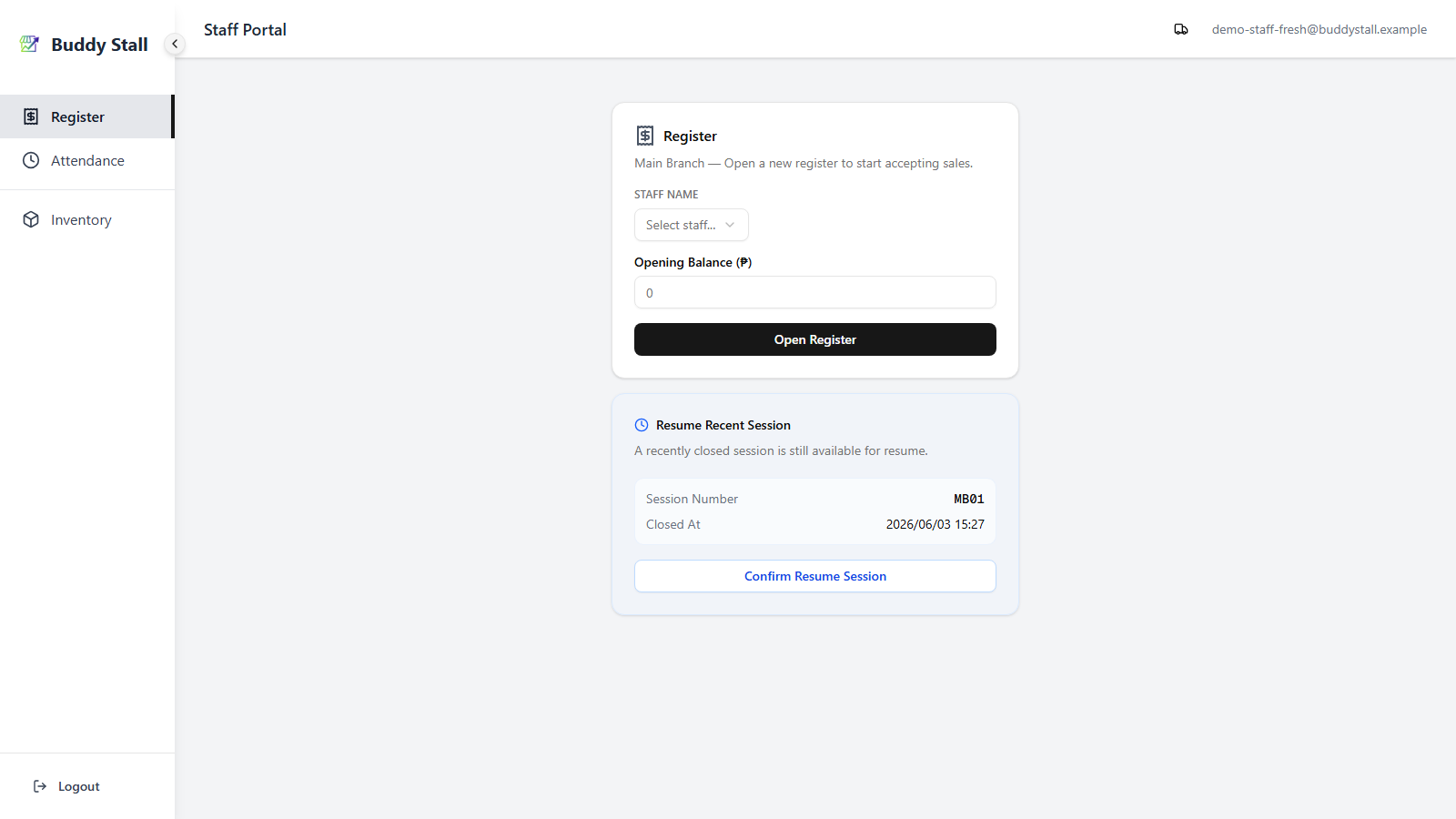
If a session for this store was closed within the last 3 hours, a blue Resume Recent Session card appears under the open form, showing the session number and the time it closed.
Use it if you closed by mistake — resuming reopens the same session so the day's totals stay on a single report. Otherwise ignore it and open a fresh session in step 1. After 3 hours the card disappears; from then on you can only start a new session.
6. Where the closed session shows up
Once a session closes, it lands in Register History on the admin side. Owners and managers open it to review past sessions per store — each row shows the session number, who opened and closed it, the opening and closing times, and the cash variance, with a detail view of the full close summary. See Register History.
Read next
Take orders
The POS workflow you'll use between open and close — building orders, taking payment, printing receipts.
How to refund
How refunds affect the Sales Summary and Cash Drawer on the open-session dashboard.
Sales History
Where every transaction from the closed session is listed and searchable after the fact.