
How to stocktake
A stocktake is a physical count of what's on the shelf, set against the running count BuddyStall has been keeping.
It's normally the on-site staff who do this, as a regular part of the floor routine. Owners and managers can run one from the Admin dashboard too — but the count itself happens where the stock is. The screenshots below show the staff portal; where the Admin dashboard looks different, the admin view is added underneath.
Run one whenever the gap between expected and actual is worth knowing — typically weekly for fast-moving items, monthly for slower ones.
Each report resets the count to what you counted, and the variance is filed in the item's history.
1. Open the store inventory
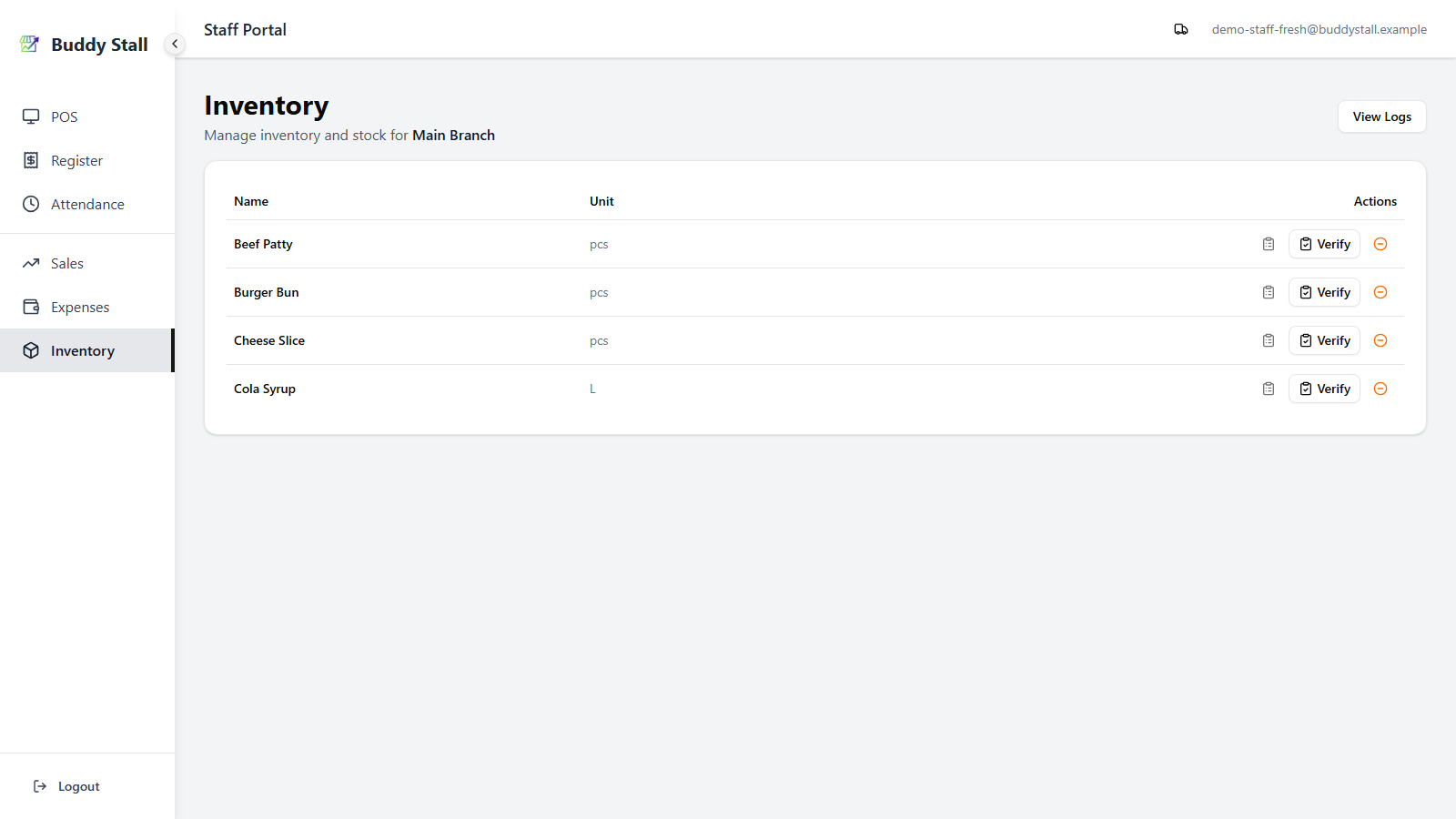
In the staff portal, open Inventory — you land straight on your store's inventory, which lists every ingredient the store carries. Each row has the action buttons used in the next steps — Verify to submit a report, and a clipboard icon to View History.
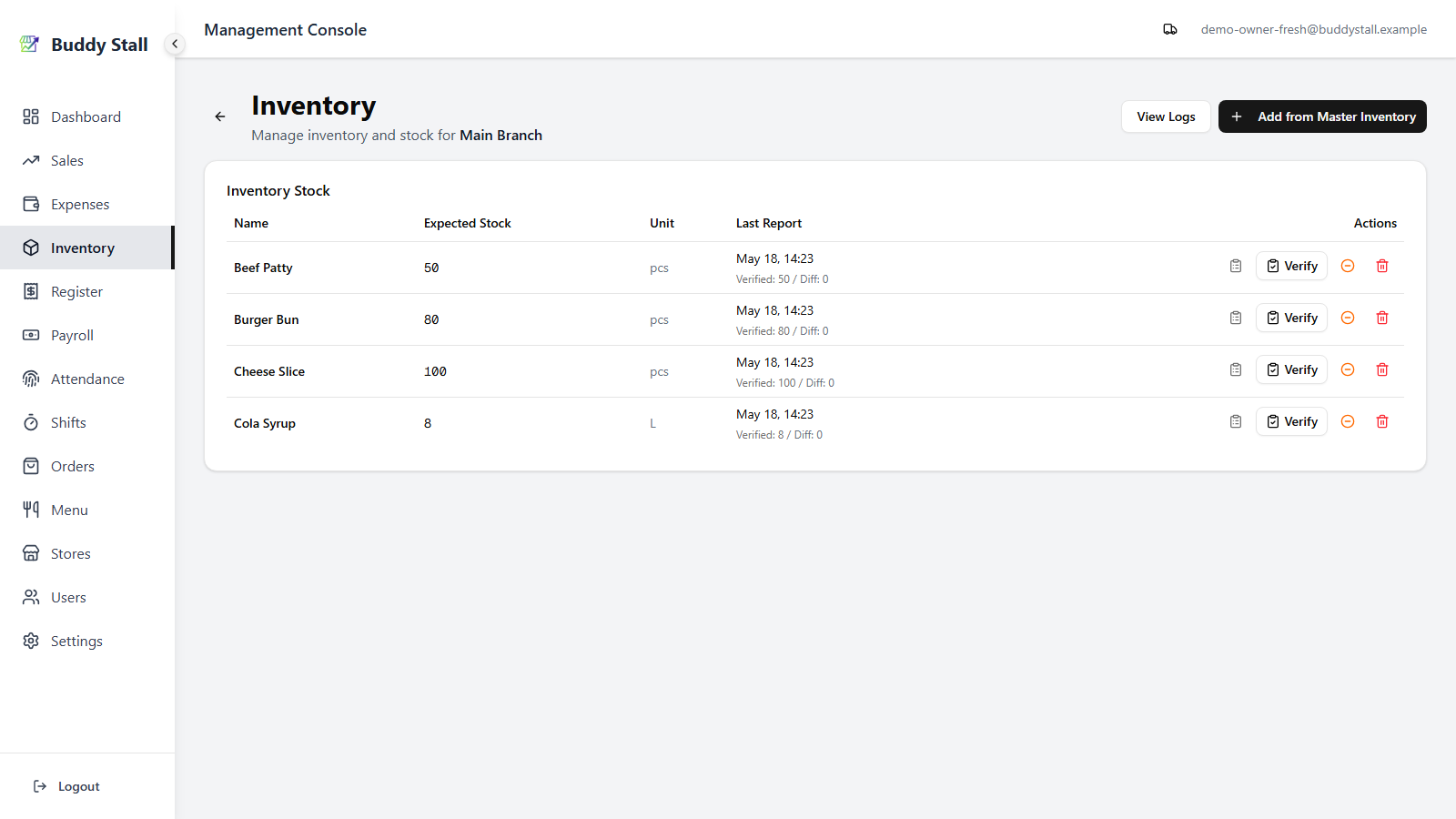
On the Admin dashboard, the per-store list that opens is the same, with two extra columns the admin view adds — Expected Stock and Last Report.
2. Count an item and submit a report
Click Verify on the row for the item you are counting.
In the staff portal the dialog is a straight count form — the item name, a Staff Member picker, an Actual Quantity field, and an optional note. Staff count blind: there is no expected figure or movement breakdown on screen, so the number you enter is simply the stock you actually see.
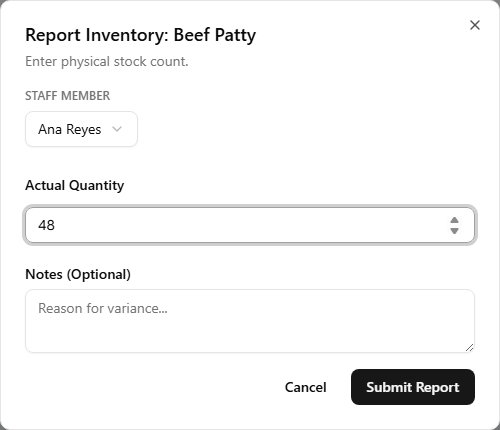
Count the physical stock, enter the number in Actual Quantity, pick the Staff Member who counted, and add a brief note if the count is off — "jar broke", "expired stock thrown away", "recipe adjusted". Click Submit Report. The verified quantity becomes the new baseline immediately, and the report joins the item's history.
On the Admin dashboard: Expected Stock and the live diff
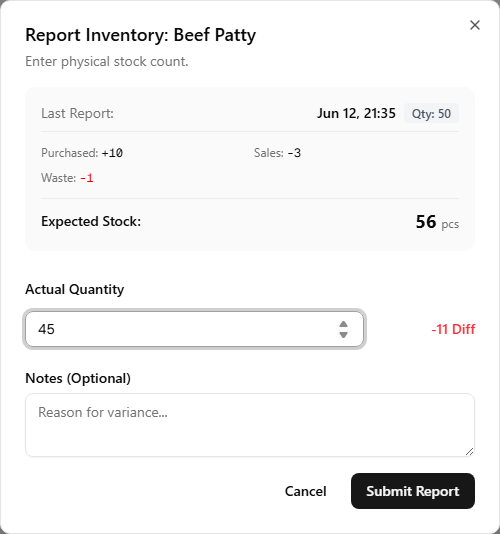
Owners and managers count against context. The same dialog opens with a period summary at the top:
- Last Report — when this item was last verified, and the count then.
- Purchased / Sales / Refunds / Waste — every movement during the period.
- Expected Stock — the count after applying those movements: what BuddyStall thinks should be on the shelf right now.
As you type the actual count, a live Diff appears next to the field — green when you count more than expected, red when less — so the variance is clear before you submit. Submitting resets Expected Stock to match the new count.
3. Watch for a discrepancy alert
A submitted count is also an accuracy check. When it lands far from what BuddyStall expected — a gap that reaches a set share (30% by default) of how much of the item you've used since the last count, in either direction — the item raises a stock-discrepancy alert: a small red dot on its View History (clipboard) icon. Staff see this flag too — it's the cue to open the history and find out what happened. (See Inventory alerts for how the bar is set and how to adjust it.)
Items that no recipe uses are the exception: sales never deduct them, so a count almost always lands under expected and the alert would be meaningless. Those rows read Not in a recipe instead of a diff and never raise the flag — counting them still drives their low-stock warning.
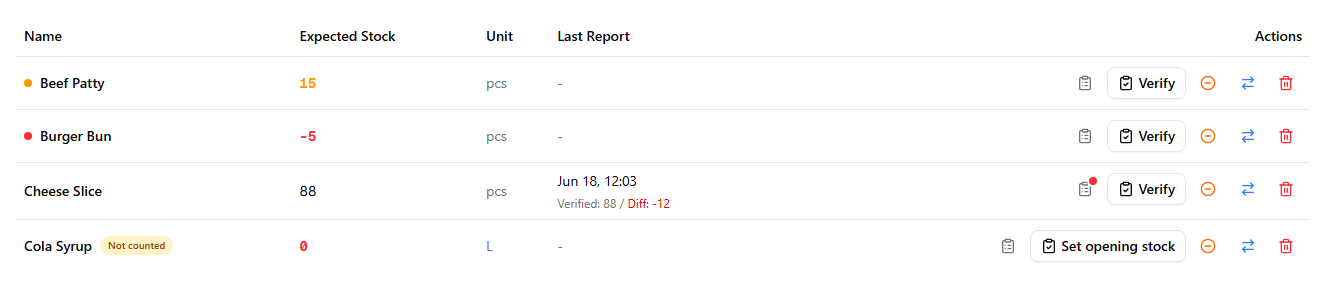
You don't see Expected Stock, so this dot is your main signal. When it shows up after you submit a count, first recount to rule out a miscount. If the number really is off, the size of the gap is a clue to the cause — breakage, an unrecorded use, expired stock — so leave a short note on the report explaining what you found, so the owner can trace it later.
4. Open the report history for an item
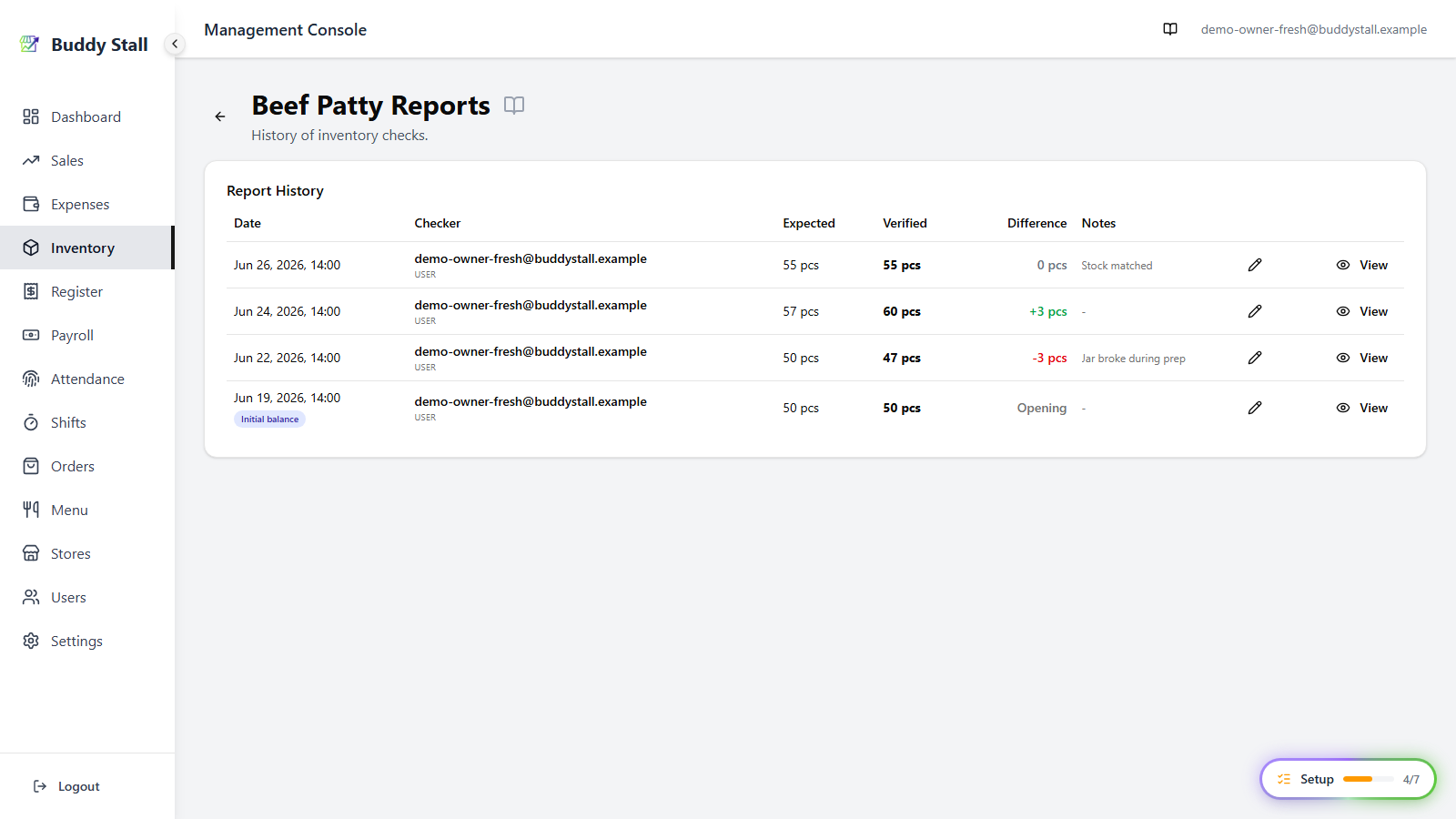
Back on the inventory list, click the clipboard View History icon on the item's row. The history page lists every past report for that item — Date, Checker, Expected, Verified, Difference, and Notes — so you can scan recent variance at a glance.
Counts are locked once submitted, but a report's note stays editable — click the pencil at the end of any row to correct it or add the reason behind a variance after the fact. Only the note changes; the recorded count never does.
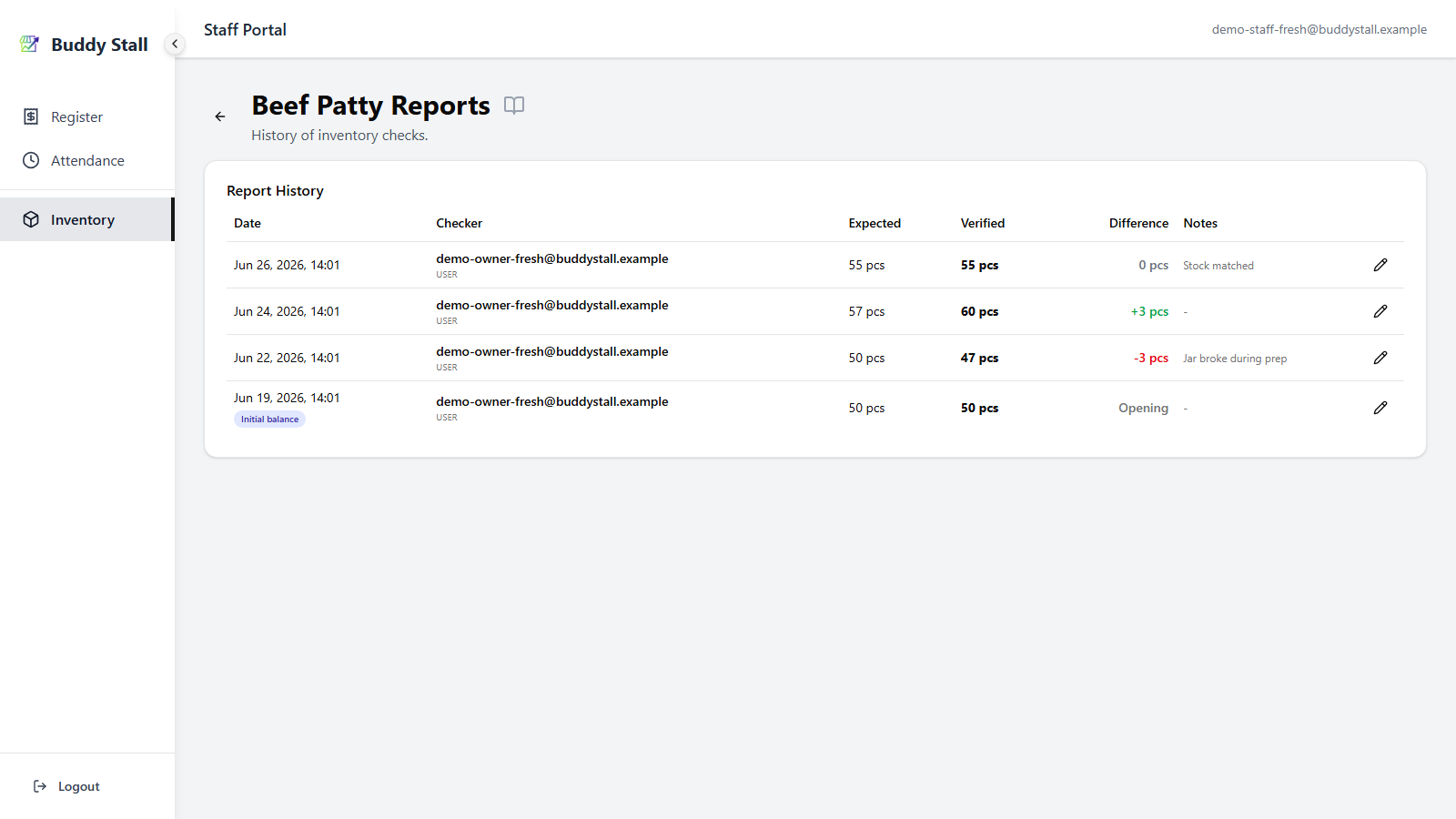
On the Admin dashboard the same history adds an owner/manager-only View button on each row — it opens the report's full detail breakdown, covered next.
5. Read the detail report
Click View on a row of the history to open its detail report. It breaks down every movement in the period — sales, purchases, and waste — and cross-checks the math against the submitted count. This detail report lives on the Admin dashboard only. See History & logs.
Read next
Logging waste
Record spoilage and spills as they happen — keeps the next stocktake's variance smaller.
Set up recipes
The link between sales and stock. Sales discrepancies in the detail report point back here.
History & logs
The all-items log of every stock change — sales, restock, waste, and stocktake reset.