
History & logs
A store's stock count moves constantly — every sale, restock, waste entry, and stocktake nudges it up or down. BuddyStall keeps two records of those movements so you can always answer why is the count what it is?:
- The inventory log — one chronological list of every stock change across all items in a store.
- The report history — the run of stocktake reports for a single item, with the variance each one corrected.
This page covers the inventory log and points to the report history. Submitting a report is covered in How to stocktake.
The inventory log
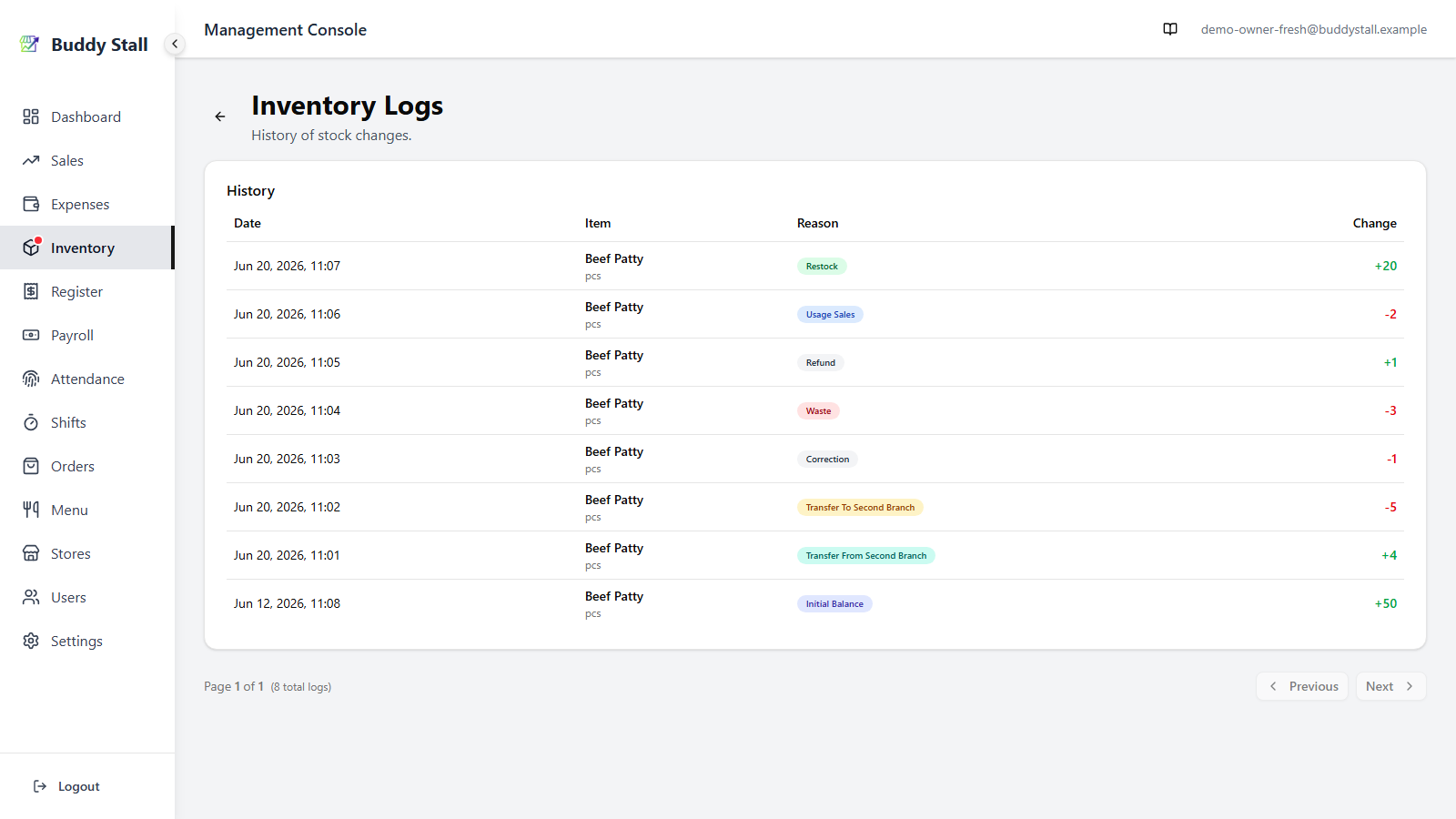
Open a store's inventory and click View Logs in the top-right. The log lists every stock movement for that store, newest first, one row per change. Each row reads left to right:
 1234
12341 Date — when the stock actually moved, to the minute. For most reasons that's the moment it was entered, but a Restock or a Transfer carries the date the person doing it supplied — the delivery date typed on the receipt, for instance — so a delivery checked in late still sits on the day it arrived rather than the day it was typed in.
2 Item — the ingredient that moved, with its unit beneath the name.
3 Reason — a coloured pill naming what caused the change. Each value is explained in What each reason means below.
4 Change — how much the stock moved, signed and coloured: green + for an increase, red − for a decrease.
What each reason means
The Reason pill is colour-coded so you can scan a column of activity at a glance. Reading the log from top to bottom:
123456781 Restock (green) — stock added by a Material expense entry tied to this ingredient (see Expenses), or by receiving a supplier order. This is how purchases top the count back up.
2 Usage sales (blue) — stock deducted automatically by a sale at the POS, through the item's recipe.
3 Refund — stock returned to the shelf when a sale is refunded; the recipe quantities the sale deducted are added back.
4 Waste (red) — stock removed by a waste entry.
5 Correction — the adjustment a stocktake applies when the verified count differs from the expected count. The change is the variance — positive when you counted more than expected, negative when you counted less.
6 Transfer to [store] (amber) — stock sent to another of your stores; the destination store is named on the pill.
7 Transfer from [store] (teal) — stock received from another of your stores; the source store is named on the pill.
8 Initial balance (indigo) — the opening stock set when the item was first added to the store, and the figure recorded by the very first stocktake that establishes the count.
A stocktake doesn't post a row for the whole recounted quantity — only the variance it corrects, as a Correction entry (or Initial balance for the first, establishing count). A stocktake that matches expected exactly changes nothing, so it leaves no log row at all. The full report — period, expected vs. verified, and the movements behind it — lives in the per-item report history below.
Filter the log
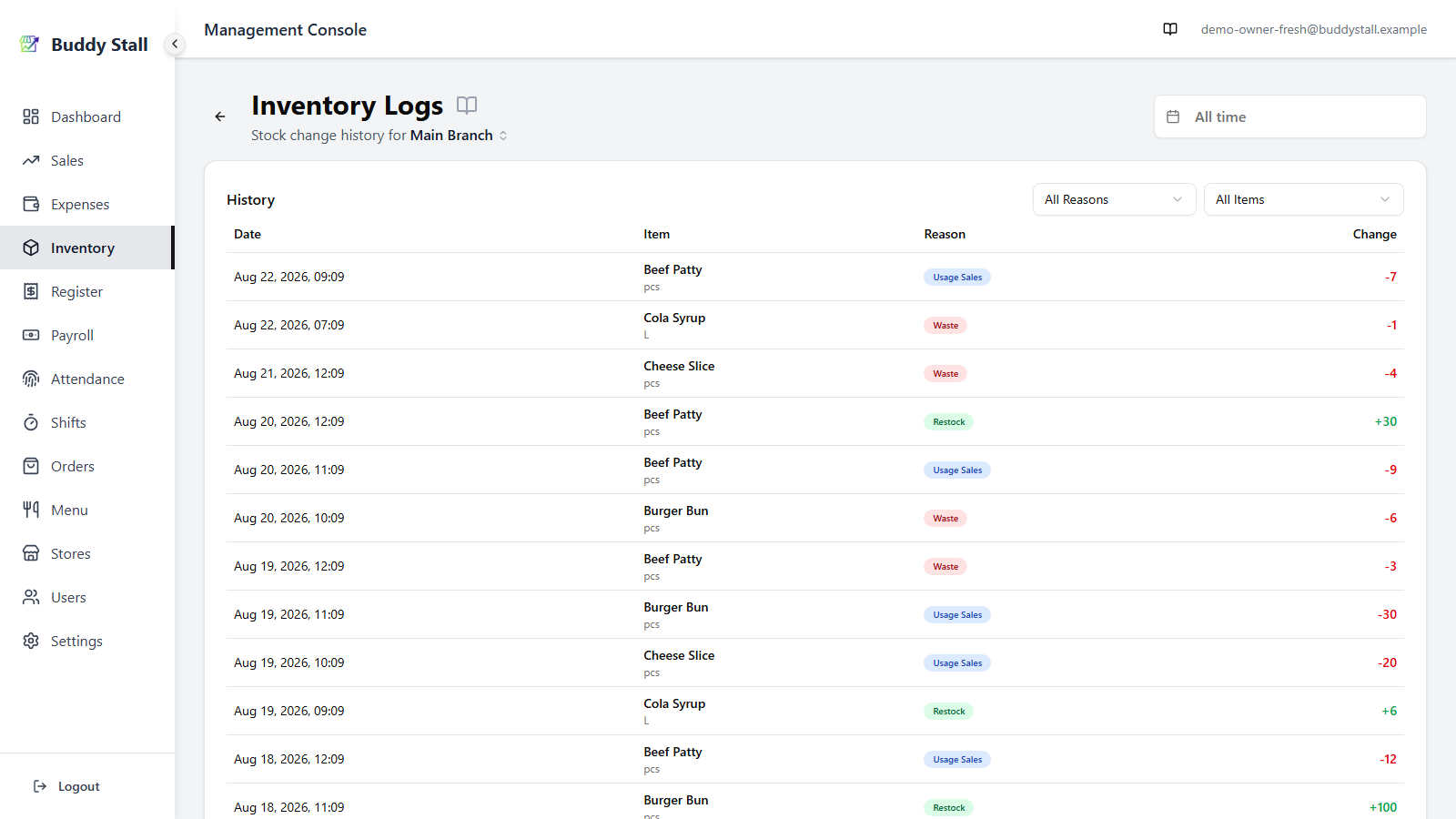
Left alone the log lists everything, newest first — which is what you want when something looks off and you don't yet know where. Once you do know what you're after, three controls narrow it: a date range, a Reason, and an Inventory item.
 123
1231 Date range — top right of the page, reading All time until you set it.
2 Reason — one of the eight reasons above, or All Reasons.
3 Inventory item — a single ingredient, or All Items.
By date
The range opens on All time on purpose. The question the log usually answers is when did this last move, and a "last 30 days" default would hide the answer whenever the answer is "a while ago".
Pick a preset — Today, This Week, This Month and the rest — and it applies immediately. Pick days on the calendar instead and press Apply Filter to commit them. Clear Filter puts the log back to all time.
By reason and by item
Reason lists the eight values from What each reason means above. Inventory item lists every item the store carries, alphabetically. Retired items stay in the list, marked (archived) — their history is still worth reading long after you stopped buying them.
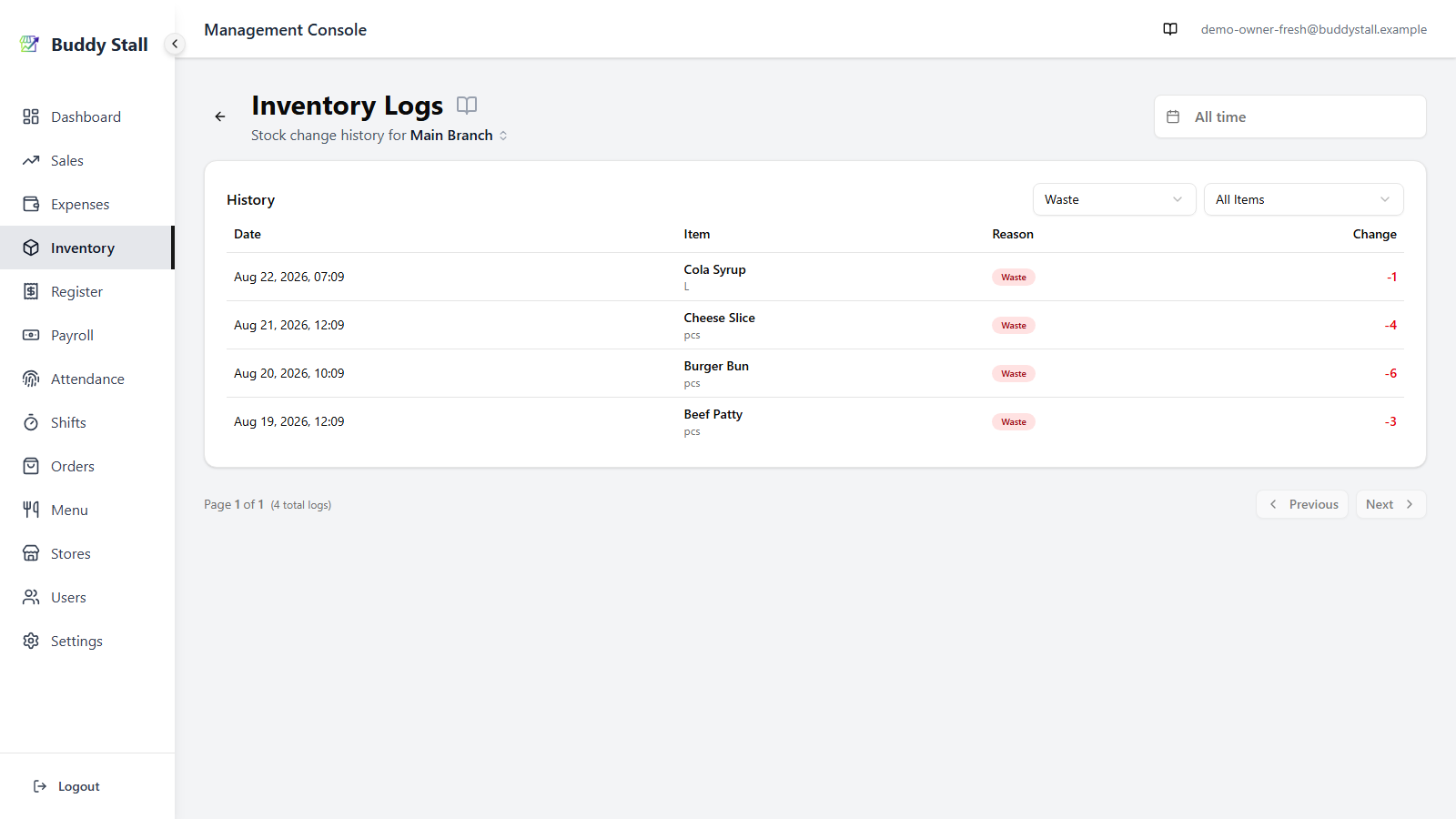
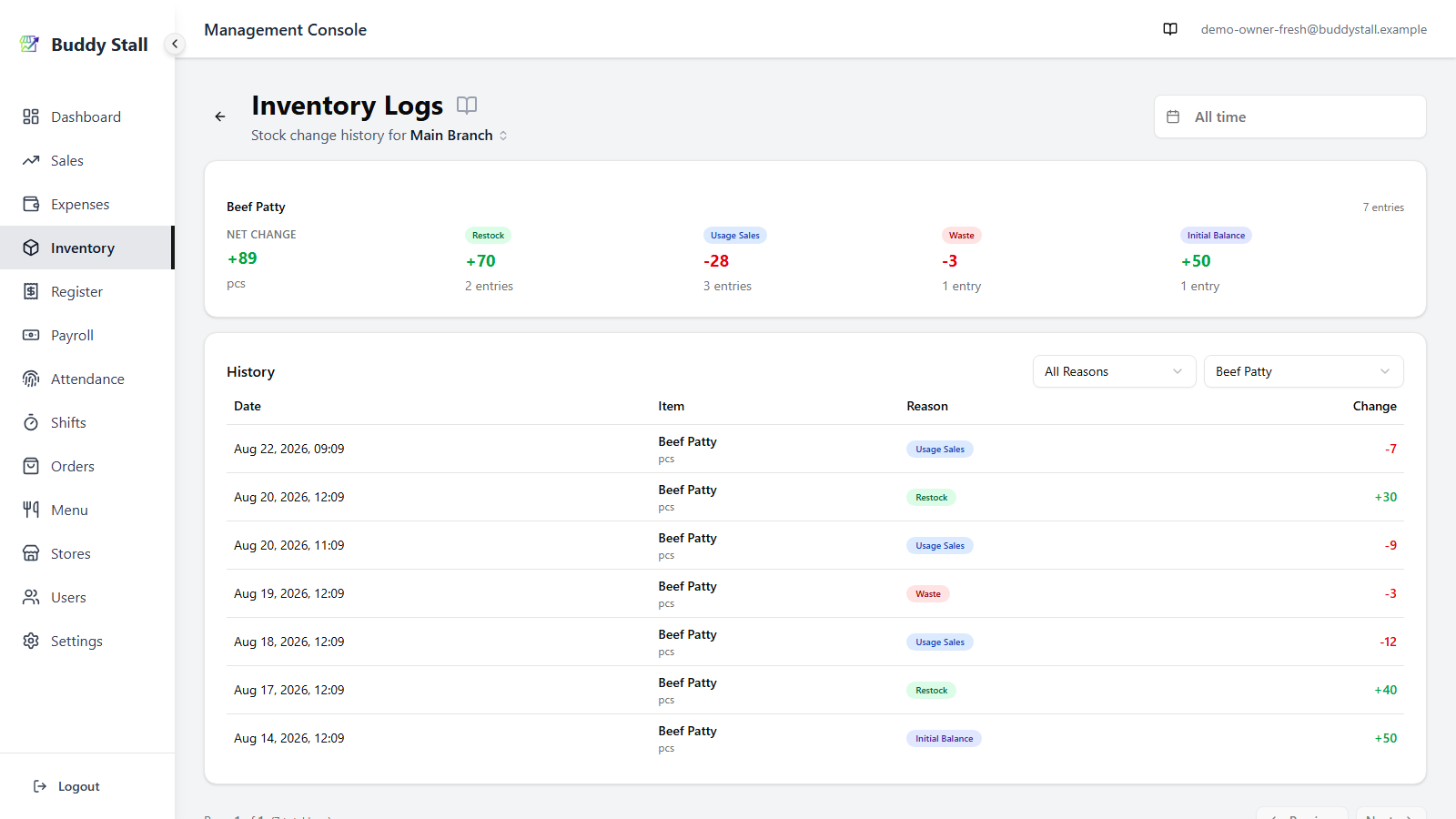
Narrowing to one item does one thing more: a summary card appears above the list, adding up the rows the filter left behind.
 123
1231 The item — pick one in the Inventory item dropdown and the card appears; go back to All Items and it goes away.
2 Net change — everything in view added together, in the item's unit. Green when the stock grew over the filtered window, red when it shrank.
3 One tile per reason — the same coloured pills as the table, each with its signed total and how many entries make it up. This is the quick read: +70 restocked over two deliveries, 28 sold, 3 wasted.
Add the date range on top and the tiles answer a month at a time: waste for July, restocks for July, sales usage for July, all in the item's own unit.
Per-item report history
Each item also carries its own report history — the trail of stocktakes that have reset its count over time. Open it from the clipboard View History icon on the item's row in the store inventory.
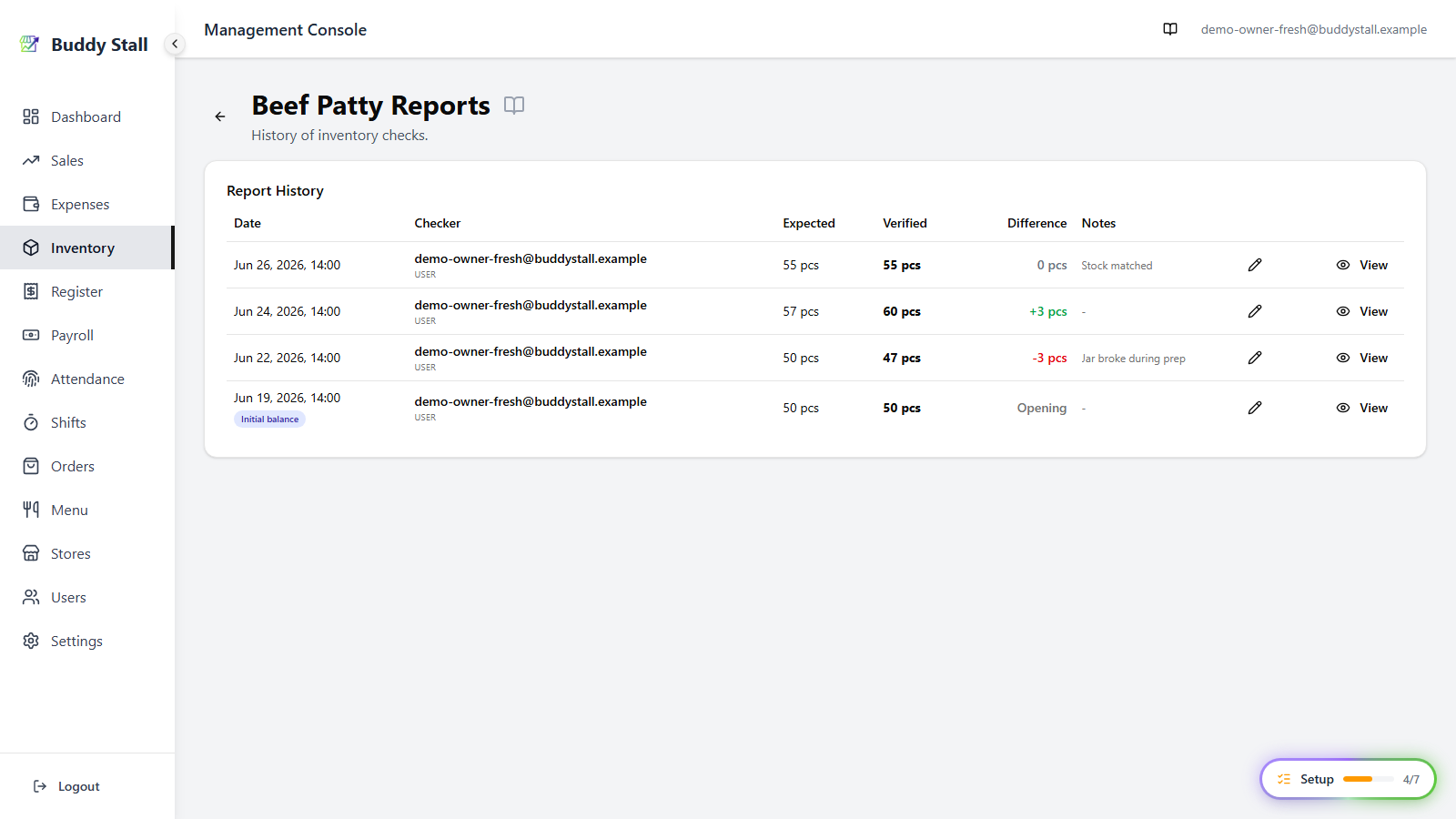 1234567
1 Date — when the stocktake was submitted. The oldest entry is the Initial balance (the establishing count), badged as such and shown as Opening in the Difference column.
2 Checker — who submitted the report: the employee or account name, with its type beneath (e.g. USER for an owner or manager account, or a staff member's name).
3 Expected — the count BuddyStall expected at the time, before the recount.
4 Verified — the quantity actually counted and entered. This becomes the new baseline.
5 Difference — Verified minus Expected, colour-coded: green when you counted more than expected, red when less, grey at zero. If no recipe uses this item, an amber notice sits above the table: sales never deduct it, so a difference appears on nearly every report and is not a signal. See Inventory alerts.
6 Notes — the optional note left with the report ("Jar broke during prep"), or a dash when none.
7 View (owner & manager) — opens the full detail report for that stocktake. Staff don't see this button.
Detail report
Behind the View button is the detail report — a full audit of one stocktake. Where the report history row tells you what the variance was, the detail report shows why: it rebuilds every stock movement in the period and cross-checks the math, so you can tell an honest miscount from an untracked movement. It lives on the Admin dashboard only; staff don't reach it.
The page stacks five cards, top to bottom. Below is a healthy report — every figure reconciles and nothing is flagged:
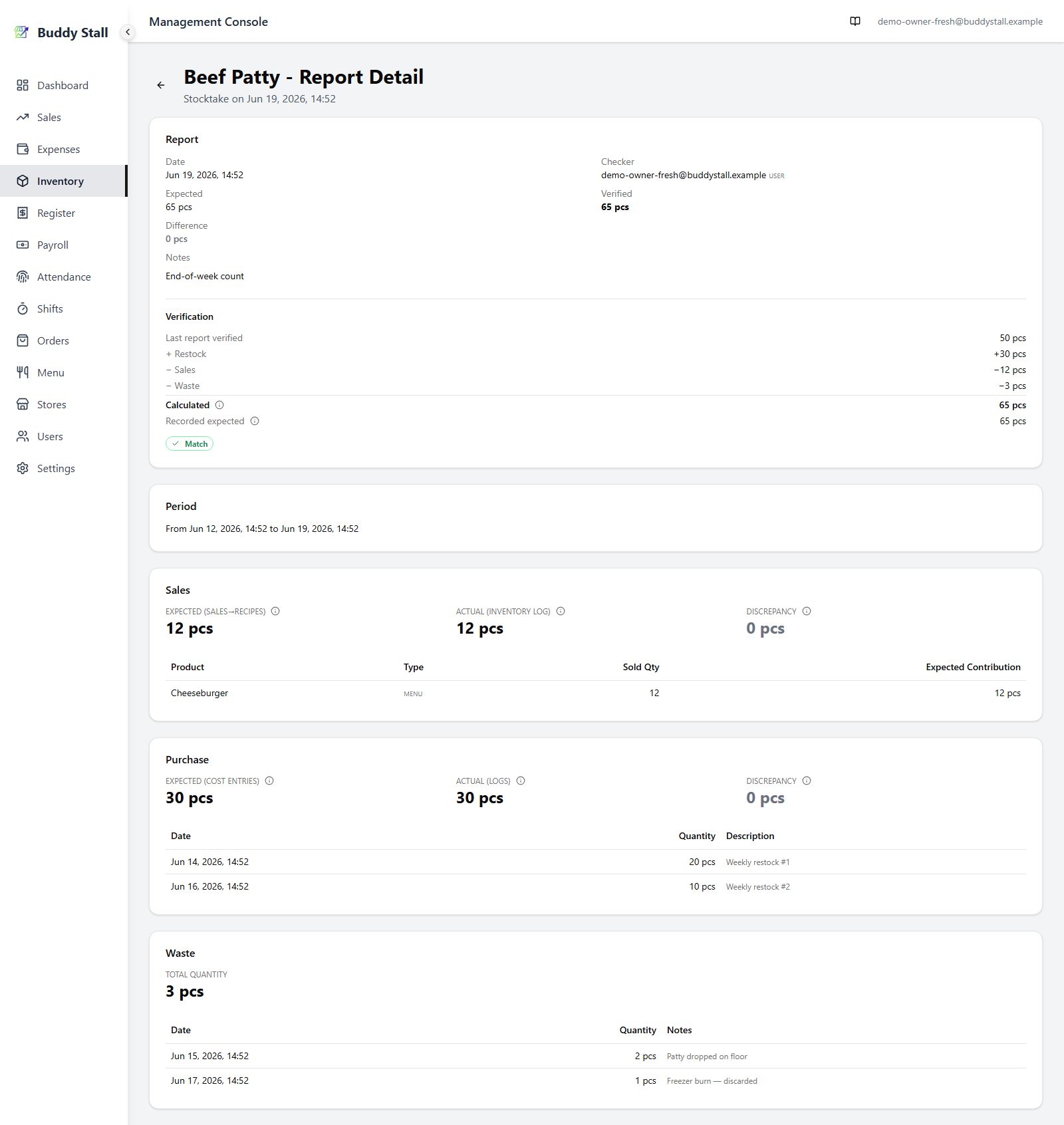 12345
123451 Report — the reconciliation math, plus a Match / Mismatch result saying whether the expected figure can be trusted.
2 Period — the date window every other card is measured over.
3 Sales — what the recipes say sales should have used, against what was actually deducted.
4 Purchase — what was restocked on paper, against what actually landed in stock.
5 Waste — the total discarded in the period.
Each card in detail below.
① Report card
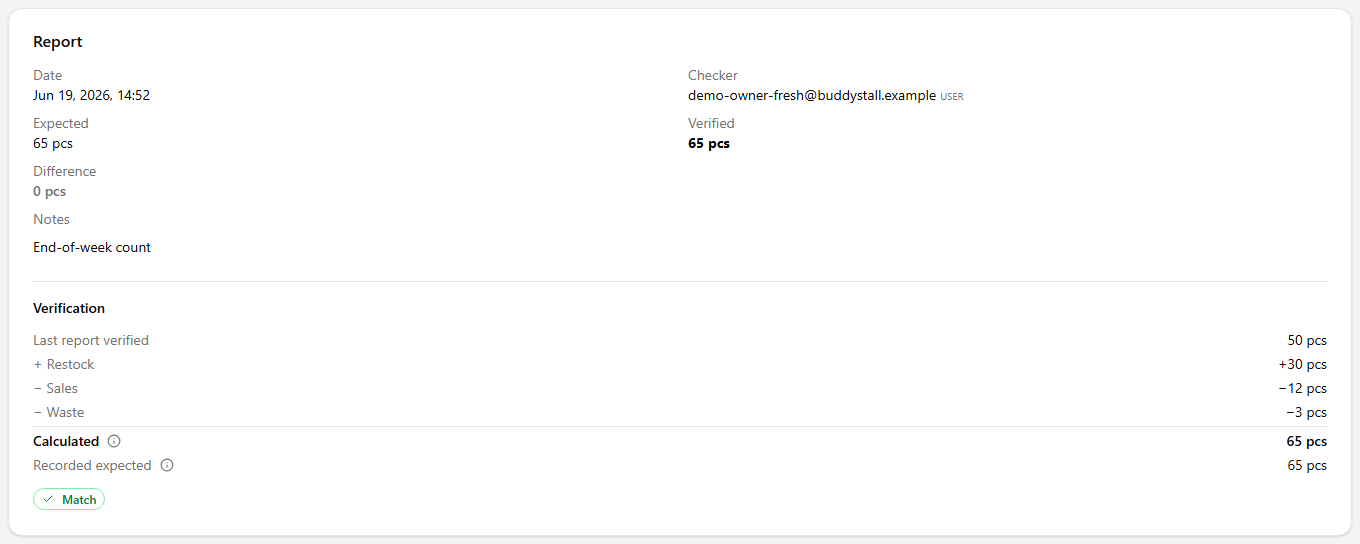 1234
12341 Summary — Date, Checker, Expected, Verified, Difference, and Notes, repeating the report-history row you came from.
2 Verification breakdown — rebuilds the stock from the previous baseline: Last report verified + Restock − Sales − Waste = Calculated.
3 Recorded expected — the expected value saved on the check at the moment it was submitted.
4 Match / Mismatch — compares ② Calculated against ③ Recorded expected.
Normal — Match. When the two agree the badge is green: the expected figure is trustworthy, so the only thing left to explain is the physical Difference you counted on the shelf.
Abnormal — Mismatch. A red badge with the signed gap (e.g. +3 pcs)
means ② and ③ diverge. This happens when a stock movement lands after
the check was submitted — most often an offline operation (a sale,
refund, or waste logged on the POS while offline) that only syncs to
inventory once the device reconnects, after the stocktake was already
taken. A movement back-dated into the period later does the same thing.
Either way, the expectation saved at submit time no longer reflects the
full history.
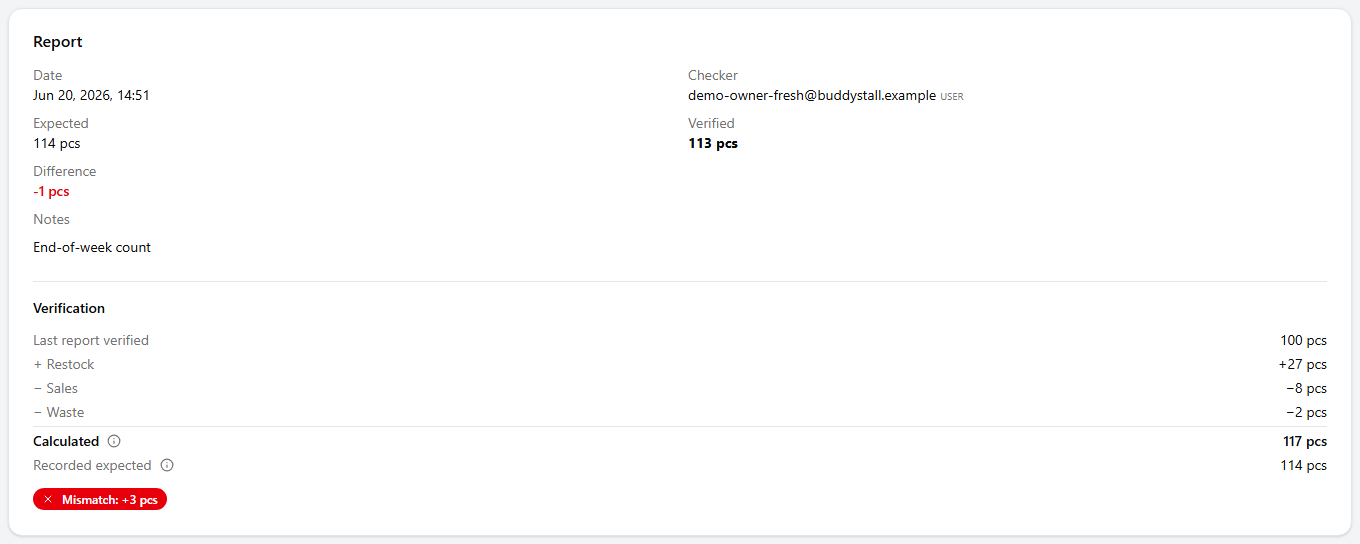
The Difference at the top of the card was measured against Recorded
expected — the figure saved when the check was submitted. On a
Mismatch that figure is out of date (the late movement wasn't counted
yet), so Calculated is the more reliable expectation. Re-judge the
real variance as Verified − Calculated, not the Difference shown. In
the report above that's 113 − 117 = −4 pcs — a bigger shortfall
than the −1 Difference first suggests.
② Period card
The simplest card — the window every figure above and below is measured over. It runs from the previous stocktake to this one.

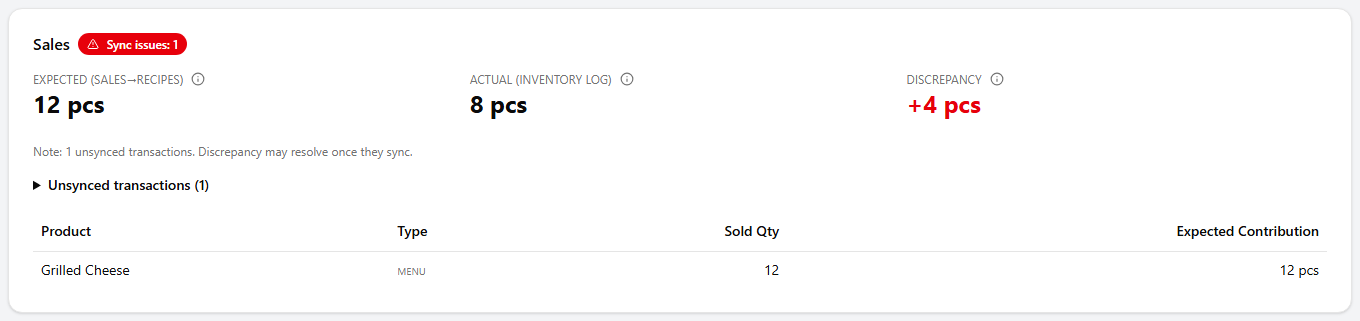
③ Sales card
 1234
12341 Expected (sales→recipes) — what the recipes of everything sold in the period add up to.
2 Actual (inventory log) — what sales actually
removed from stock, via usage_sales / refund logs.
3 Discrepancy — ① Expected minus ② Actual.
4 Product breakdown — each item sold: its type (product / add-on, with a combo badge when sold inside a set), Sold Qty, and Expected Contribution.
Normal — Discrepancy 0. Sales consumed exactly what the recipes predict.
Abnormal — non-zero Discrepancy. Usually a transaction that hasn't synced to inventory yet — a Sync issues badge appears on the card title and the unsynced receipts are listed below — or a recipe changed after a sale. Pending sales usually clear it once they sync. While it's open, this gap is part of what throws ① off — use the figure here to re-judge the report's Difference against Calculated.
④ Purchase card
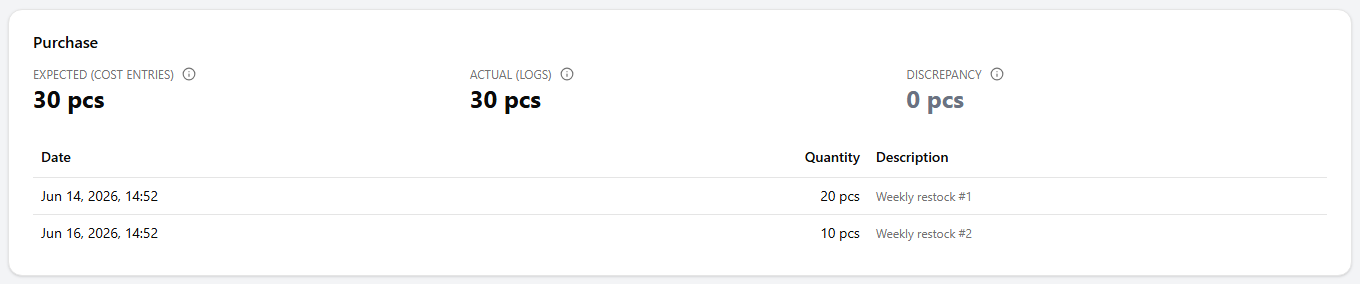 1234
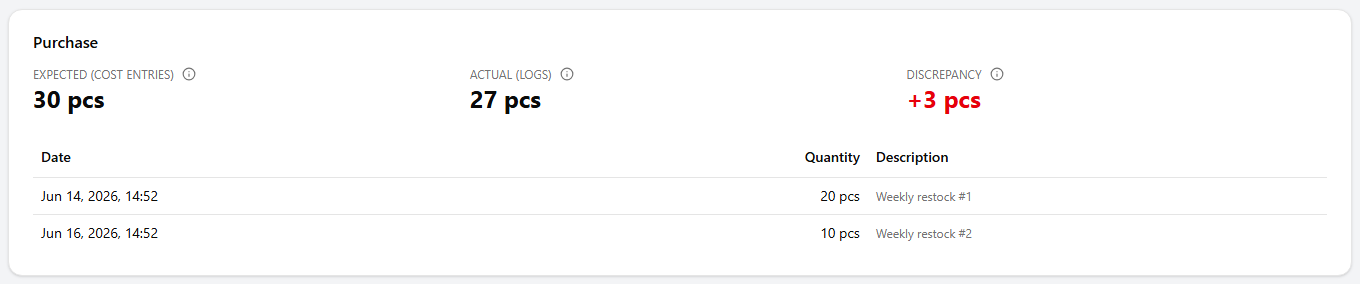
12341 Expected (cost entries) — quantity registered through cost entries (purchases and order receipts) in the period.
2 Actual (logs) — quantity actually added to stock by
restock logs.
3 Discrepancy — ① Expected minus ② Actual.
4 Entries — each purchase entry: Date, Quantity, and Description.
Normal — Discrepancy 0. What you paid for is what landed in stock.
Abnormal — non-zero Discrepancy. A cost entry with no matching restock log, or a restock recorded without a cost entry behind it. Reconcile the two so the ingredient's cost and its stock stay in step. Like Sales, this gap drives the Mismatch in ① — use it to re-judge the report's Difference against Calculated.
⑤ Waste card
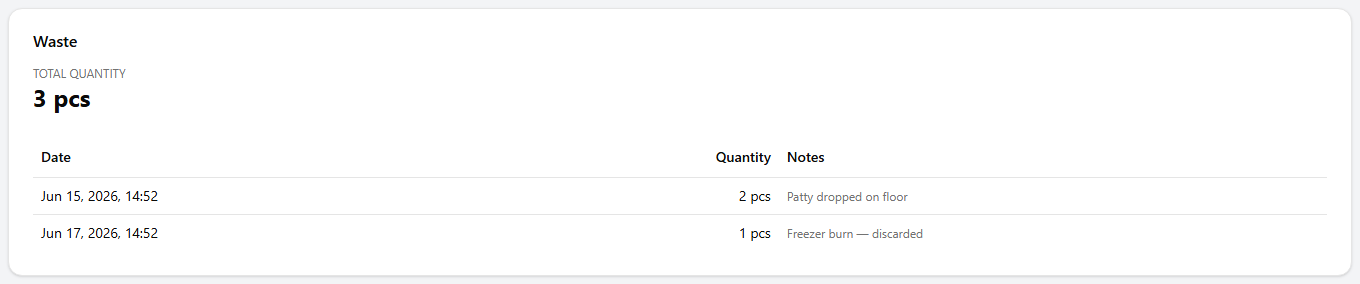 12
121 Total Quantity — everything discarded in the period.
2 Entries — each waste log: Date, Quantity, and the Notes left when it was logged.
There's no reconciliation check here — waste is a straight tally that feeds the − Waste line of ① the Report's Verification math.
Read next
How to stocktake
Submit a report and reset the count — the source of every row in the report history.
Logging waste
Where the waste entries in the log come from — spoilage and spills recorded as they happen.
Inventory overview
How stock is tracked across master and store, and every event that moves the count.