
Franchise ordering
This guide walks through a franchise order end to end — buying stock from your franchisor's central stockhouse or an approved partner supplier, rather than from one of your own suppliers. The steps mirror a normal purchase order; the difference is that a franchise order is a hand-off between you and the Franchisor, so it passes through more statuses on its way in.
For the why — the shared pipeline, what each status means, and how completing an order posts the delivery fee — see Purchase from Franchisor. For the plain-supplier loop these steps build on, see Place & receive orders.
1. Prerequisite: line up your franchise sources
A franchise order needs a franchise source on your supplier list: the stockhouse (added automatically on connect) or an approved partner supplier (request per partner, franchisor approves). Setting these up is covered in Managing suppliers.
2. Open the Orders page and pick a store
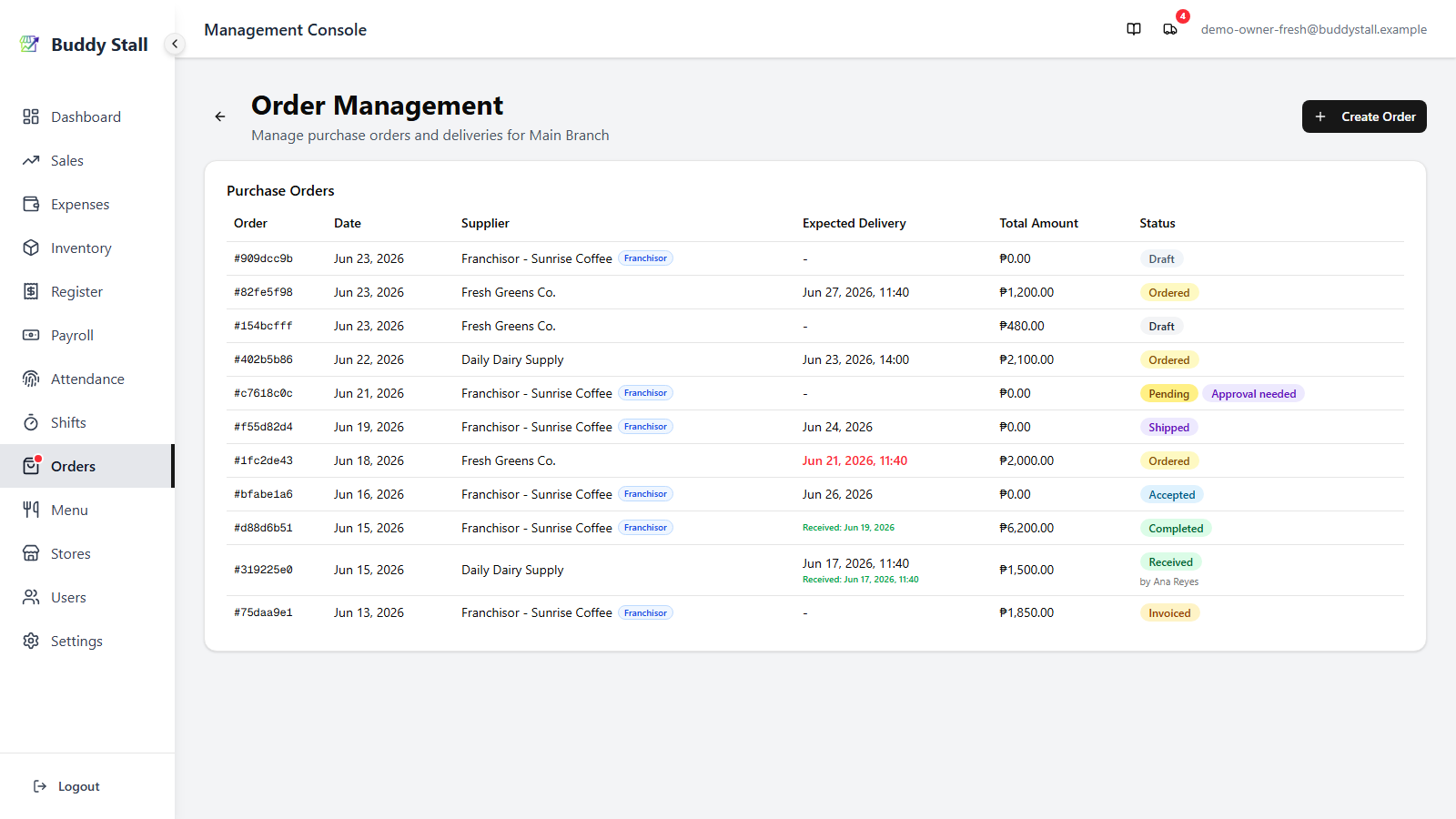
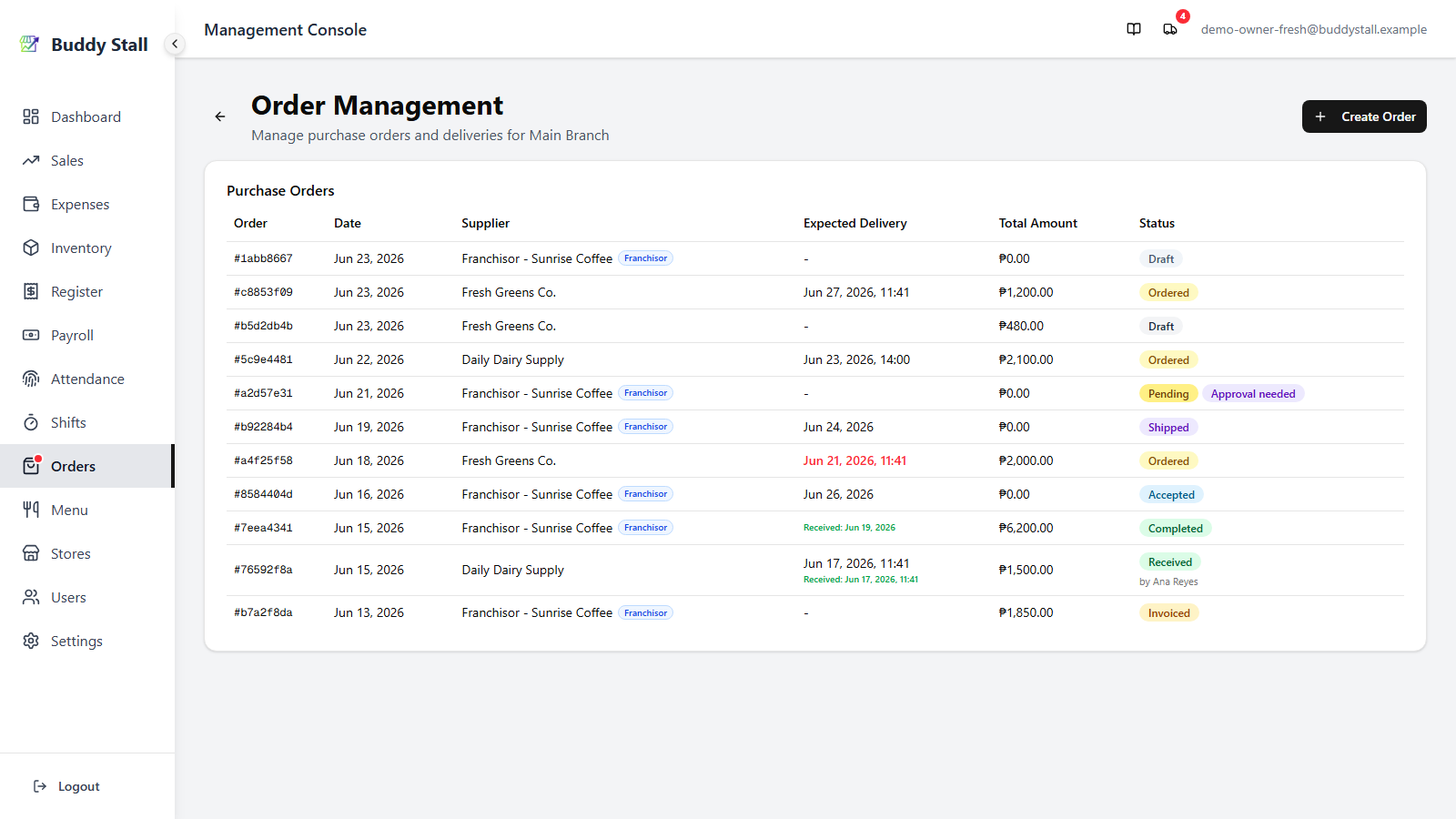
From the admin sidebar open Orders and pick the store you're ordering for — exactly as for a normal order (see Place & receive orders). The store's order list mixes plain and franchise orders together; franchise ones are told apart by their status (next section).
3. Create a franchise order
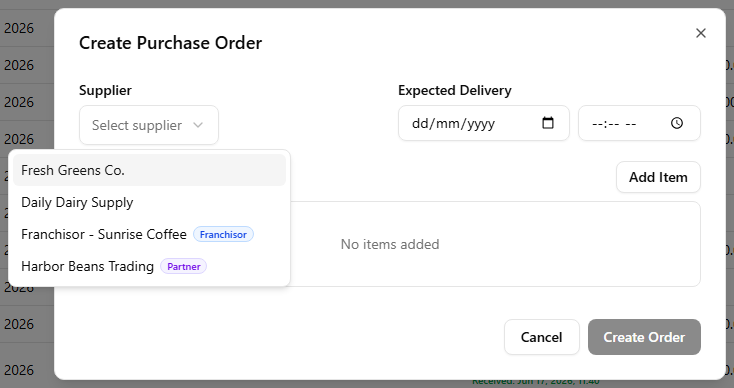
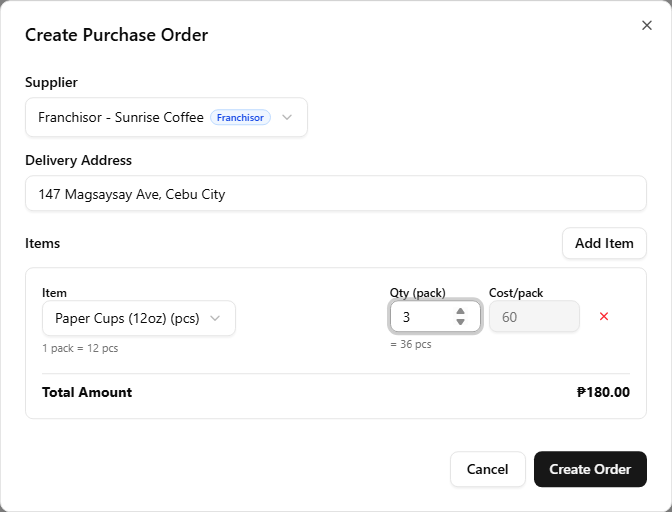
Click Create Order in the top right to open the Create Purchase Order dialog.
3.1 Pick a franchise source as the supplier
In the Supplier picker, the stockhouse and any approved partners sit alongside your own suppliers, each marked with a franchise badge. Pick one and the dialog switches to a franchise order, which follows the hand-off rules below.
3.2 Delivery address
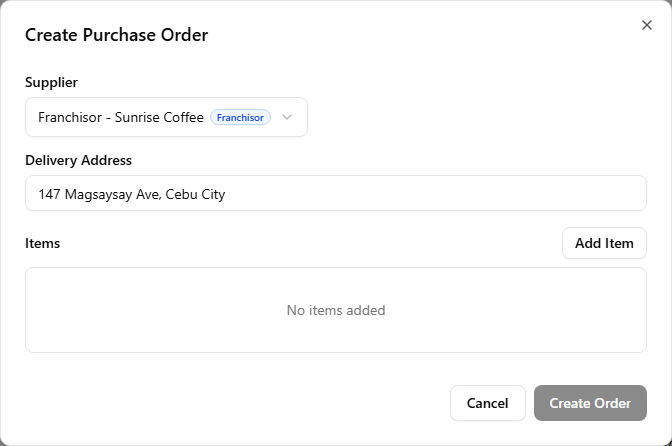
Picking a franchise source also reveals a Delivery Address field, pre-filled from the store's saved address so the franchisor (or partner) knows where to send the goods. It's editable per order — change it for a one-off drop-off without touching the store's own address.
3.3 Add items
Click Add Item for each line and pick the item from the source's catalogue. Adding, removing, and the running Total Amount all work as on a normal order (see Place & receive orders) — with one difference: the unit price is fixed by the seller. The Cost field is filled in from the price the franchisor (or partner) set for that item and is read-only — you can't edit it, so it always matches their price list.
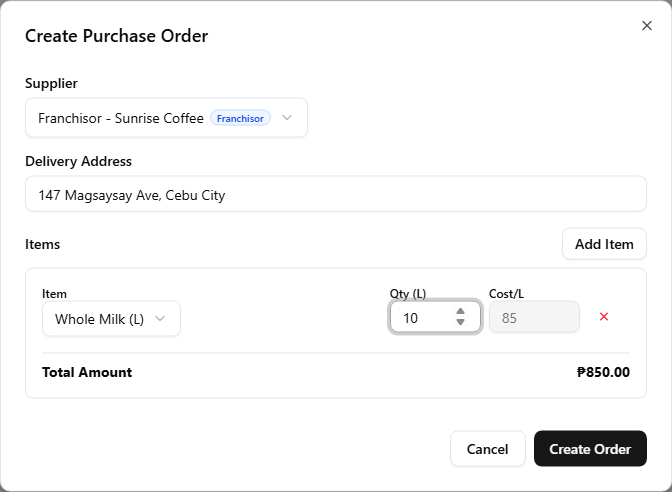
Franchise items are bought in the unit the franchisor or partner sells them by — a pack, case, and so on — not in the individual stock unit you keep on the shelf. So each line works in that order unit:
- The item shows the conversion, e.g. 1 pack = 12 pcs.
- The Qty field is labelled with the order unit (Qty (pack)), and as you type it shows the stock-unit equivalent — e.g. 3 → = 36 pcs. That stock-unit amount is what restocks your inventory on receipt.
- The price follows suit, shown per order unit (Cost/pack).
There's no per-line stock-unit toggle here — unlike a plain supplier order, where you can switch a line between the order unit and the stock unit, a franchise order is always placed in the order unit the source set.
3.4 Save the order as a draft
Click Create Order. A franchise order is saved as a Draft first — your working copy, kept on your side and not yet sent to the Franchisor. It appears at the top of the order list with a Draft status. (A plain order starts as a Draft too, but you place it by simply switching its status to Ordered; a franchise draft is instead handed off with Submit Order, below.)
3.5 Edit the draft, then submit to place the order
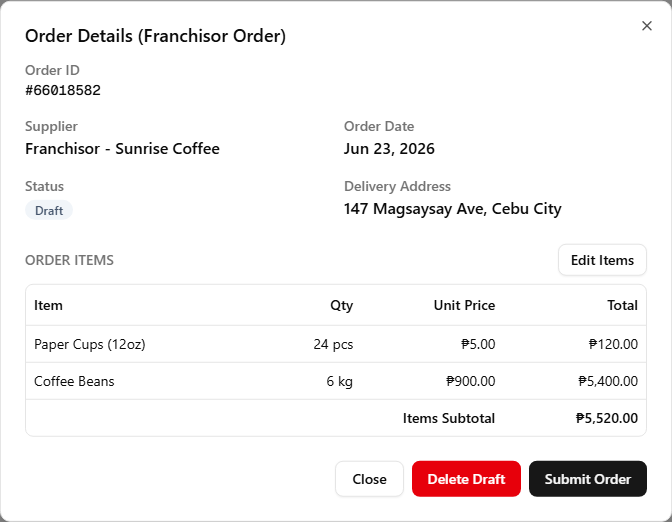
While the order is a Draft, nothing has been sent — open it from the list and it's yours to finalise:
- Edit Items — change the items and quantities. Prices refresh to the franchisor's current list each time you open the draft.
- Delete Draft — discard it entirely.
When it's ready, click Submit Order and confirm. That's the moment the order is actually placed with the Franchisor: it leaves your side and enters their queue as Pending, waiting for them to confirm — and from here on it follows the hand-off below.
4. While the Franchisor handles it
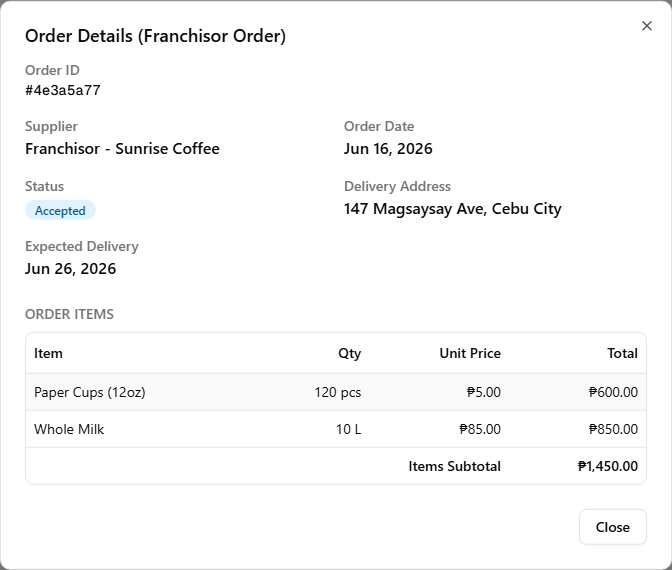
After you submit, the order moves through the Franchisor's side — Pending → Accepted → Shipped — and both sides see the same status, so you can always tell where it stands. What each status means is laid out in Purchase from Franchisor. While it's still on their side, there are two things you may need to do.
Respond to a quantity change
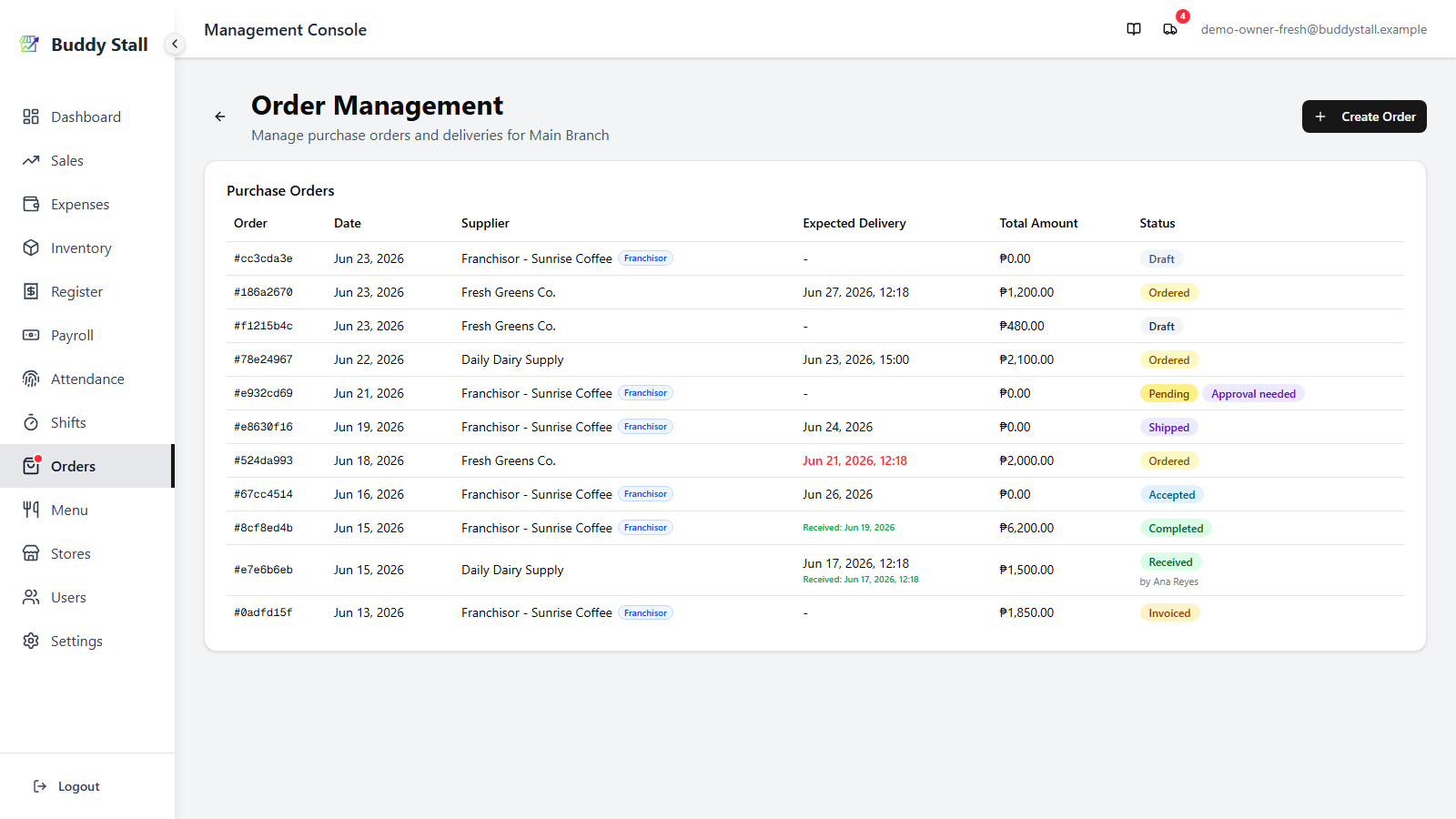
The Franchisor can't always fill an order exactly as you placed it — an item may be short, or only sell in different multiples. Rather than reject it, while the order is Pending they can propose revised quantities and send it back for your sign-off. Until you respond the order is held: it can't be accepted, and an Approval needed badge sits beside its Pending status on the order list.
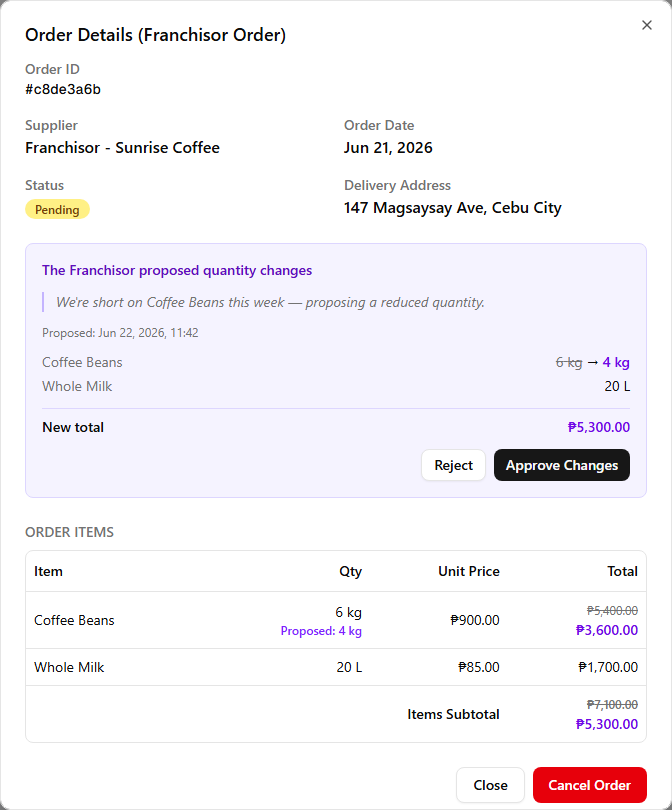
Open the order to see the proposal panel, which lays out:
- A per-line change — your original quantity struck through, the Franchisor's proposed quantity beside it. A proposed 0 means that line is dropped once the order is accepted.
- A note from the Franchisor, where they've left one, explaining the change.
- The new total the revised quantities add up to.
Then make the call:
- Approve Changes — the proposed quantities replace yours and the total updates. The order stays Pending on the new amounts, ready for the Franchisor to accept and ship.
- Reject — your original quantities stand and the order stays Pending unchanged. You can add a short reason for the Franchisor before confirming.
Cancel before it's accepted
You can cancel a franchise order only while it's still Pending — before the Franchisor accepts it (an unsubmitted Draft you simply delete). Once they mark it Accepted, it's committed on their side and you can no longer cancel it from yours; from there it runs through to delivery, and the only way to close it out is to receive it on arrival. (After acceptance, only the Franchisor can still cancel the order.)
5. Receive it when it arrives
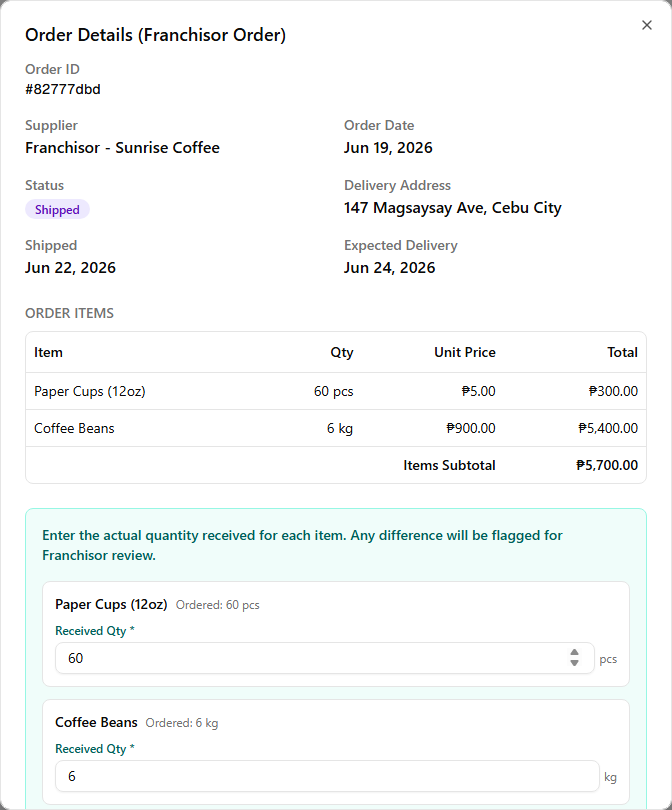
Once the Franchisor ships, the delivery surfaces on the truck badge and you receive it just like any other order — staff or admin, from the portal header. The general walkthrough (truck badge, Delivery Details, who received it, and the delivery date and time) is in Place & receive orders and isn't repeated here. When everything arrived as ordered, click Mark Received, confirm who received it and when it arrived, and the order flips to Delivered, restocks your inventory, and posts a Material expense, all in one step — the stock movement and the expense both dated to the arrival date and time you entered.
The truck badge is the everyday path, and the only one staff have. Owner and manager have a second one: open the order from the Orders list and receive it straight from its details. That view carries the same Delivery date and Time fields, and records your login name as the receiver — there's no name to pick, since you're signed in as yourself.
Adjust the received quantity
Deliveries don't always match the order. Instead of Mark Received, click Report Discrepancy to open a per-line editor. Each line shows what was Ordered and a Received Qty field pre-filled with that amount — type the actual quantity that arrived (enter 0 for a line that never came), then Confirm Received. From the truck badge that hands you the same Confirm Receipt step as a clean delivery, so a short delivery still records who received it and when it arrived; from the Orders page the Delivery date and Time sit in the panel itself. Two things then follow that are specific to a franchise order:
- The Franchisor reviews the difference. A mismatch is flagged for the Franchisor, who reconciles it when they invoice — you're billed for the quantities you actually received, not the ones ordered. The order can show a Discrepancy status until that's settled.
- The app follows the received amount. Inventory is restocked, and the Material expense posts, at the received quantity — exactly as on a plain order.
6. After delivery: invoicing and the delivery fee
The last two steps run on the Franchisor's side: they invoice the order (Invoiced) and then close it (Completed). See Purchase from Franchisor for the full picture.
Once the order is invoiced, the delivery fee the Franchisor set appears in the order's details, added to the goods' subtotal for the grand total you're billed.
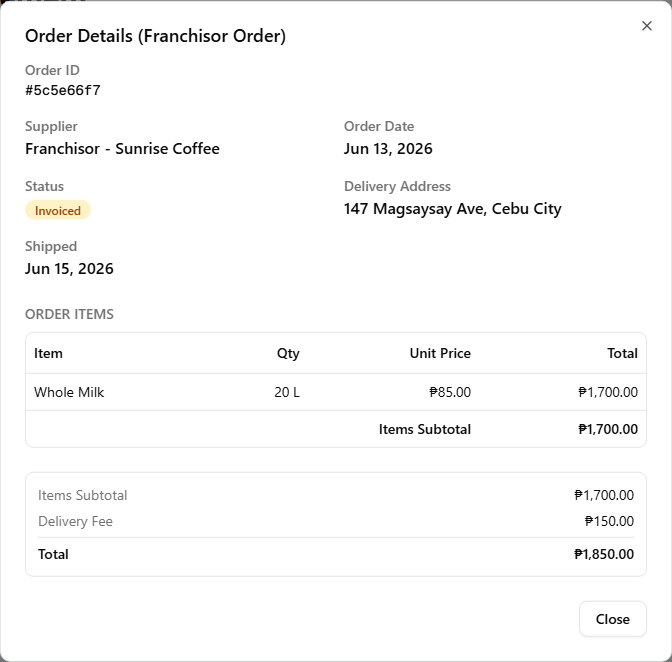
Receiving already settled your stock and the goods' cost; Completed posts the one remaining charge — the delivery fee is filed automatically as a Transportation expense for that store, so it shows up in your expenses with no manual entry. (See Recording expenses for the expense side.)
7. Read the order log
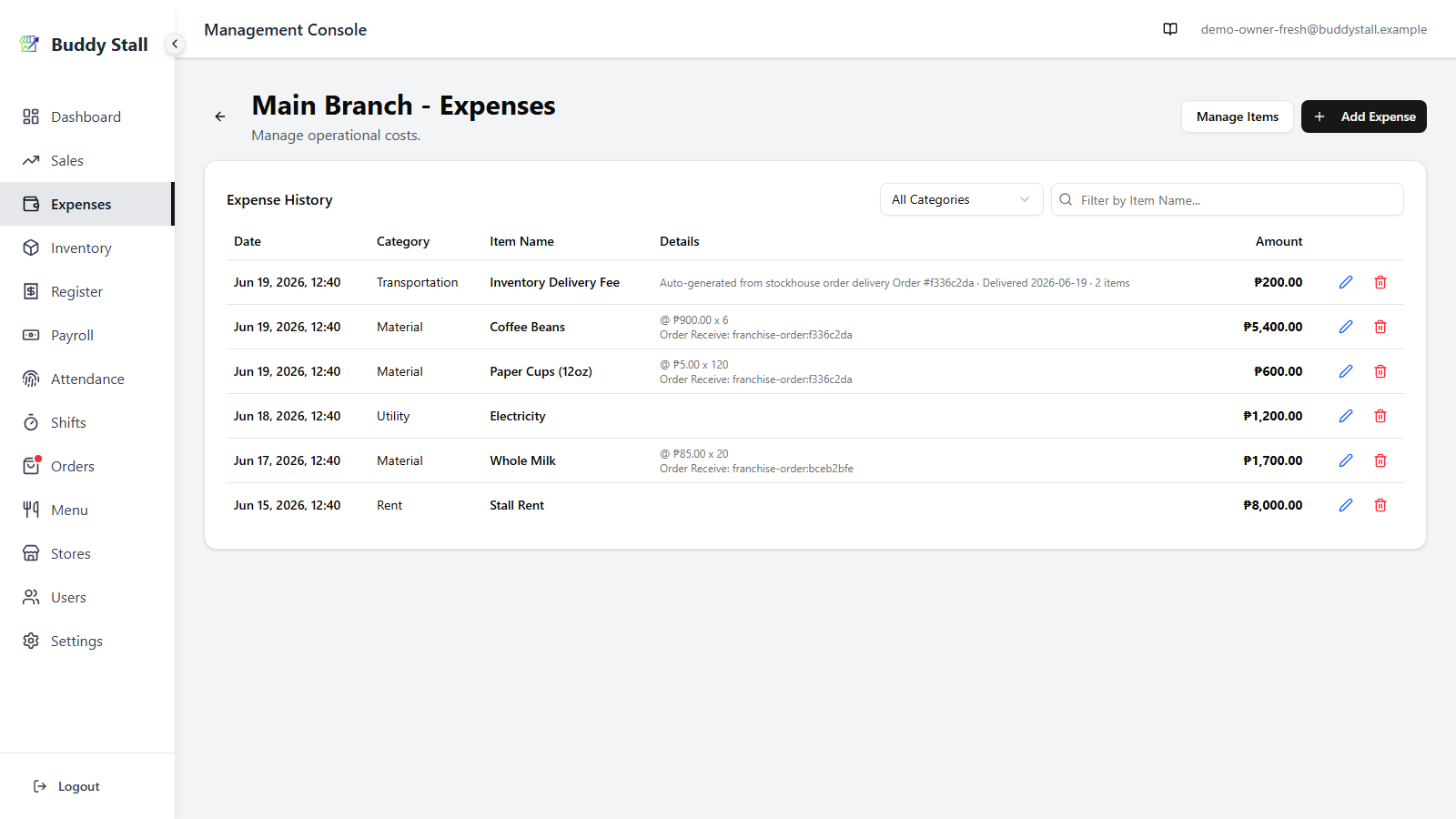
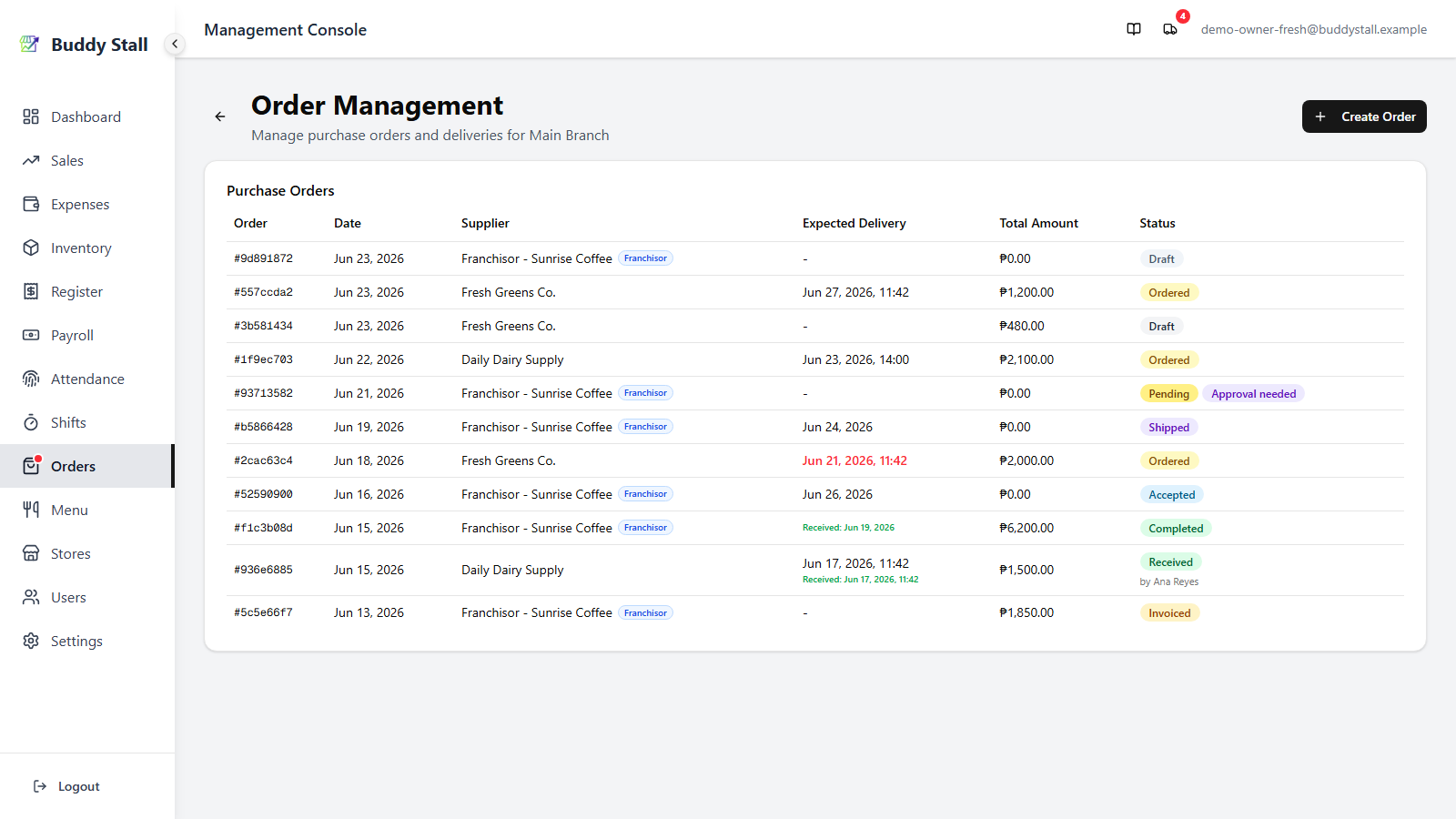
Back on the per-store order list, a franchise order shows its current hand-off status as a status chip — the same set of states described in Purchase from Franchisor, distinct from a plain order's Draft / Ordered / Received / Cancelled. As with any order, an overdue expected delivery shows in red, and a received-by line appears once it lands.
If the Franchisor's account is suspended
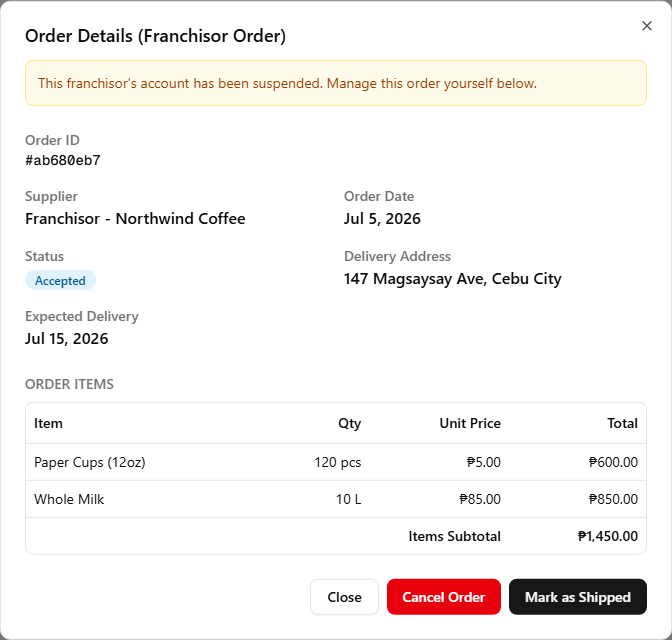
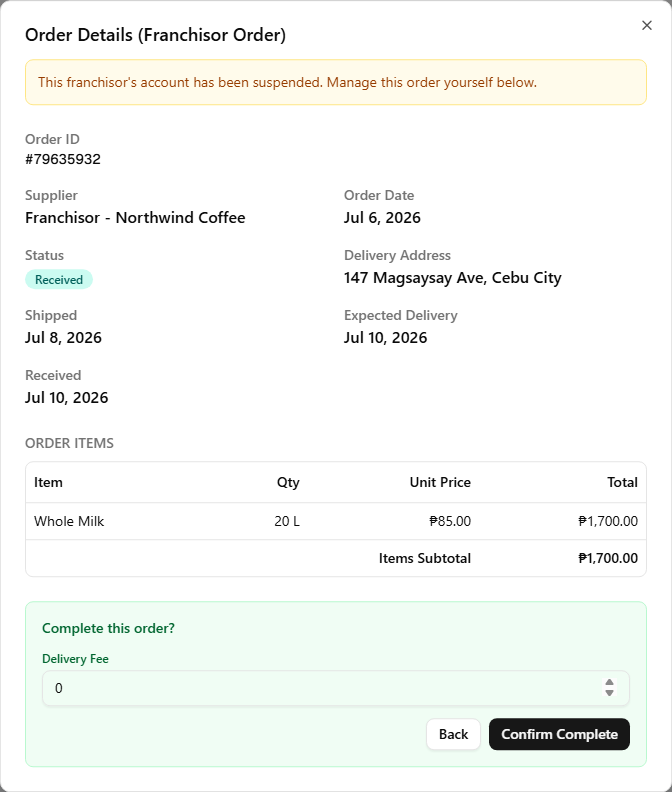
The hand-off above needs the Franchisor there to accept, ship, invoice, and close each order. If their account is suspended, an order in flight would be stranded — so the app lets you drive the remaining steps yourself. Open a Franchisor order and a banner tells you the account is suspended and that you're now managing it; the buttons below change to match. (For the why, see Purchase from Franchisor.)
Ship it yourself
For an order the Franchisor hasn't shipped yet, click Mark as Shipped and enter an Expected Delivery Date. That advances the order to Shipped — the same state the Franchisor would have set — so it's ready for you to receive on arrival.
Receive it
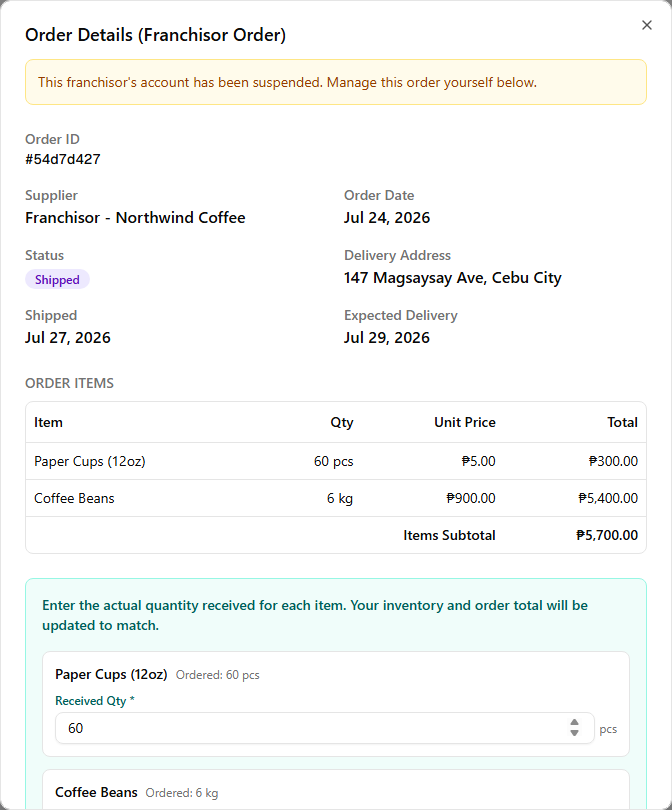
Receiving works exactly as it does normally (see Receive it when it arrives above), with one change: because there's no Franchisor to review a shortfall, the button reads Enter Received Qty instead of Report Discrepancy. Type the actual quantity that arrived per line and confirm — your inventory is restocked and the order total settles to what you received, with no Franchisor reconciliation step.
Complete it
Once received, click Complete Order and enter the Delivery Fee. As with a Franchisor-closed order, the fee posts automatically as a Transportation expense for the store — you just supply the amount the Franchisor would otherwise have set.
You can also Cancel Order on a suspended Franchisor's order even after it was accepted or shipped — wider than the Pending-only cancel that applies while the Franchisor is active, since there's no longer a Franchisor side committed to it.
On a normal Franchisor order the unit price is fixed by the seller's list. While the account is suspended that list may no longer reflect what you pay, so the unit price becomes editable on these self-run orders — you enter the price each line actually cost.
Read next
Purchase from Franchisor
The why behind the steps — the hand-off pipeline, what each status means, and how completing an order posts the delivery fee.
Place & receive orders
The core order flow these franchise orders share — creating, editing, and receiving on arrival.
Managing suppliers
Add the stockhouse and unlock partner suppliers — the sources a franchise order draws from.