
Transferring stock
When you move stock between the stores you run — covering a shortage at one from another's surplus instead of re-ordering — record it here as a transfer. It moves a quantity out of the sending store and into the receiving store in a single step, carrying its cost along with it, so your overall total is unchanged — only where the stock sits.
1. Open the sending store's inventory
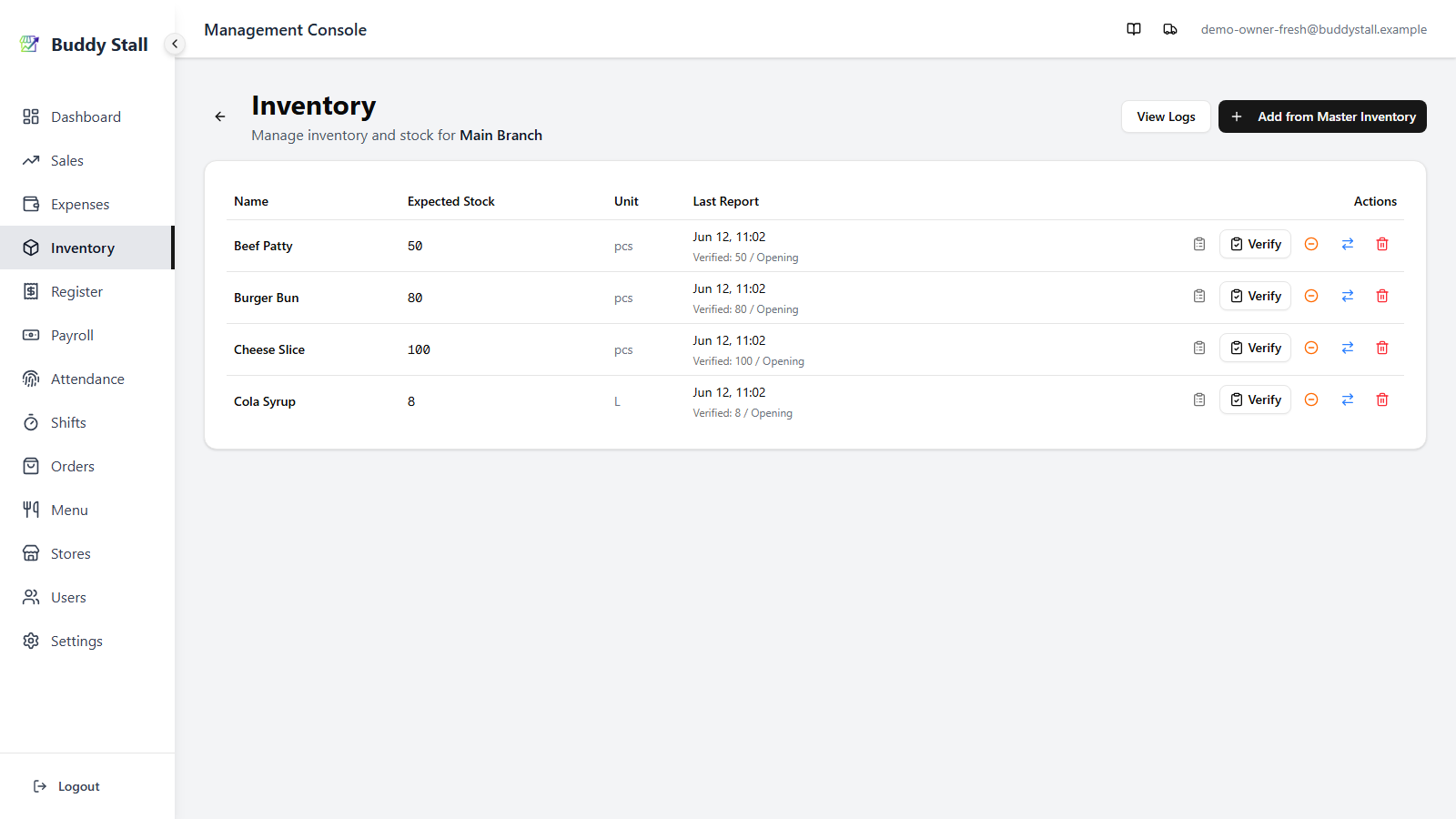
Sign in and open Inventory, then pick the store you want to move stock
out of. The inventory list shows every ingredient that store carries; the
right-hand column on each row holds the actions, including a blue
two-arrows icon (Transfer to Another Store).
2. Open the Transfer dialog and fill it in
Click the Transfer icon on the row for the item you want to move. The dialog opens with the item's name in its title.
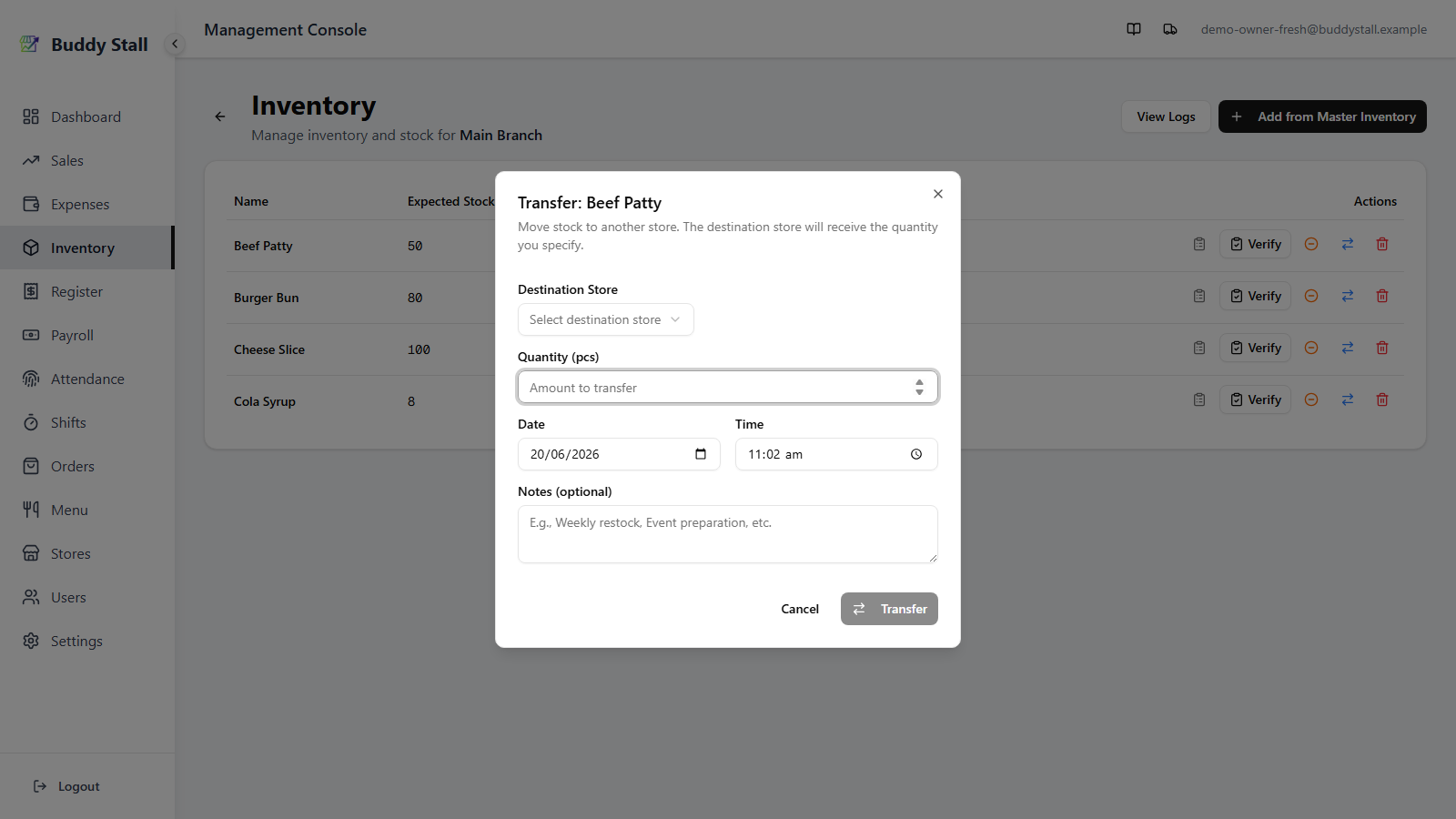
Fill in the four fields:
- Destination Store — the store that will receive the stock. The list shows the other stores you have access to; you can't transfer a store to itself.
- Quantity — how much to move, in the item's unit (e.g.
2 kg,10 pcs). It must be a positive amount, and no more than the sending store currently has on hand. - Date and Time — default to now; change them to back-date a transfer that already happened physically.
- Notes — optional, but a short reason (
Weekly rebalance,Event preparation) makes the entry easier to read later.
3. Transfer and see the result
Click Transfer. In a single step the quantity moves between the two stores — and so does its cost.
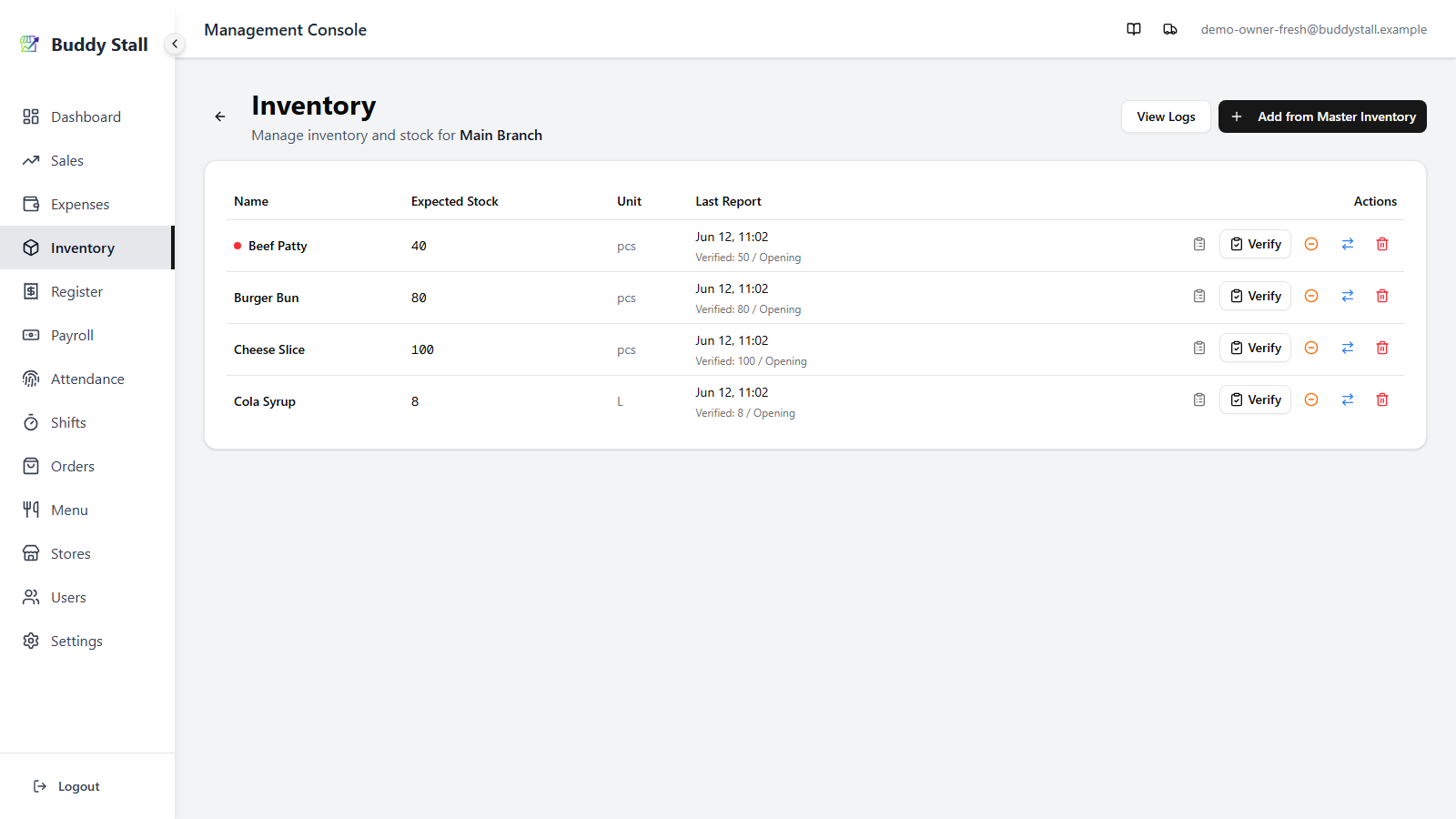
Inventory: the stock moves between the stores
- The sending store's stock drops by the quantity (a
transfer outentry). - The receiving store's stock rises by the same quantity (a
transfer inentry).
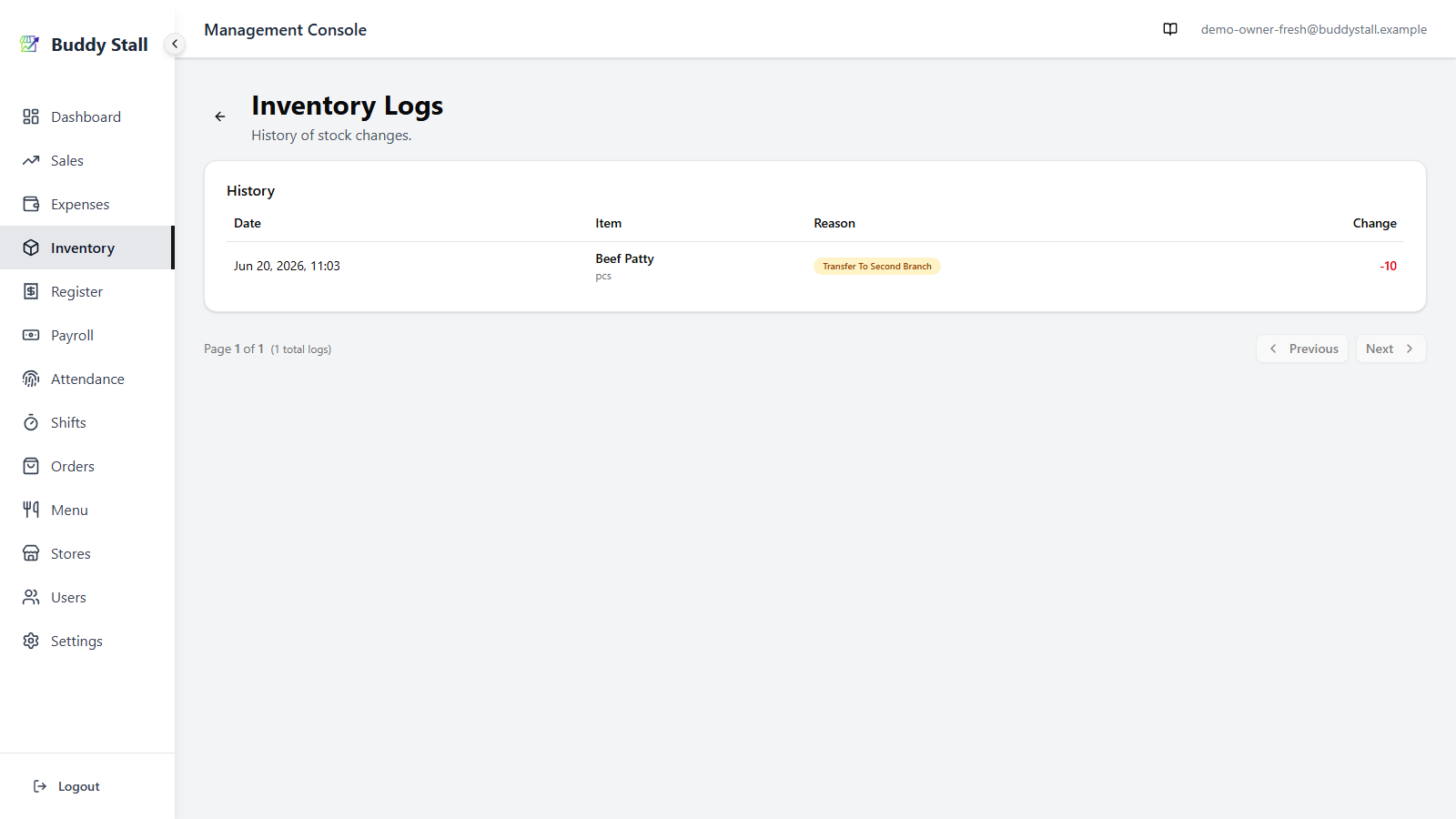
Both sides are recorded, so the move is easy to trace afterwards: the sending store's history shows Transfer to the destination store and the receiving store's shows Transfer from the source store, each tied to the same transfer.
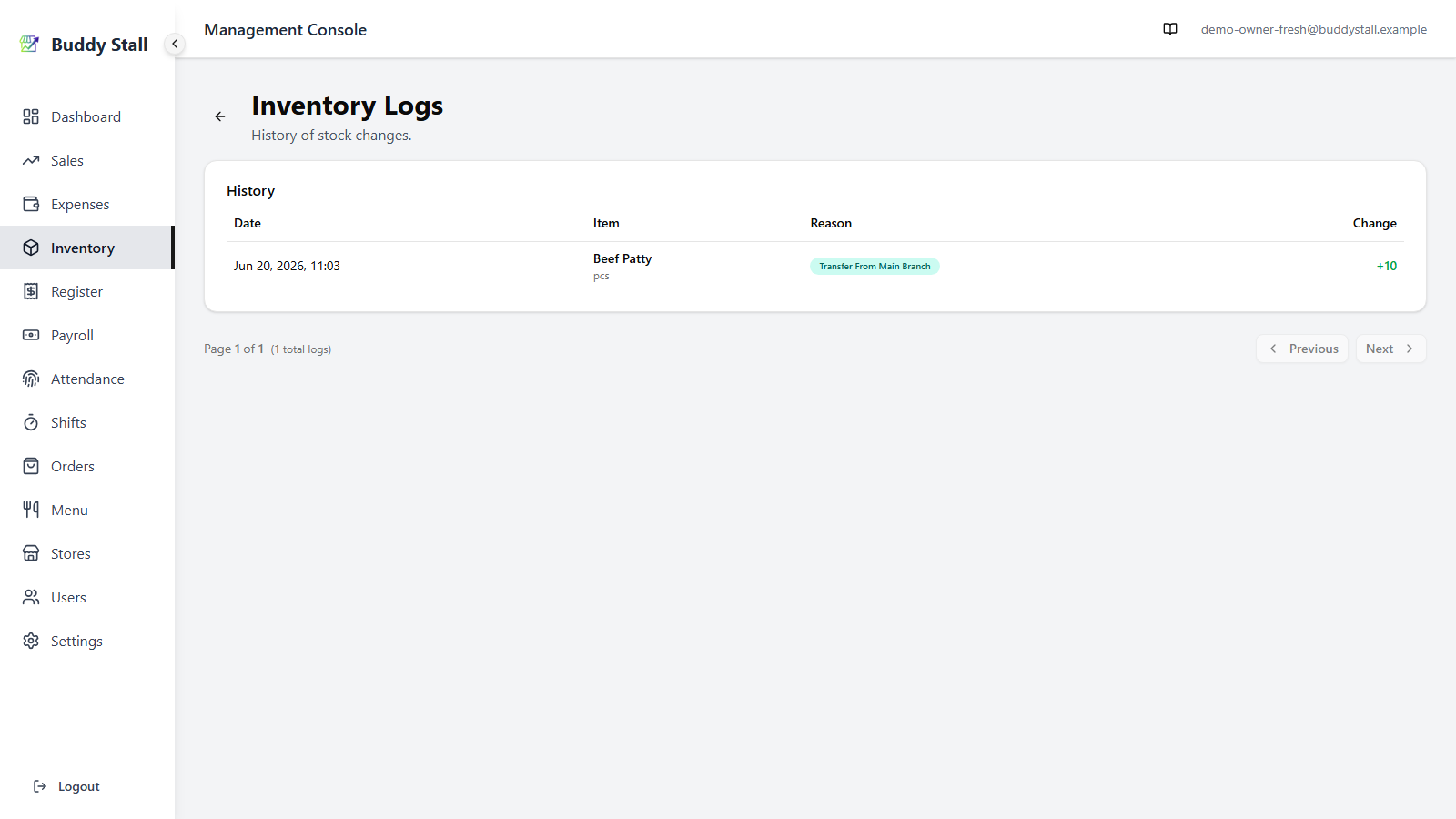
You can't transfer more than the sending store has on hand — BuddyStall does not allow a store's stock to go negative. If you ask for more than is available, the transfer is rejected and you're shown how much there is to move.
If the destination doesn't count the item
Stock can only arrive somewhere that keeps a count of it. Pick a destination that has never registered this ingredient and the dialog says so in amber, with a tickbox:
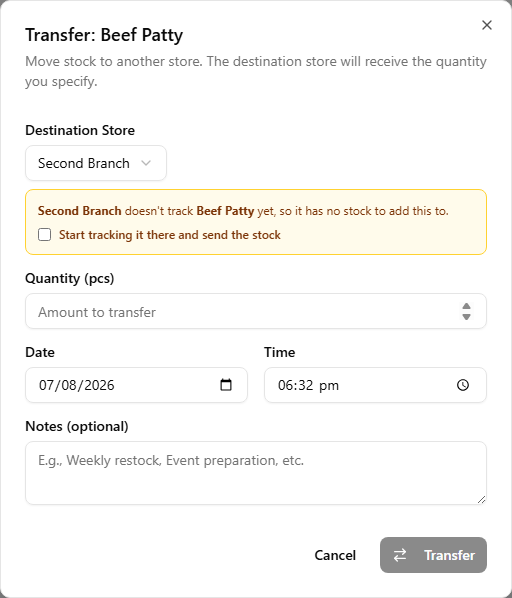
Tick it and the transfer registers the item at the destination and moves the stock in the same step; it lands there as a normal tracked item, starting from the quantity you sent. Leave it unticked and the transfer is refused — that is on purpose, since what a store counts is its own decision and a transfer should not quietly make it for them.
Costs: the value moves with the stock
Two matching Material cost entries are posted at the same time — a negative
one at the sending store (Transfer out to …) and a positive one at the
receiving store (Transfer in from …), each valued at quantity × the item's
Cost per Unit.
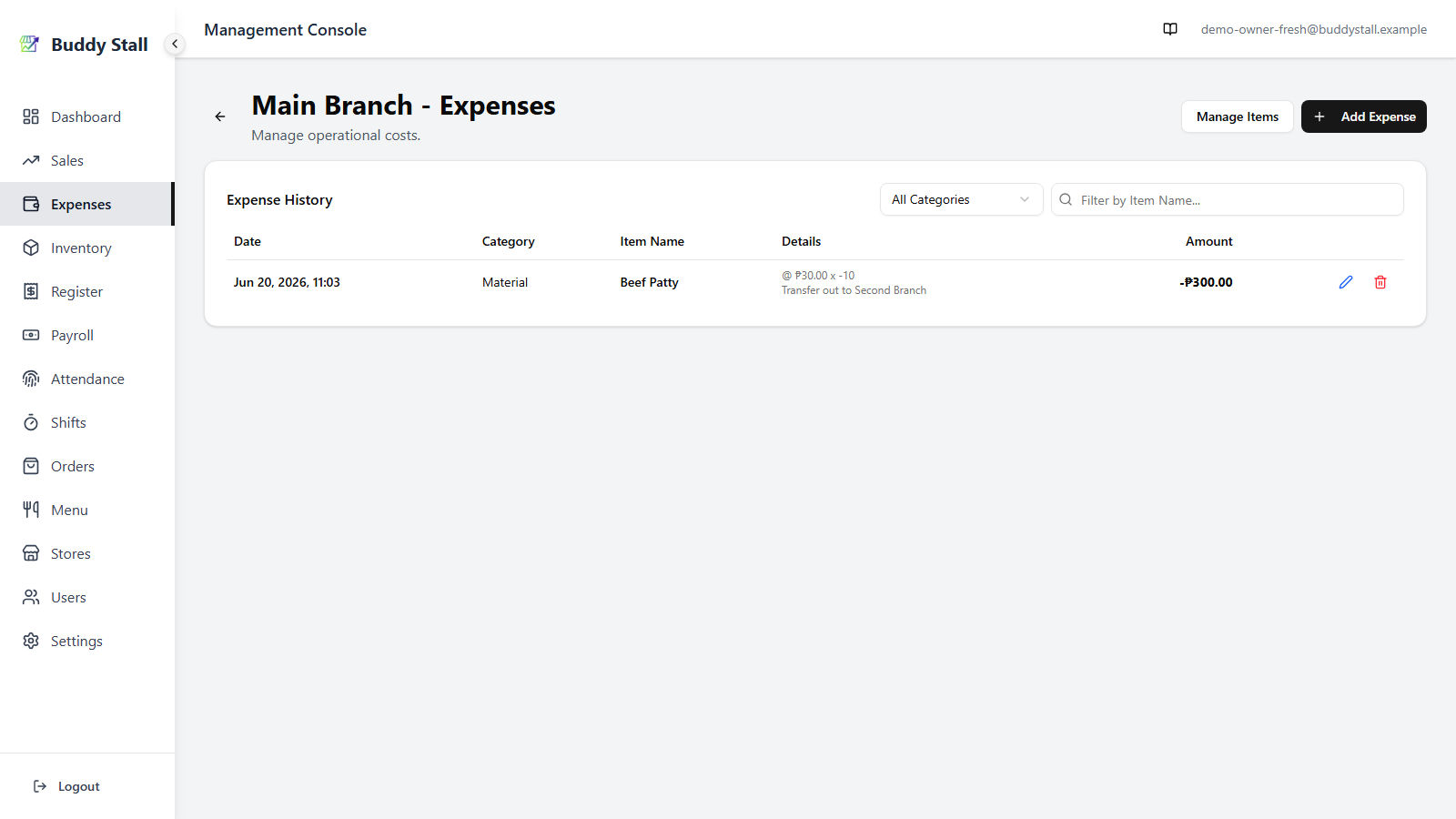
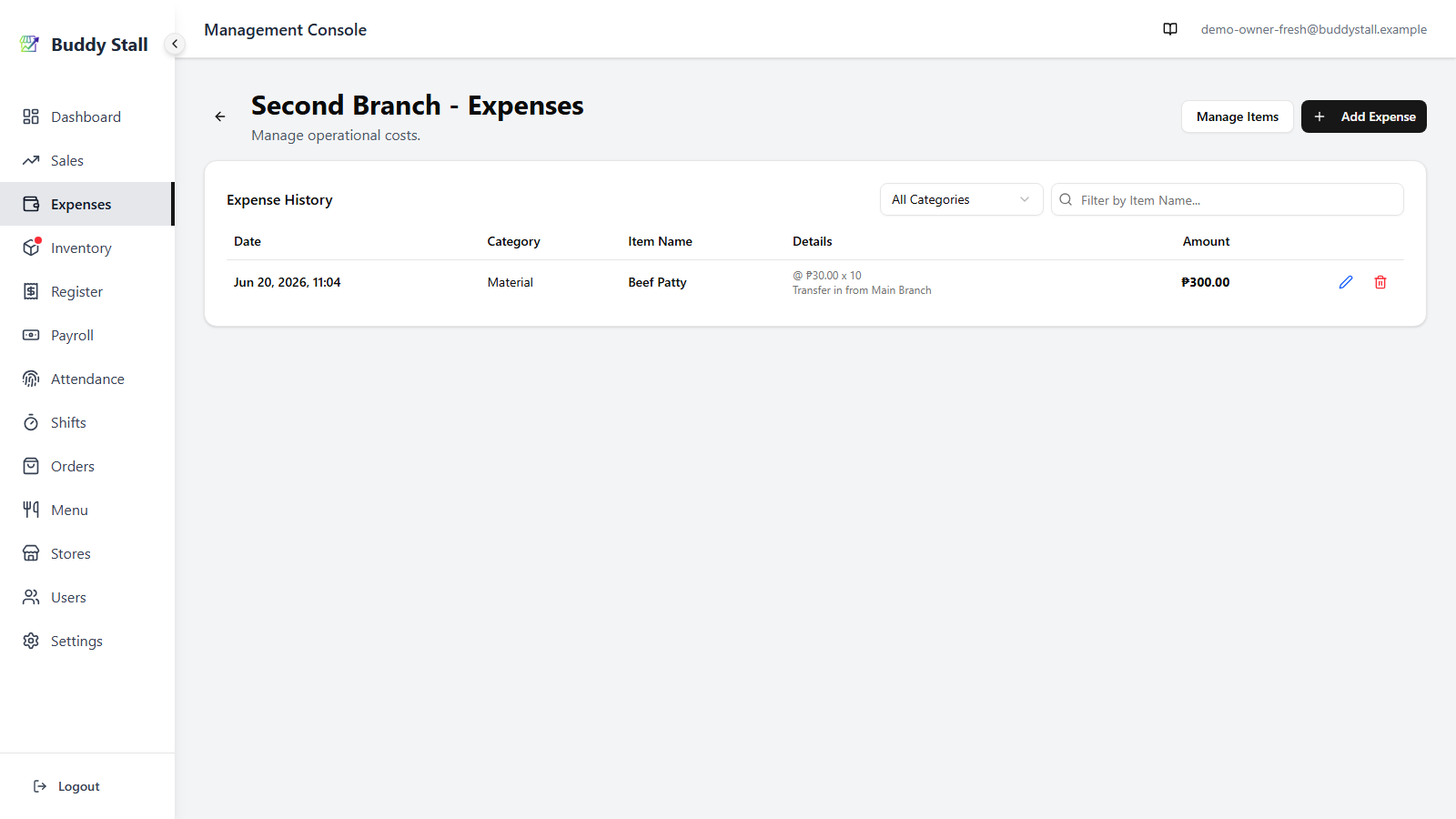
The paired cost entries are equal and opposite, so a transfer nets to zero across your business — it doesn't add to or subtract from your overall material spend. It only changes which store carries the stock and its value. That keeps each store's costs honest (the store that ends up using the stock is the one that carries its cost) without double-counting anything you already bought.