
Store inventory
A store inventory is one store's running count of the ingredients it has chosen to count. Every item starts life in the master inventory — the store registers the ones it wants a count of and holds its own quantity for each. Two stores can hold very different amounts of the same ingredient; what they share is the master definition.
This page is a map of the screen itself. The how-to pages cover the actions you take here: set up your inventory, stocktake, log waste.
Open it from Inventory, then pick a store. (Staff land on their own store's inventory directly — see What staff see below.)
The screen
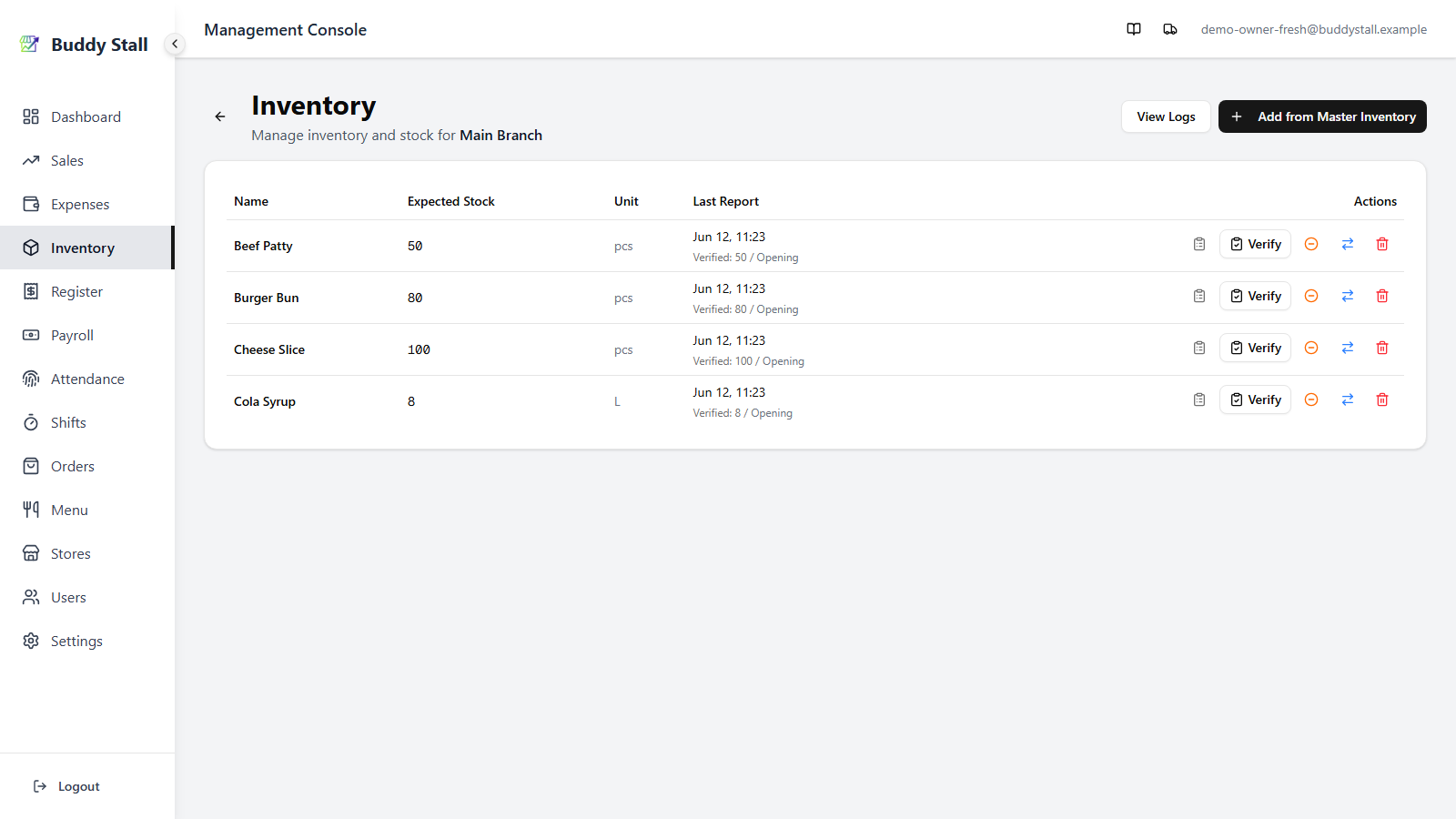
One row per ingredient the store carries. Items whose opening stock is already set come first, in name order; anything still waiting for its first count is grouped at the bottom, so the setup work left to do stays together. The header carries two actions, and each row reports the store's count and its last stocktake.
 1234567
1 View Logs — opens the all-items movement log for this store: every sale, restock, waste, and stocktake reset in time order. See History & logs. Hidden while offline.
2 Add from Master Inventory — registers more master items to this store. See Set up your inventory. Owners and managers only.
3 Name — the ingredient, taken from the master. A coloured dot may sit before it, and a Not counted badge after it — see Stock signals below.
4 Expected Stock — what BuddyStall thinks is on the shelf right now: the last verified count, moved by every sale, restock, and waste since. The count is never edited directly — it responds to those events. It turns amber or red as stock runs low (Stock signals).
5 Unit — how the item is counted (pcs, kg, L, …). A smaller line beneath shows the content per unit for packaged items (for example 500 ml / bottle).
6 Last Report — when the item was last verified and the count then. A first count reads Opening; later ones show the Diff against what was expected — green for a surplus, red for a shortfall. Items that no recipe uses read Not in a recipe in place of the diff: sales never deduct them, so the gap is expected rather than informative (see Inventory alerts).
7 Actions — each row carries up to five buttons, from left to right:
- View History (clipboard icon) — opens this item's full stocktake history: every past report with its expected, verified, and difference. A small red dot on the icon flags a recent large variance worth a look — it never appears on an item no recipe uses, where a variance is expected. See How to stocktake.
- Verify — opens the stocktake dialog to submit a physical count. The number you enter becomes the new baseline, and Expected Stock resets to match. See How to stocktake.
- Log Waste (minus-circle icon) — records spoilage or a spill: stock drops and the value lands in expenses. See Logging waste.
- Transfer (arrows icon) — moves stock from this store to another of your stores. It appears only when you have a second store to send to, for owners and managers. The quantity leaves here and arrives there in one step.
- Delete (trash icon) — un-registers the item from this store. It removes the store's count, not the master item — the ingredient stays in the catalog and other stores keep theirs. Owners and managers only.
Dropping an item: delete or archive
The trash icon does not always mean a plain delete. It checks the item's history first and routes you to whichever ending is safe:
- No history and no transfers — the item was registered but never really used here, so it is un-registered outright.
- It has history, or has been transferred — deleting would take real records with it, so the dialog offers Archive instead. The item leaves the working list while its counts, logs, and past reports stay intact.
Either ending only stops the counting. The store keeps the ingredient's expense item either way, so purchases can still be recorded against it and it can still be ordered — you have dropped the count, not the ingredient. To remove it from the business altogether, delete it from the master inventory instead.
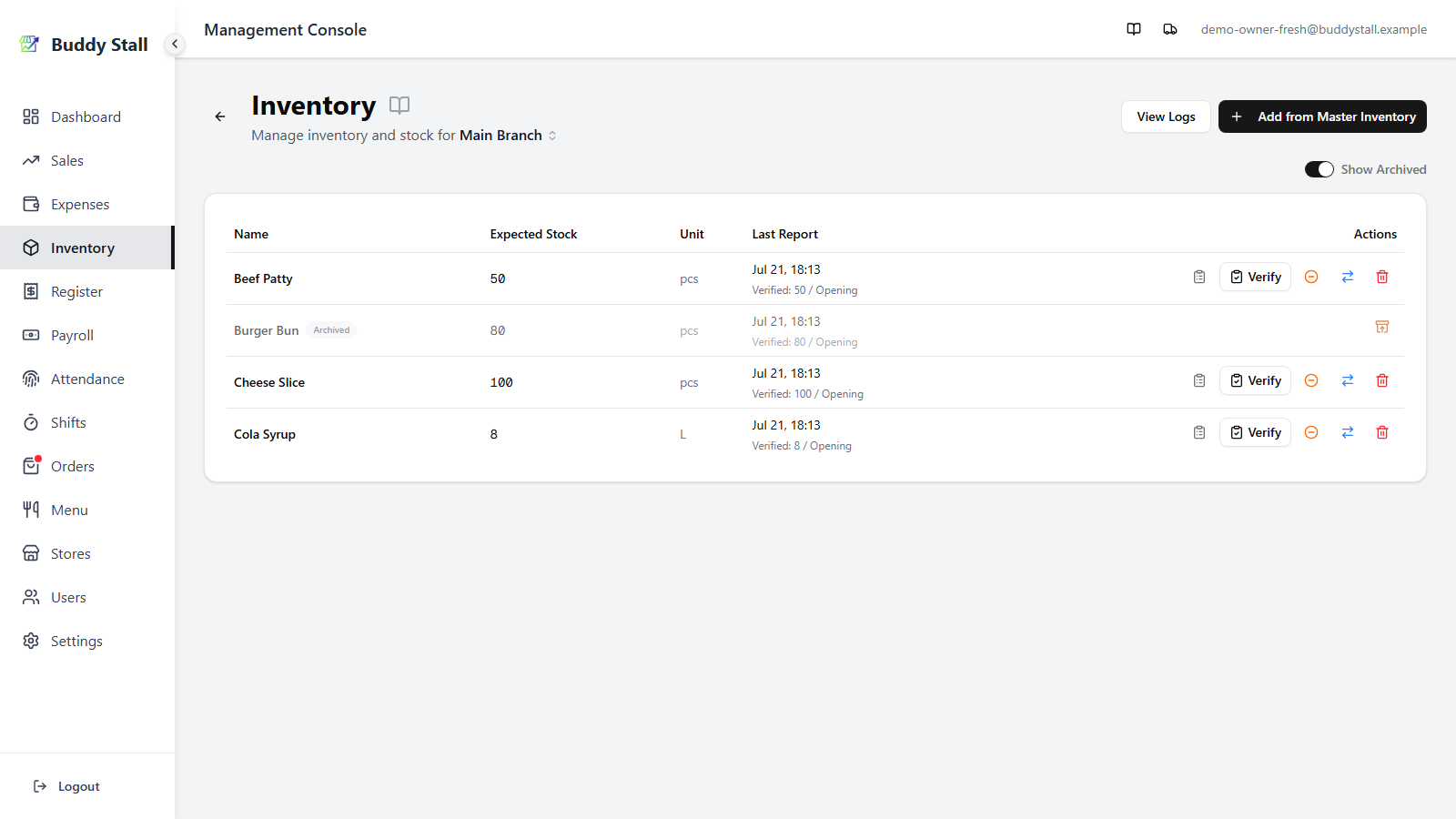
Archived items are hidden by default. Turn on the Show Archived toggle in the category-tab row to see them: they show dimmed with an Archived badge and an Unarchive action to bring one back. The toggle appears only when this store actually has archived items.
Before the first count
Items you have just brought in with Add from Master Inventory land on this screen at a stock of zero — registering an item only puts its name on the list, it does not take a count. Until you declare a starting balance, each such row is flagged so you can tell at a glance which items are still being set up:
- An amber Not counted badge sits after the item name.
- Expected Stock reads 0.
- The row's report action reads Set opening stock instead of Verify.
- The row sits at the bottom of the list, below everything already counted, so the items still to set up are grouped together.
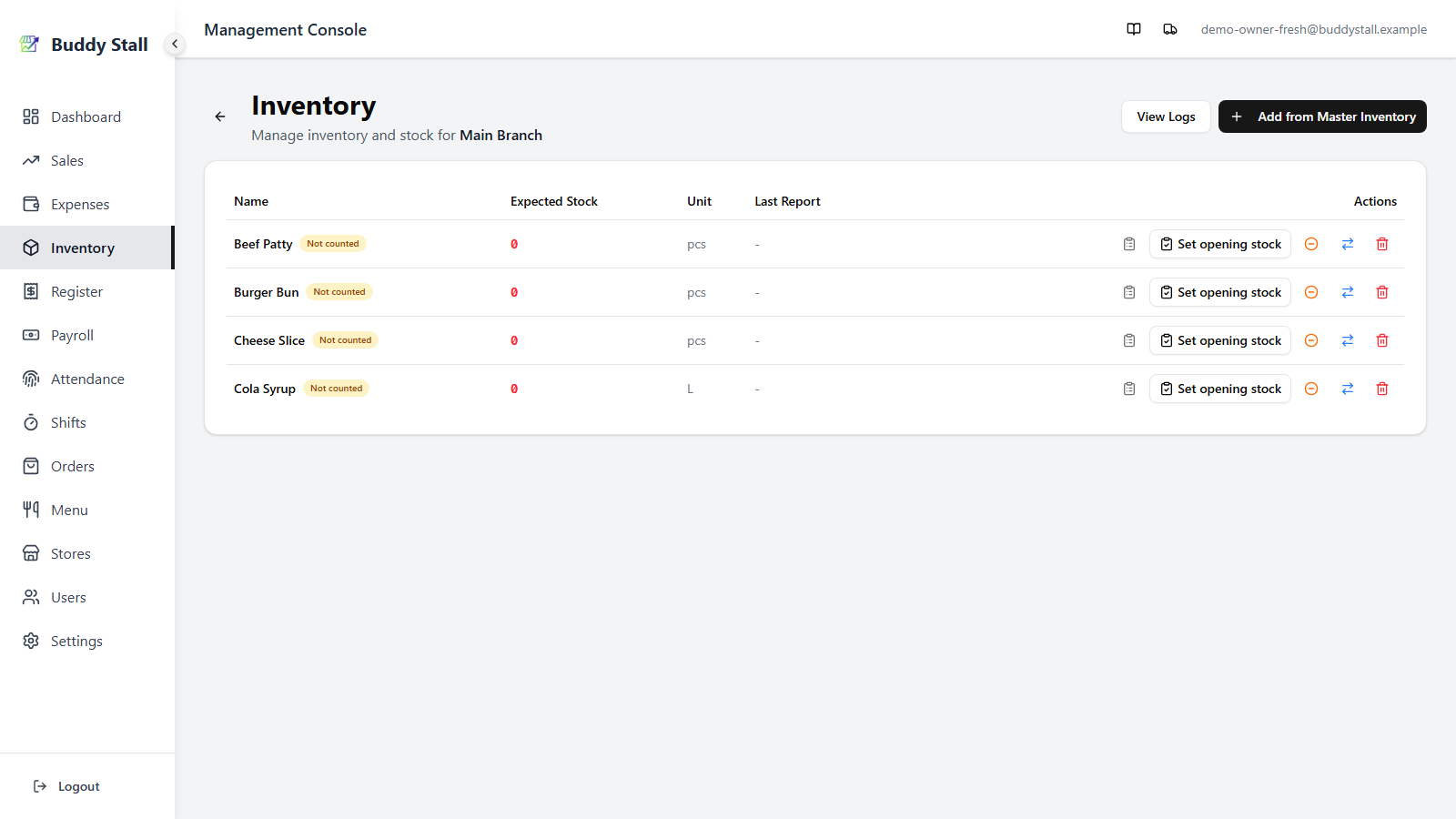
A Not counted item is on the store's list but not yet tracking a real count. Clicking Set opening stock runs its first inventory check — you enter how much is physically on hand, and that becomes the baseline every later stocktake is measured against. Receiving the item's first stock through an order or expense establishes the baseline too, clearing the badge automatically.
The full walkthrough — registering items from the master and setting their opening stock — is on Set up your inventory.
Ingredients a recipe uses but this store doesn't count
When one of your recipes consumes an ingredient this store has never registered, an amber Used by a recipe but not tracked here card appears under the list and names each one.
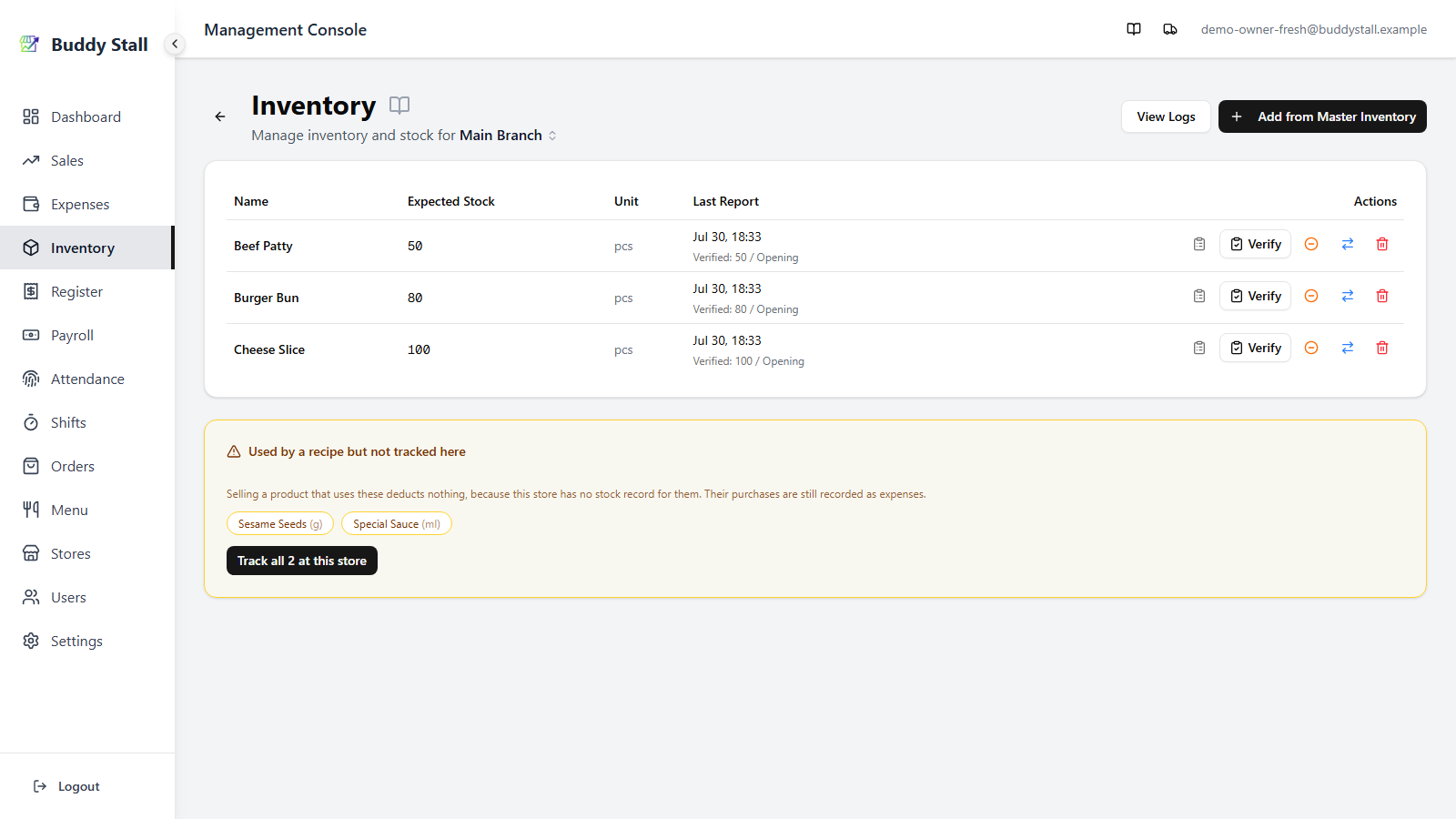
A sale of that product deducts nothing, so the ingredient never flags low, goes negative, or shows a variance. The money is untouched: purchases still land in this store's expenses in full, and the recipe still feeds the menu item's Est. Cost and Margin.
That is often the point — a pinch of seasoning or a wrapper is worth pricing but not worth counting. Where that was on purpose, there is nothing to do. Where it wasn't, Track all N at this store registers everything listed in one step, ready for an opening count.
What staff see
Staff open Inventory in the portal and land straight on their store's list — no store picker. Their view is trimmed on purpose: Expected Stock and Last Report are gone, along with the low-stock dots, so staff count what is physically on the shelf rather than reading off a figure to match. The Not counted badge and the History discrepancy dot still show.
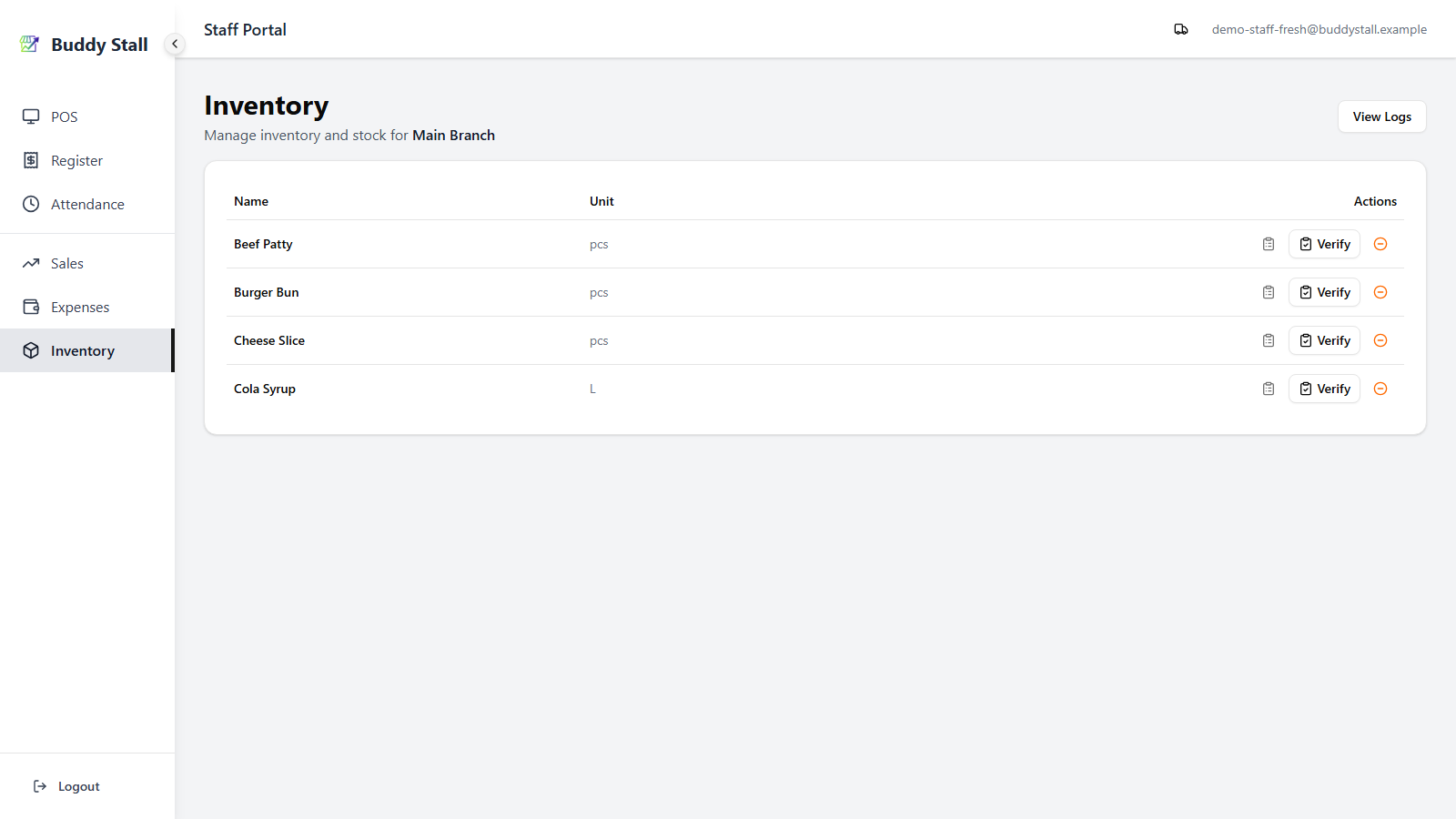
Staff keep View History, Verify, and (while the register is open) Log Waste. They do not get Transfer, Delete, or Add from Master Inventory — those stay with owners and managers on the Admin dashboard.
Read next
Set up your inventory
Register items from the master and declare each one's opening count.
How to stocktake
Reset the count to what you physically counted, and keep the variance on record.
History & logs
The all-items log of every stock change — sales, restock, waste, and stocktake reset.
Everything below applies only once your store has joined a franchise. These features stay hidden until you connect, so a single, unconnected store can stop here. See Joining a franchise.
Items the franchisor keeps in every store
Some ingredients arrive marked franchisor-exclusive. These are registered into every one of your stores automatically, and their trash icon is greyed out — they cannot be deleted or archived here. That is on purpose: the franchisor relies on them being present everywhere to see stock and consumption across the brand.
Everything else that came from the preset behaves like any other ingredient — you can drop it from a store the normal way. And if the franchisor removes an item from the preset altogether, you are asked to accept that on your next reload rather than having it disappear; see Connect & sync a franchise.