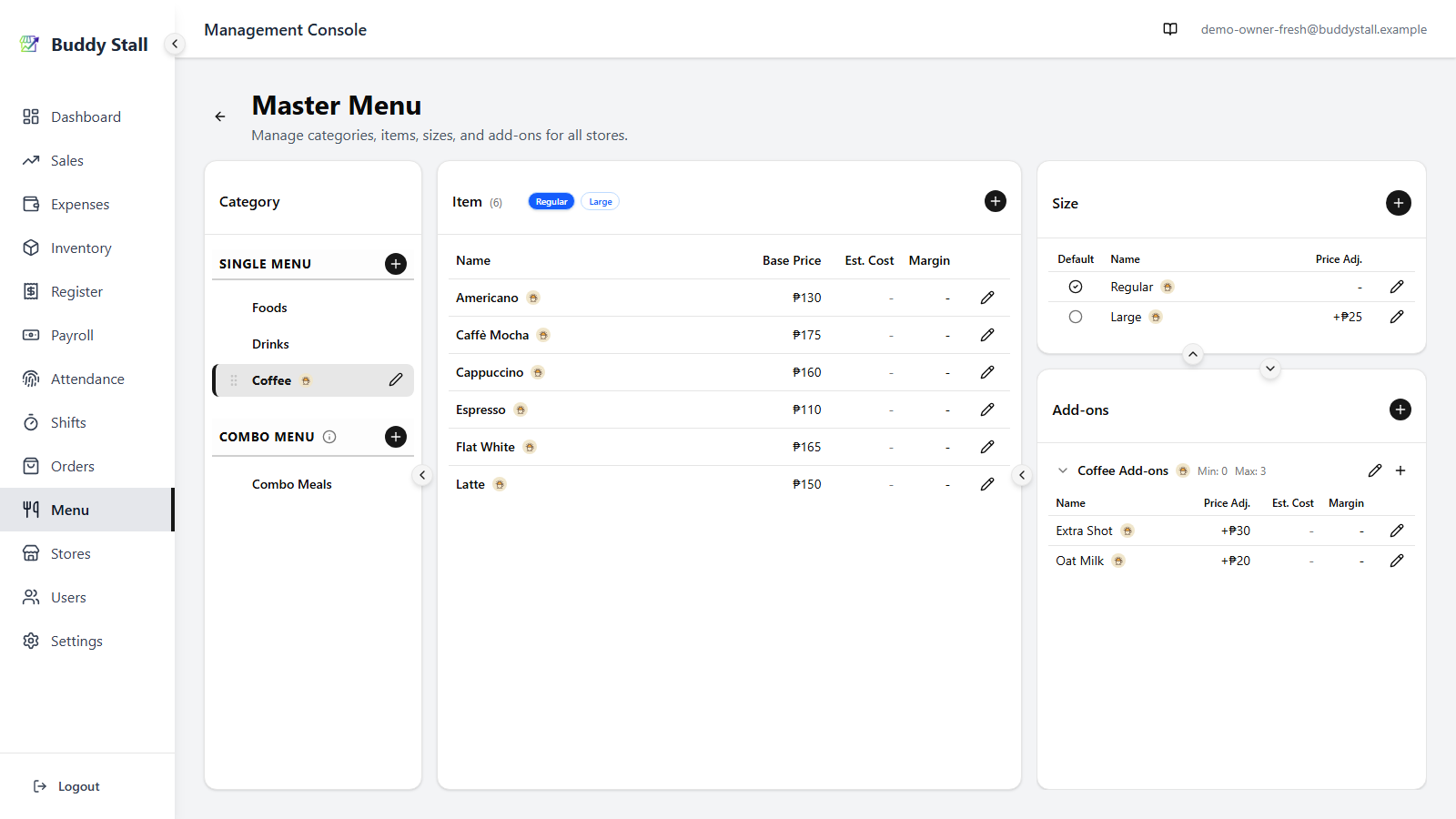
Master menu
The master menu is the owner-wide catalog — every category, item, size, and add-on, defined once for the whole business. Stores derive their menus from it; nothing here is store-specific.
The screen
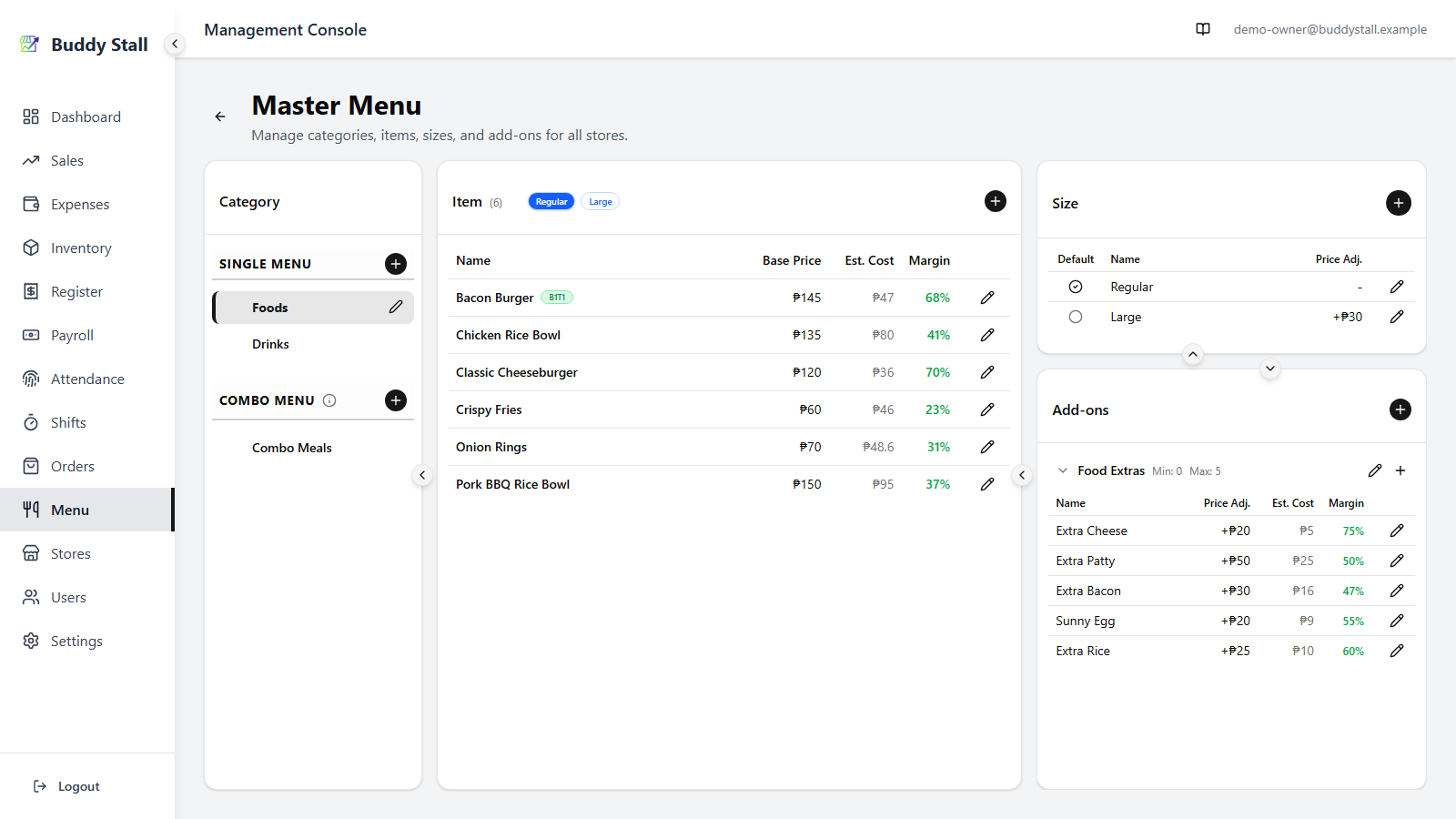
The master menu spans three columns — the right column stacks a Sizes panel on top of an Add-ons panel. Selecting a category on the left updates everything to the right.
 12345
123451 Categories — every category you have defined, split into Single Menu and Combo Menu sections.
2 Items — the items inside the category currently selected on the left.
3 Sizes — the sizes defined for that category (e.g. Regular / Large). For a combo category, both this panel and Add-ons below are replaced by Fixed Items and Selectable Items — see Combo categories below.
4 Add-ons — the add-on groups attached to that category, each with its own options.
5 POS Preview — turns the three panels into the POS grid, so you can look at the menu the way a cashier will without leaving the page. See Preview the POS.
Once you have archived something, a Show Archived switch joins it in the header — see Archiving and deleting.
Categories
A category groups related items. Each category is one of two types, chosen when you create it and fixed thereafter:
- Single — ordinary items, each sold on its own.
- Combo — set meals, each built from other items (see Combo categories).
 12345
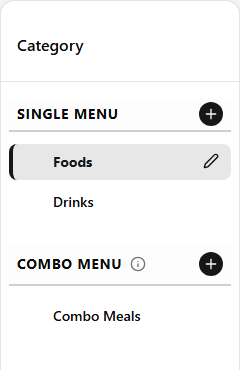
123451 Single Menu section — holds every category whose type is single. The header is fixed; you cannot rename or remove it.
2 Combo Menu section — holds every category whose type is combo. The + here only appears once you have at least two single categories, since a combo needs components to pull from.
3 Add a category — opens the Create Category dialog. The section you click in determines the new category's type.
4 Edit a category — opens the edit dialog. You can rename a category, but its type stays fixed.
5 Reorder — drag a category up or down to change its display order. The order set here is what the POS shows.
Items
Items belong to the selected category. The Items panel updates whenever you pick a different category on the left.
 123456789
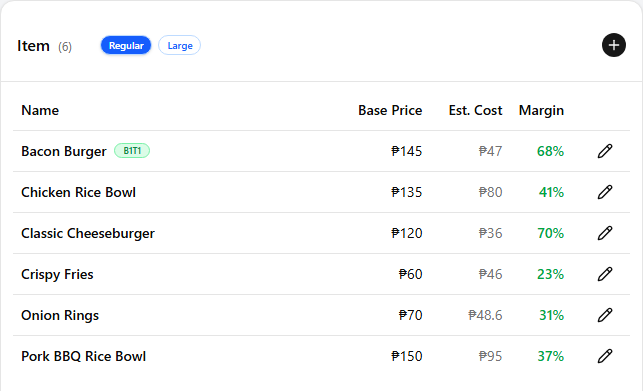
1 Add an item — opens a dialog to create a new item in the selected category.
2 Size toggle — when the category has multiple sizes, these pills flip the Base Price, Est. Cost, and Margin columns between sizes so you can compare or edit per-size values in one view.
3 Name — the item's display name. An item that has a photo shows it as a thumbnail to the left of the name; click the thumbnail to see the photo full size. See Item photos below.
4 Base Price — the price the item sells for at the currently toggled size. Each store can override this.
5 Est. Cost — derived from the item's recipe at the currently toggled size. Empty if no recipe is set.
6 Margin — profit margin at the toggled size: (Base Price − Est. Cost) ÷ Base Price, shown as a percentage. Empty if the cost is unknown.
7 Photo — items that have one show it as a thumbnail here; click the thumbnail to see the photo full size.
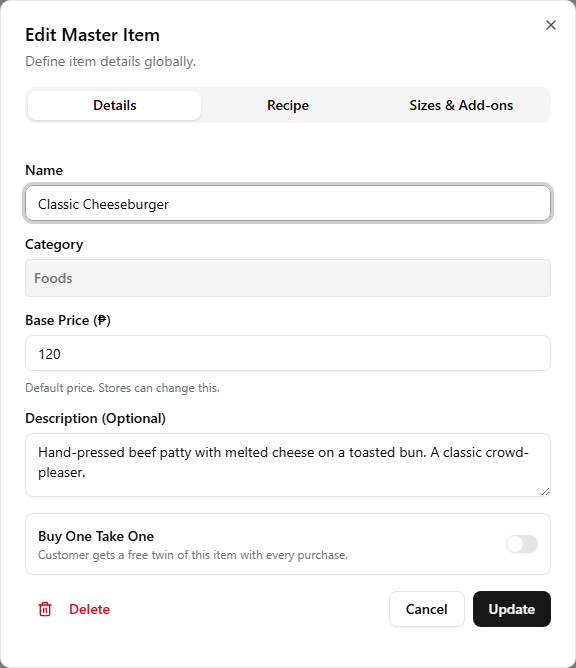
8 Buy One Take One — a green B1T1 badge marks an item set to give a free twin with every sale. Turn it on with the Buy One Take One toggle at the bottom of the item dialog's Details tab (single items only). It is the catalog-wide default: each store then chooses whether to run the promo — following the master or overriding it (see Store menu) — and the free item is added automatically at the POS (see Take orders).
9 Edit item — opens the item dialog. A single item has three tabs: Details (name, base price, description, photo), Recipe, and Sizes & Add-ons (override the category's sizes and add-ons for this item alone). A combo item has Details and Set Contents instead. See Set up recipes, Per-item sizes & add-ons, and Combo categories below.
Sizes
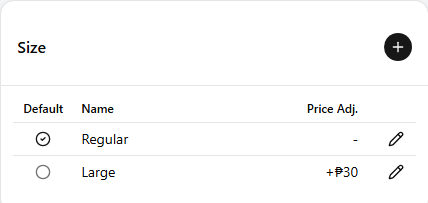
Sizes are defined per category, so by default every item in that category offers the same set — Small / Medium / Large, for example. One size per category is marked the default; it is what the POS pre-selects. An individual item can override this set — see Per-item sizes & add-ons.
 12345
123451 Add a size — opens a dialog to create a new size in this category.
2 Default — a checkmark marks the default size. Exactly one size per category carries this; the POS picks it by default.
3 Name — the label customers see at the POS (e.g. Regular, Large).
4 Price Adj. — added on top of an item's base price when this size is chosen. The default size typically carries an adjustment of 0; larger sizes add a few pesos.
5 Edit size — opens the edit dialog to rename or re-price the size.
Add-ons
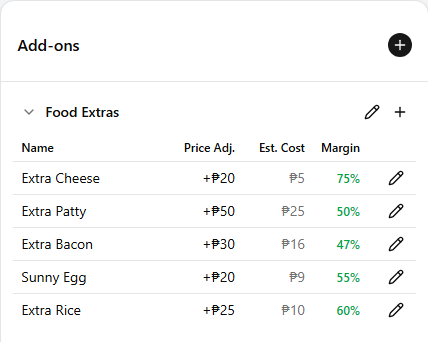
Add-on groups attach to a category — "Extra toppings", "Choose a drink". Each group has a name and a list of options. By default every item in the category offers the same groups, but an individual item can override which groups apply — see Per-item sizes & add-ons.
 12345678
1 Add a group — opens a dialog to create a new add-on group for this category.
2 Group header — shows the group's name, an expand-collapse toggle for the options list, and an edit pencil.
3 Add an option — opens a dialog to add a new option inside this group.
4 Name — the option label customers see at the POS (e.g. Pearls, Whole Milk).
5 Price Adj. — added on top of the item price when the customer picks this option.
6 Est. Cost — derived from the option's recipe.
7 Margin — profit margin on this option: (Price Adj. − Est. Cost) ÷ Price Adj., shown as a percentage.
8 Edit option — opens the edit dialog. The Recipe tab is available only when editing an existing option, not when creating one.
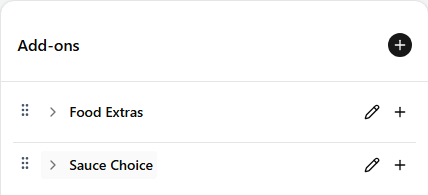
Reorder groups — when a category has more than one add-on group, drag a group's header up or down to change their order. A grip handle appears on the left of the header when you hover over it. The order you set here is what the POS shows, and any item that inherits its category's add-ons follows the same order.
Per-item sizes & add-ons
By default every item inherits its category's sizes and add-on groups, so the Sizes and Add-ons panels on the right are the category's — editable and shared by every item. An item can override that for itself, without touching the rest of the category.
How an overridden item differs. Select the item and its panels change from the normal editable category view:
- A section the item customizes turns read-only and carries an Item-specific badge — it lists that item's own effective sizes or add-on groups, not the category's.
- A section the item disables reads "turned off for this item", also badged Item-specific.
- A section left on inherit is unchanged — the normal, editable category panel.
That badge is your at-a-glance sign that an item differs from its category.
One exception in a customized Add-ons panel: the item's own item-only options stay editable. Use the pencil on an option row to change its name, price, or recipe in place (the Est. Cost then reflects that recipe). The inherited category groups listed alongside them stay read-only — edit those from the category itself.
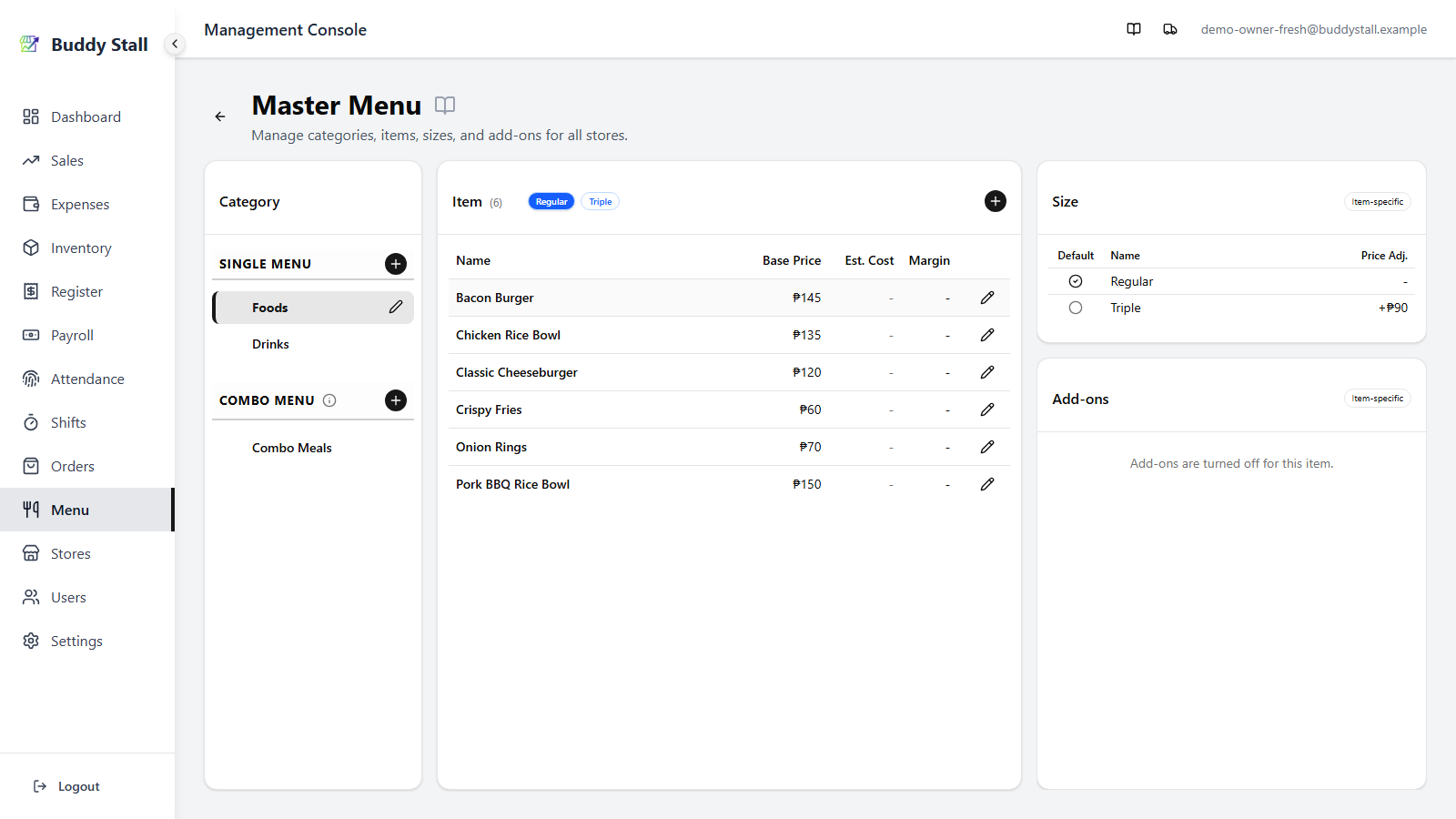
Set these per item from the item dialog's Sizes & Add-ons tab — the setup walkthrough covers the steps.
Combo categories
When a category's type is combo, its items are set meals built from other items. The combo is sold and priced as a single item.
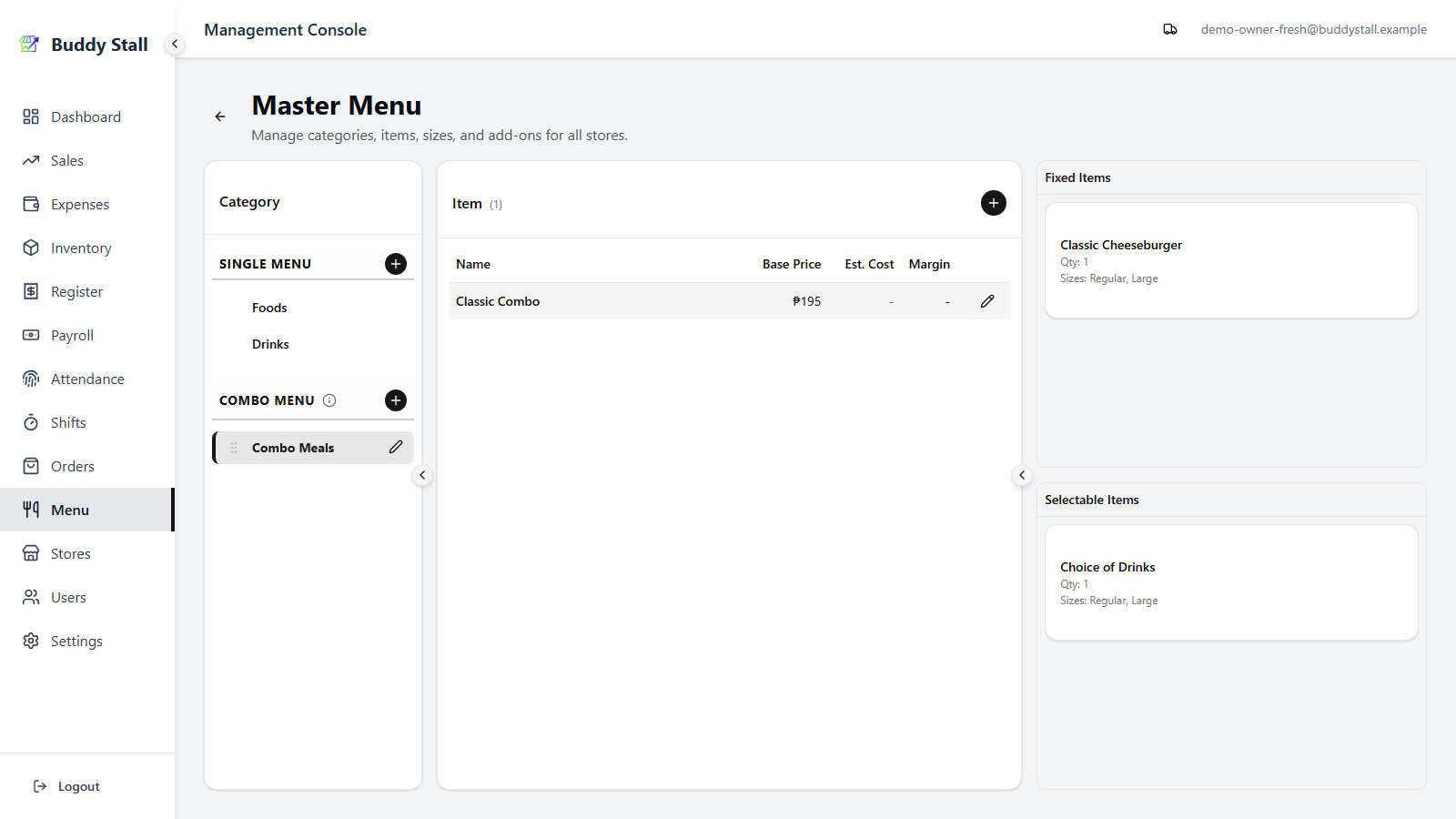
Selecting a combo category swaps the right column — Sizes and Add-ons are replaced by the combo item's Set Contents, split into two panels.
 12
121 Fixed Items — components that always come with the combo. Each entry is a specific master item with a quantity (e.g. Classic Cheeseburger × 1).
2 Selectable Items — components the customer chooses from at the POS. Each entry is a whole category with a quantity (e.g. Choice of Drinks × 1 — the customer picks any item from the Drinks category).
Preview the POS
POS Preview, the switch at the top-right of the page, replaces the editing panels with the POS grid rendered from the catalog you are editing — the fastest way to check that a menu reads well before a store sells from it.
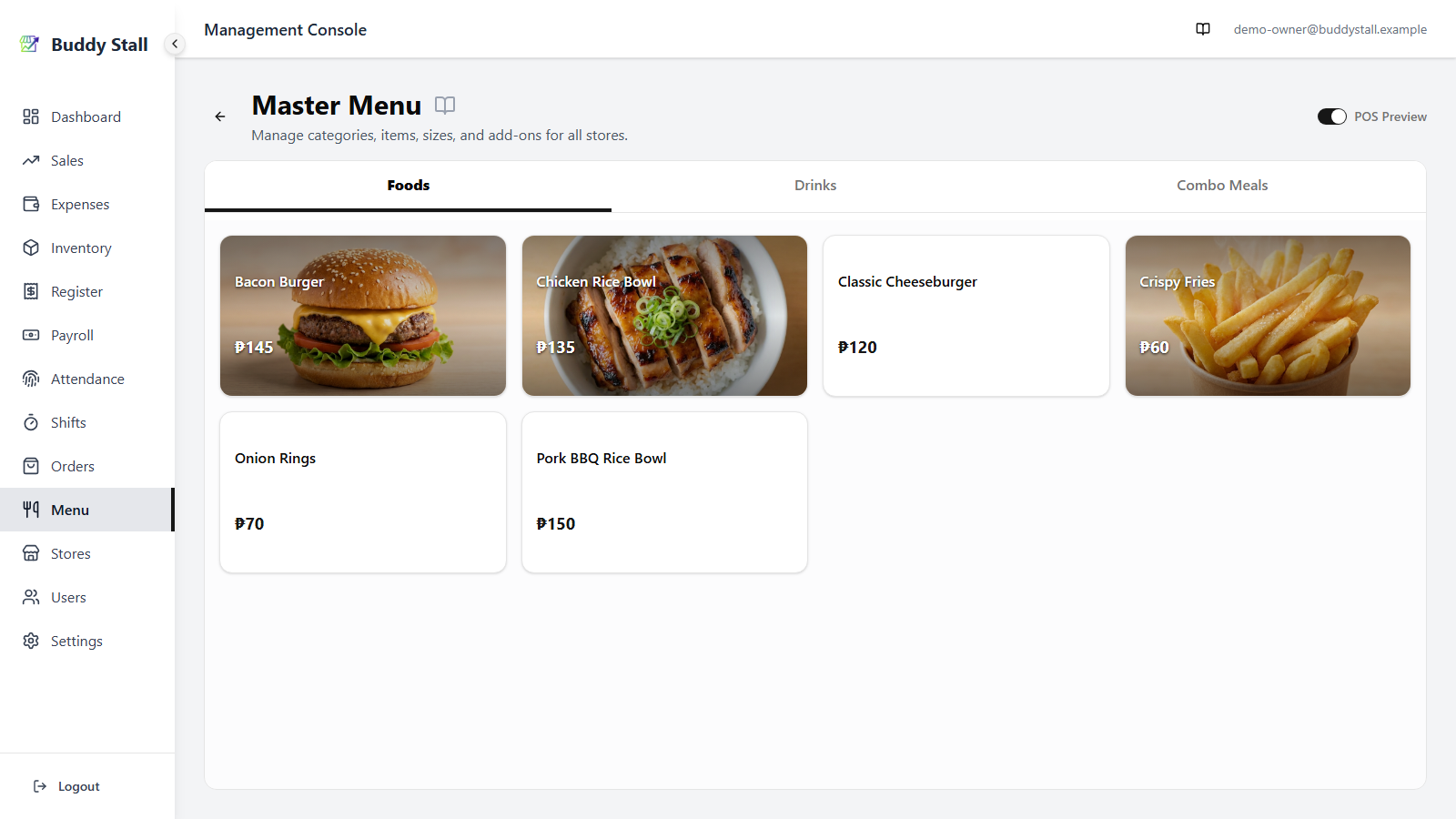
- Tapping a tile opens the same size / add-on and combo dialogs the POS itself uses, so sizes, add-on groups and combo choices behave exactly as they will at the counter.
- There is no cart and no checkout. The preview shows the menu, not a sale.
- It renders the master catalog, so per-store availability and price overrides are not applied. To see one store's POS, use Open POS on that store's menu.
- Switching it off restores the panels with your category and item selection intact.
Archiving and deleting
Items, categories, sizes, and add-ons you no longer use can be archived — hidden from the lists without being removed. Archiving keeps the link to past sales intact, which makes it the safer choice for anything that has ever been sold.
 123
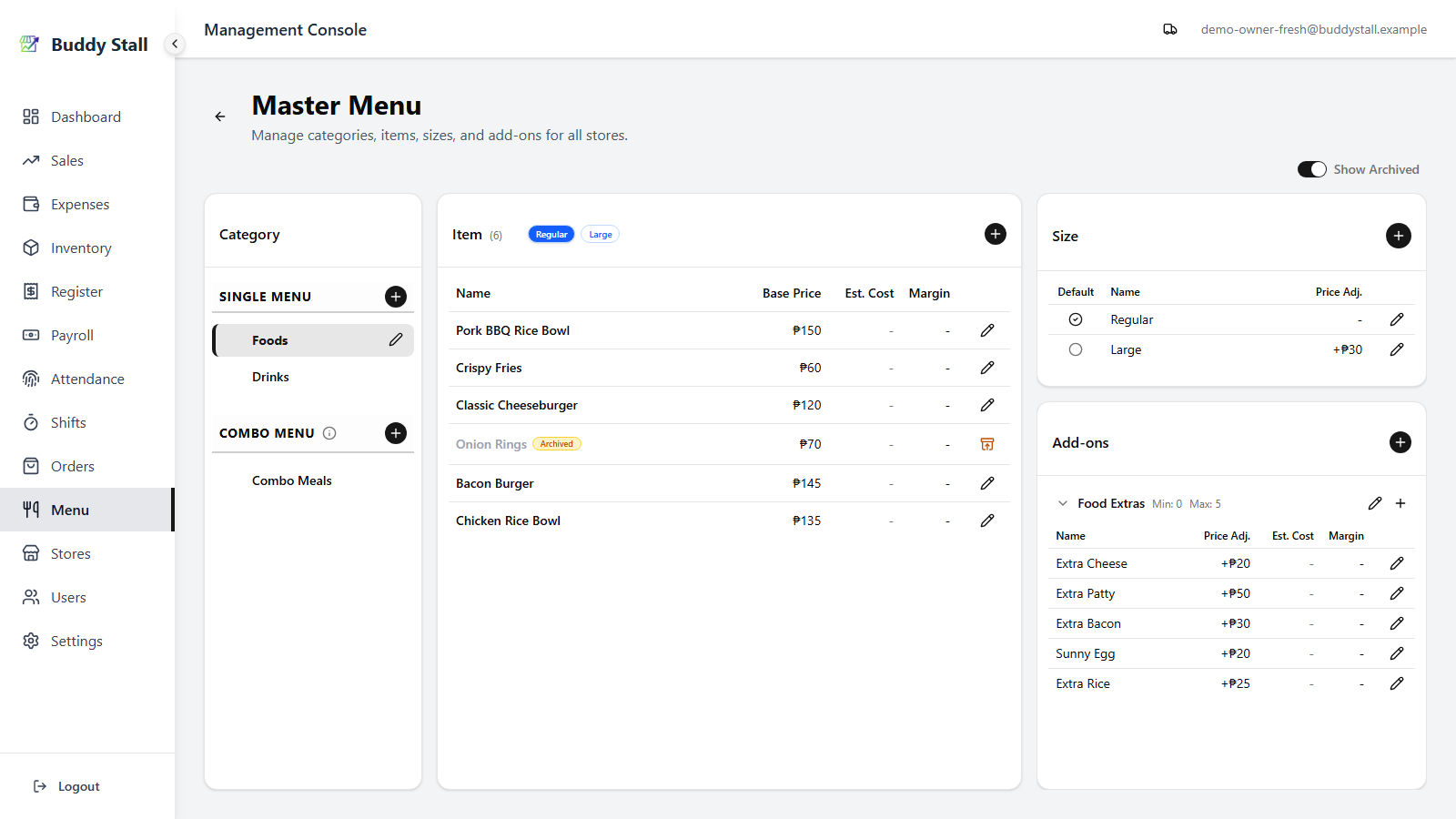
1231 Show Archived toggle — in the top-right of the header, beside the page title. It only appears once at least one row is archived. Flip it on to mix archived rows into the lists; it stays put while the view is open.
2 Archived row — dimmed and grayed, with an Archived badge next to its name. It does not appear at the POS.
3 Restore — replaces the edit pencil on archived rows. Click it to bring the row back to active.
Deleting
An item that has never been sold can be deleted outright from its edit dialog (trash icon), which also removes its recipes and set components. If you try to delete an item that has sales history, the dialog offers Archive instead — that hides it from the lists while keeping past sales records intact.
When a combo needs the row
A combo is a set meal built from other items and a pick-from category. While a combo is on the menu, the parts it needs are held in place, so archiving, deleting, and restoring behave a little differently for them:
- You can't archive or delete an item or category a live combo still uses. The dialog names the combos in the way and gives you two ways out — take the row out of those combos first, or archive the combo itself. Archiving the combo frees its parts, since a combo that is off the menu holds nothing.
- You can't restore a combo while a part it needs is still archived. Bringing it back would put a broken slot on the menu, so the dialog asks you to restore that part first. The same applies to a category: restoring one that revives a combo is blocked until the combo's archived parts come back too.
Read next
Store menu
Set what each store shows and what it charges.
Set up recipes
Link menu items to the ingredients they use, so sales deduct stock automatically.
Set up your menu
The guided walkthrough for building your catalog from scratch.
Everything below applies only once your store has joined a franchise. These features stay hidden until you connect, so a single, unconnected store can stop here. See Joining a franchise.
Items from a franchise preset
Part of this catalog can come from the franchisor's preset — whole categories, items, sizes, and add-ons loaded in from Settings → Franchise Connections. Preset rows carry a franchise badge, and the franchisor may lock some of their fields, just as it does for inventory. You can still build your own items alongside them, and you re-pull the franchisor's updates from Settings. See Joining a franchise for the full flow.