
Login & password
Everyone signs in to Buddy Stall from the same screen — owners and managers reach the admin dashboard, staff reach the store portal. This page covers signing in, what to do when you forget your password, and who resets which password.
Sign in
Enter your email and password, then select Sign In. If your credentials are correct you are taken straight to your workspace.
- Email — the email your account was created with.
- Password — at least 8 characters. Hidden as you type.
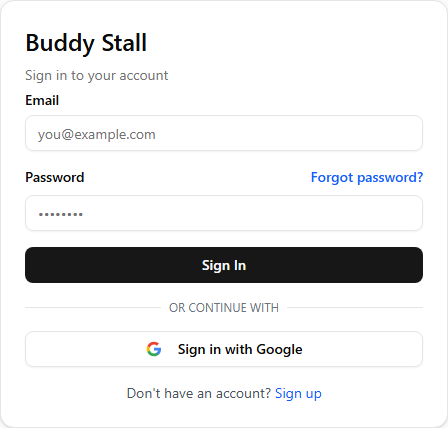
If you signed up with Google, use Sign in with Google instead of typing a password — it signs you in with the same Google account you registered with. Manager accounts are created with an email and password by the owner, so they sign in with those.
Owners and managers arrive at the admin dashboard. Staff arrive at the store portal, which opens the POS when the register is open or the open-register screen when it is closed. The app routes you automatically based on your account's role.
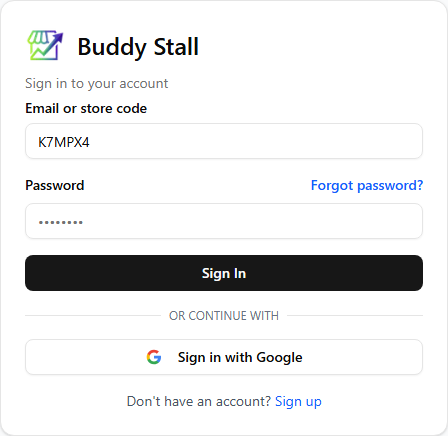
Staff can also sign in with a store code
A staff login is a store's shared sign-in — one per store, not one
per person, used on whatever phone or tablet the store runs the staff
portal on. It signs in with an email and password
like any account, but also
staff can instead type the store's 6‑character store code (e.g.
K7MPX4) — no @, and case doesn't matter — with the password the
owner set from that store's POS Login dialog (see
POS Login).
Forgot your password
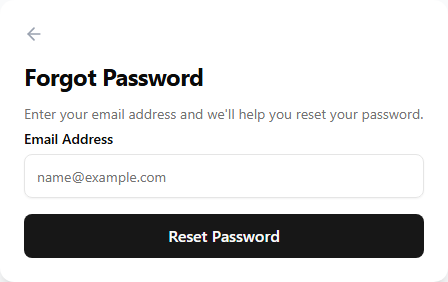
Select Forgot password? next to the password field on the sign-in screen, then enter your email and choose Reset Password. What happens next depends on your account:
- Owners receive an email with a reset link. Open it to set a new password (see below). If it does not arrive, check your spam folder and try again.
- Managers and staff are told to contact their owner — neither is reset by email. The owner sets a new password for either one — see Resetting your team's passwords below.
Set a new password
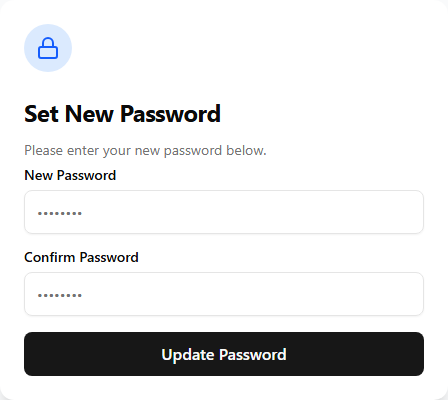
Opening the reset link from the email takes you to the Set New Password screen. Enter your new password twice:
- It must be at least 8 characters.
- Both entries must match.
Select Update Password to save it. You are then returned to the sign-in screen to log in with the new password.
If the screen says your session has expired or is invalid, the link is no longer valid. Request a fresh one from Forgot password? and use the newest email.
Resetting your team's passwords
Manager and staff accounts cannot reset their own passwords by email. As the owner, reset either one yourself:
- Manager — from Users & permissions, open the account and set a new password, then share it with the person. The same page is where you create manager accounts and set their initial password.
- Staff (POS login) — from the store's card on the Stores page, open POS Login and set or change the password there — see POS Login.
To change your own password while you are signed in — owners only — use the Change Password card on the Settings page, which asks for your current password first.