Combo menus
A combo bundles items from across your single categories and sells them as one priced product — a burger, a drink, and a side as a single "Classic Combo", for example. This page walks through building one in the master menu, from the combo category to a finished combo item.
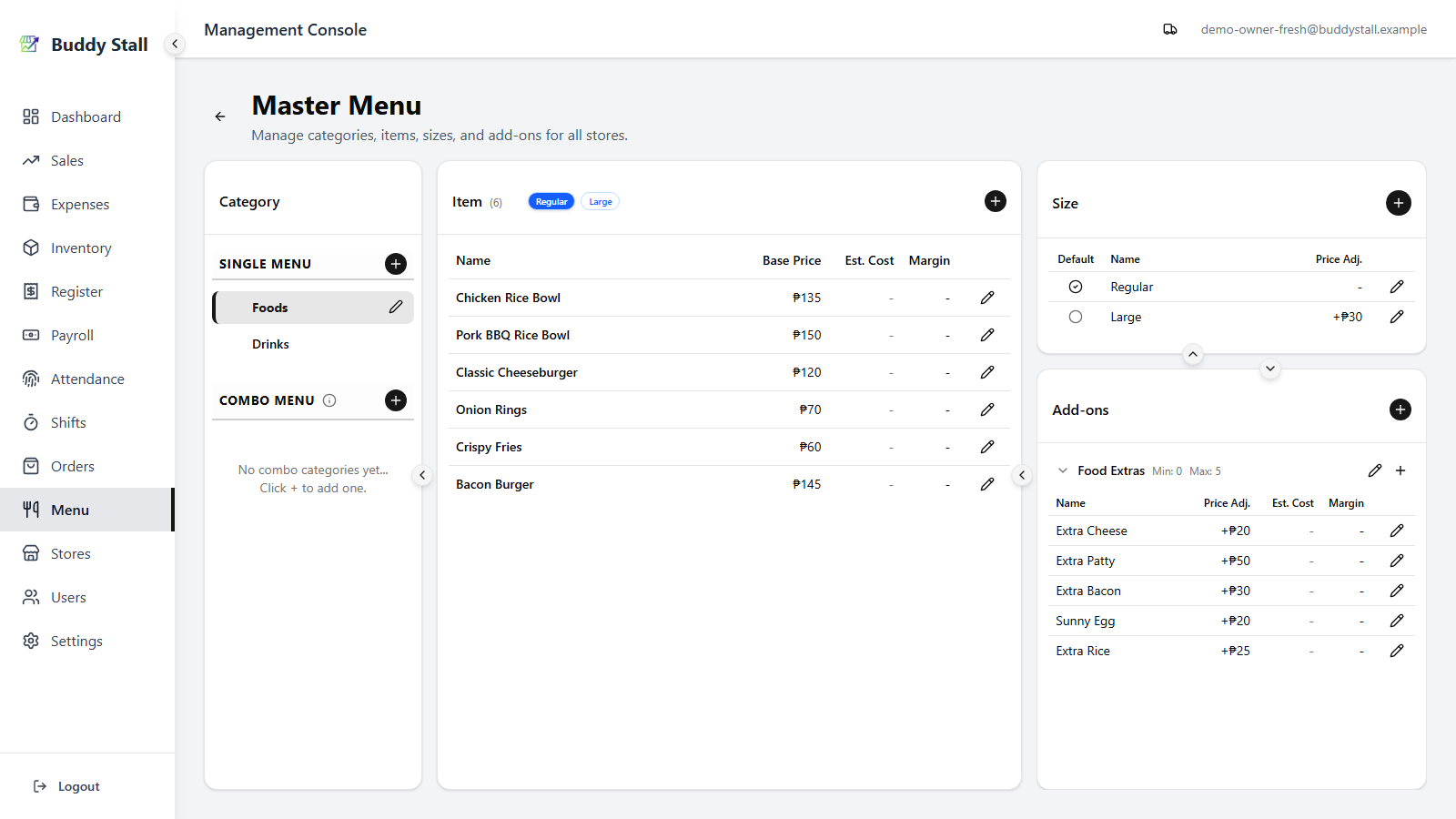
The Combo Menu section only becomes available once you have two or more single categories in place — see Set up your menu for the steps that get you there.
1. Create a combo category
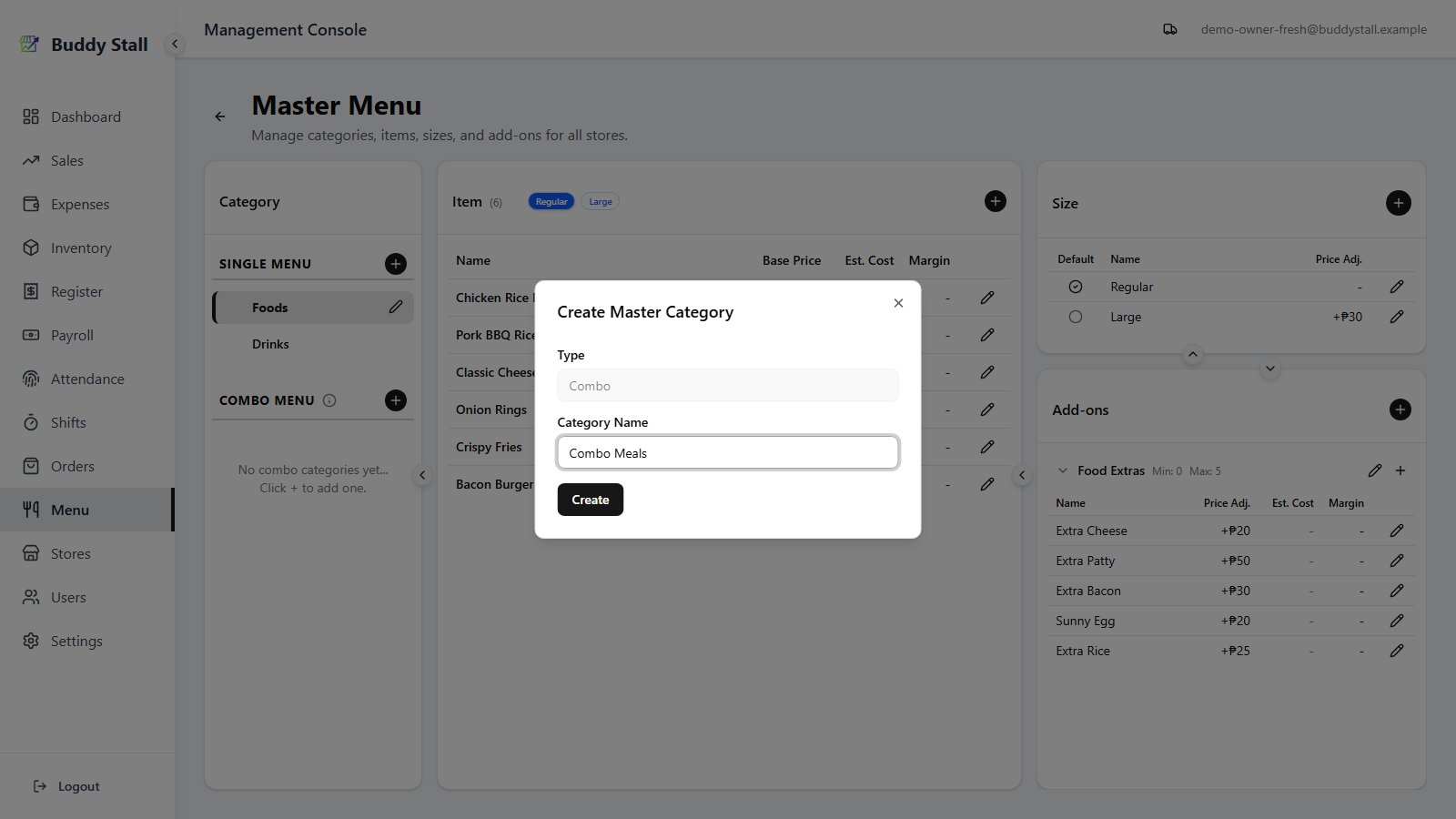
Once you have two or more single categories, the Combo Menu section gains its own +. Start by creating a combo category (e.g. "Combo Meals"):
2. Add a combo item
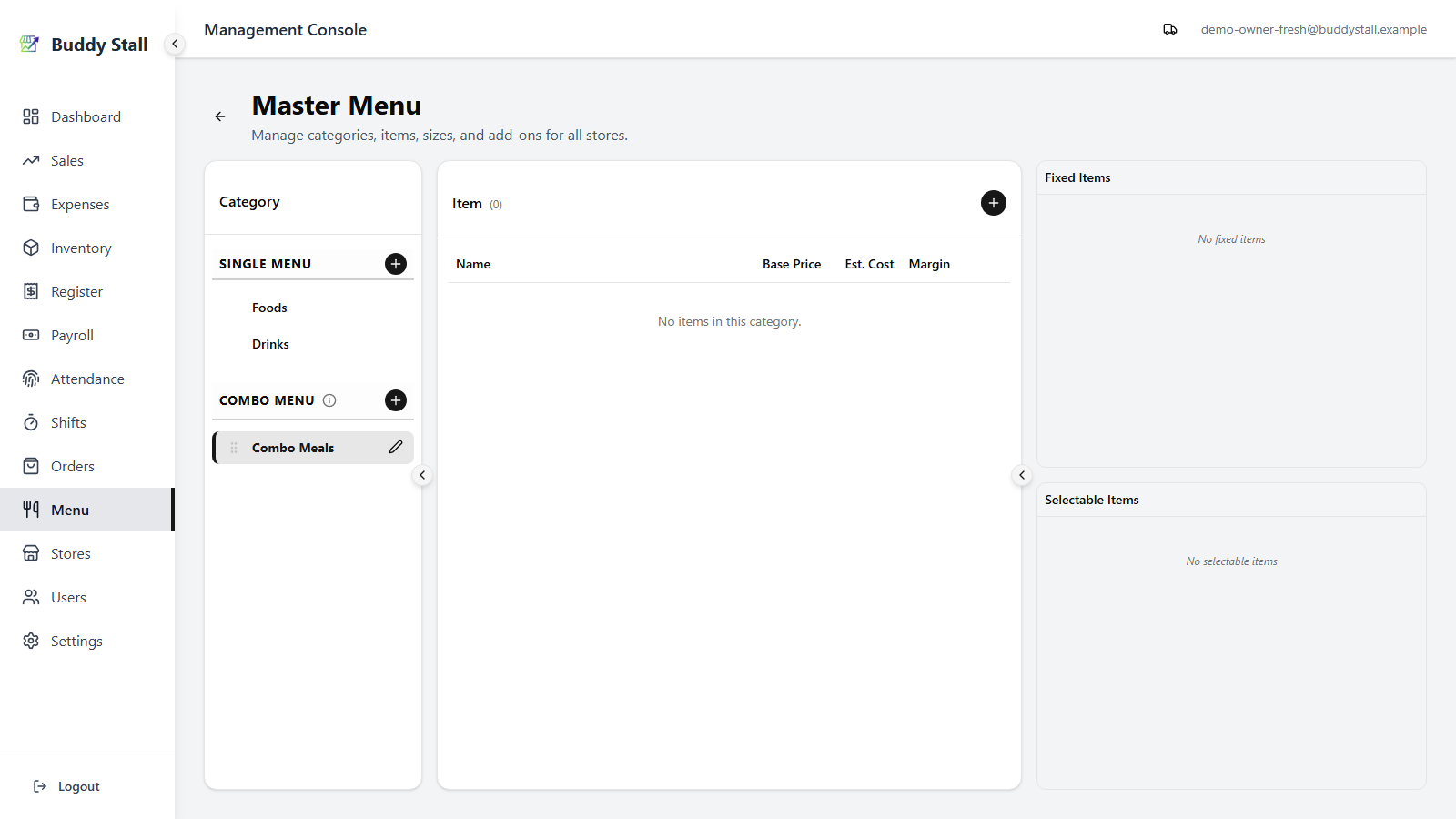
Inside the new combo category, add combo items — each combo item is configured in a wider workspace with two halves: the usual item details on the left, and a Set Components panel on the right. A combo takes a photo just like a single item — see the master menu reference.
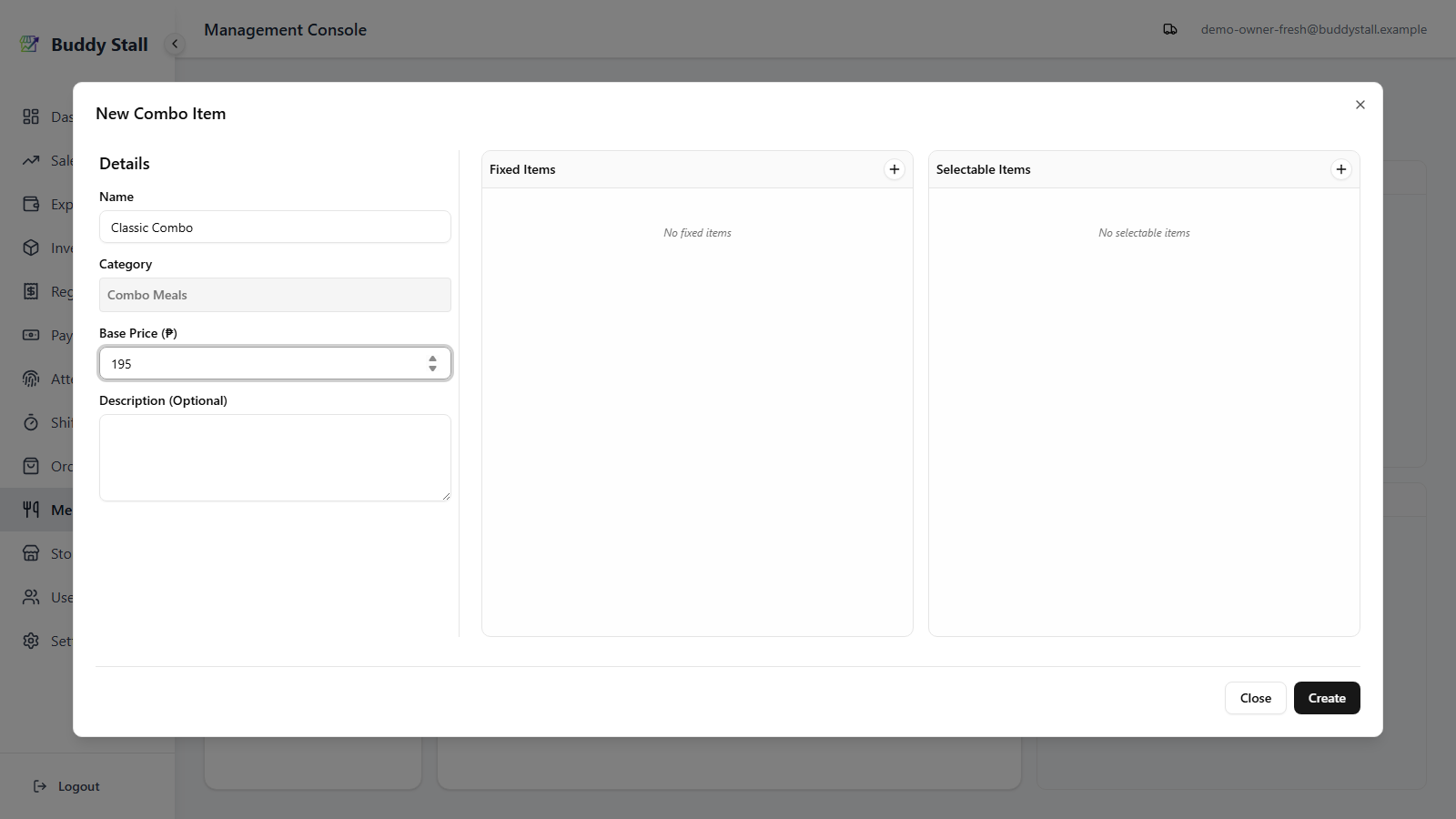
3. Add fixed items
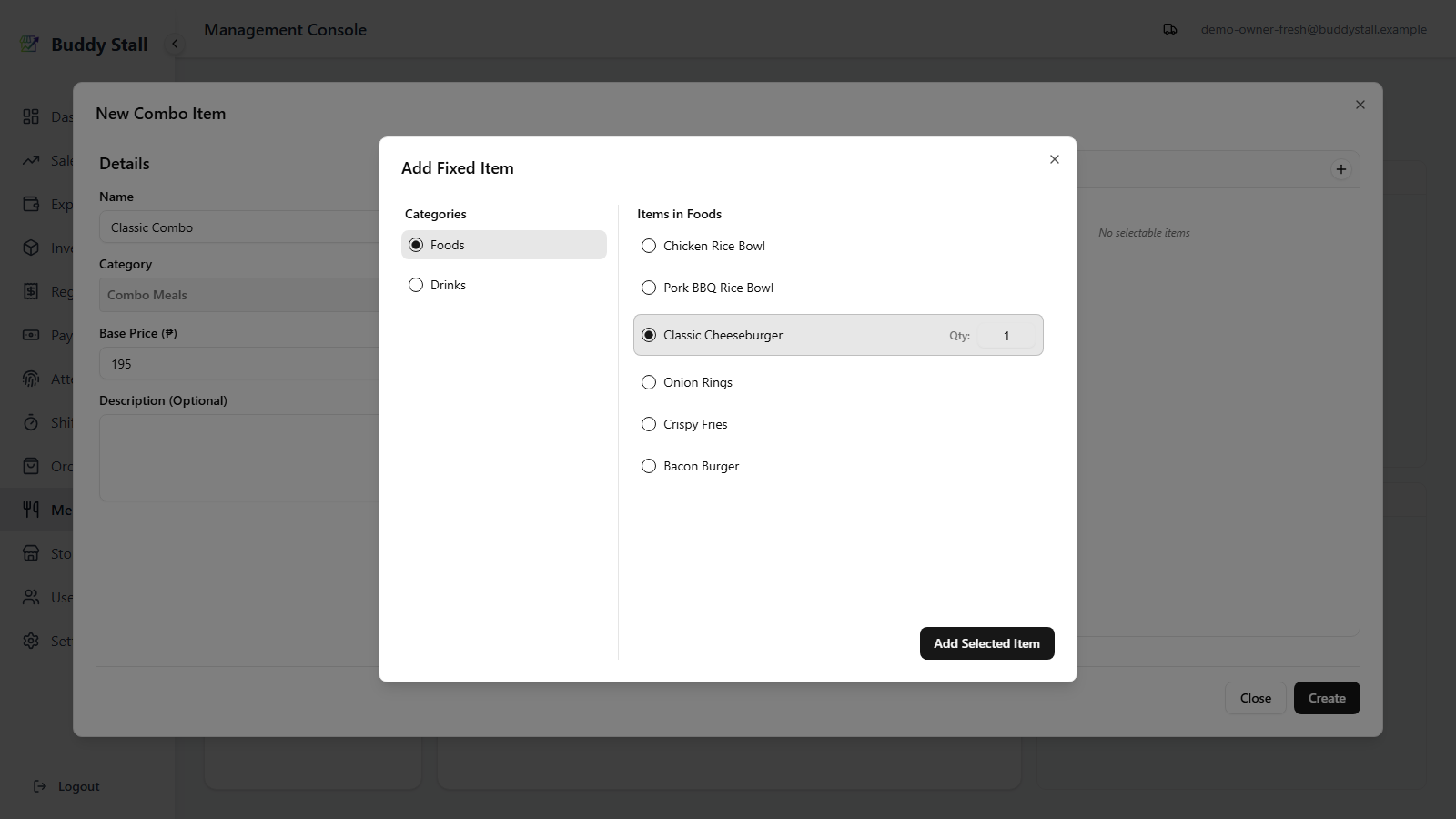
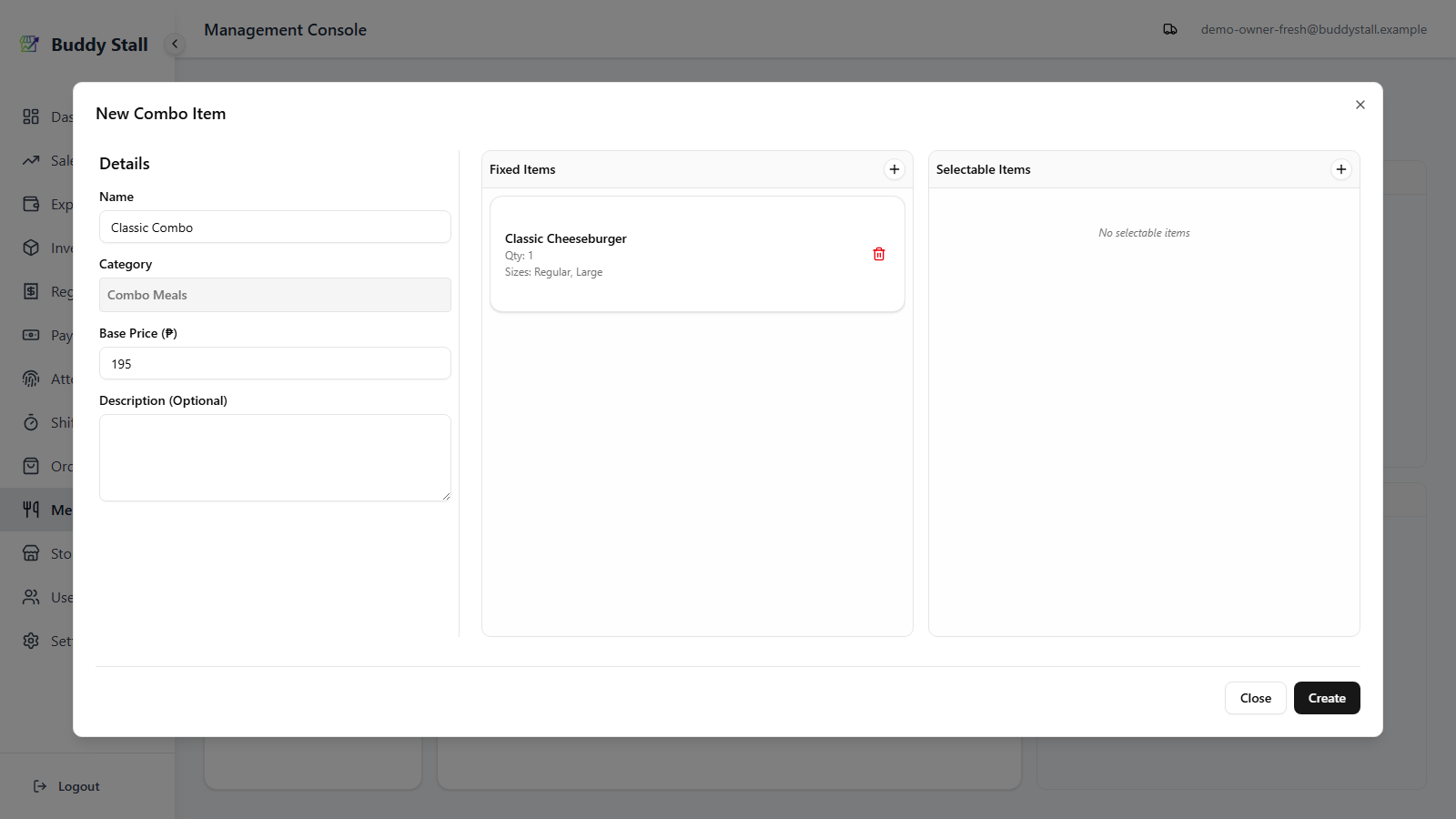
A combo's set contents come in two flavours. Add Fixed Items — the items that are always part of the combo (e.g. "1× Classic Cheeseburger"):
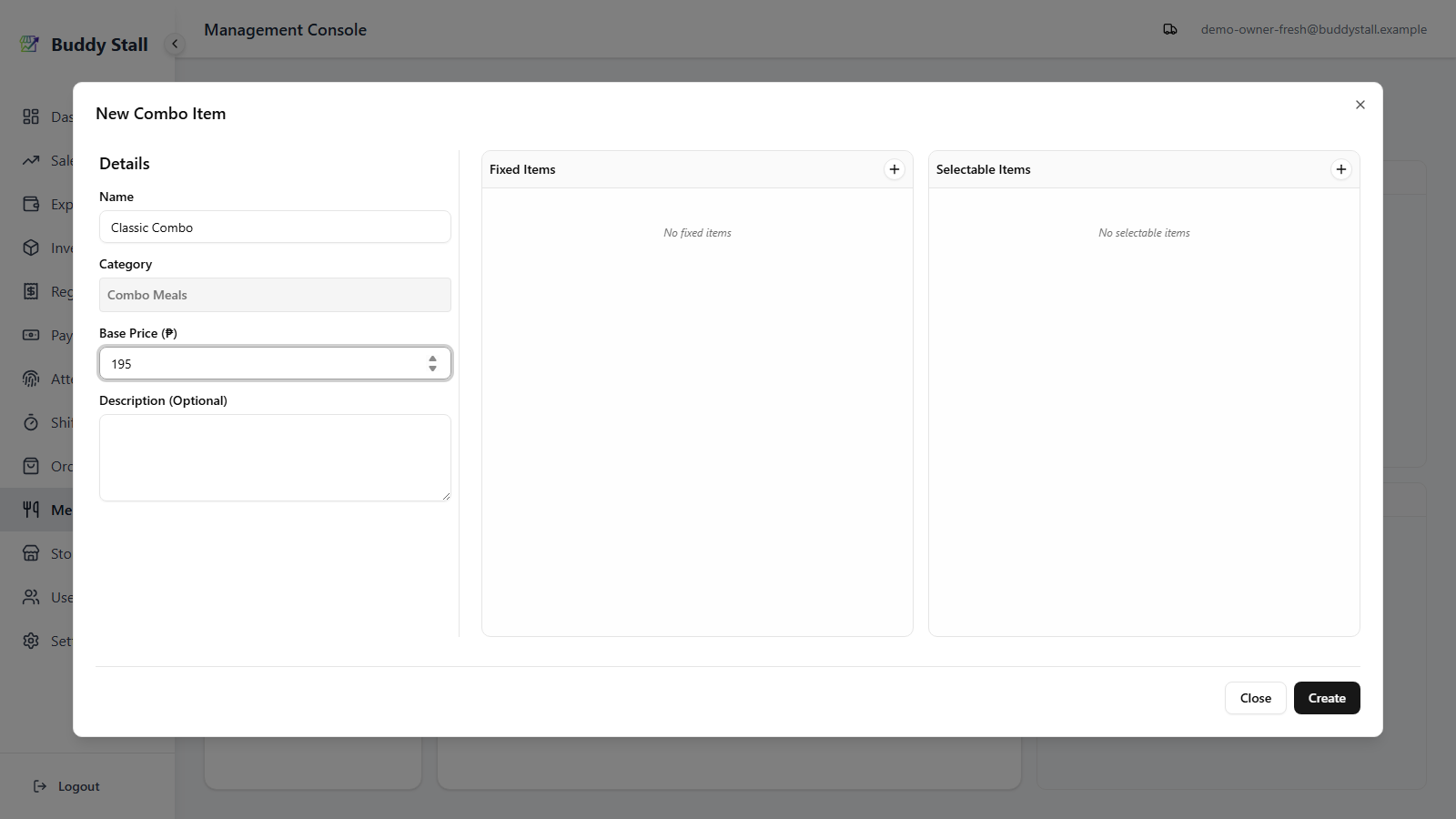
4. Add selectable items
Then Selectable Items — a whole category the customer can pick from at order time (e.g. "any drink"):
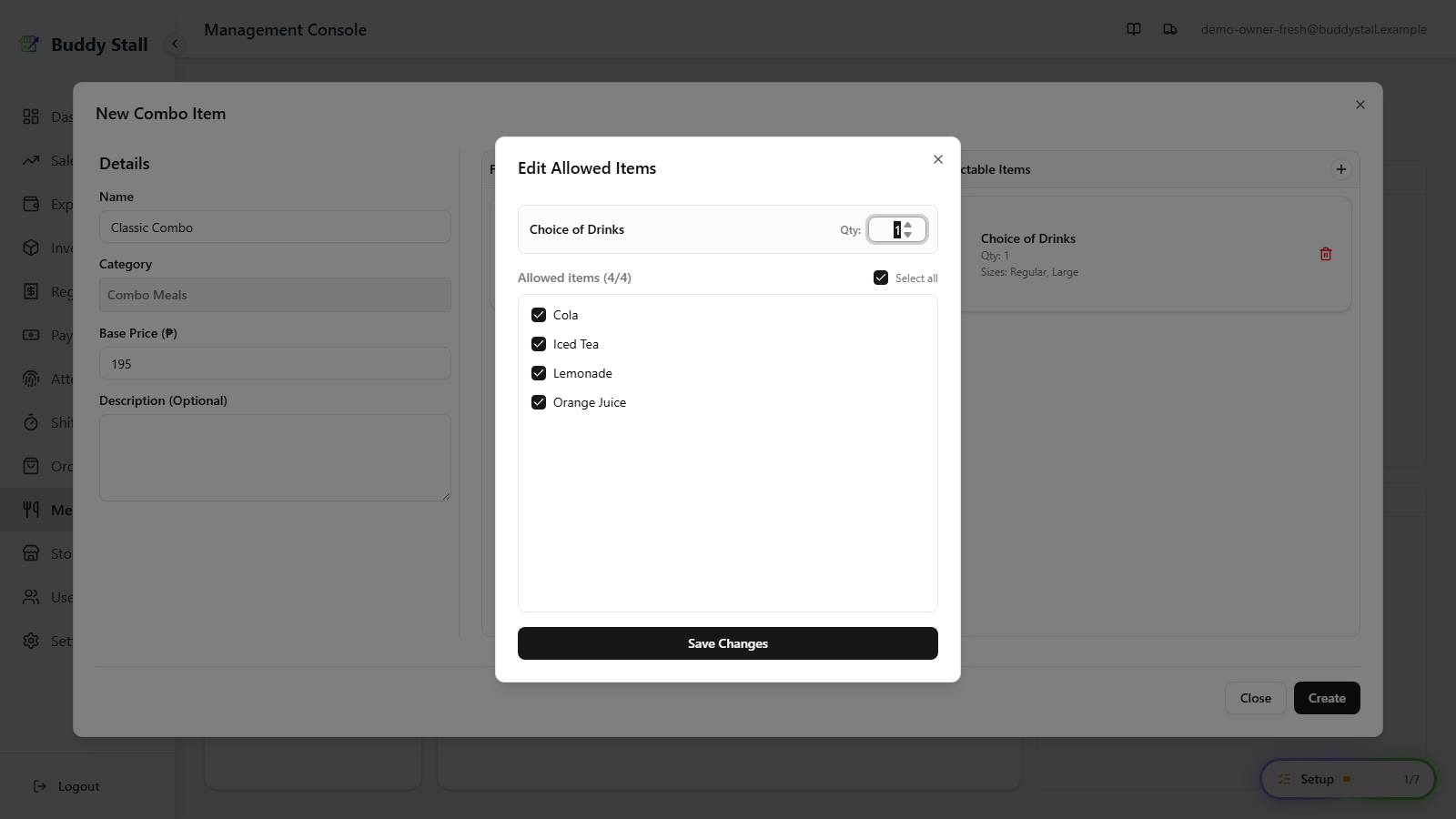
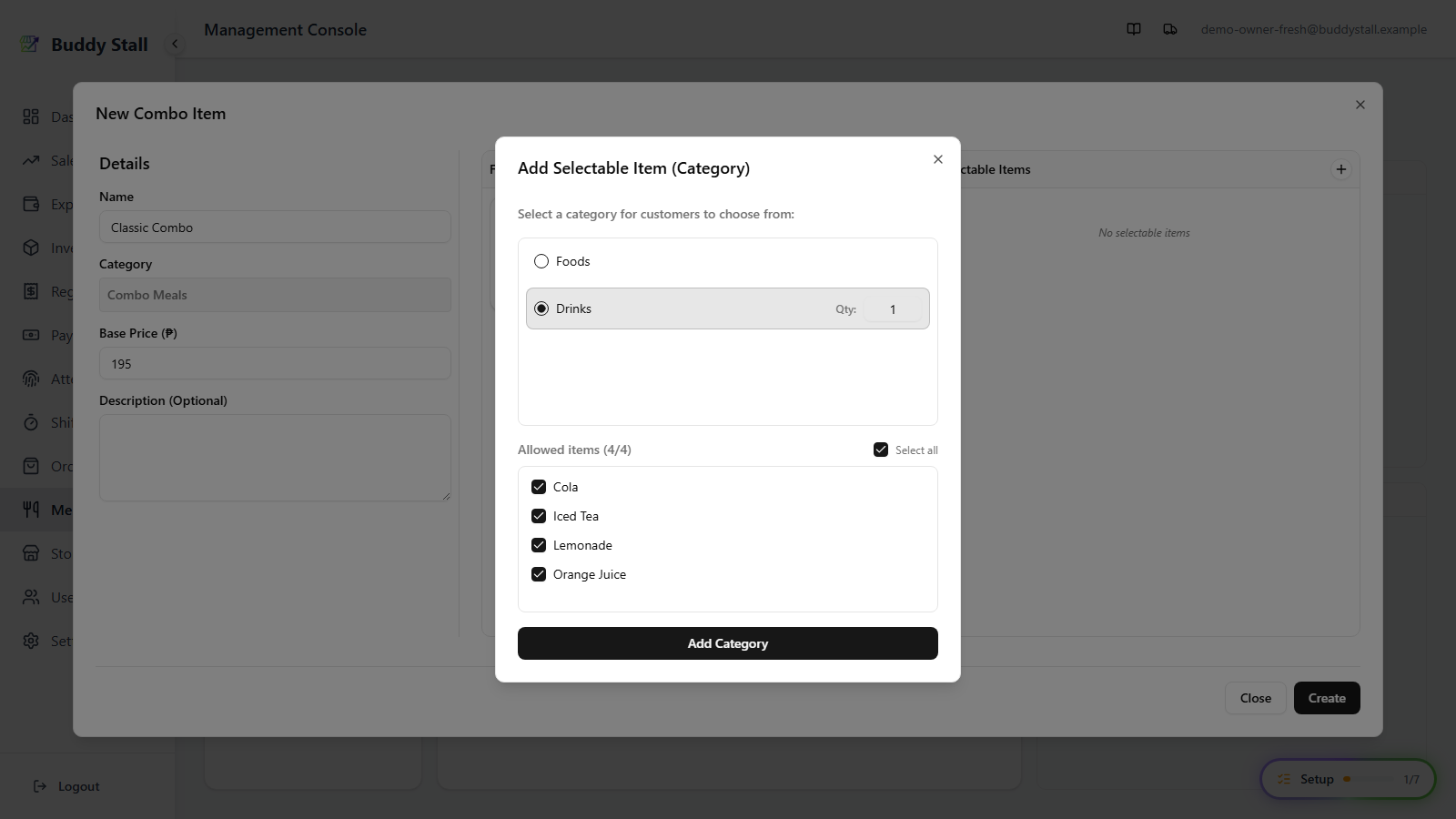
Picking a category lists every item inside it as a checklist. By default all of them are ticked, so the customer can choose any item — the whole category is on offer:
Limit the choice to specific items
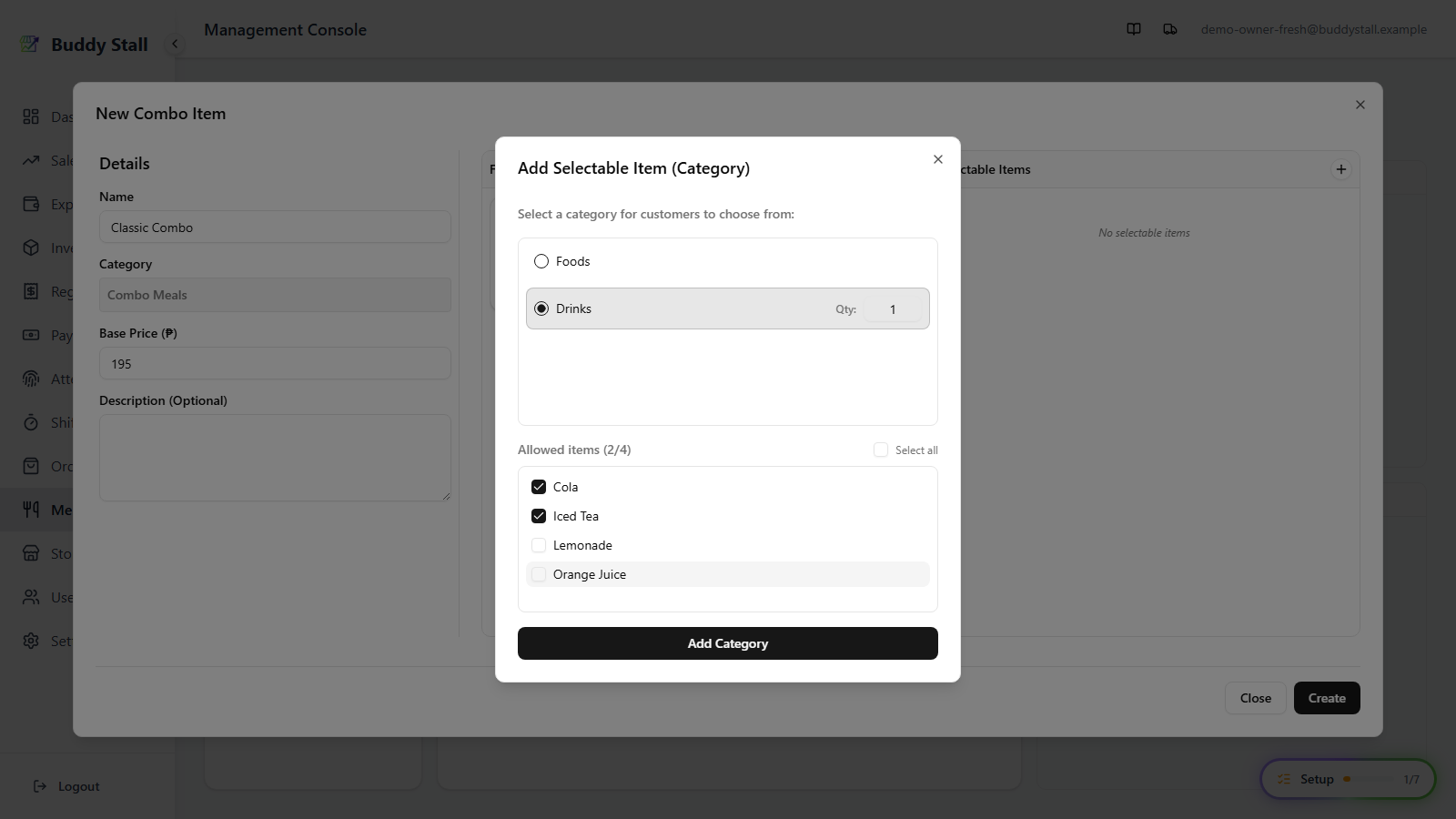
To offer only some of a category's items, untick the ones you don't want. The customer will then only see the items you leave ticked — at least one must stay ticked:
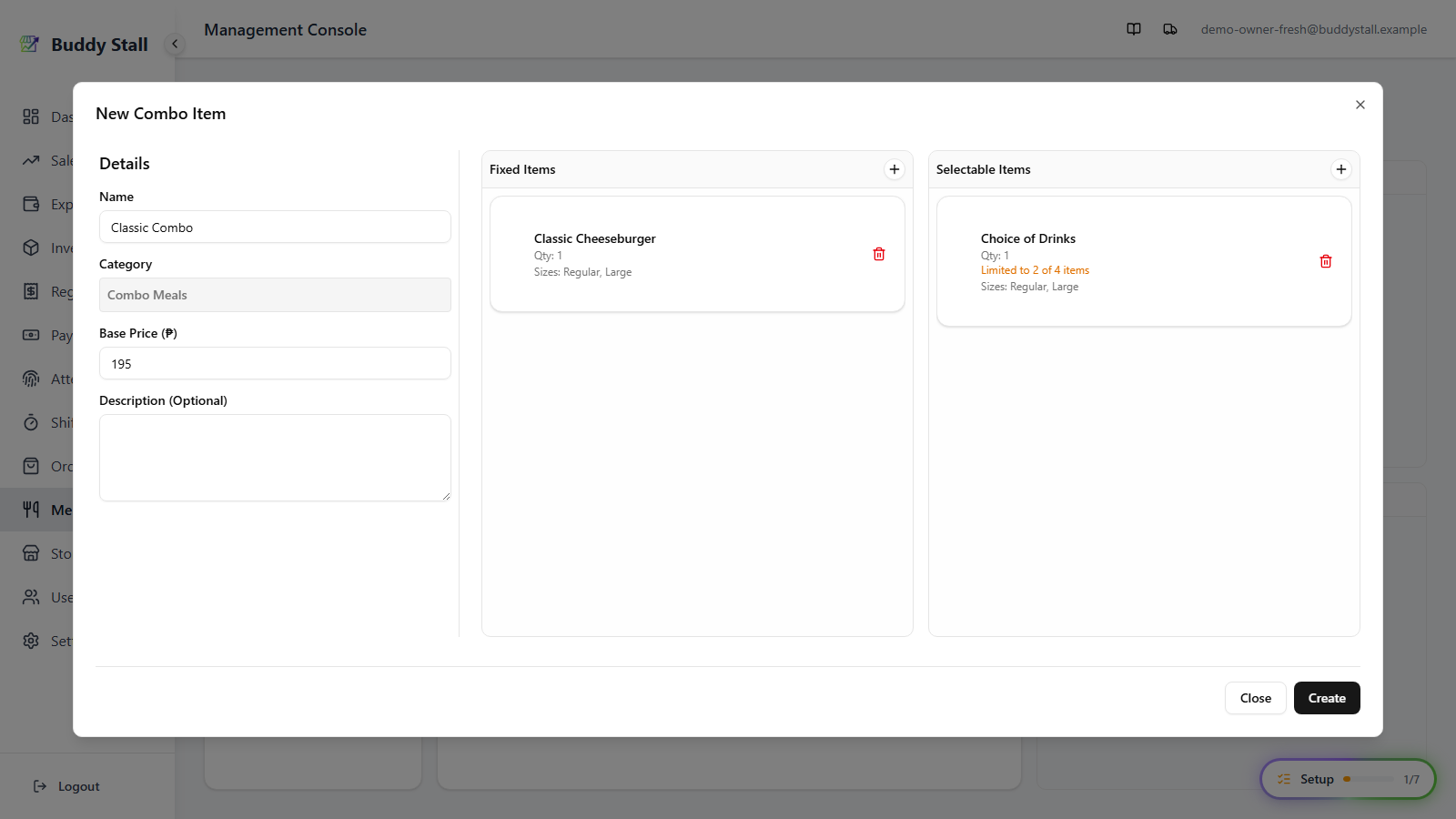
A narrowed choice is labelled on its card, so you can see the limit at a glance:
5. Create the combo
With both columns reflecting the bundle you want to sell, click Create to commit the combo item:
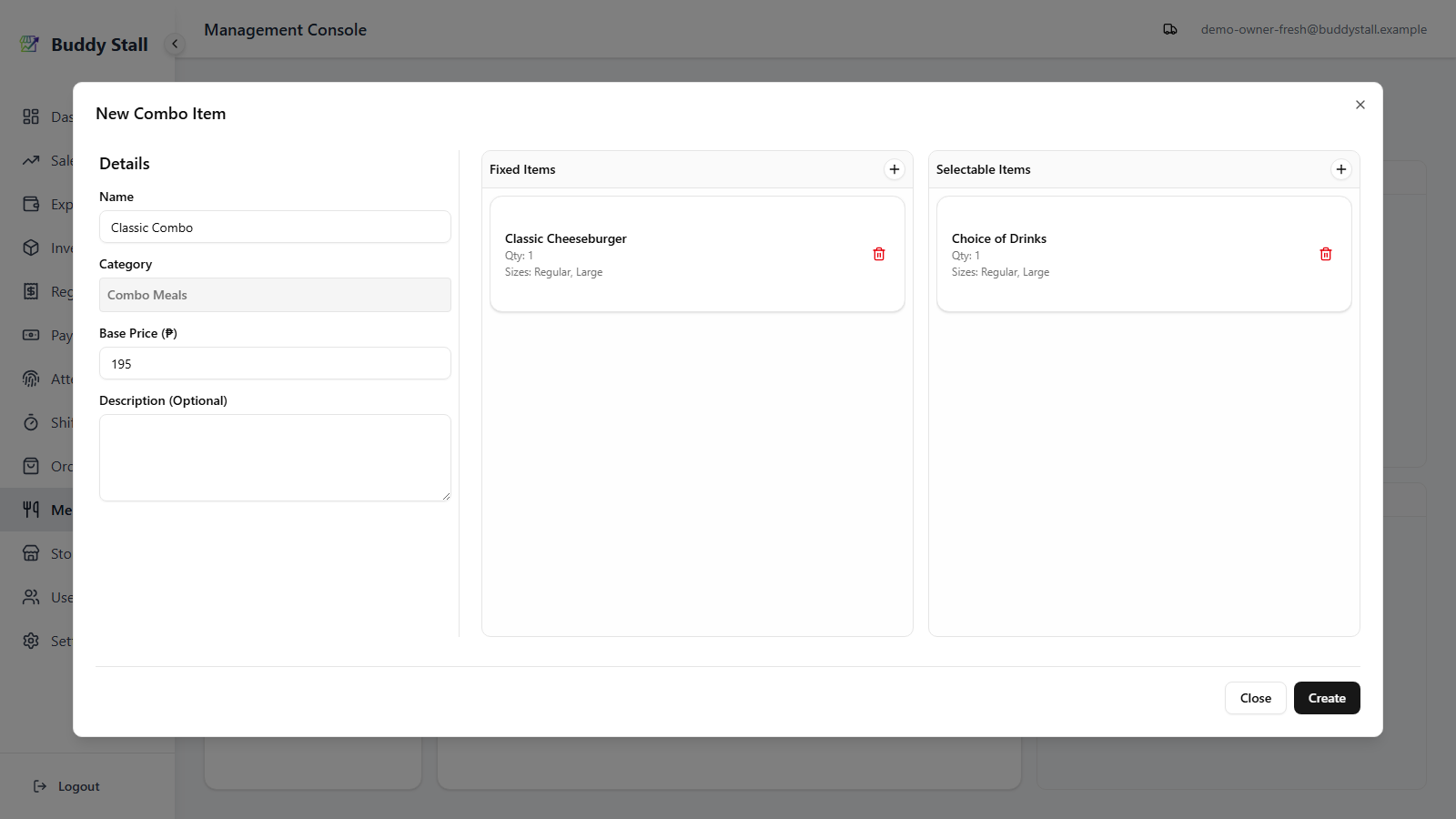
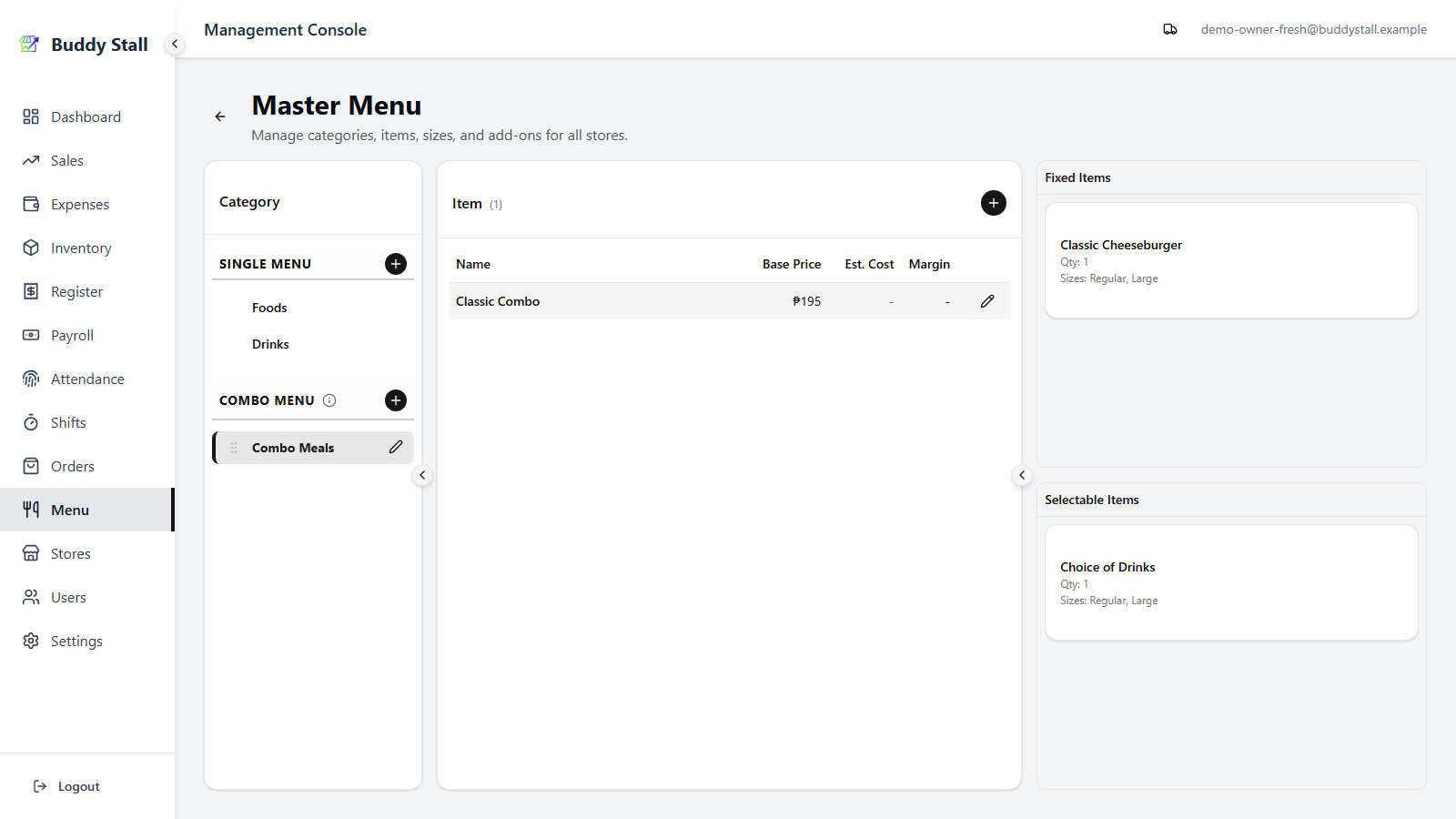
After creation, the combo item lives under its combo category, and the right pane surfaces its set components whenever you select it:
Reorder and edit set components
The order of the cards in each column is the order customers see at the POS — all Fixed items first, then the Selectable choices. Drag a card by its grip handle to reorder it within its column (Fixed always stays before Selectable):
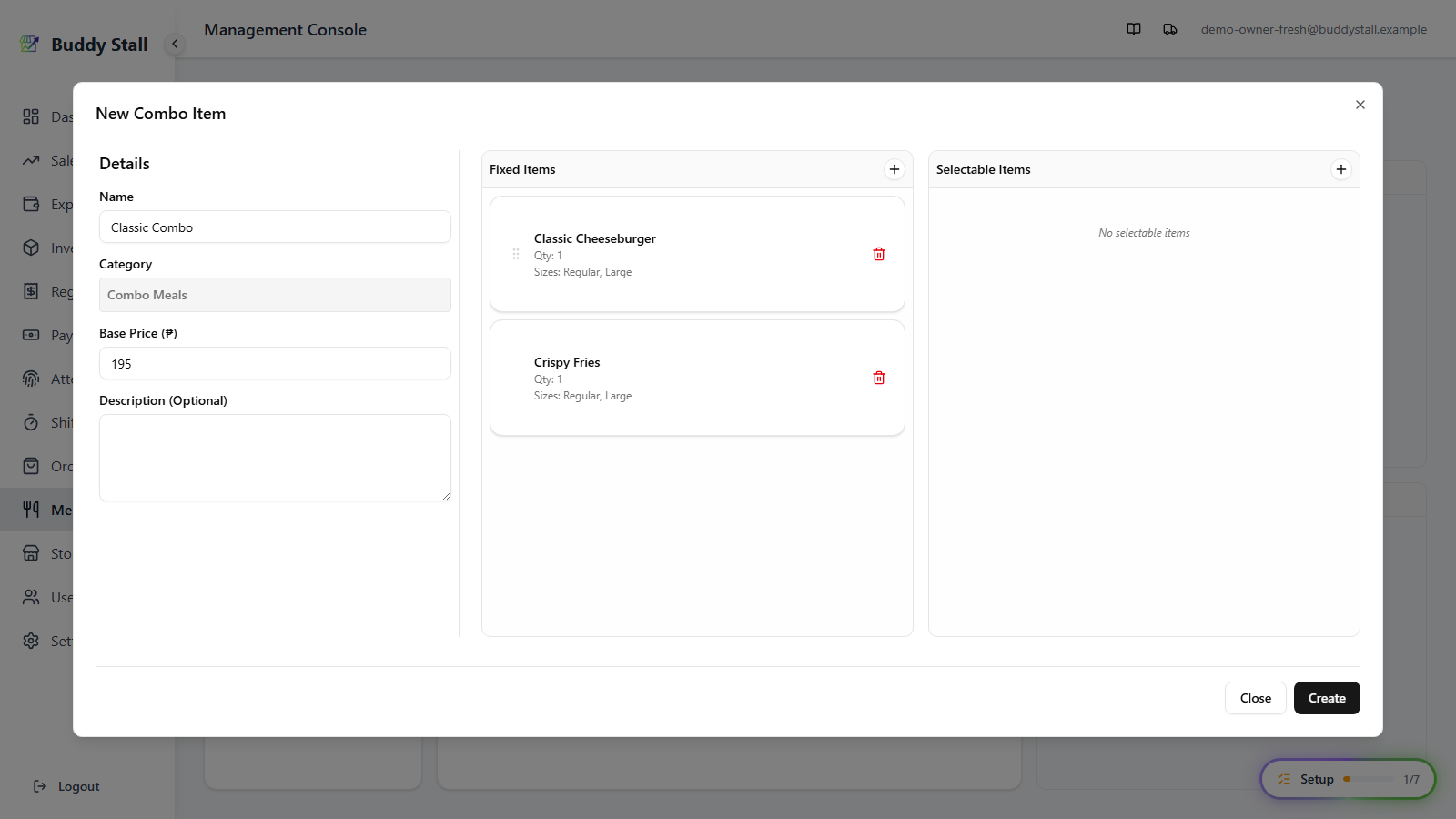
To change a selectable choice later, click its card to reopen the editor — adjust the quantity or the allowed items, then save. (The category itself is fixed once added; to change it, remove the card and add a new one.)