
Logging waste
Stock doesn't only leave the shelf through sales. Things spoil, spill, expire, or get thrown away — and unless you record that, your expected stock drifts away from reality and you lose track of how much you're losing to waste.
Logging waste does two things in one step: it deducts the quantity from the store's stock and records the loss under the Waste category so you can see it.
It's normally the on-site staff who log waste, right where the stock is. Owners and managers can also log it from the Admin dashboard. The screenshots below show the staff portal; where the Admin dashboard looks different, the admin view is added underneath.
For staff using the portal, the Log Waste button only appears while the store's register is open — waste is recorded against the active session. Owner and manager accounts can log waste any time from the admin inventory.
1. Open the store inventory
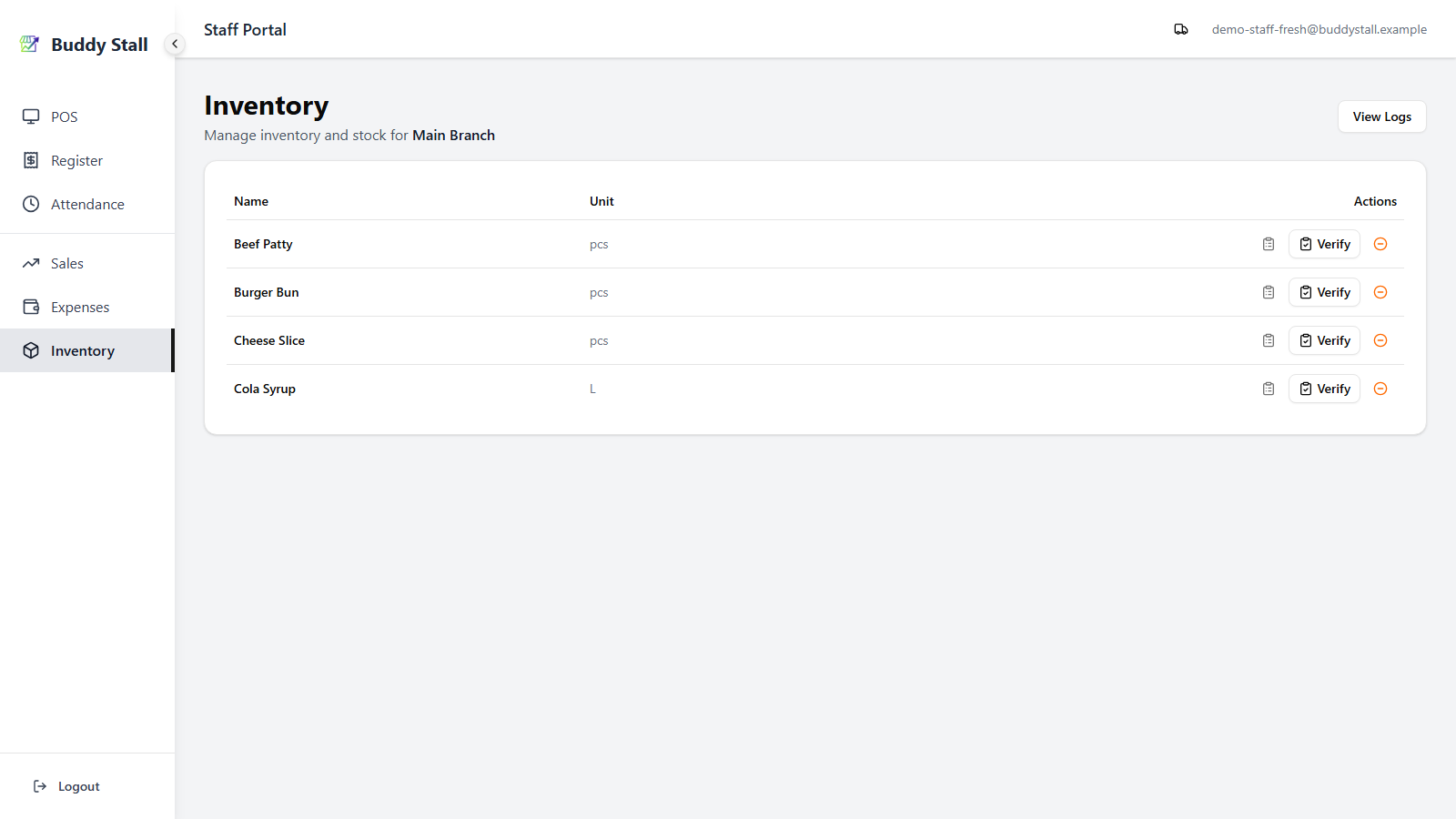
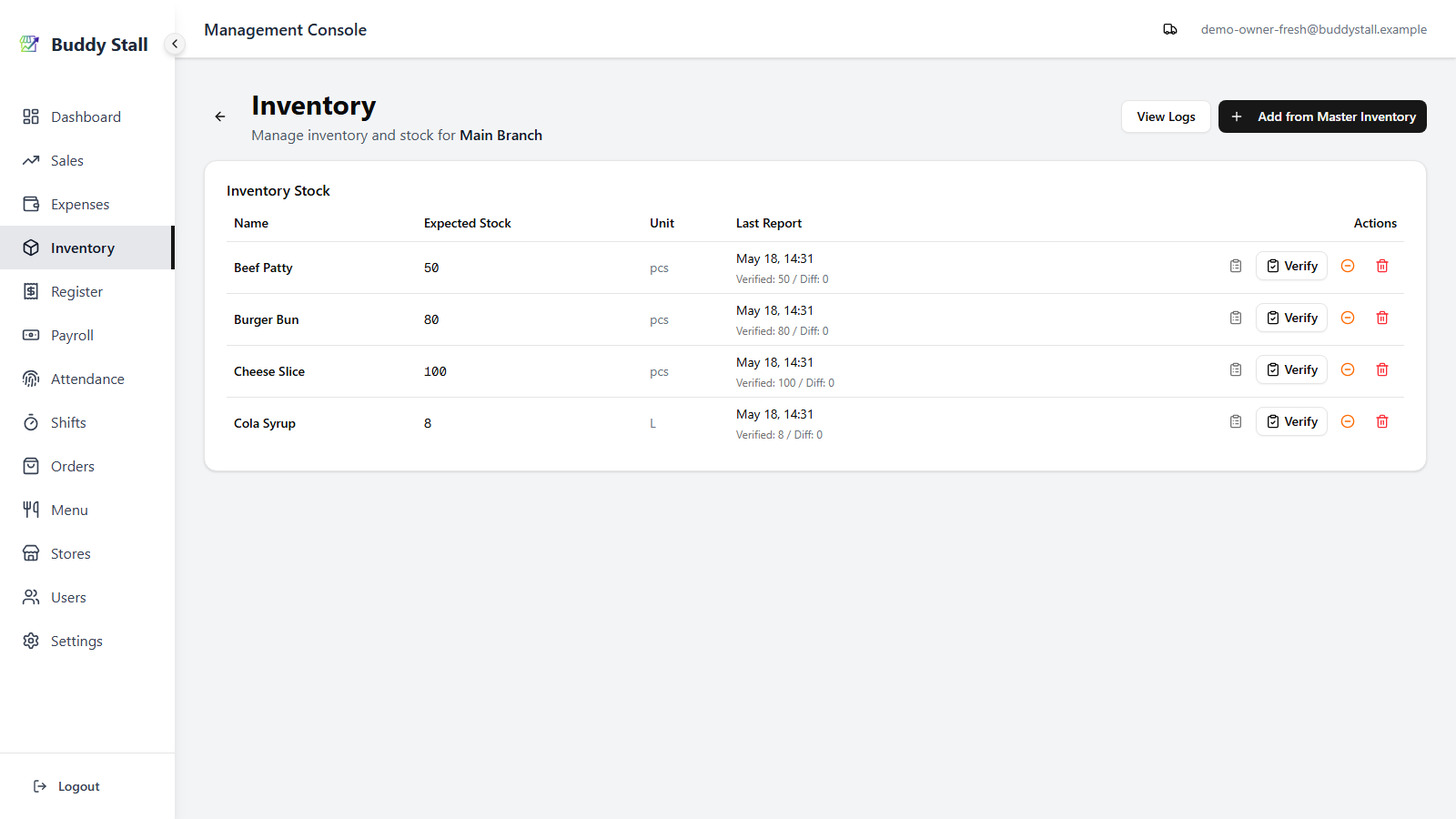
In the staff portal, open Inventory — you land straight on your store's inventory, which lists every ingredient the store carries. While the register is open, each row carries a small orange minus-circle icon for Log Waste, next to View History and Verify.
2. Open the Log Waste dialog and enter the details
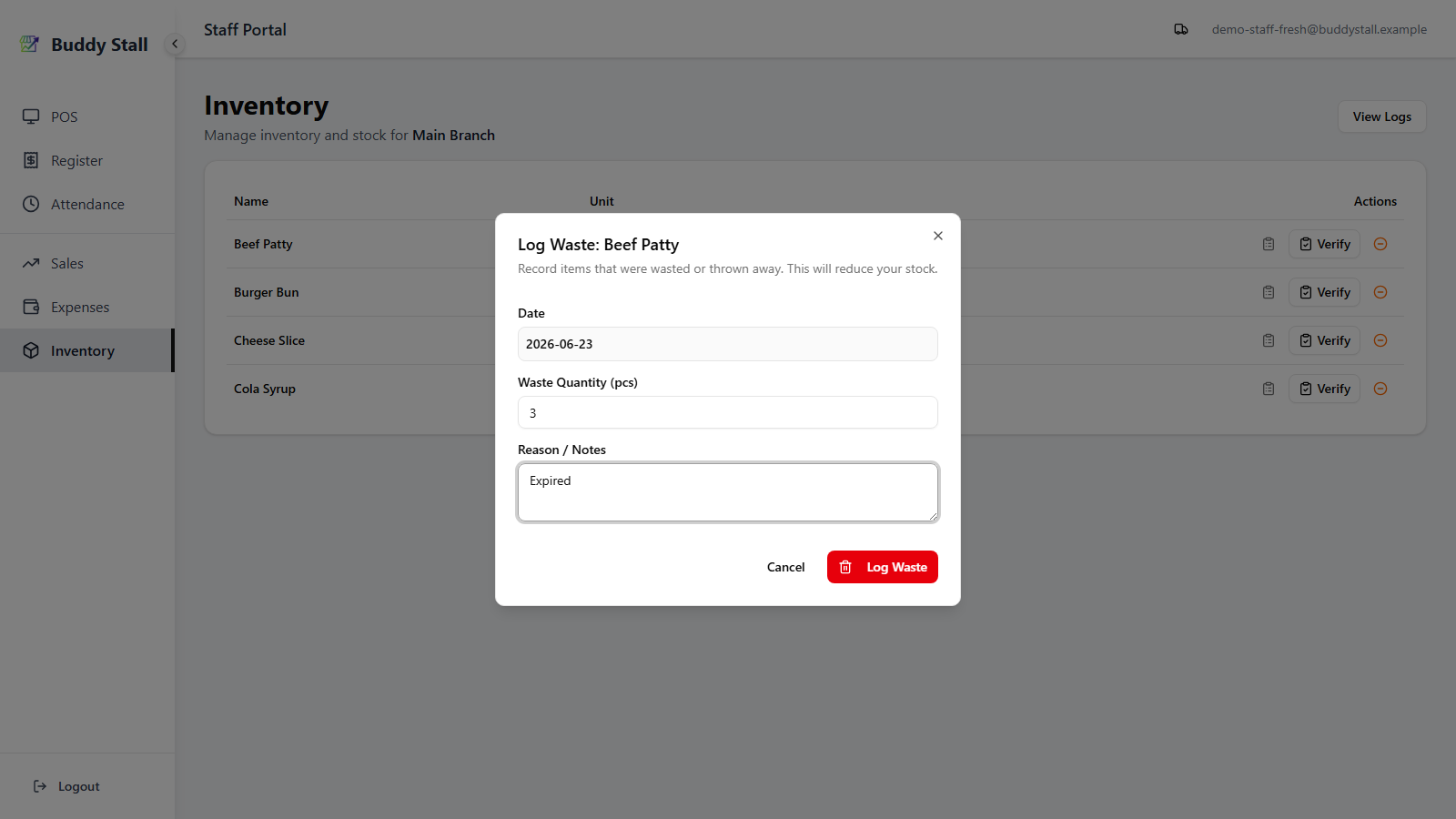
Click the Log Waste icon on the row for the item you are discarding. The dialog opens with the item's name in its title and three fields to fill in:
- Date — for staff this is fixed to today (shown as a read-only box); the entry is recorded against the open register session. Owners and managers get an editable date field on the Admin dashboard and can back-date an entry that was missed.
- Waste Quantity — how much was lost, in the item's unit
(e.g.
0.5 kg,3 pcs). The cost is computed from this and the item's Cost per Unit set on the master inventory. - Reason / Notes — optional, but worth filling in: a brief reason
(
Expired,Spilled,Damaged in transit) makes the waste easier to interpret later.
3. Submit and see the result
Click Log Waste in the footer. Three things happen at the same time:
- The store's stock drops by the quantity you entered.
- The drop is recorded in the store's inventory log as a
wasteentry. - A Waste entry is recorded automatically under the Waste category in Expenses, valued at quantity × Cost per Unit. This works because of the master-inventory ⇄ master-expense link set up in Set up your inventory — no extra bookkeeping on your side.
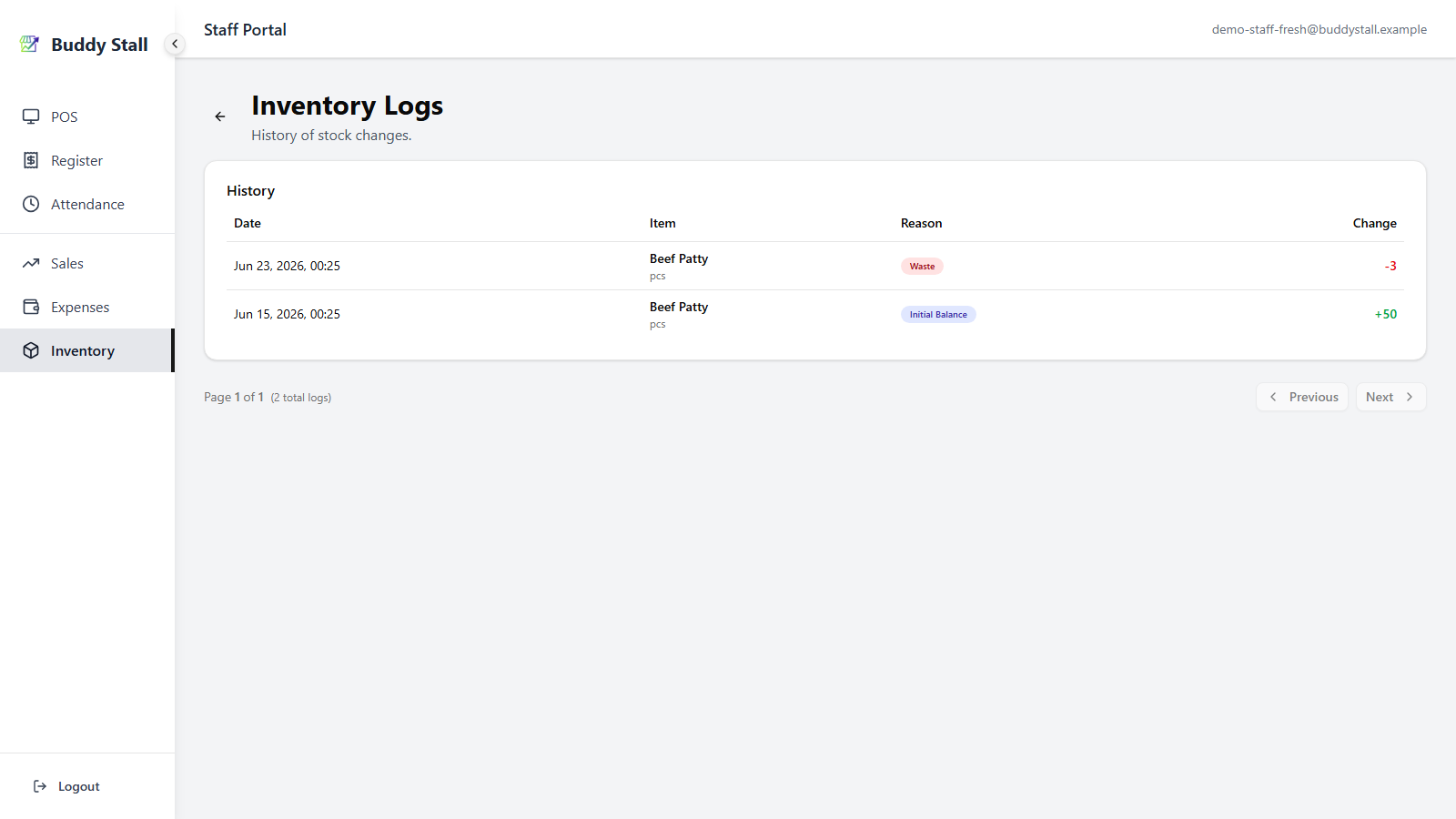
Staff see two of these straight away in the portal. First, the inventory log — the running history of every stock change, reached from Inventory → View Logs. The waste lands on top as a red Waste row that lowers the count.
Second, the matching Waste (Inv) entry in the Expenses list — under the Waste category, valued at quantity × Cost per Unit.
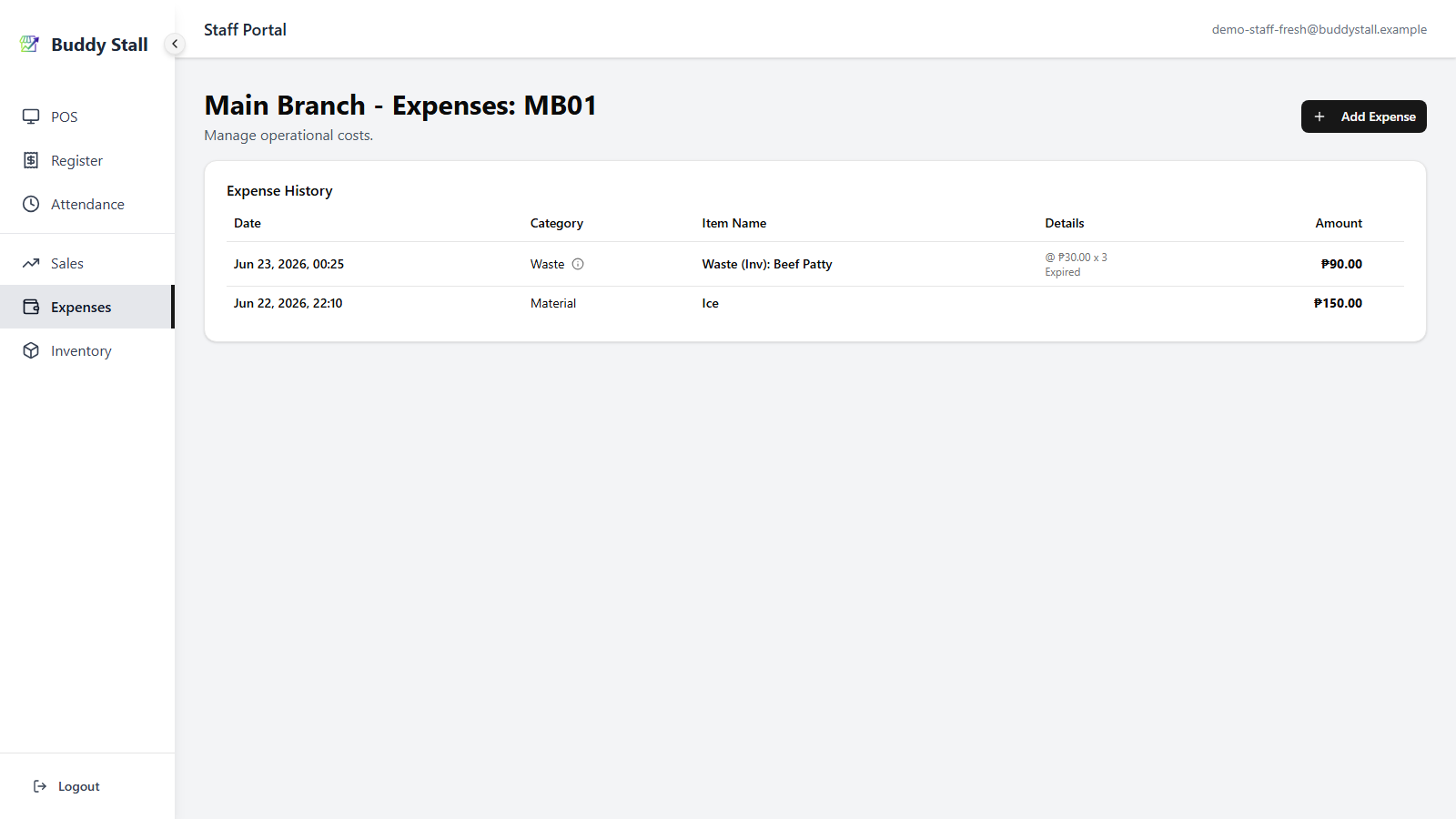
The Waste entry is there so you can see how much you're losing — it is not added to your expense or profit totals. The cost of that stock was already counted as an expense when you bought it (under Material), so counting it again would double it. Every waste entry still lives in your expense history under the Waste category, and you can review it per item in the store comparison's Expense by Item view.
On the Admin dashboard: Expected Stock drops
Staff never see stock figures — they count what's physically on the shelf. On the Admin dashboard, owners and managers can watch the deduction land: the item's Expected Stock drops by the logged quantity as soon as you submit.
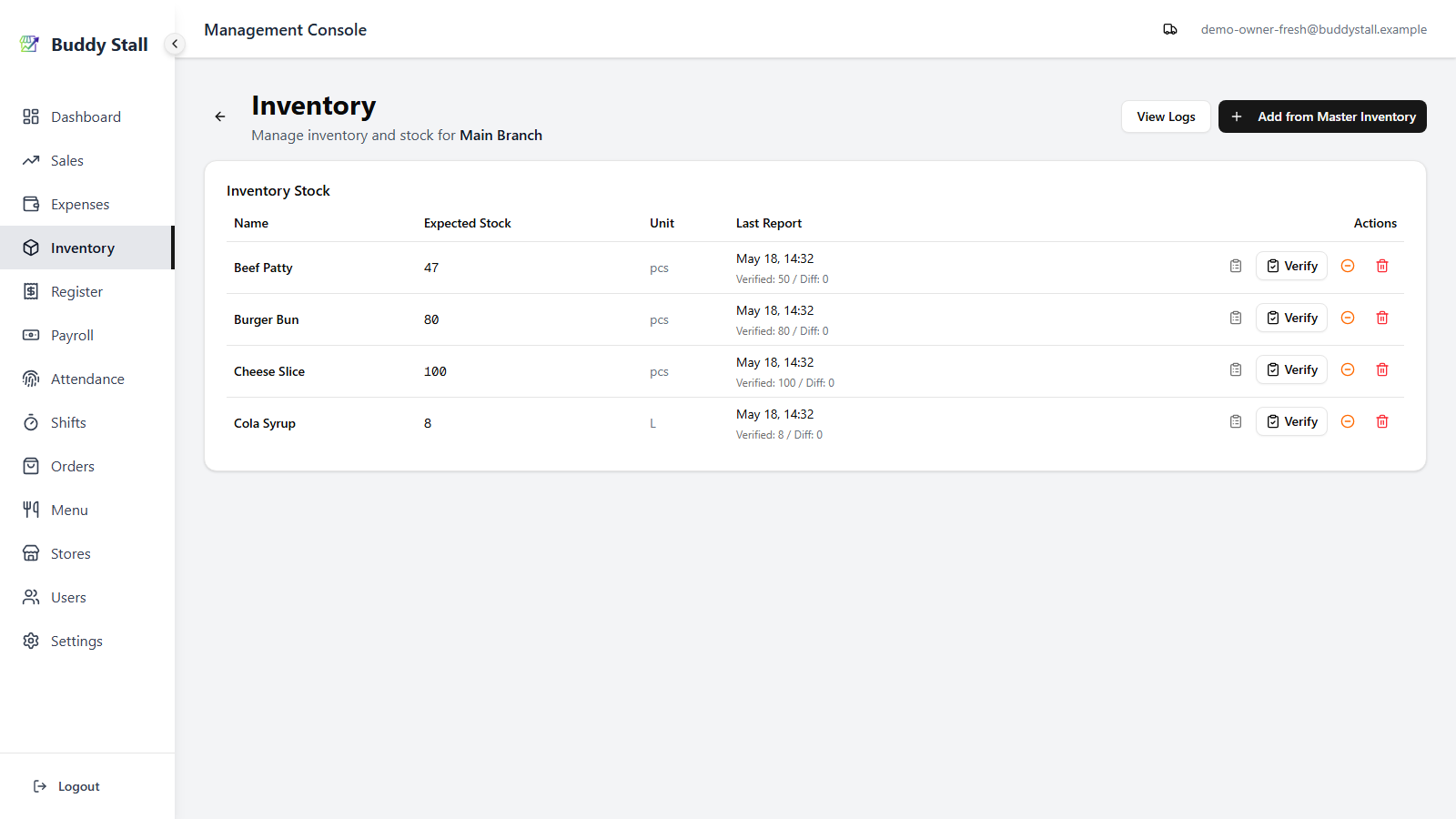
The waste also feeds into the item's stocktake report as part of the period's deductions. The all-items inventory log collects these stock changes across every item the store carries.
Throwing away a finished menu item
Steps 1–3 discard a raw ingredient straight from the inventory list. Sometimes, though, you throw away a finished, made product — a burger dropped on the floor, a dish made for the wrong order. You record that from Expenses, not the inventory list: BuddyStall knows the item's recipe, so it deducts every ingredient the recipe uses and records the loss at the recipe's cost — in one step.
The ingredient deduction only works when the menu item has a recipe set up — that's what tells BuddyStall which ingredients (and how much of each) to remove. Without one, there's nothing to deduct.
1. Start a Waste entry and pick the item
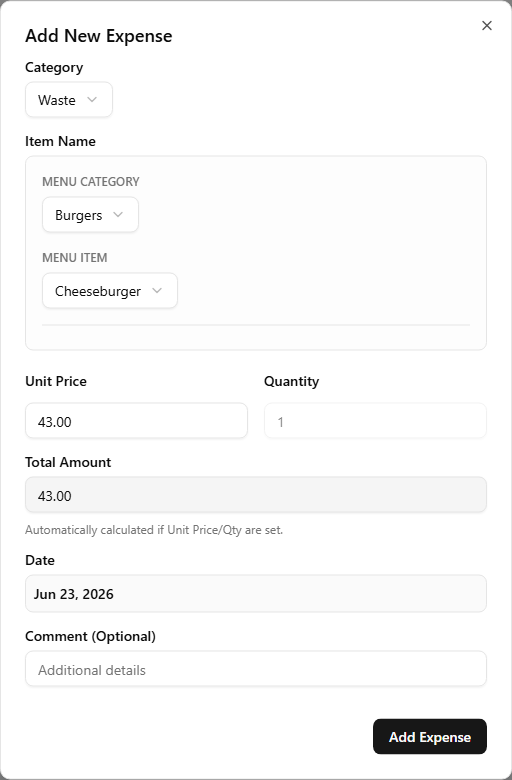
In the portal, open Expenses → Add Expense, and set Category to Waste. Choose the Menu Category and Menu Item (plus a size or add-ons if the item has them). The Total Amount fills in automatically from the recipe and can't be edited — it's the combined cost of everything the recipe uses.
2. Submit — the Waste expense is posted
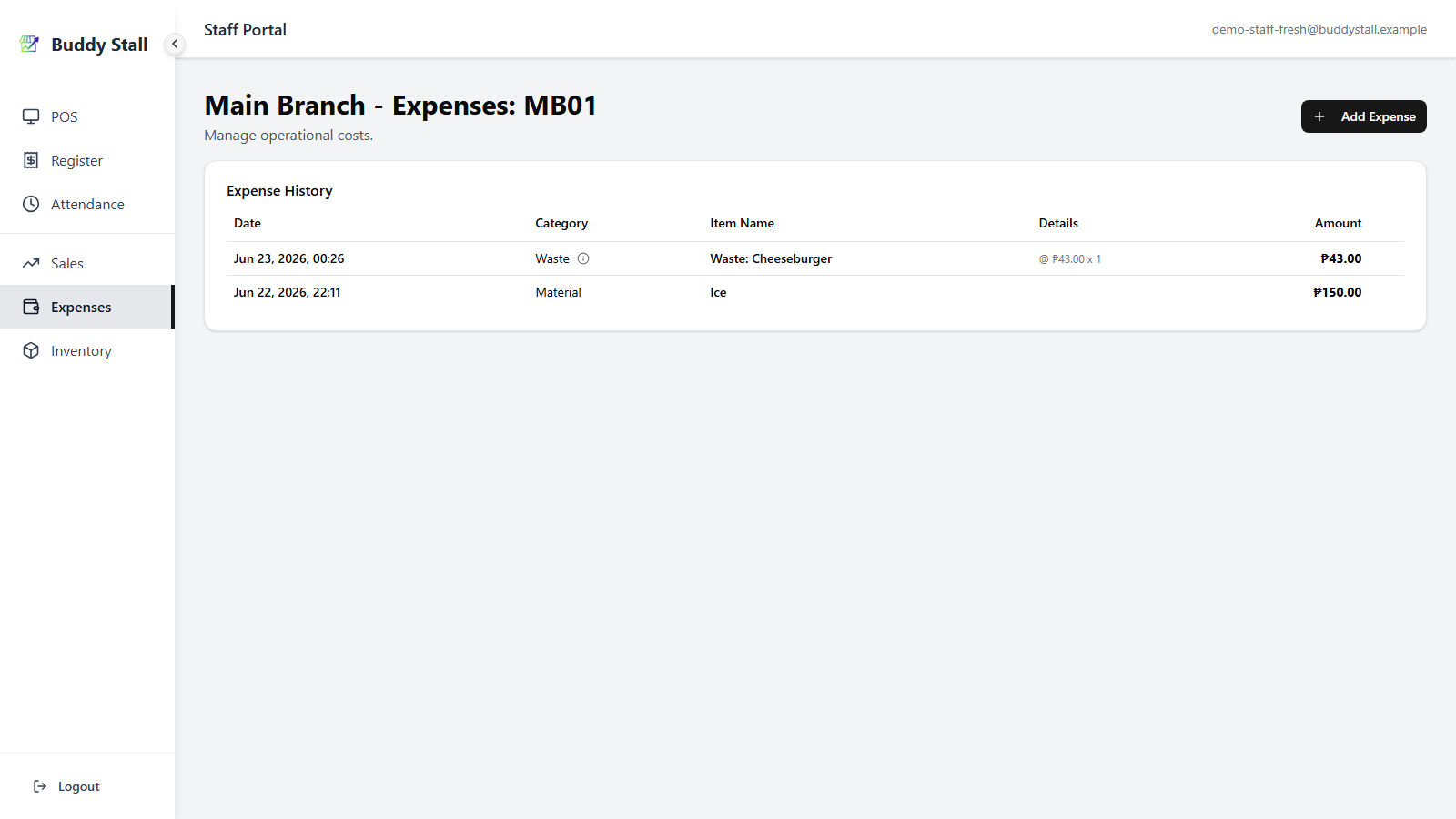
Click Add Expense. A Waste entry named after the item (here Waste: Cheeseburger) lands in the Expenses list under the Waste category, valued at the recipe cost. Like ingredient waste, it's recorded for tracking only and stays out of your expense and profit totals.
3. The recipe's ingredients leave stock
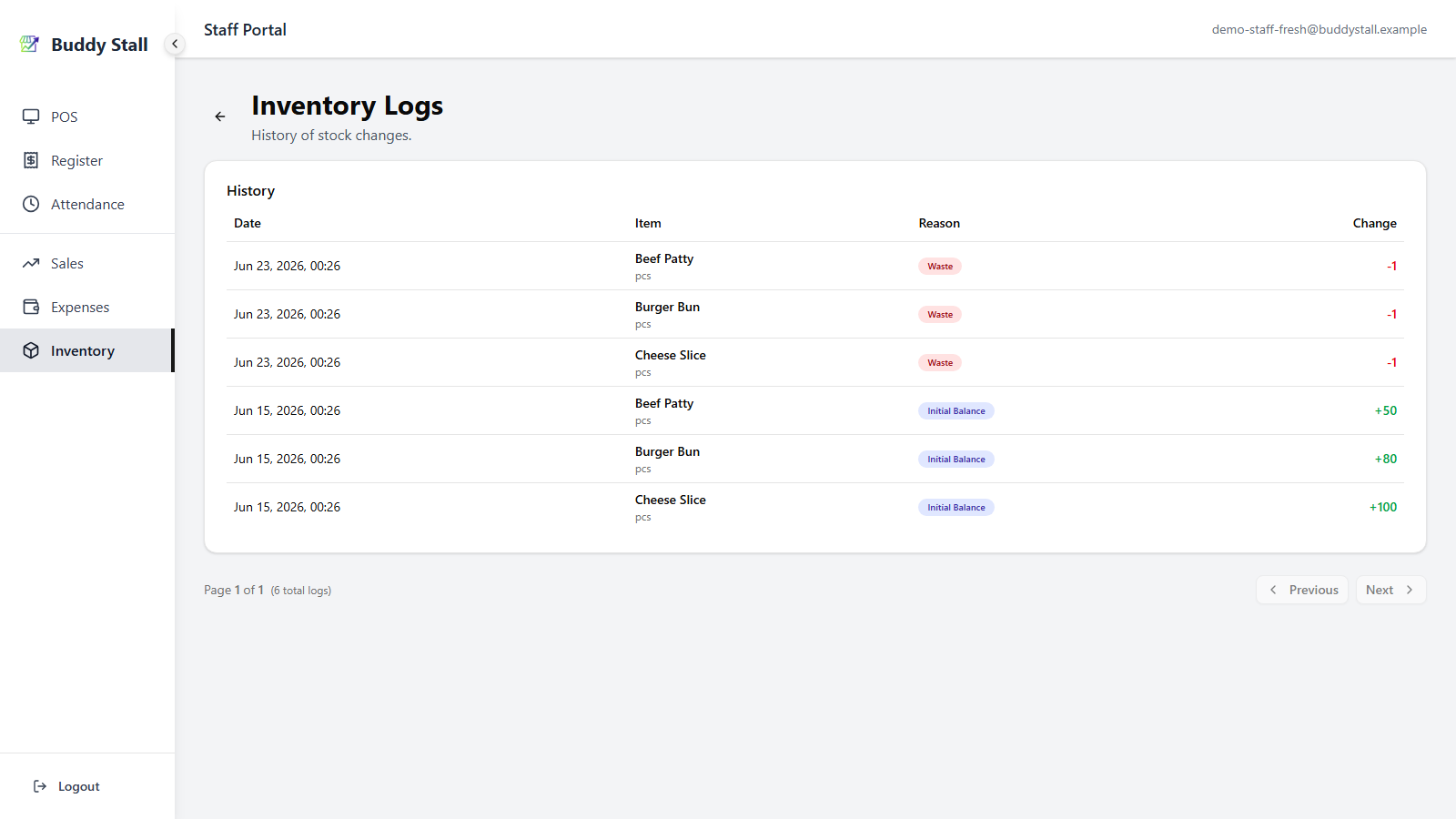
Behind that single entry, every ingredient in the recipe is deducted from
inventory — one waste line each in the inventory log. Here one Cheeseburger
removed one Beef Patty, one Burger Bun, and one Cheese Slice.
Read next
How to stocktake
Recording waste as it happens keeps the next stocktake's variance small.
Expenses overview
Where the auto-posted Waste entry lands — recorded for tracking, but kept out of your expense and profit totals.
History & logs
The all-items log of every stock change — sales, restock, waste, and stocktake reset.