
Take orders
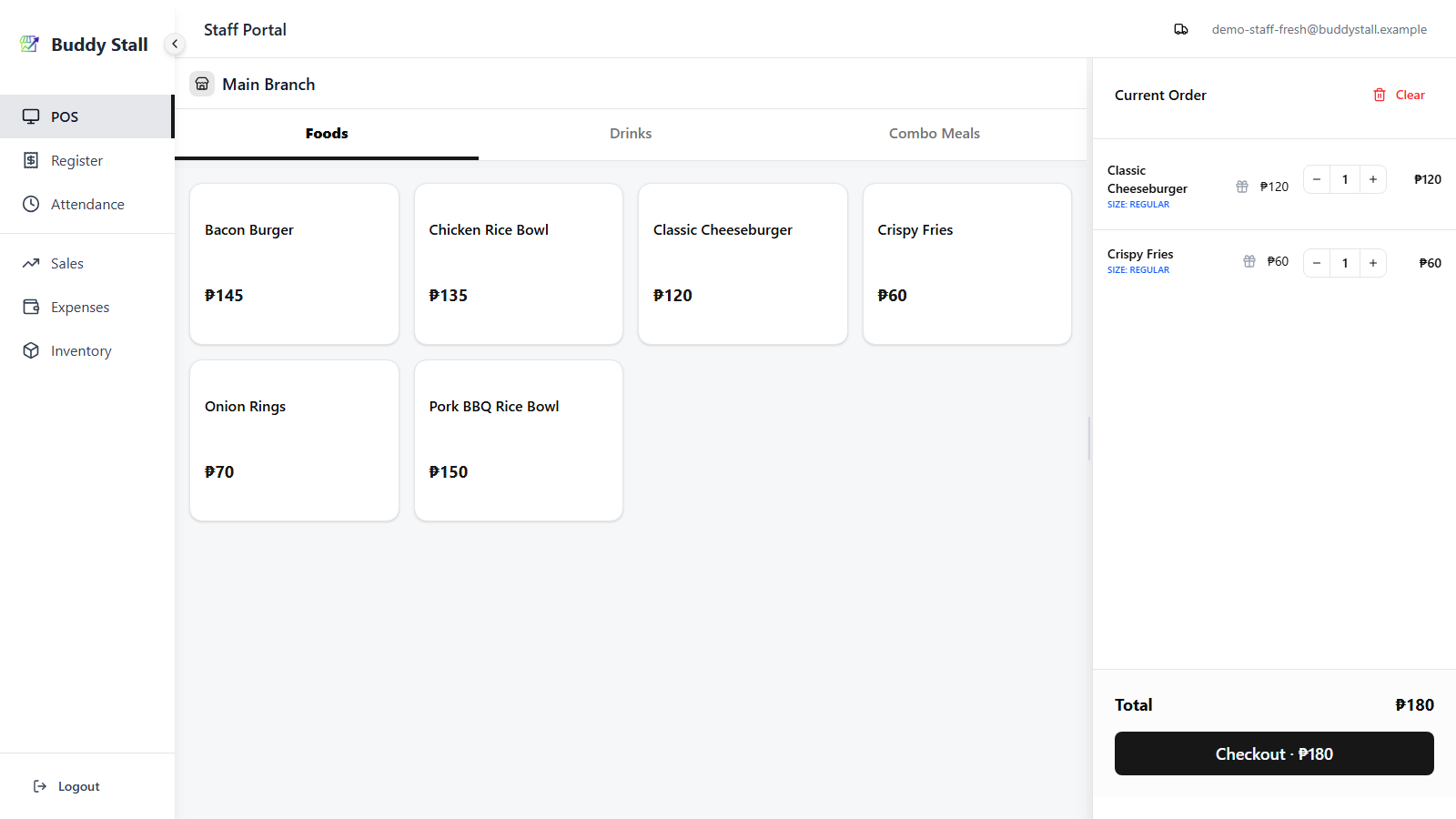
The POS is where each customer order is built and paid for. Items come from the left panel; the right panel is the current order (the cart); Checkout turns it into a sale and adds it to the day's running totals.
The POS can only take orders while a register session is open for the store. If you land on the open form instead of the menu grid, see Open & close register.
1. The POS layout
- Left — the menu, grouped into category tabs across the top. Swipe left or right on mobile to switch categories.
- Right (desktop) / bottom drawer (mobile) — the Current Order cart.
- Desktop only: drag the vertical bar between the menu and the cart to resize the cart panel.
An item with a photo shows it across the whole card, with the name and price laid over it; items without one keep the plain card. Either way the cards are the same size, so photos never cost you rows of menu.
2. Add items to the cart
Tap to add
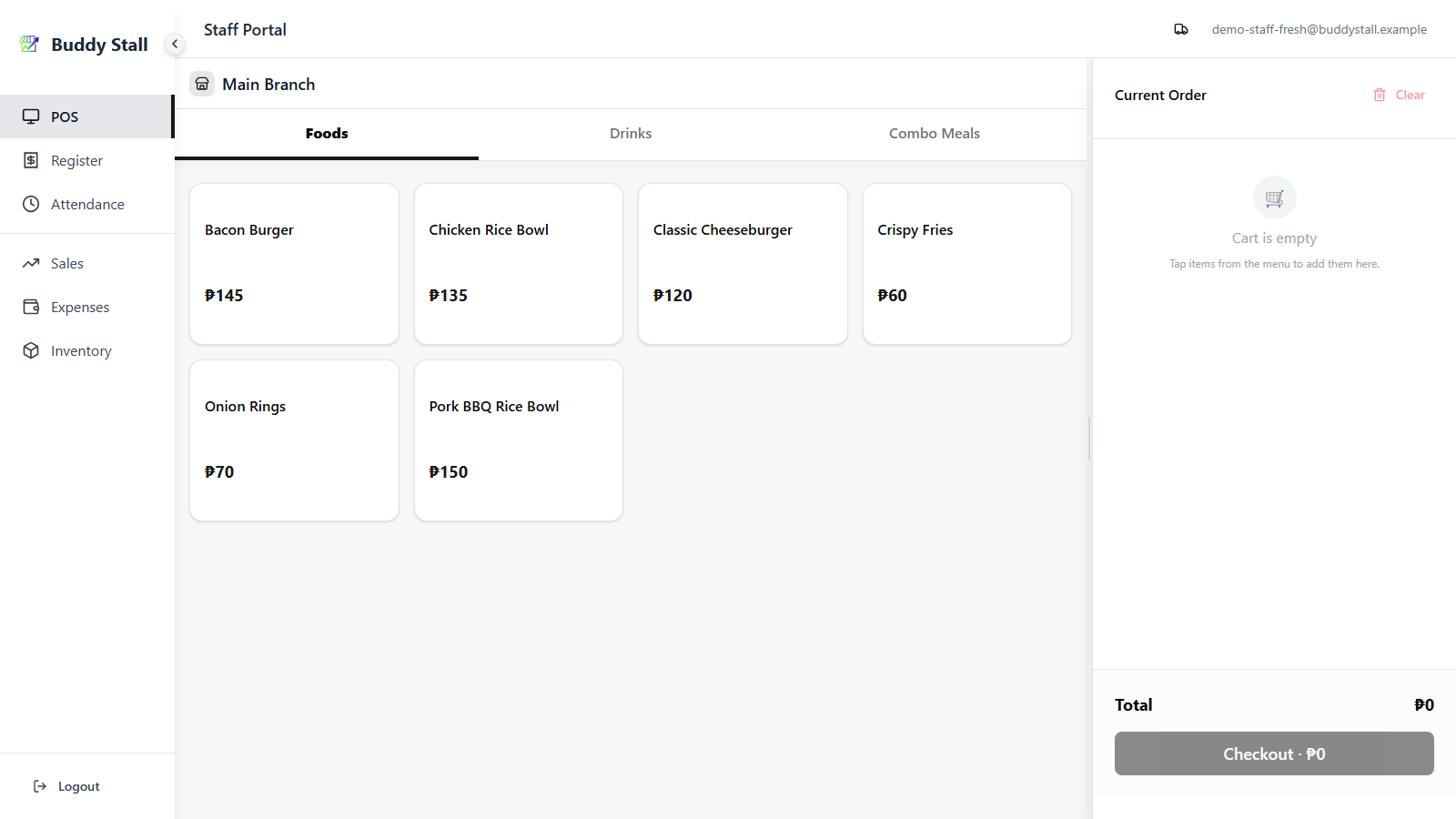
Tap a menu card to drop the item into the cart. Items with no size or add-on options go straight in at quantity 1; tapping the same one again adds another.
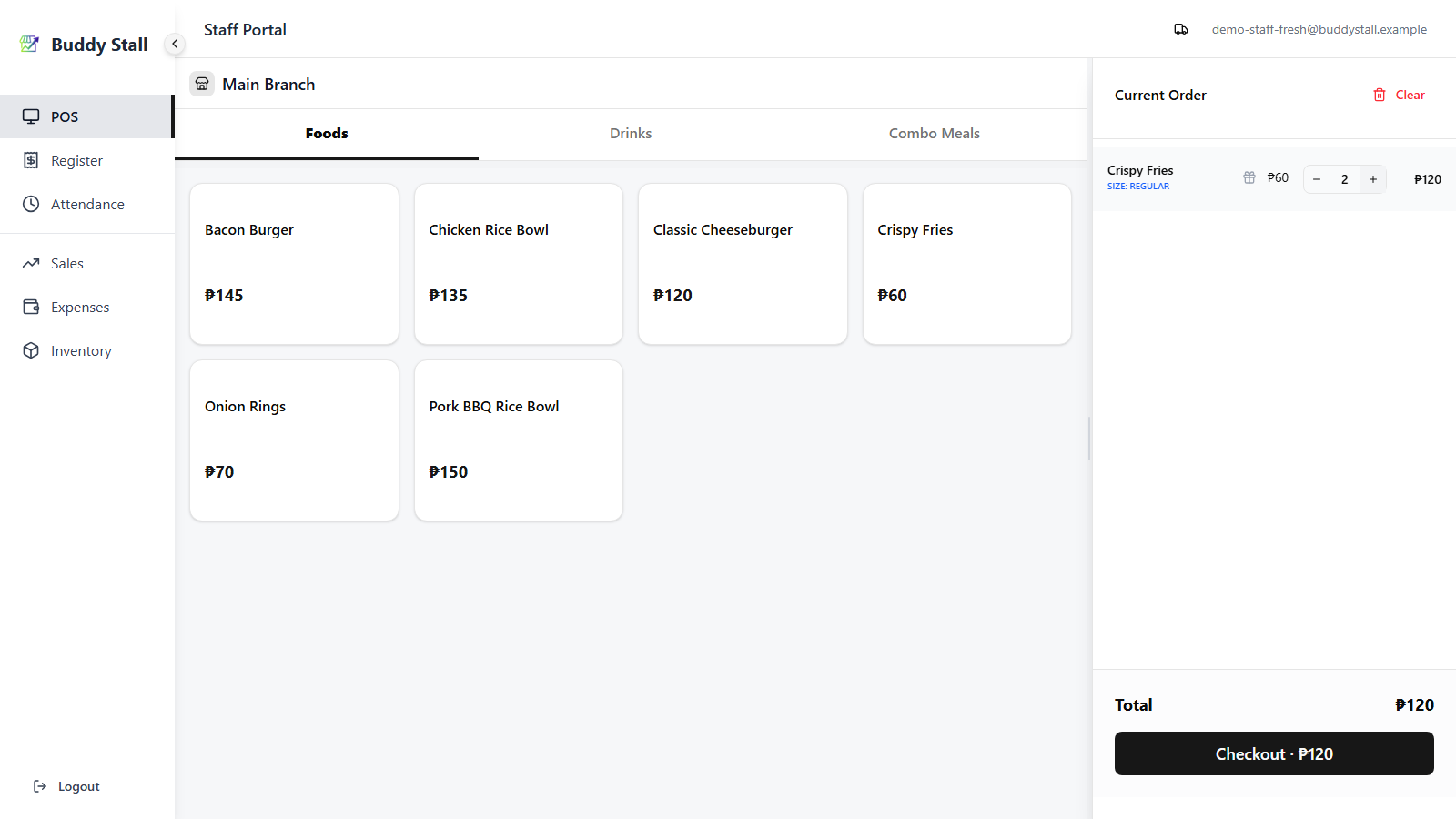
Whatever the item, the + / − stepper on each cart line adjusts the quantity any time.
Items with sizes or add-ons
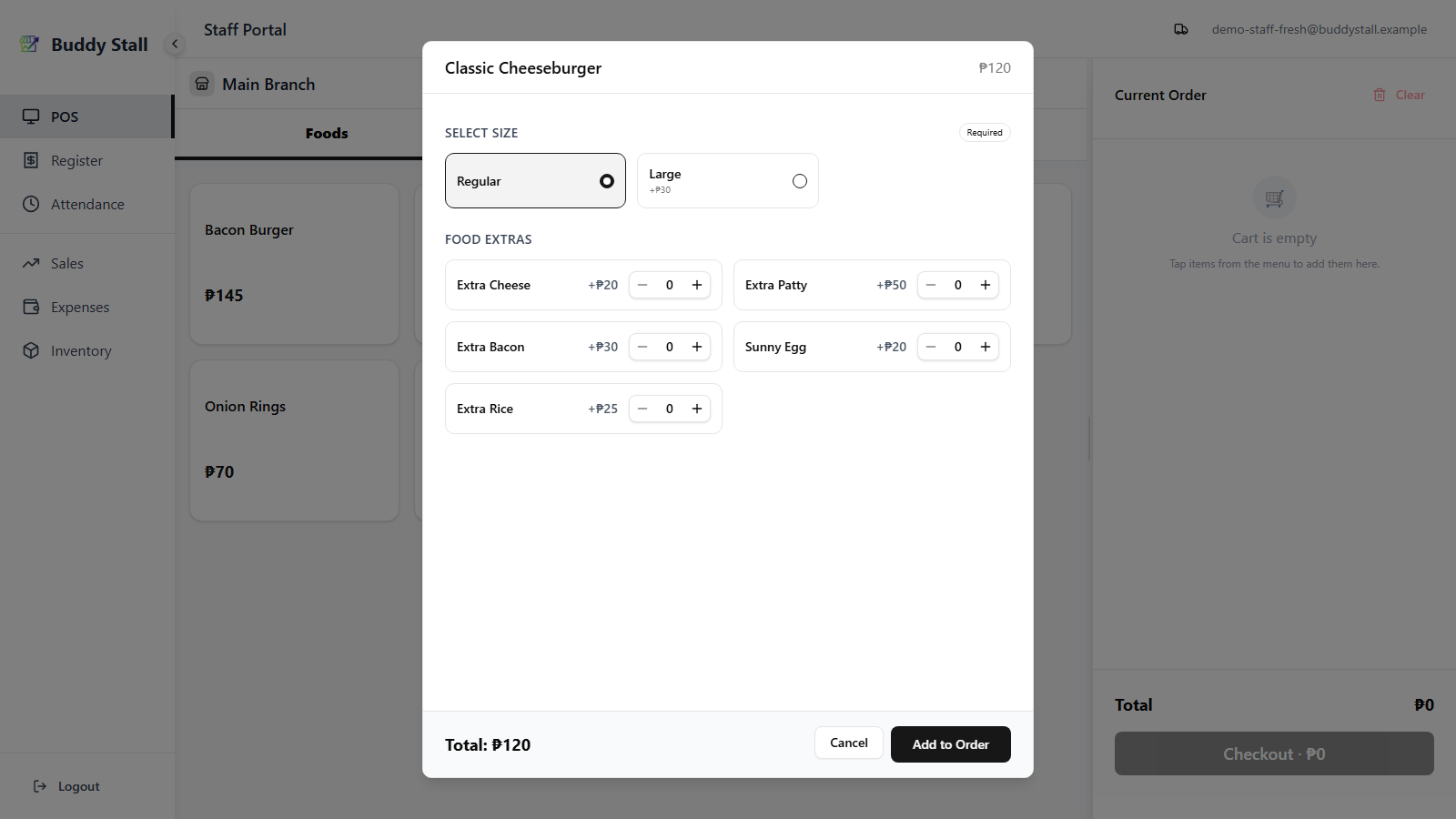
If an item has sizes or add-ons, tapping it opens a dialog.
Pick a size if offered, tick any add-ons, then Add. Sizes adjust the price; each priced add-on adds to it.
Combos
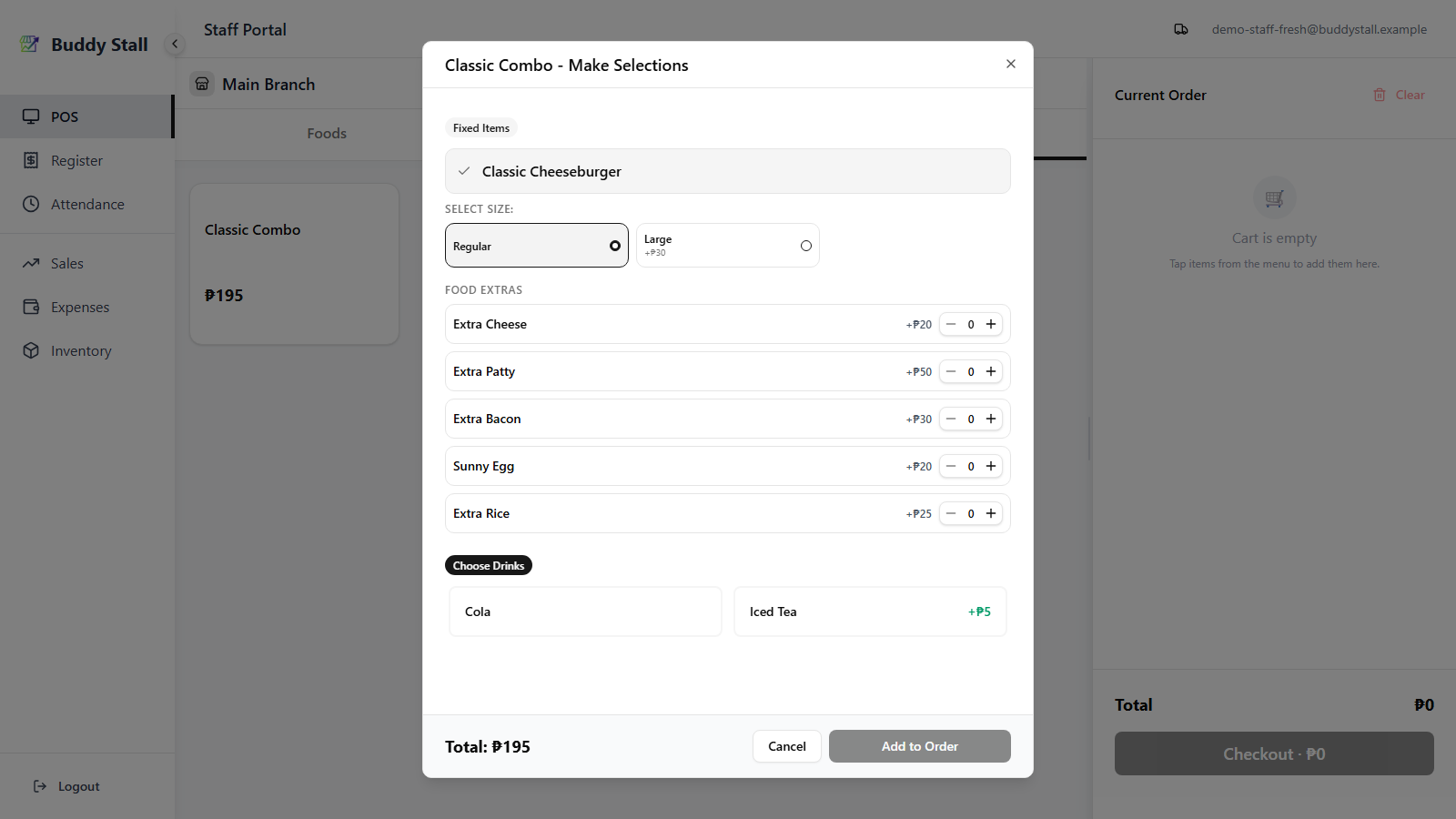
Combos open their own dialog — pick one option per slot. If a chosen item has sizes or add-ons, a further dialog opens to set those.
Edit a line
Tap a line in the cart to reopen its dialog and change the size, add-ons, or combo choices.
Remove a line or clear the cart
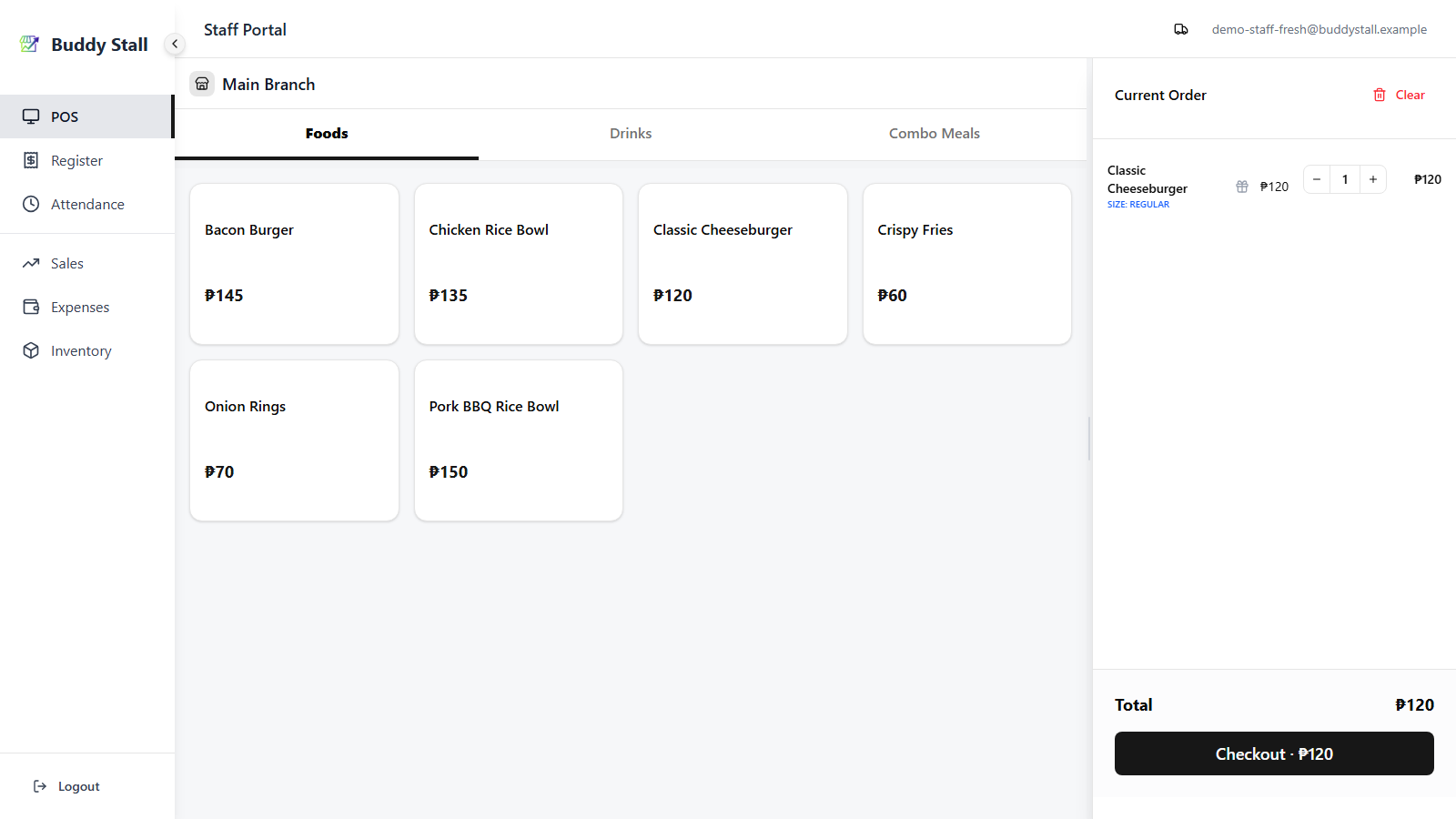
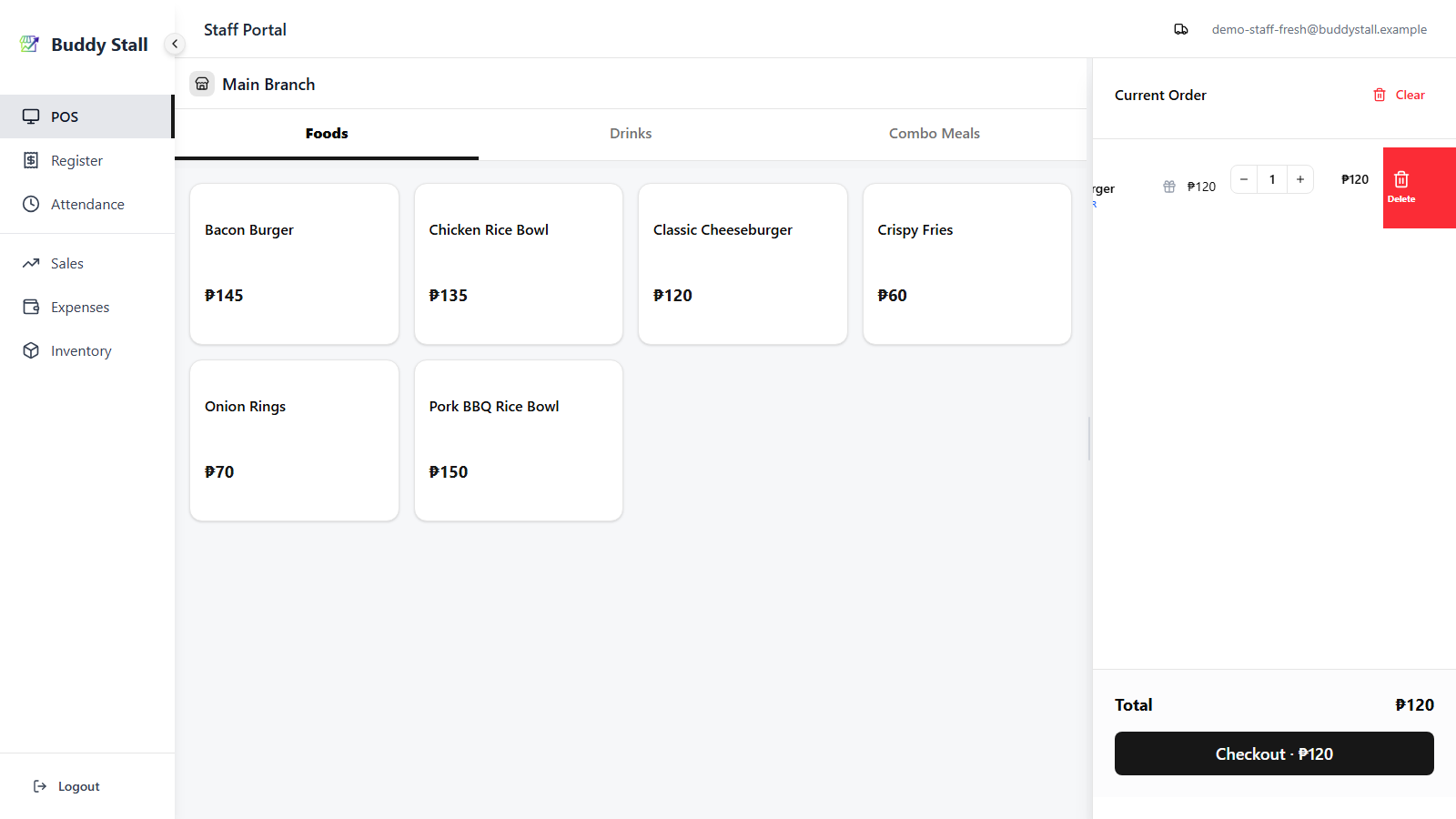
Swipe a line left to reveal its red Delete button and remove it. Clear at the top of the cart empties everything at once.
3. Marking an item or add-on as Free
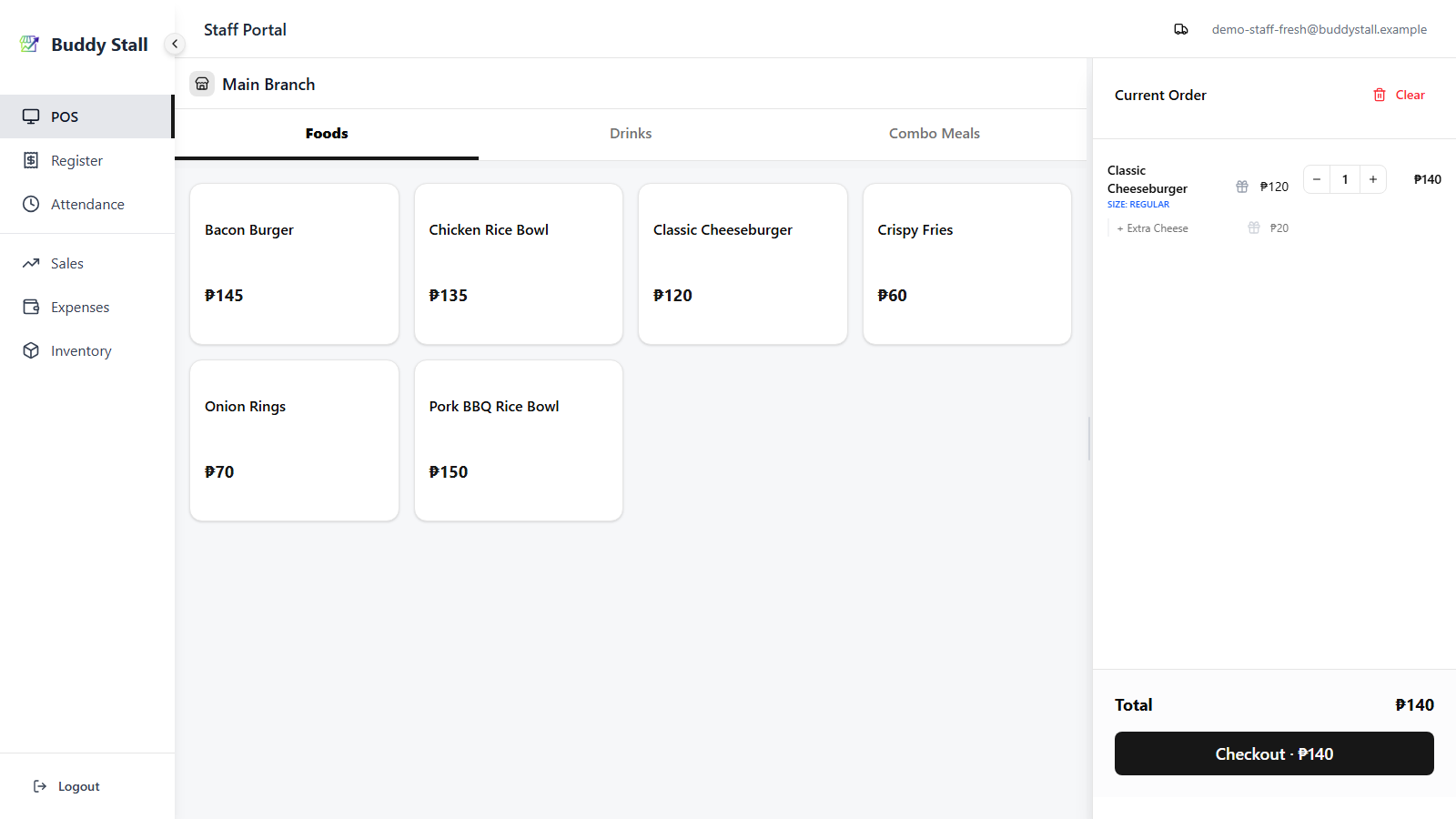
A small gift icon sits on each cart line, and again on each add-on row underneath it. Tapping one flips that piece to Free — the original price stays visible with a strikethrough so you can still see what was discounted.
Both icons start grey. Below, a Classic Cheeseburger (₱120) has been added with the Extra Cheese (+₱20) add-on, and nothing has been freed yet — the cart totals the full ₱140.
 12
121 The line gift icon, next to the item's price — frees the item itself.
2 The add-on gift icon, on the + Extra Cheese
row — frees only that add-on.
Free the item
Tap the gift icon on the cart line. The item's price turns green Free with the original struck through. Add-ons on that line are not touched — Extra Cheese still charges ₱20, so the order total drops from ₱140 to ₱20.
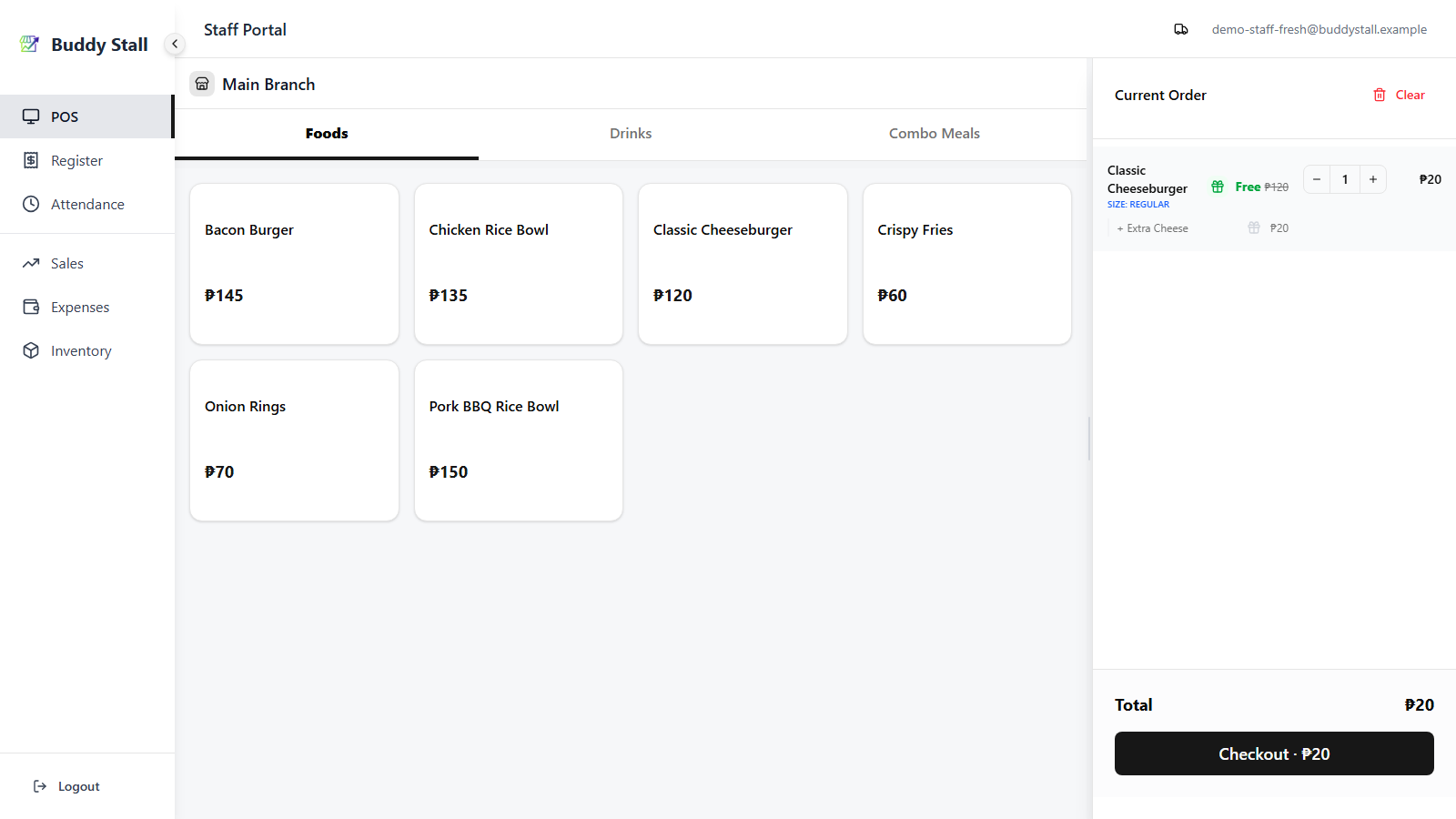
Free just an add-on
You can also give away only an add-on and still charge for the item. Tap the gift icon on the add-on row instead: the add-on reads Free while the item keeps its own price — the total goes from ₱140 to ₱120.
Each add-on row has its own gift icon, so on a line with several add-ons you can free one and keep charging for the rest.
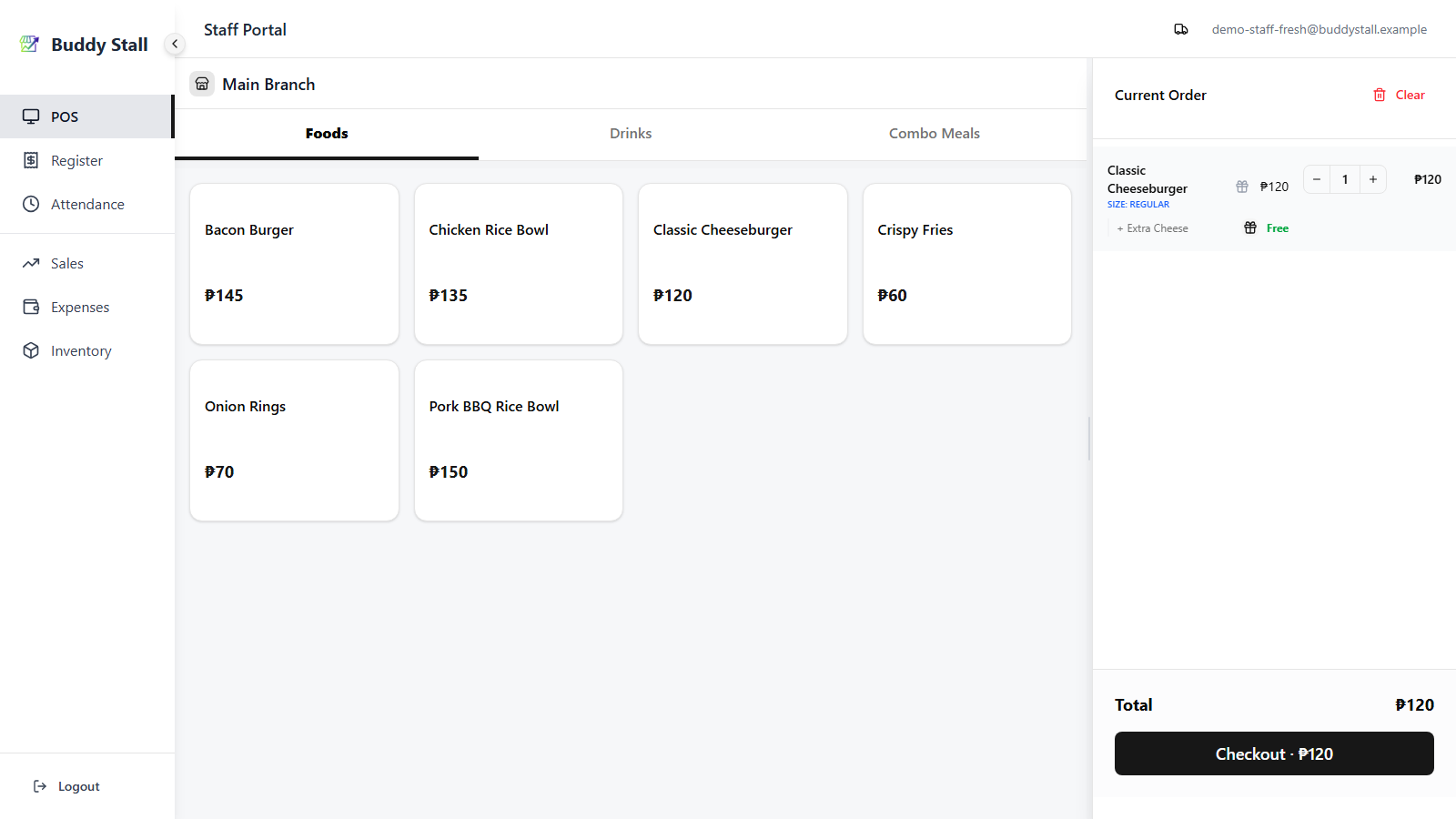
The two toggles are independent — you can free the item, the add-on, both, or neither. Tap a gift icon again to undo it.
Freeing only some of a quantity
The gift icon frees every unit on that line, not one of them. A line with quantity 3 marked Free gives away all three.
To give away only part of a quantity — say a customer buys 3 and one is on the house — split it into two lines:
- Add the item, leave it at quantity 1, and tap its gift icon so that line reads Free.
- Tap the same item on the menu again. It comes in as a new, separate line at the normal price rather than joining the free one.
- Set that new line's quantity to 2 with the + stepper — don't tap the menu card a third time, or you'll get a third line.
The cart then holds one free unit and two charged units, and the sale records the giveaway as its own ₱0 line — so it stays visible on Sales History instead of disappearing into a discount.
4. Buy One Take One
Some items run a Buy One Take One promo, marked with a green B1T1 badge on the menu card. The promo is switched on per item when setting up the menu.
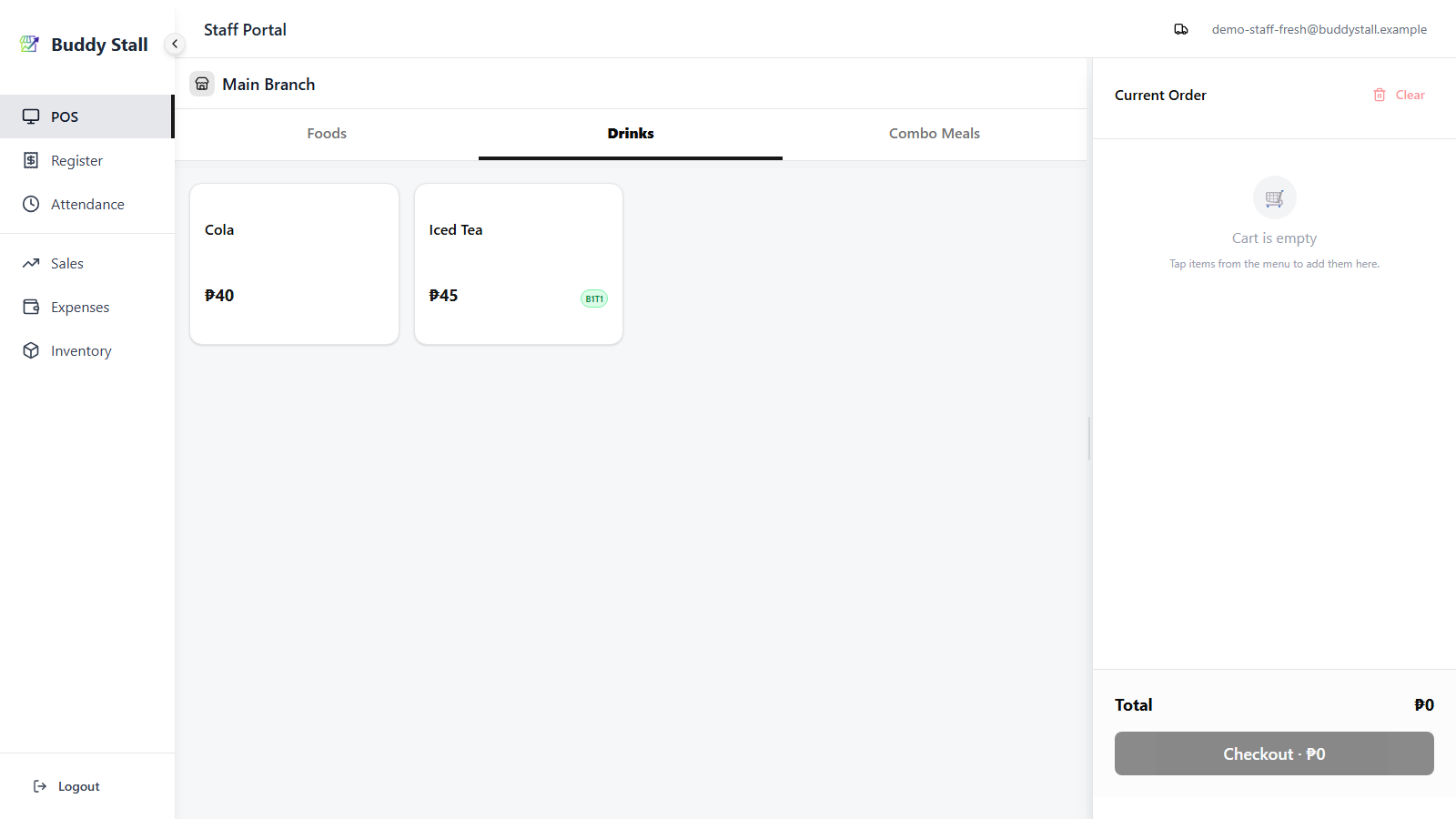
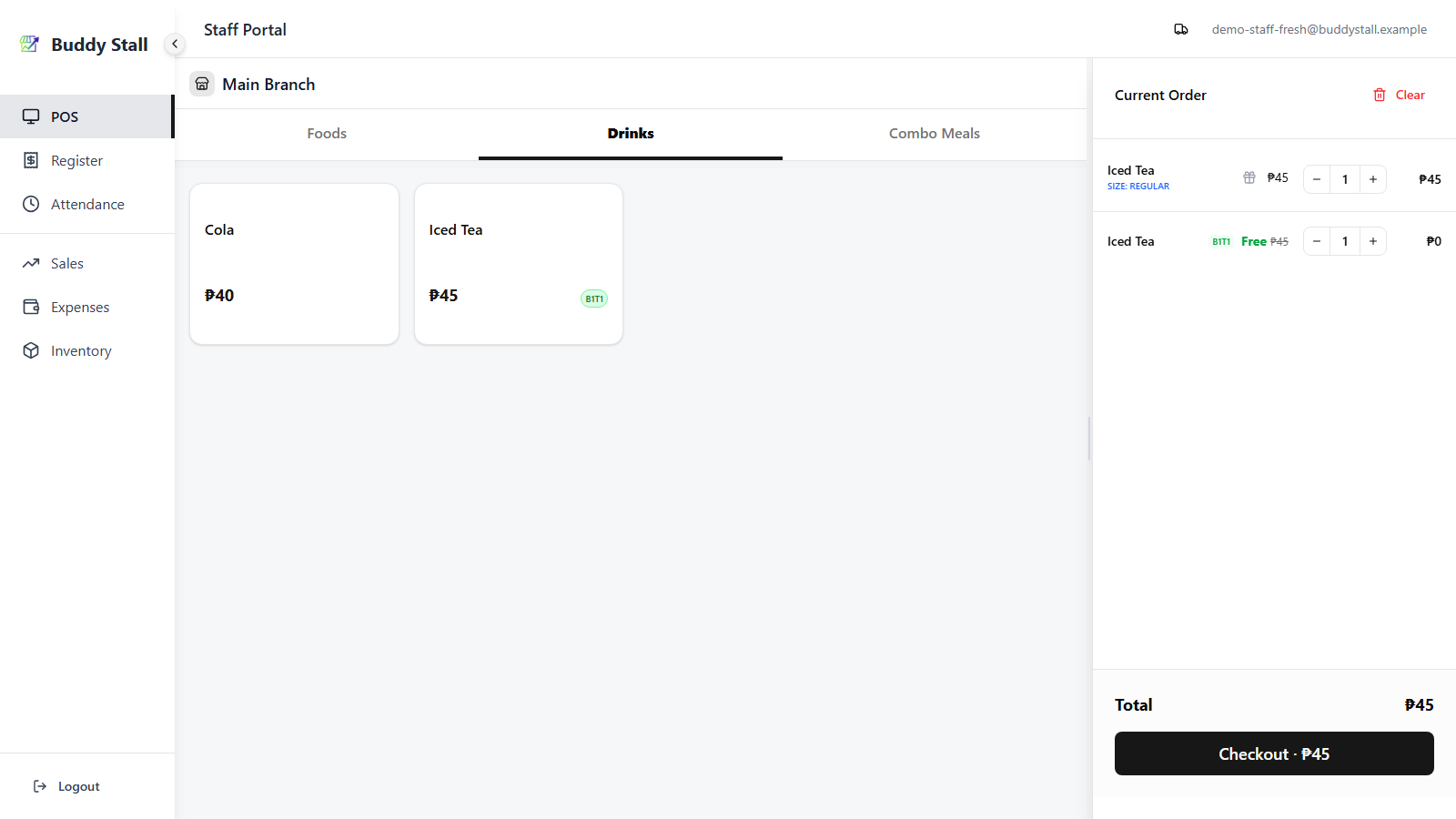
Tapping one adds two cart lines: the item at its normal price, and a second one locked to Free just beneath it. The free twin follows the paid line — change the quantity and both move together; remove the paid line and the free one goes with it. The free twin can't be edited or priced, and unlike an ordinary item a B1T1 item never merges into an existing line — every tap adds a fresh pair.
5. Checkout
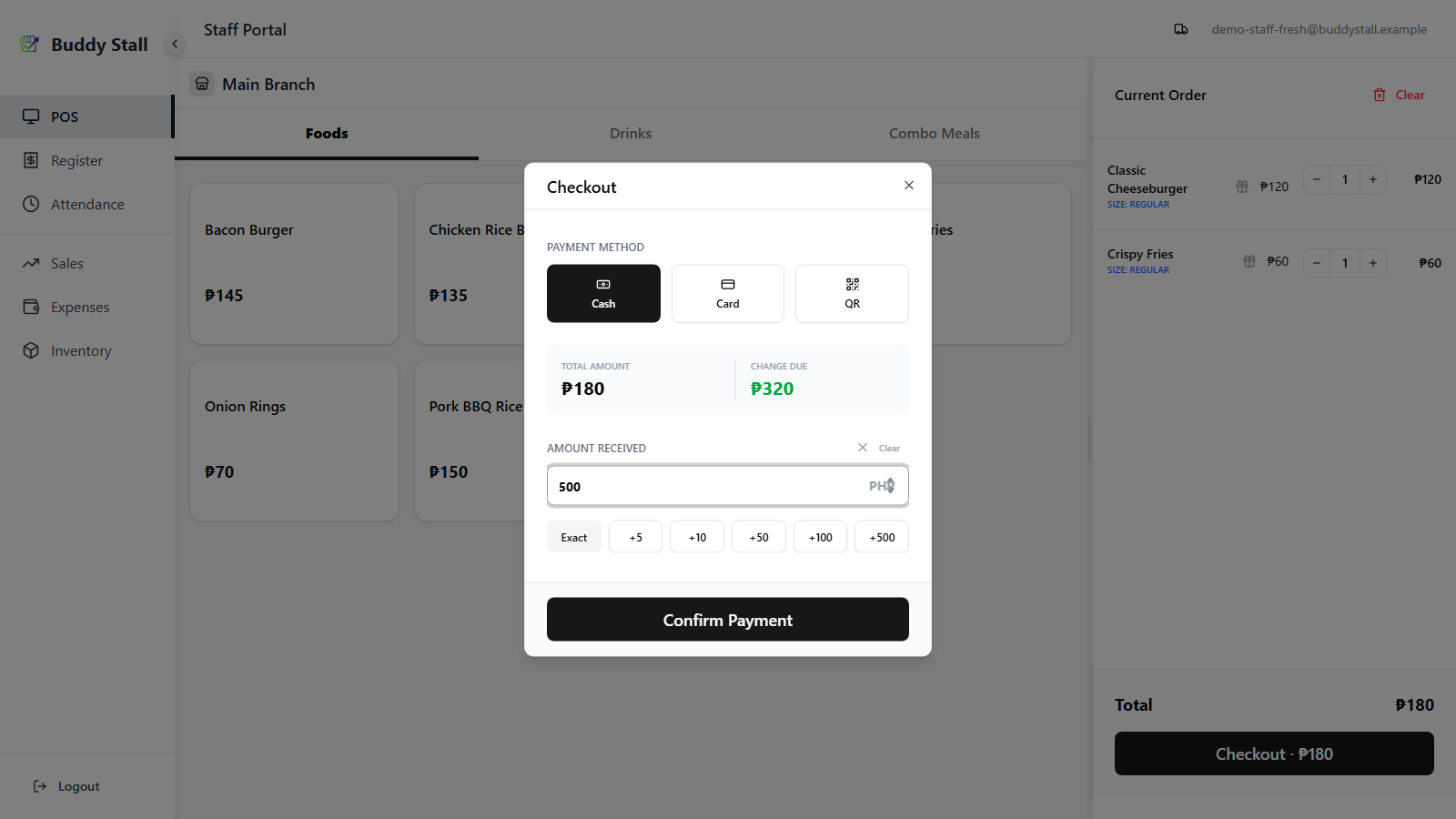
Press Checkout at the bottom of the cart. The Checkout dialog opens with three payment buttons:
- Cash — enter the Amount Received. Quick buttons
(
Exact,+5,+10,+50,+100,+500) build the value fast. Change Due updates live; if the amount is short, it shows red and Confirm is disabled. - Card — no extra input.
- QR — no extra input.
Press Confirm Payment to post the order.
6. After checkout
- The cart clears immediately and you're back on the menu, ready for the next customer.
- Each sale gets a receipt number generated automatically against the current session — visible later on Sales History.
- The order is added to the register's running totals. Re‑open the register screen at any time to see Gross / Net / Cash Drawer figures move — see Open & close register.
7. While offline or on a slow network
The cart, checkout, and "next order" flow all keep working without a connection. Confirmed orders queue locally, and the register's totals stay accurate from the local cache. See Working offline for the full picture.
Read next
Open & close register
The session that must be open before the POS can take orders, and where today's totals are reconciled at close.
How to refund
How to reverse a sale after checkout — and how that flows back into the register summary.
Sales History
Where every confirmed transaction is listed and searchable after the fact.