
How to refund
A refund reverses a completed sale — wholly or by individual items. Stock for the refunded items is added back to inventory, and today's register totals are updated to match.
1. Open Sales History
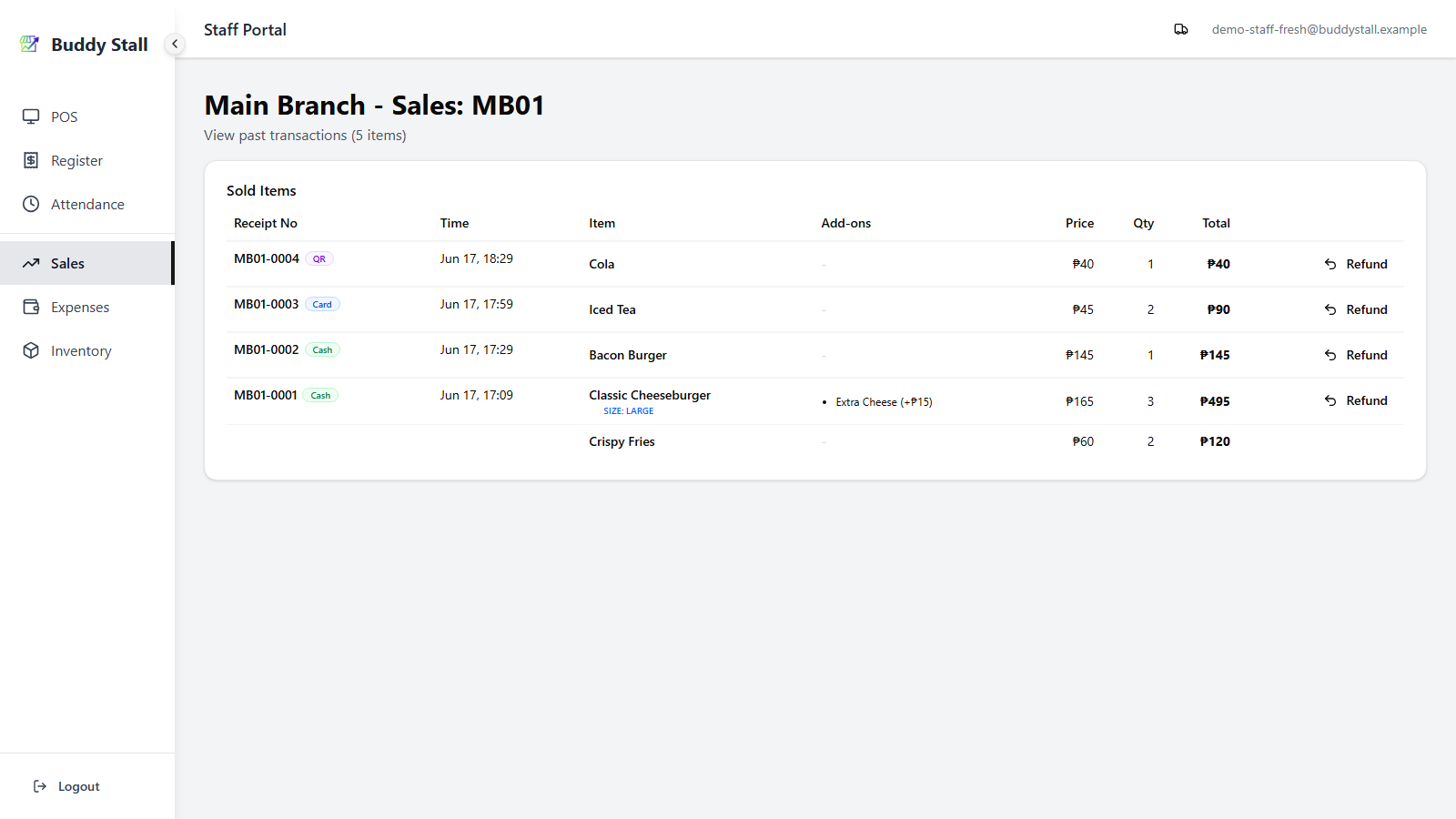
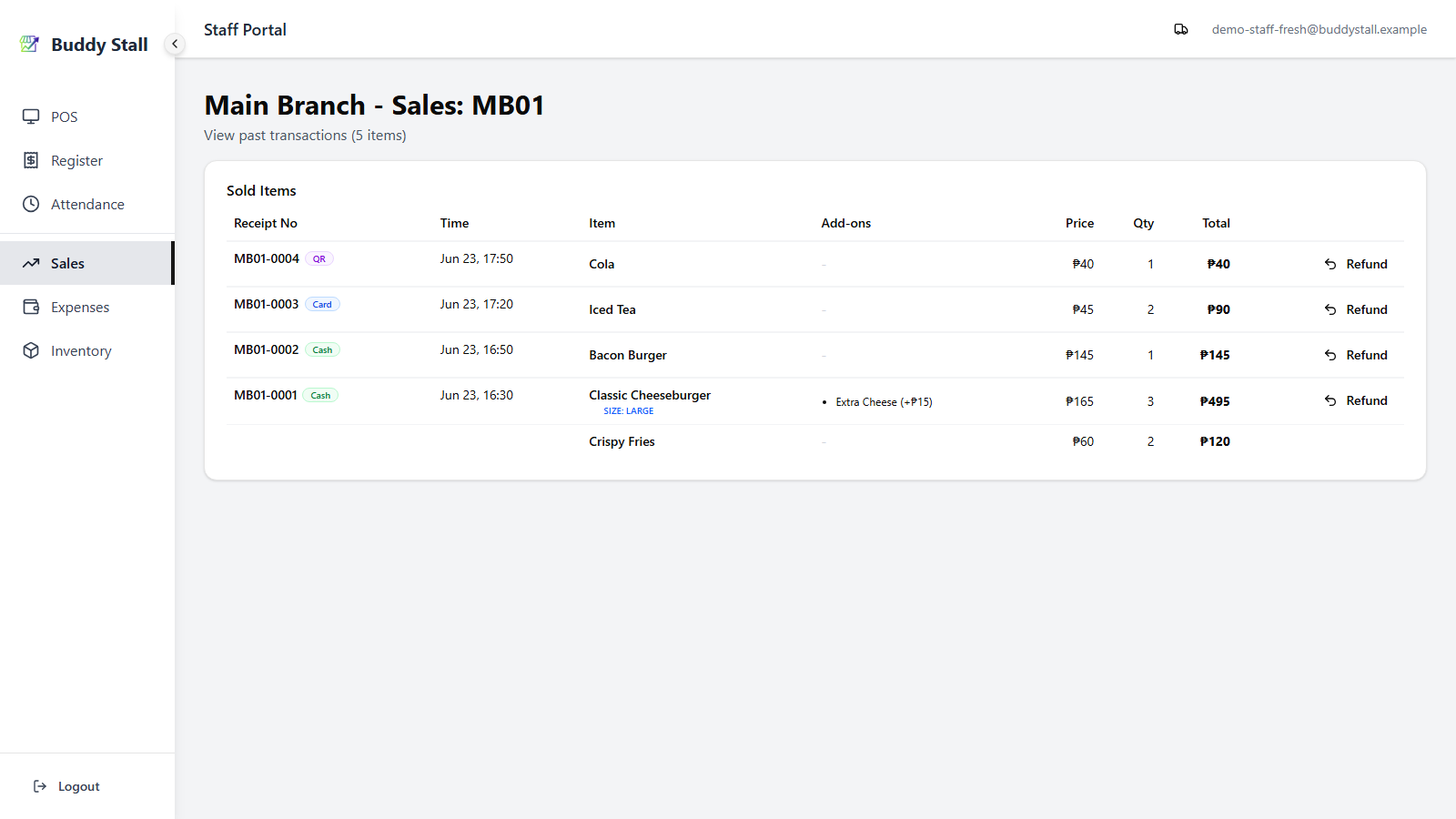
From the staff portal navigation, open Sales History. It shows every transaction from the currently open register session, newest first, grouped by transaction. Each row shows the receipt number, time, items, and total.
2. Find the transaction and tap Refund
- Locate the sale you want to reverse.
- Tap the Refund button on its row (curved‑arrow icon).
- Already‑refunded refund rows don't show the button.
The Itemized Refund dialog opens.
3. Select items and quantities
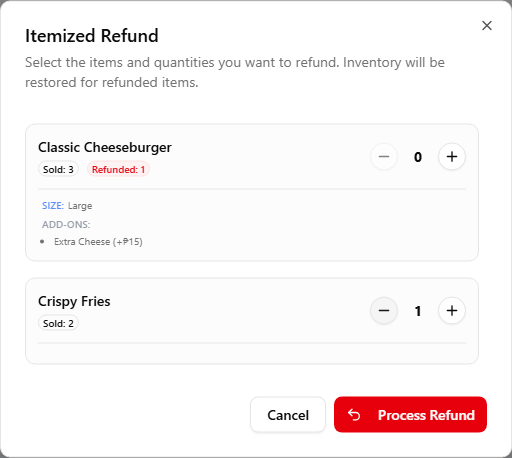
The dialog lists every item from the original sale:
- A Sold: N badge shows how many were originally sold.
- A red Refunded: N badge shows how many of that line have already been refunded by a previous refund (if any). The +/− stepper is clamped so you can never refund more than what's left.
- Size, add‑ons, and combo components (Includes:) are listed under each item so you can confirm what you're refunding.
- Set the quantity on each item you want to refund. Leave items at 0 if they're not being returned — partial refunds are supported (e.g. refund 1 of 3 coffees and leave the other 2 as sold).
4. Confirm and process
- Tap Process Refund, then tap Confirm Refund in the confirmation that appears.
- The dialog closes and Sales History refreshes.
- The refund gets an automatic receipt number: the original
receipt with a
-REF-Nsuffix (e.g.MB01-0001-REF-1). N counts up per refund against that order, so a second refund of the same sale becomes…-REF-2.
5. How the refund shows up
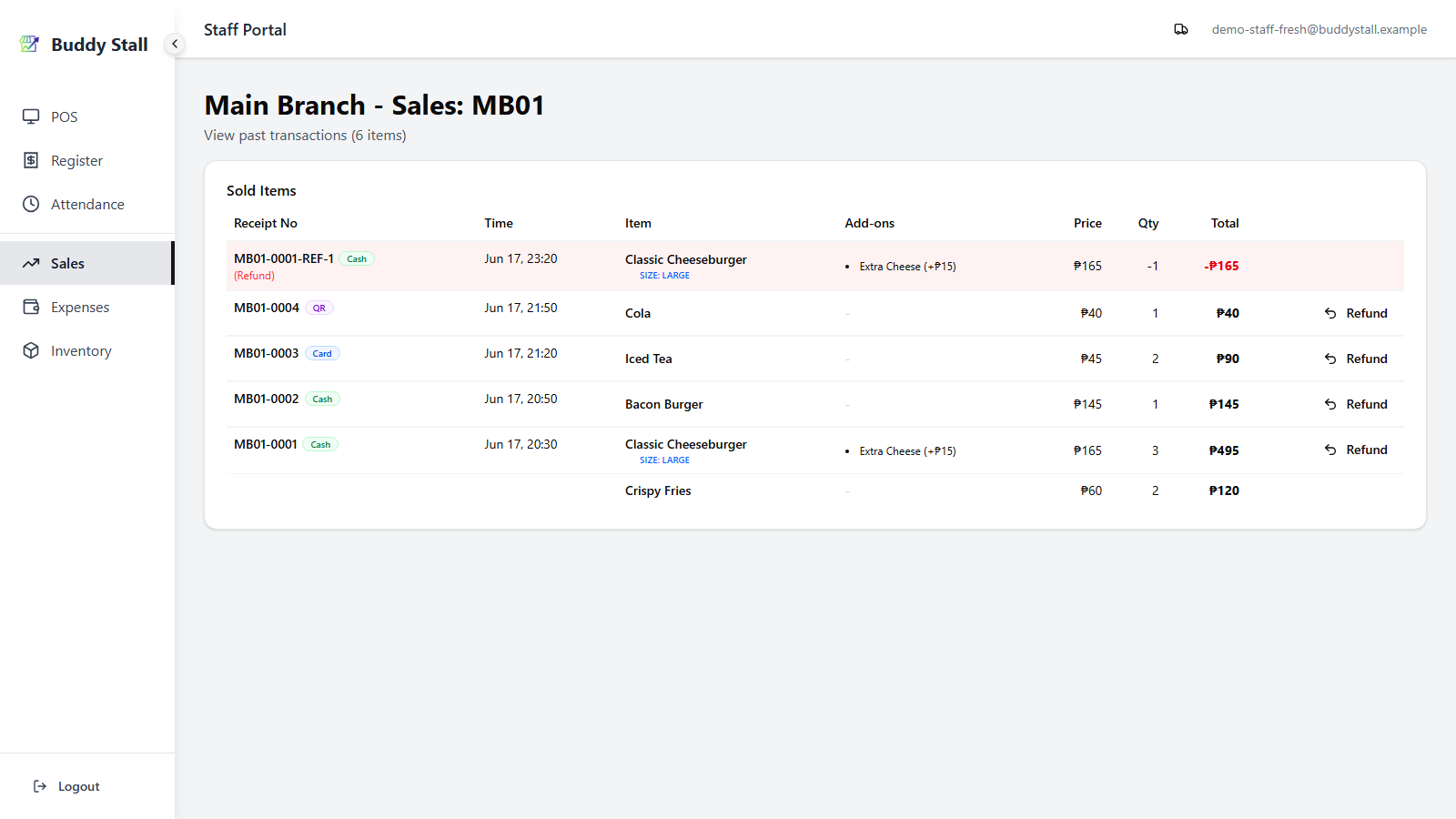
- Sales History — a separate row appears with its own refund receipt number, linked back to the original receipt. Quantities and totals on the refund row show as negative.
- Register screen — the Refunds line on the Sales Summary goes up, Net Sales drops by the same amount, and if the original payment was Cash, the Cash Drawer drops too (the cash you handed back). See Open & close register.
- Inventory — stock is restored based on each item's recipe, so the store's Expected Stock goes back up. See Inventory overview.
6. While offline or on a slow network
Refunds are processed locally and saved to the device first; they appear in Sales History immediately with a pending tag and upload in the background when the network returns. Same model as taking a regular order — see Working offline.
Read next
Sales History
The page you start from — search and filter every transaction, including the refunds you just posted.
Open & close register
Where today's refunds show up on the Sales Summary and Cash Drawer at close.
Take orders
The forward direction — building and confirming the orders that may later need refunding.