
Managing suppliers
Suppliers are the businesses you buy from on a purchase order. They're shared across all your stores — the owner adds each one once, and every store can pick it on the Create Order dialog. This page covers adding and reviewing suppliers; once they're in place, head to Place & receive orders to put them to use.
Open the Suppliers page
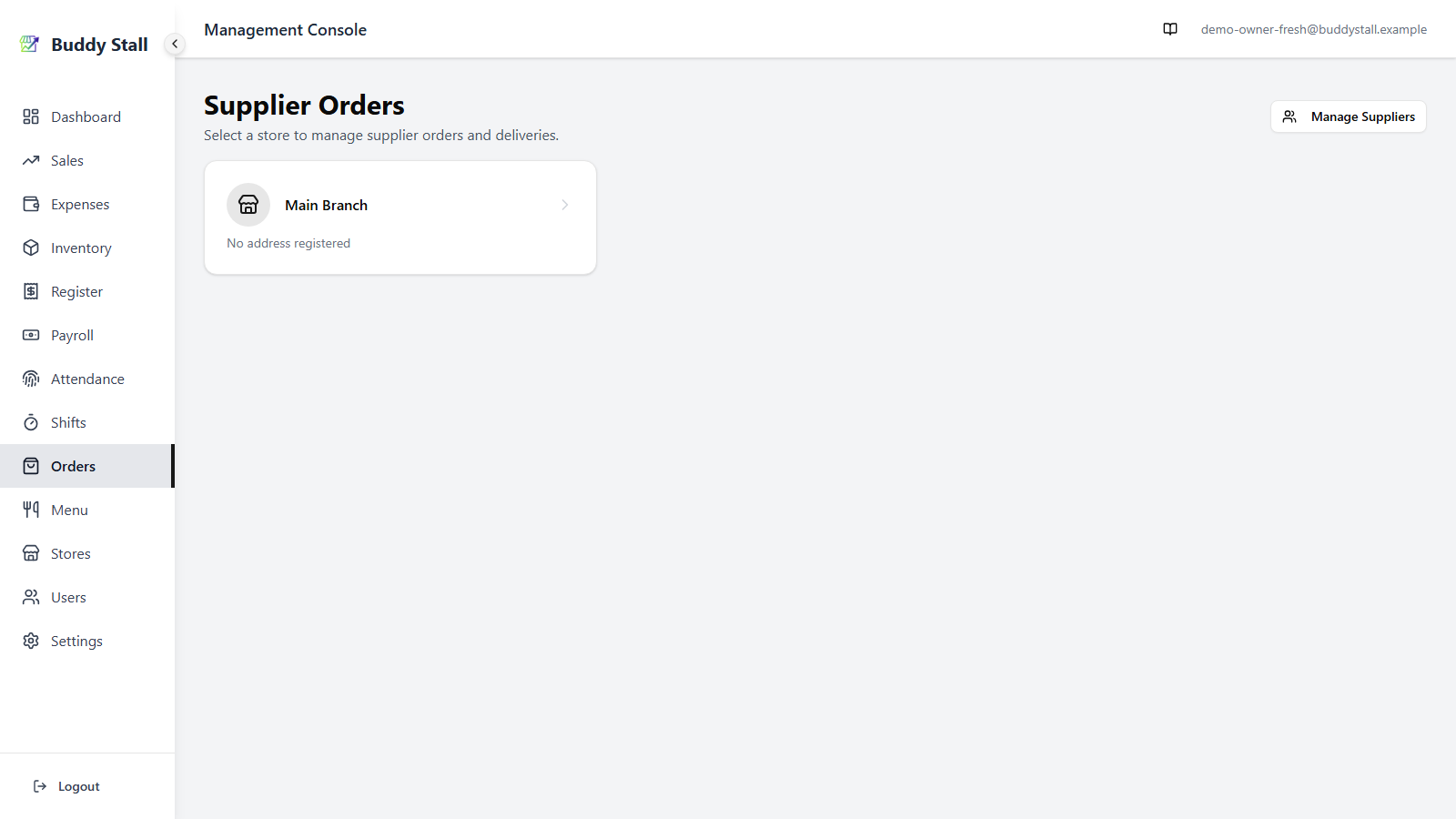
From the admin sidebar, open Orders, then click Manage Suppliers in the top right of the store-picker page. The Suppliers page lists every supplier and is where you add new ones.
Add a supplier
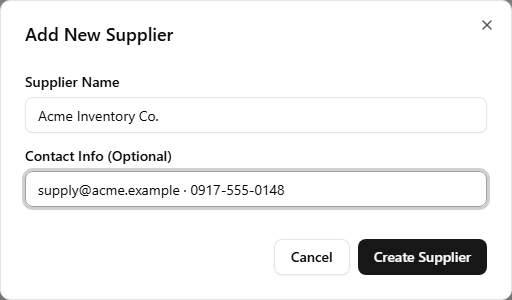
- Click Add Supplier.
- Fill in Name and optional Contact Info, then save.
- The supplier is available immediately on every store's Create Order dialog — no per-store setup.
The supplier list
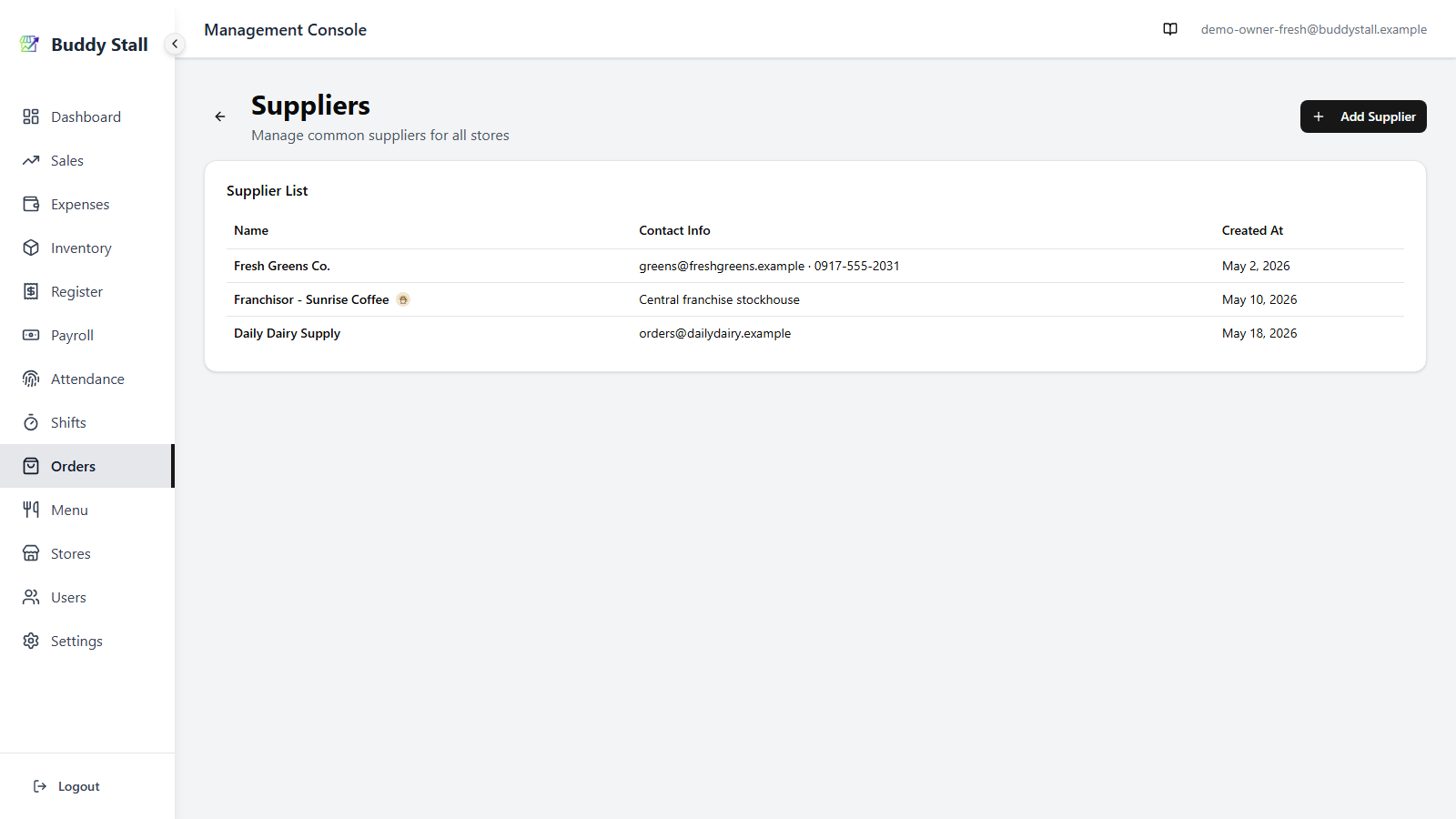
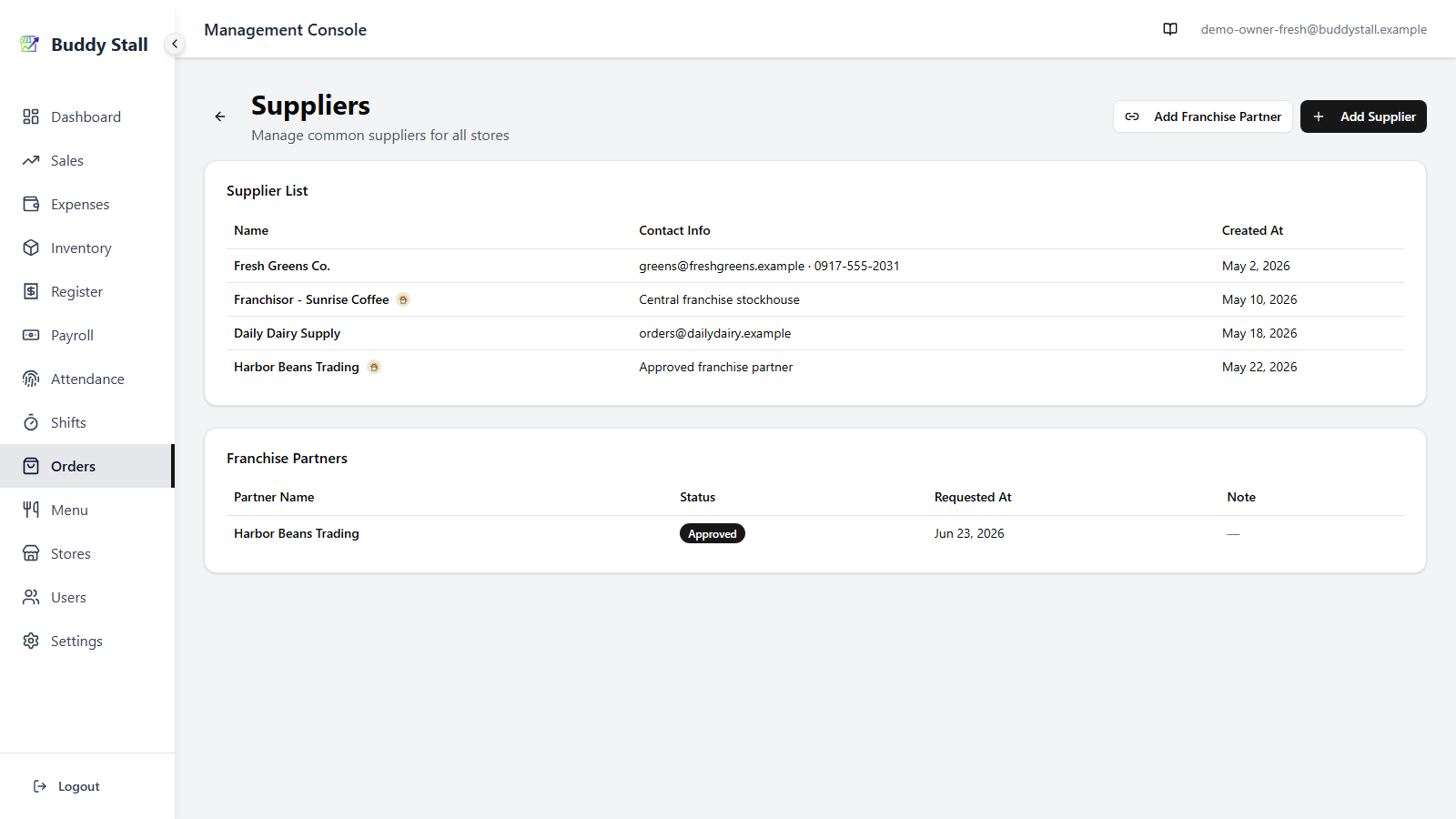
The list shows every supplier with its contact info and when it was added. Suppliers that came from a franchise — such as the franchisor's stockhouse or an approved partner — carry a franchise badge so you can tell them apart from the ones you added yourself.

Everything below applies only once your store has joined a franchise. These features stay hidden until you connect, so a single, unconnected store can stop here. See Joining a franchise.
Suppliers from your franchise
When your store connects to a franchise, your franchisor is added to your supplier list automatically. The franchisor's central stockhouse appears as a supplier the moment you're connected — shown with the franchisor's logo as a franchise badge.
Order from partner suppliers
If your franchisor has also set up partner suppliers — outside businesses the franchisor approves for the whole franchise — you can order from them too. Access is granted per partner by the franchisor: you request it, and the franchisor must approve before the partner becomes orderable. Once approved, a partner can also supply the franchisor-only inventory items the franchisor controls — see Inventory master for what those locked items are.
To add a partner:
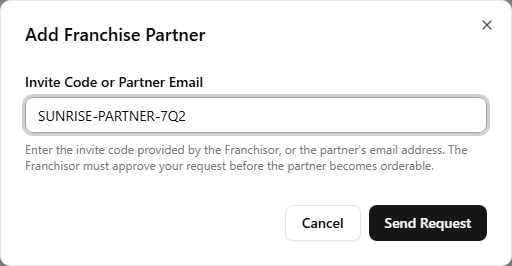
- On the Suppliers page, click Add Franchise Partner.
- Enter the invite code the franchisor gave you, or the partner's email address, then Send Request.
- Your request appears in the Franchise Partners card with a status — Pending (sent, awaiting the franchisor; you can Withdraw it while pending), Approved (the partner joins your supplier list, orderable like any other supplier), Rejected (declined, with the franchisor's note), or Revoked (access removed after approval, no longer orderable).
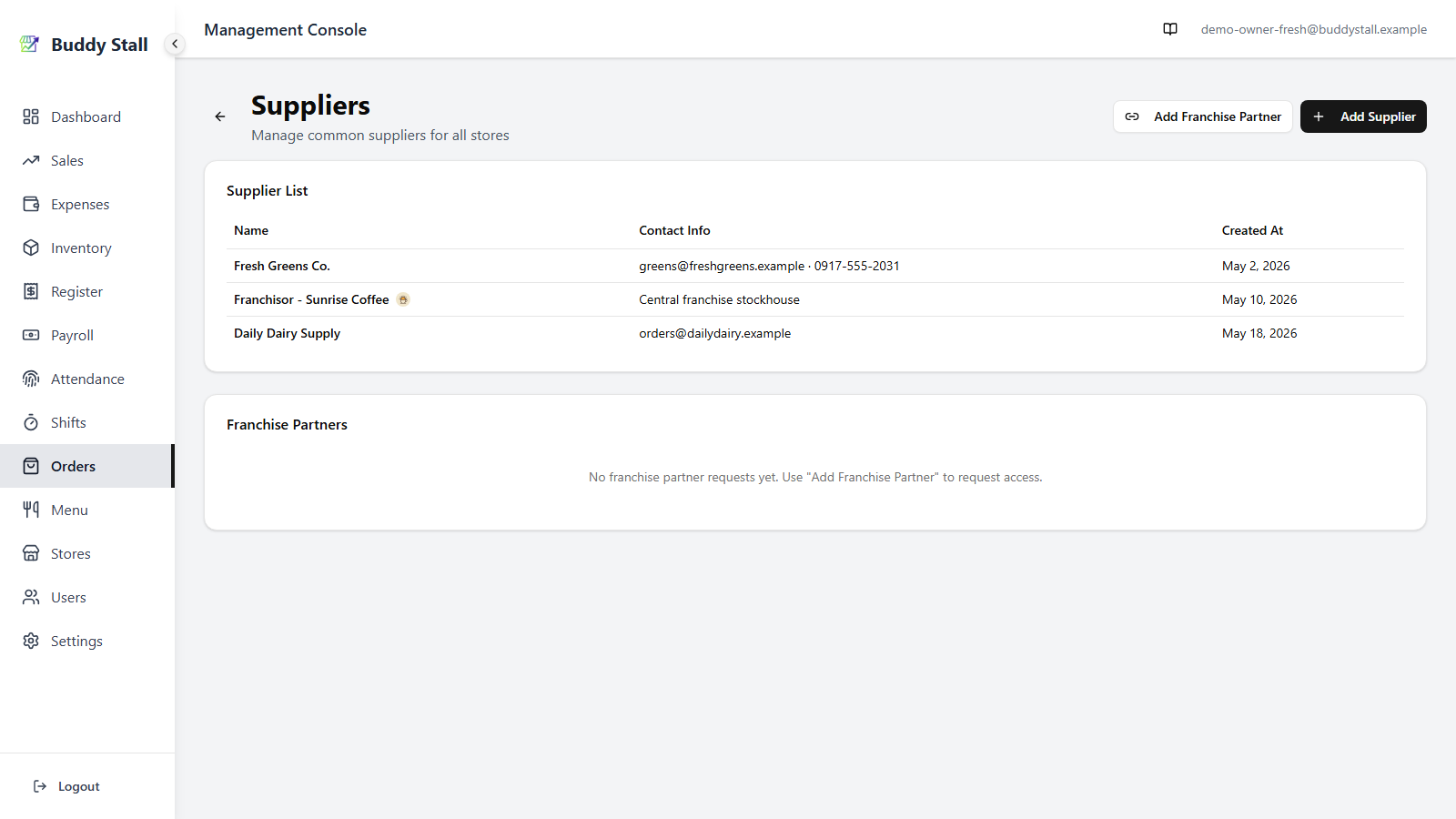
Once the franchisor approves, the partner turns Approved in the Franchise Partners card and joins your Supplier List with a franchise badge — from there it's orderable exactly like any other supplier.
Read next
Place & receive orders
Put your suppliers to use — create a purchase order, edit it, and receive it on arrival.
Franchise ordering
Order from the stockhouse and approved partners, with the minimum-quantity rule and the public order form.
How purchasing works
The why behind it all — statuses, the truck badge, and how receiving wires Orders into Inventory and Expenses.