
Expenses overview
Expenses is the running record of money your stores spend — ingredients bought, wages paid, utilities settled. Every entry is filed under a pre-defined category.
This page covers the structure and what's auto-linked; the pages at the end take you deeper into each layer.
Why pre-define categories and items
Every expense lives under a category and an item name defined ahead of time, not typed freely each time. The reason is analysis.
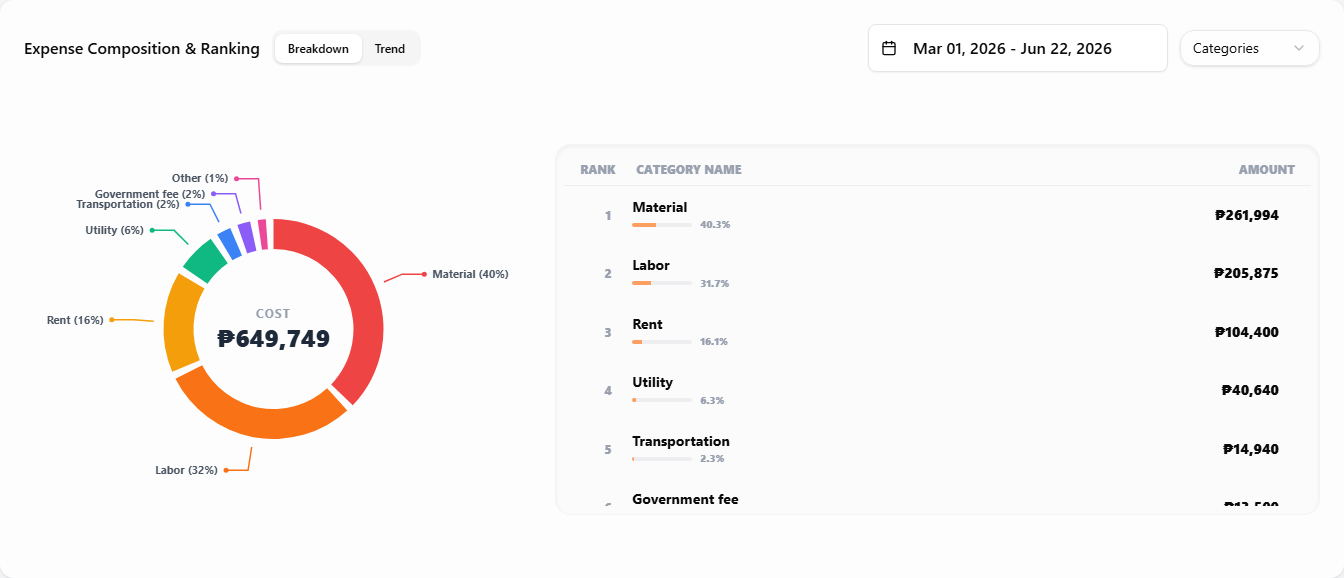
Once the same Electricity bill from every month and store shares one item, the dashboard rolls those payments into a single trend, compares side by side, and breaks the period total down by category — no manual cleanup needed.
Free-text "Electricity Jan", "Elec. bill", and "electric bill" would be three separate items in any chart, and the chart would be noise.
Two tiers: master and store
Expenses follows the same master-and-store model as the rest of the app, with one shortcut: no per-store registration. The owner defines an expense item once under a category, and every store — including brand-new ones — inherits the full catalog automatically.
What each store controls per item is two things: whether the item is visible to the staff role (handy for hiding admin-only items like labor or rent from the portal), and the entries it records — amount, date, and any links to an inventory item or employee.
Two stores can have very different spending against the same master item; what they share is the definition.
The categories
A category groups items by what kind of spending they cover. The Material, Waste, and Initial Investment categories are special-cased; the rest are ordinary buckets.
Material
Ingredients, supplies, and packaging. Two flavors live here: items also tracked as inventory, which are auto-linked (see below), and items you only need to record the spending on — small consumables or ad-hoc purchases you don't want to track stock for.
Labor
Staff wages and contractor payments. A pre-set Salary item under this category links each entry to a specific employee (see below); other Labor items you add behave like any ordinary expense.
Rent
Physical or virtual space — stall rent, warehousing, cloud servers.
Utility
Recurring utilities — electricity, water, internet.
Transportation
Fuel, delivery charges, transit.
Government Fee
Permits, taxes, business licenses.
Other
Anything that doesn't fit the categories above.
Waste
Created two ways: logging inventory waste per ingredient, or recording a whole prepared menu item as wasted here (picking the Waste category in the new-entry dialog). Either path keeps inventory in sync automatically. Waste tracks lost stock, not money spent, so it is left out of the dashboard's expense rollup.
Initial Investment
One-off startup outlays (equipment, fit-out). No master item is set up for this category — the item name is typed freely on the expense entry itself (e.g. Fridge, Renovation). Reported separately from running expenses on the dashboard — it folds into Total Cost and Profit only when you clear the filter for an all-time view.
Automatic links
The Expenses section sits at the intersection of three other parts of the app. The links mean you record each event once and the right numbers flow into every relevant ledger automatically.
Material ↔ Inventory (for linked items)
Saving a master inventory item auto-creates a paired Material expense item linked to it. Recording an expense against the linked item restocks the store's inventory in the same step — see Set up your inventory. Material items added directly in master expenses are unlinked and behave like any other expense.
Waste ↔ Inventory
Two paths post entries to the Waste category and keep inventory in sync: logging inventory waste records per-ingredient losses, while picking the Waste category on an expense writes off a whole prepared menu item via its recipe.
Salary ↔ Employees
A pre-set Salary item under the Labor category links each entry to a specific employee, so wages roll up per person on the dashboard. Other Labor items you add carry no employee link.
Read next
Set up expense items
Define every expense item once, organized by category and pre-wired to the right links, then tune per-store staff visibility.
Recording expenses
Add a new expense entry — pick the item, amount, date, and any links.
Master expenses
Reference for the owner-wide catalog — how categories and items are organized.