
Working offline
The staff portal keeps working when the connection drops or slows down. Anything you do is saved on the device first and uploaded to the server in the background — the status badge in the portal header and the Pending tag on each row tell you exactly where every action stands.
Offline support applies to the staff portal. The owner / manager console (dashboard, master menu, master inventory, expenses, payroll) is online‑only and will not load without a connection.
A new device must connect to the internet at least once — to log in and download the menu, staff list, and expense items — before it can be used offline.
1. The status badge in the header
A single coloured badge in the portal header reports the connection and sync state. It shows one of five states; whichever is most serious wins, so a fully synced and connected device shows no badge at all.
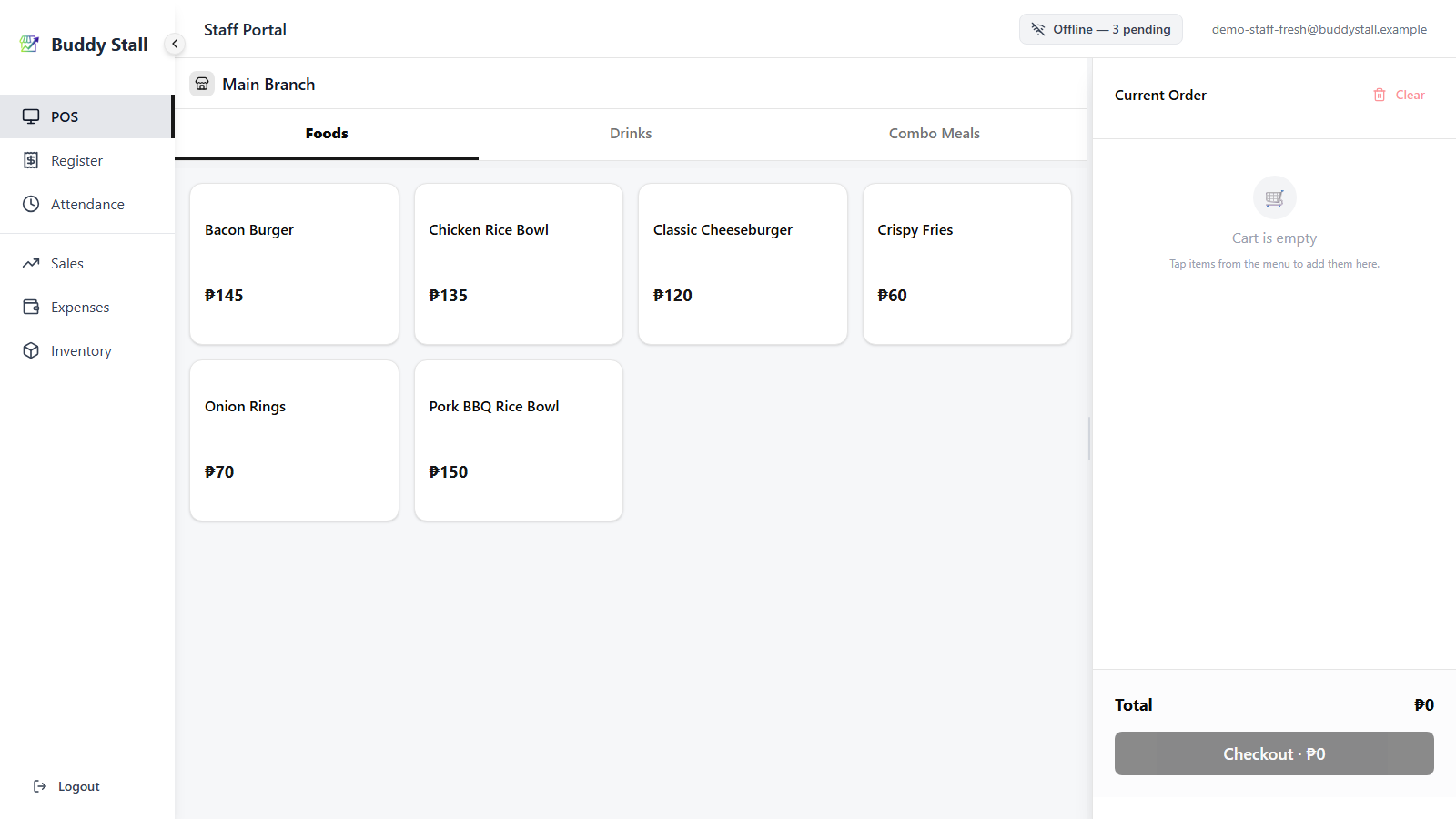
Offline (gray, Wi‑Fi icon)


- Label:
Offlinewhen no items are queued,Offline — N pendingwhen there are. - Meaning: the device cannot reach the server right now. Everything you do is queued on the device and will upload automatically when the connection returns.
- The N is the count of items waiting in the local queue (orders, refunds, clock‑ins, opens/closes, waste logs, cost entries — anything you've confirmed while offline).
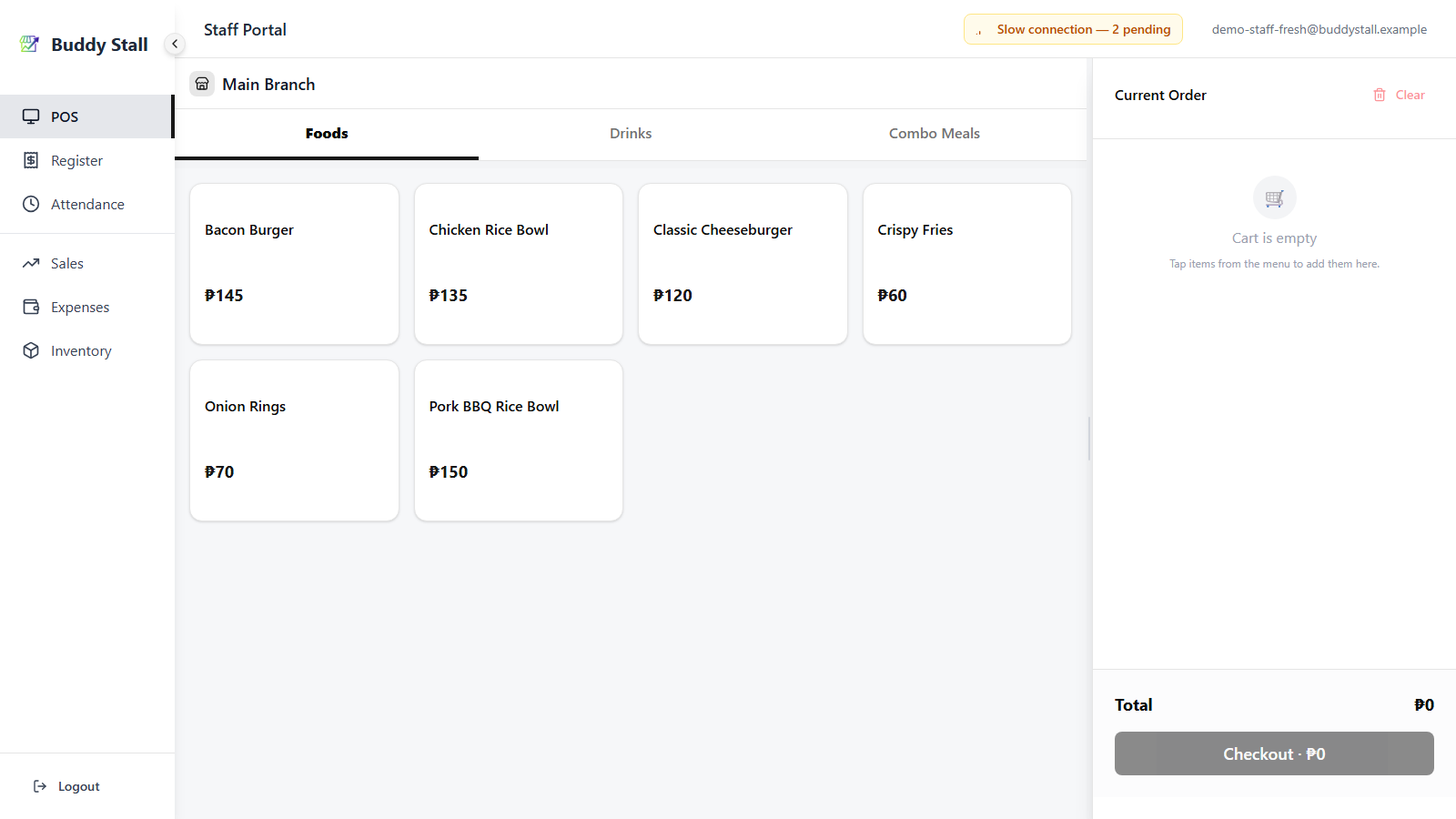
Slow connection (amber, signal‑low icon)


- Label:
Slow connectionorSlow connection — N pending. - Meaning: the device can reach the server, but requests are timing out or coming back slowly. The portal keeps queueing actions and tries them in the background instead of blocking the UI.
- The N is the same queued‑item count as for Offline.
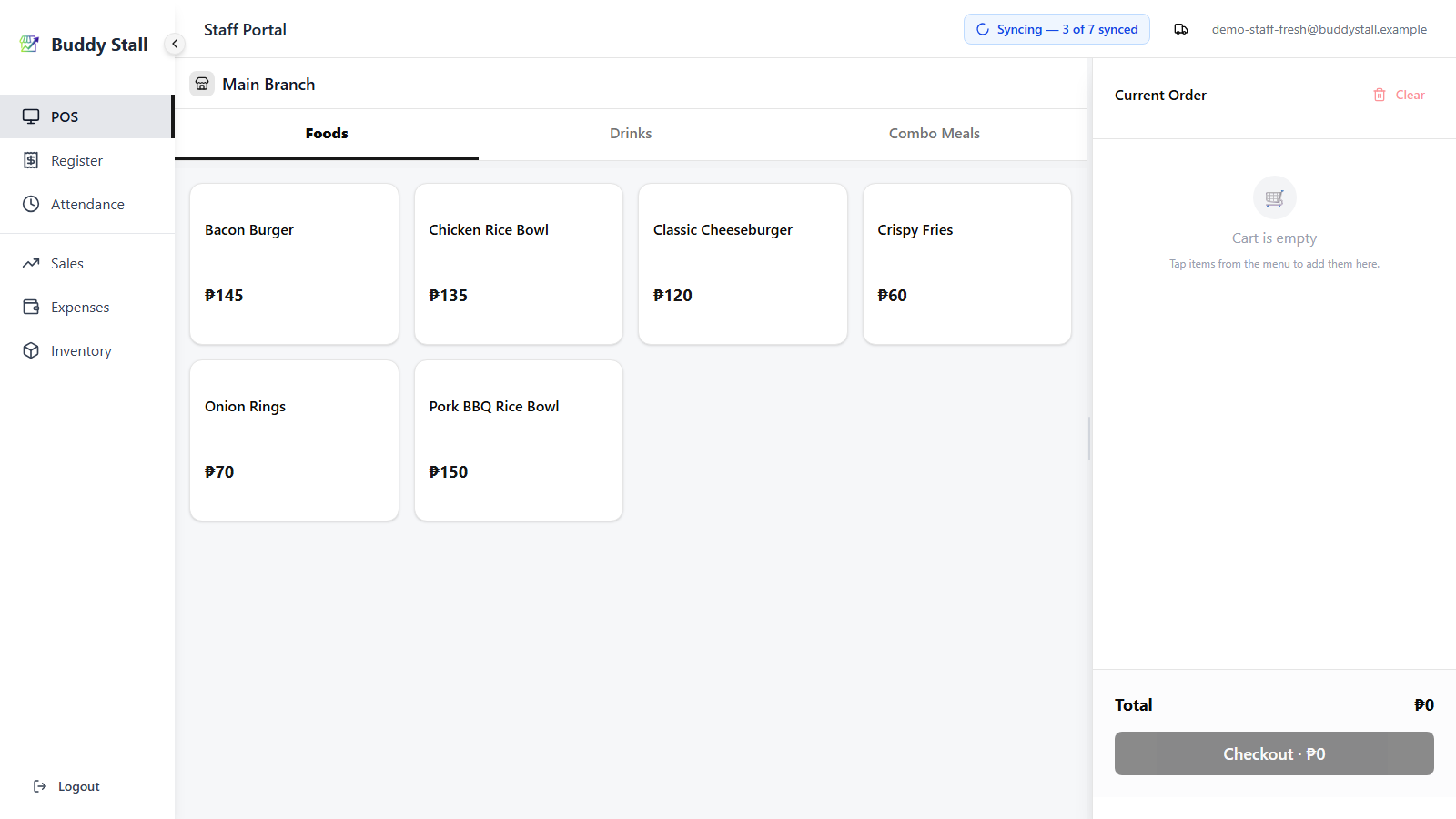
Syncing (blue, spinning loader)


- Label:
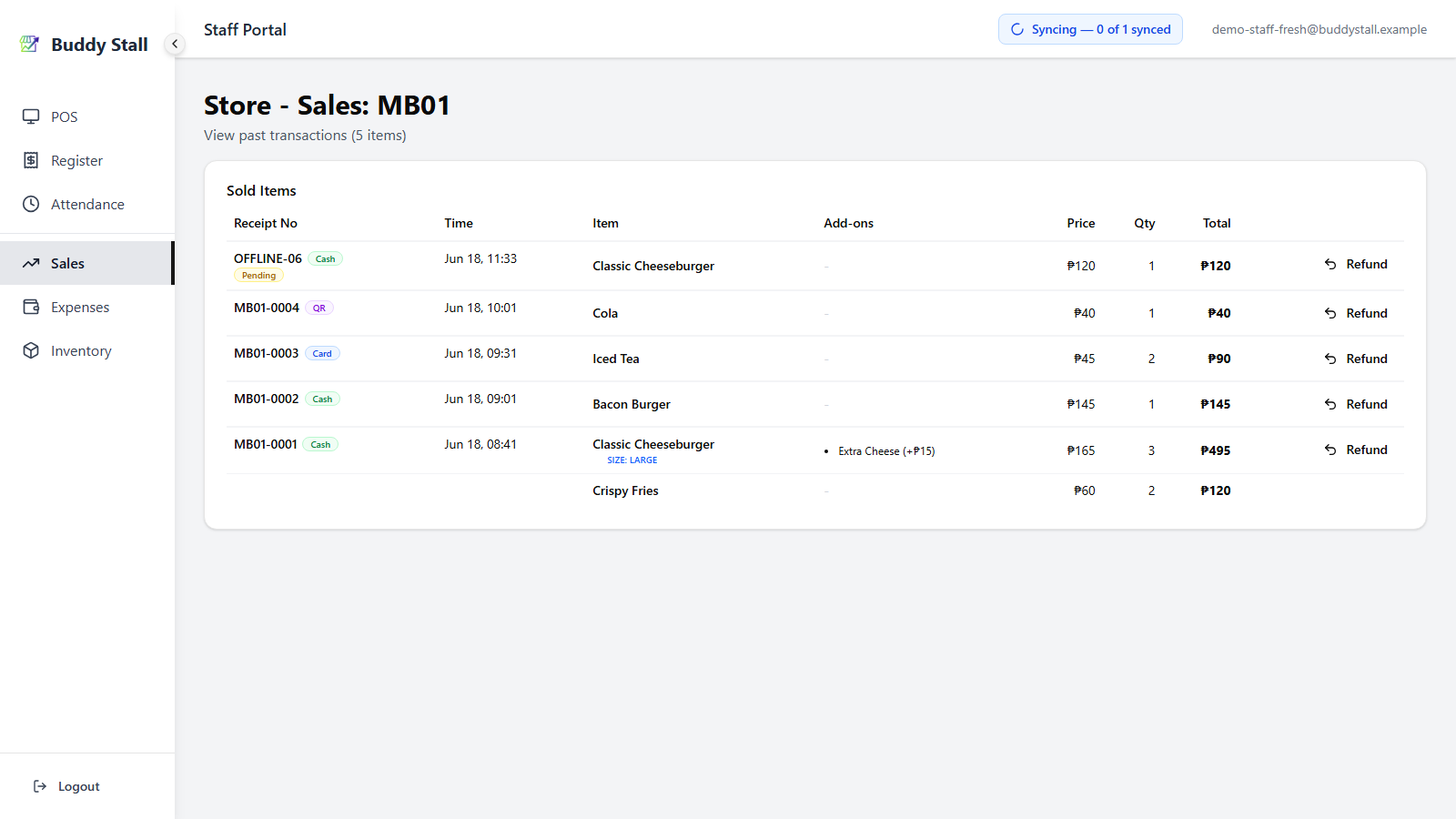
Syncing — X of Y synced. - Meaning: a sync pass is in progress — the queue is being drained right now.
- X is how many items have already uploaded successfully in this
pass; Y is the peak size of the queue when the pass started.
So
Syncing — 3 of 7 syncedmeans 3 of 7 are done, 4 to go.
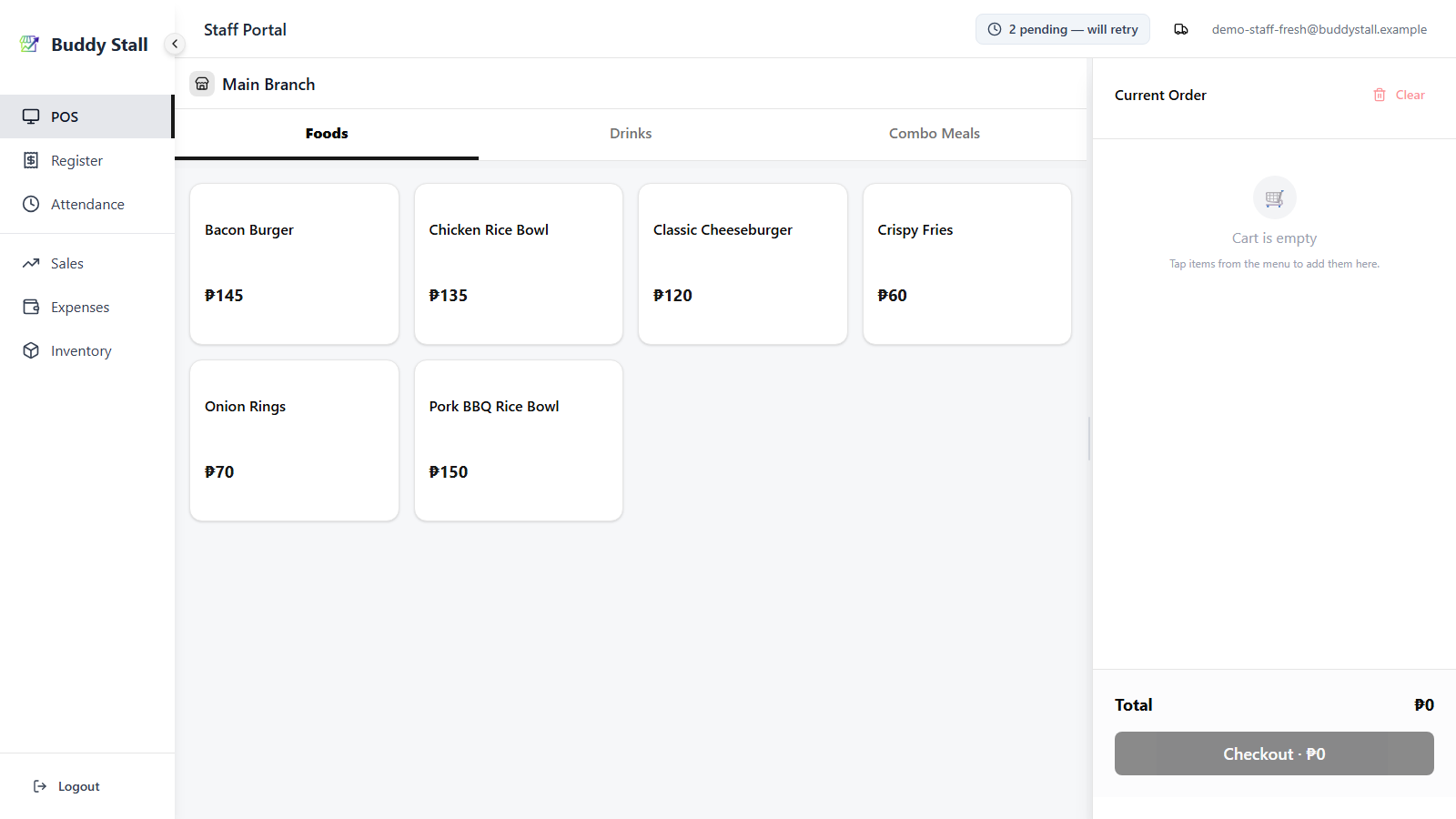
Pending (slate, clock icon)


- Label:
N pending — will retry. - Meaning: the device is online but items are still waiting between sync attempts — usually because a previous attempt failed for a transient reason and is being retried after a short delay.
- The N is the queued‑item count waiting for the next retry.
Failed (red, alert icon)


- Label:
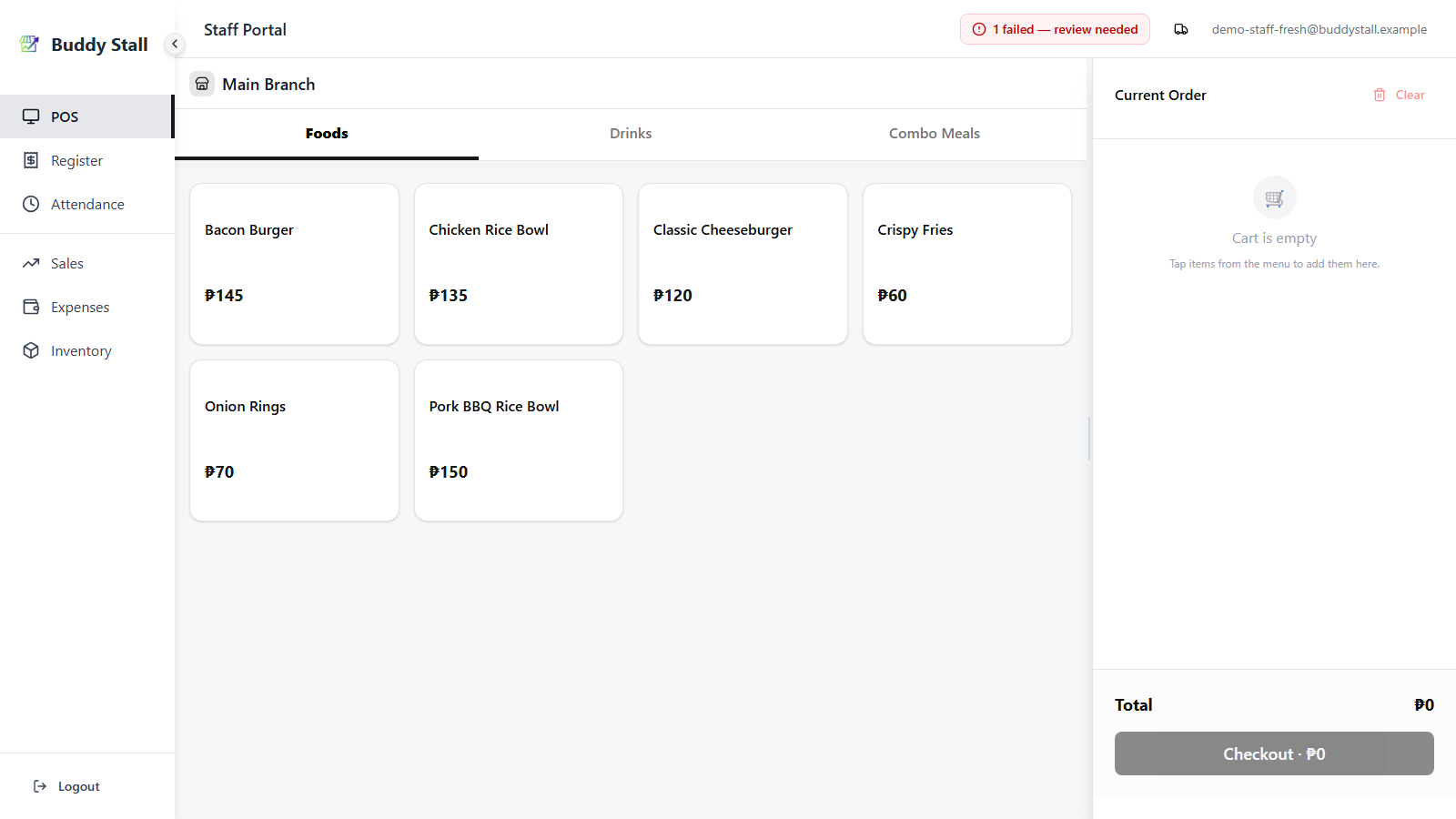
N failed — review needed. - Meaning: one or more items hit an unrecoverable error and the device has stopped retrying. They need someone to look at them — this state outranks every other badge so it never gets hidden by an in‑progress sync.
- The Failed badge is a button — tapping it opens the Failed operations dialog, where you review each stuck action and clear it. See section 3 for the full flow.
When the queue is empty and the device is fully online, the badge is hidden — no badge means everything is in sync.
2. The Pending tag on individual rows
Each unsynced row gets its own yellow Pending badge next to the receipt number (in Sales History) or its equivalent identifier in other lists. This is a per‑row tag — independent from the header badge — so you can see exactly which sales, refunds, or entries are still waiting on the device. The tag disappears the moment that row's upload confirms.
3. Handling failed operations
A Failed item is one the device tried to upload, hit an error it could not recover from, and stopped retrying. The data is still on the device but was never saved to the server — so a failed item always needs a person to sort it out, which is why the red badge outranks every other state.
Where failed items show up
Besides the red header badge, a failed item also appears in the list it belongs to: a failed sale in Sales History, or a failed entry in Expenses, carries its own red Failed badge on the row — the same spot the yellow Pending tag would sit. A failed row is shown read-only: its Edit, Delete, and Refund actions are hidden, because the row never reached the server.
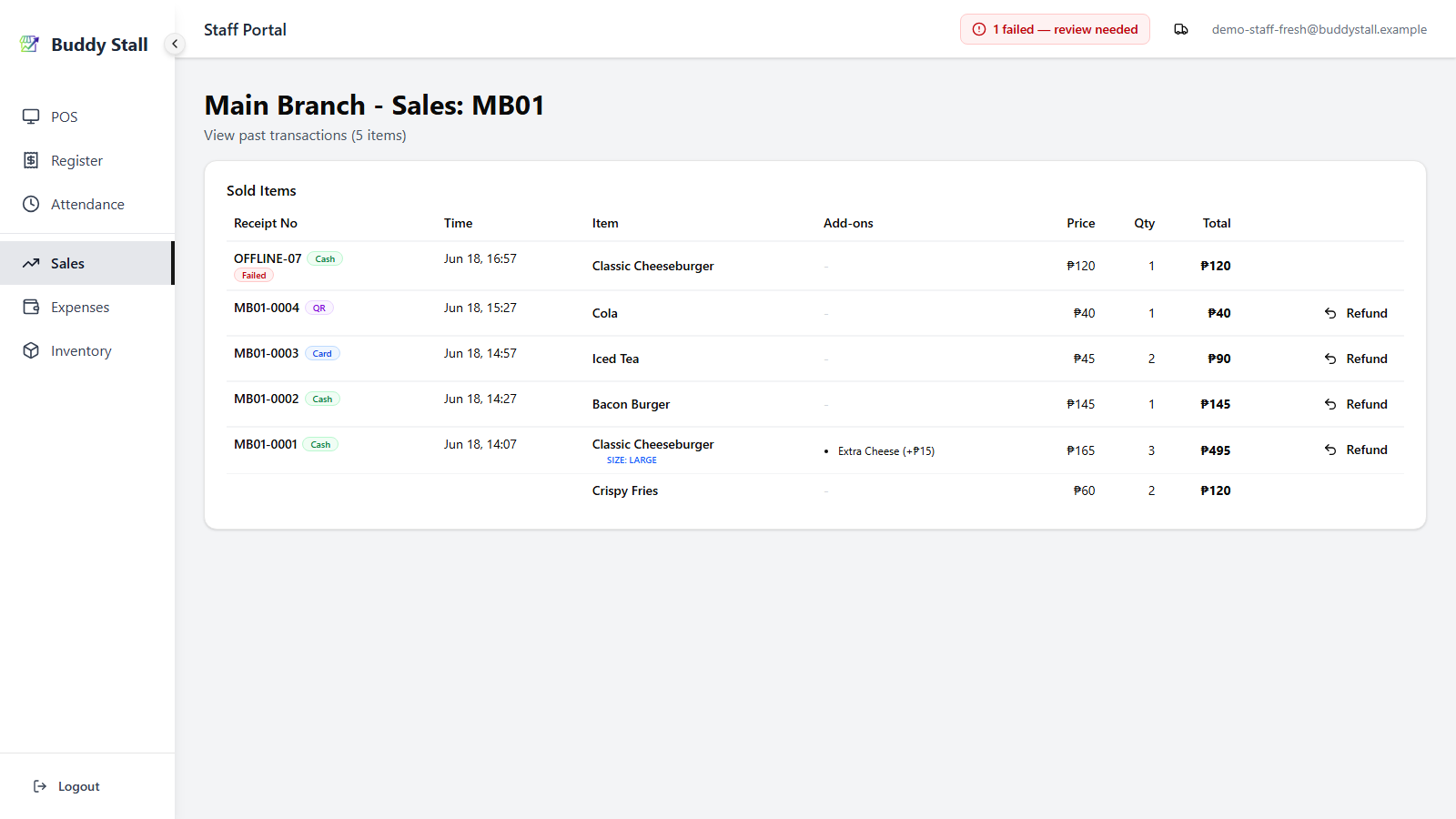
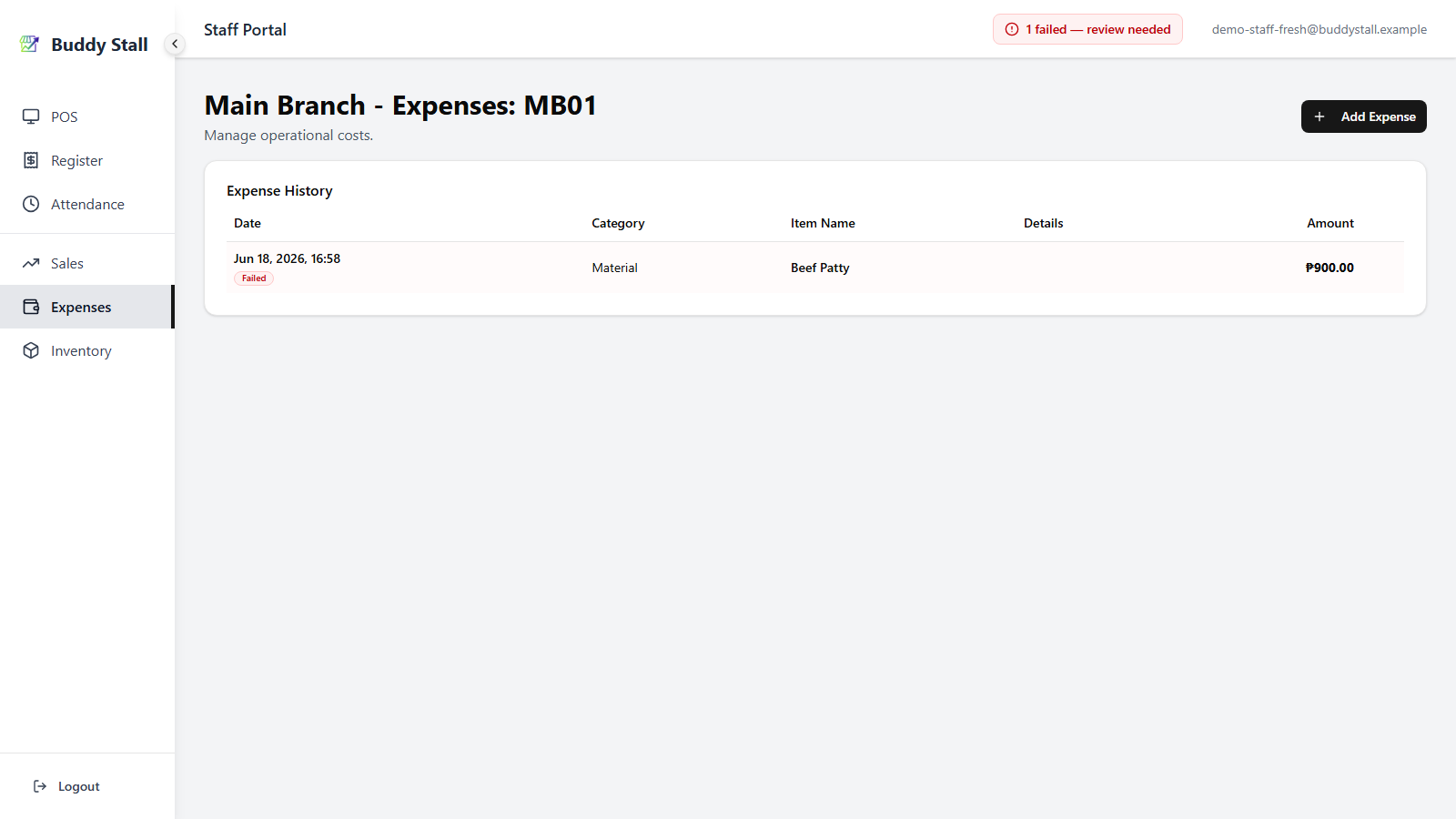
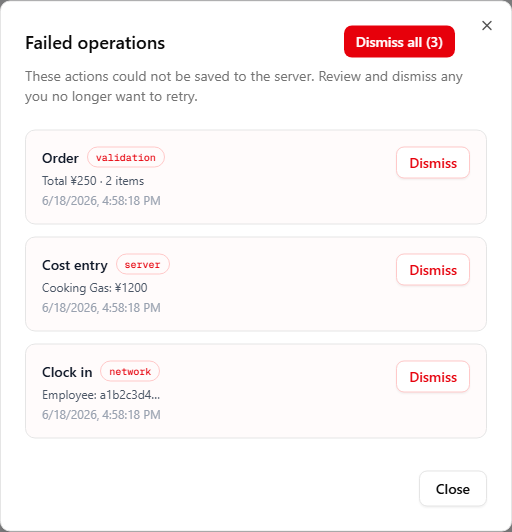
Tapping the red header badge opens the Failed operations dialog. It lists every failed action with its type (Order, Refund, Cost entry, …), a one-line summary — such as the total and item count, or the item name and amount — and when it happened.
What to do about a failed item
Because the operation never reached the server, the fix is to do it again, then clear the failed record:
- Open the Failed operations dialog (tap the red badge) and read what each failed item was — its type and summary tell you exactly which action didn't go through.
- Do the same operation again in the app — re-take the order, re-enter the expense, clock in again, and so on. Once you are back online it syncs like any normal action, restoring the record you were missing.
- Dismiss the failed item. Tap Dismiss on that card (or Dismiss all) and confirm. Dismissing permanently deletes it from the device — it is not sent to the server — so only dismiss after you have successfully redone the operation.
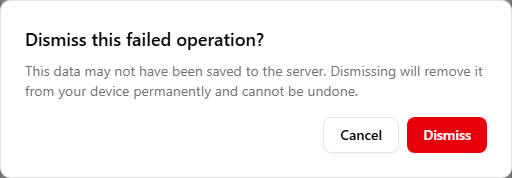
If you are not sure what the failed operation was, or it cannot be repeated, do not dismiss it — dismissing deletes the only copy. Leave the item in place and contact support so the record isn't lost.
4. What works offline
On the staff portal, all of the following keep working with no connection — confirmed actions are queued locally and uploaded later:
- Opening and closing the register
- Taking orders at the POS (sizes, add‑ons, combos, "Free" toggles)
- Refunding a sale from Sales History
- Clocking in and out
- Logging waste from store inventory
- Recording cost entries
5. What doesn't work offline
A few staff‑portal actions that depend on history or admin‑style flows, hidden or disabled while offline:
- View Logs on store inventory (the inventory history list).
- Inventory Check / Report Inventory dialog on store inventory.
- Stocktake history viewing.
- Order Receive on the purchasing flow.
6. Auto‑retry and recovery from failures
- Transient failures retry automatically. If an upload fails because of a brief timeout or a server hiccup, the device waits a short interval and tries again. While items are between attempts the badge shows Pending — will retry (see section 1).
- Order is preserved. Items upload in the order they were created on the device, so an Open register always lands before the orders that followed it, and a Close register always lands last.
- Unrecoverable errors stop retrying. When an item exhausts retries or hits a validation‑style error, it flips to the Failed badge and stays in the queue until someone reviews it (section 3 covers how to clear it).
Read next
Open & close register
Where the Syncing overlay and Close Anyway override appear when you try to close mid-upload.
Take orders
The main offline-tolerant flow — orders queue locally and upload in the background.
How to refund
Refunds queue just like orders, showing the per-row Pending tag until they reach the server.