
Users & permissions
User Management is where the owner creates and maintains manager accounts — the login credentials the people who help run the business use to reach the admin console. It is also where you set what each manager can see and what they can change.
Only the owner can open this page; manager and staff accounts cannot. The accounts created here are sign‑in credentials — separate from the employees registered per store on the Stores & employees page. An employee is a name attached to attendance, register open/close, and shift records; an account is a username and password used to log in.
1. Open User Management
From the admin sidebar, open User Management. The page lists every manager account created under your ownership — each on its own card showing assigned stores and granted permissions — plus a read‑only row for staff account (every store's POS login).
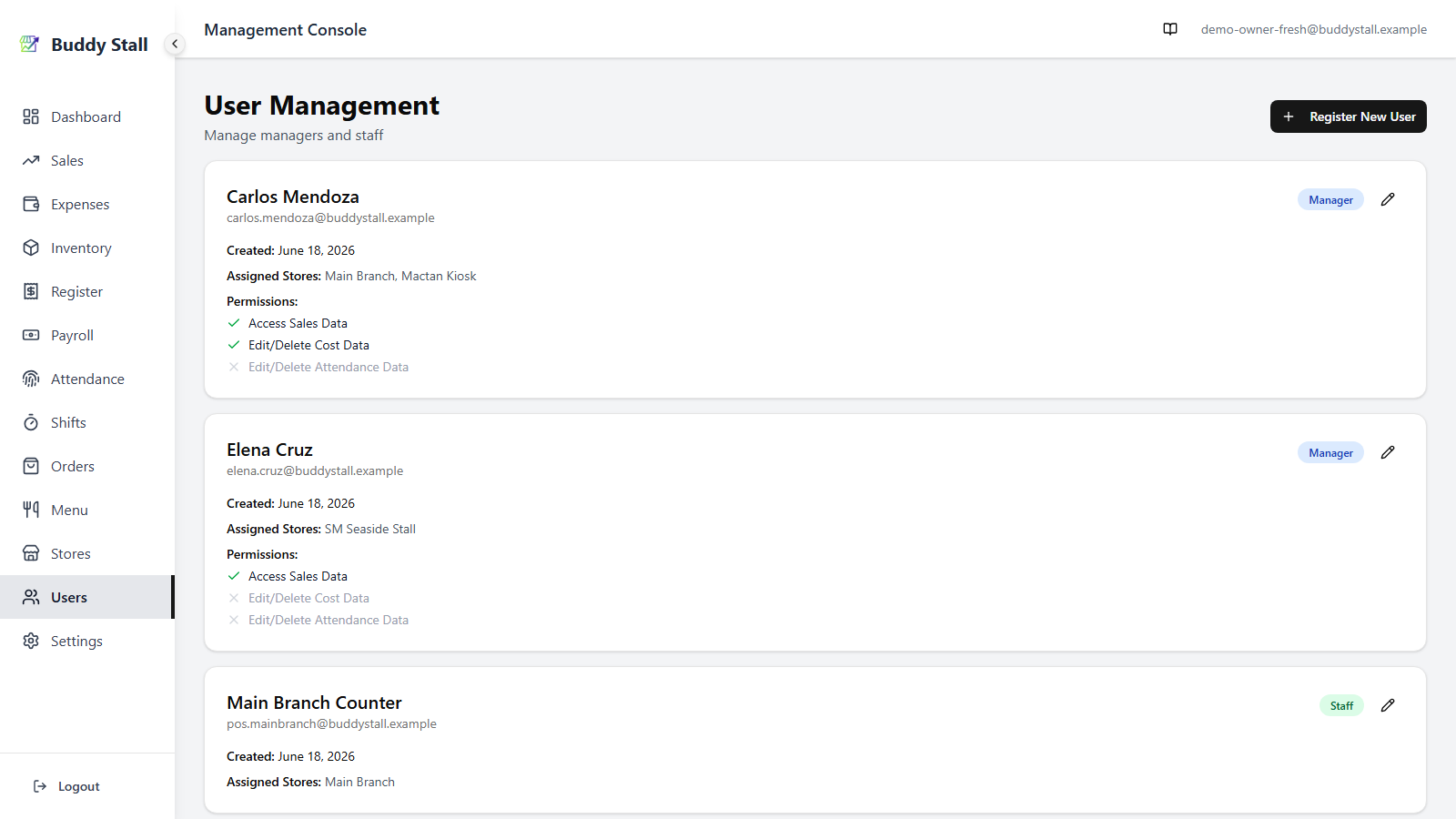
2. Register a manager
Click Register New Manager in the top right.
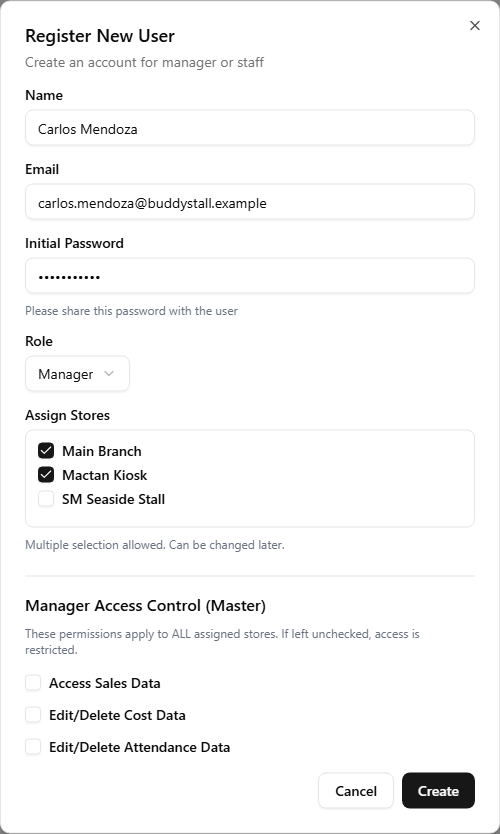
2.1 Name, email, initial password
- Name — display name on the user list and elsewhere in the admin UI.
- Email — the address used to log in. Must be unique.
- Initial Password — minimum 8 characters. You set it here and share it with the manager out of band; they can change it themselves later from Login & password.
2.2 Assign stores
A checkbox list of all your stores. Tick any number of them — the manager will see exactly those stores. Multiple selection is allowed, and can be changed later.
2.3 Manager permissions
The Manager Access Control section in the dialog above. Three toggles, all off by default. Detail on what each one actually unlocks is in section 4.
Click Create. The account appears in the list and can log in immediately.
3. Edit a manager
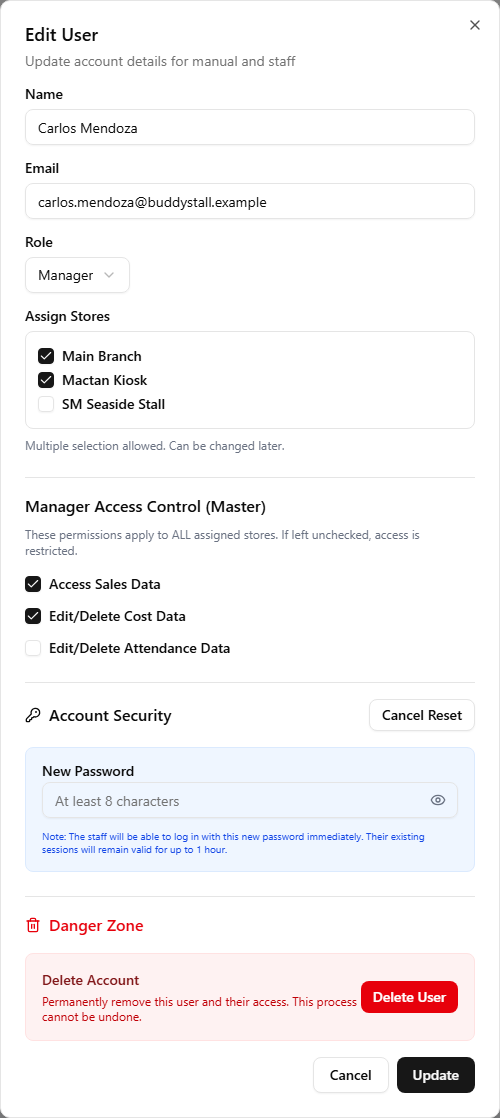
Each manager's card has a pencil button on the right. The Edit dialog lets you:
- Change name, email, assigned stores, and manager permissions.
- Reset password — opens an extra field; type the new password (at least 8 characters) and submit. Share it with the manager out of band.
- Delete user — opens a confirmation; deleting removes the account permanently.
The owner account itself does not show an Edit button — owner profile changes happen on the account settings page, not here.
4. What each permission actually controls
Each toggle is independent.
- Access Sales Data — turns on the Sales view in the admin sidebar and unlocks the manager's view of dashboards, sales lists, and store comparisons. Without it, those screens are hidden or empty.
- Edit/Delete Cost Data — the manager can always view and create cost entries. This permission additionally lets them edit or delete past entries on the Expenses pages.
- Edit/Delete Attendance Data — the manager can always view attendance. This permission additionally lets them edit or delete past attendance records.
The three permissions apply to all stores the manager is assigned to — there is no per‑store override. If you grant Access Sales Data to a manager assigned to three stores, they see sales for all three. Scope a manager by trimming their store list, not by trying to grant permissions only on some stores.
5. Staff rows are listed too — read-only
Every store's POS login (the staff account, one per store) shows up in this list alongside your managers, so you have one place to see every account — but its card carries no pencil or delete button. POS logins aren't created or edited here at all: head to the store's card on the Stores page and use its POS Login button to set or change the password — see POS Login. Archiving a store hides its staff row here too; unarchiving brings it back.
6. Where each role logs in
- Owner / Manager → admin console (Dashboard, Menu, Inventory, Sales, and the rest). Same URL; the sidebar is filtered to what the role can reach.
- Staff → the staff portal, signed in with the store's store code (see Sign in). Lands on the register screen (open or take orders) and never sees the admin console.