
Central inventory
The Inventory screen is the hub of your StockHouse — the catalog of items you physically stock and can ship to connected stores, with their expected stock levels, prices, and check history.
The screen
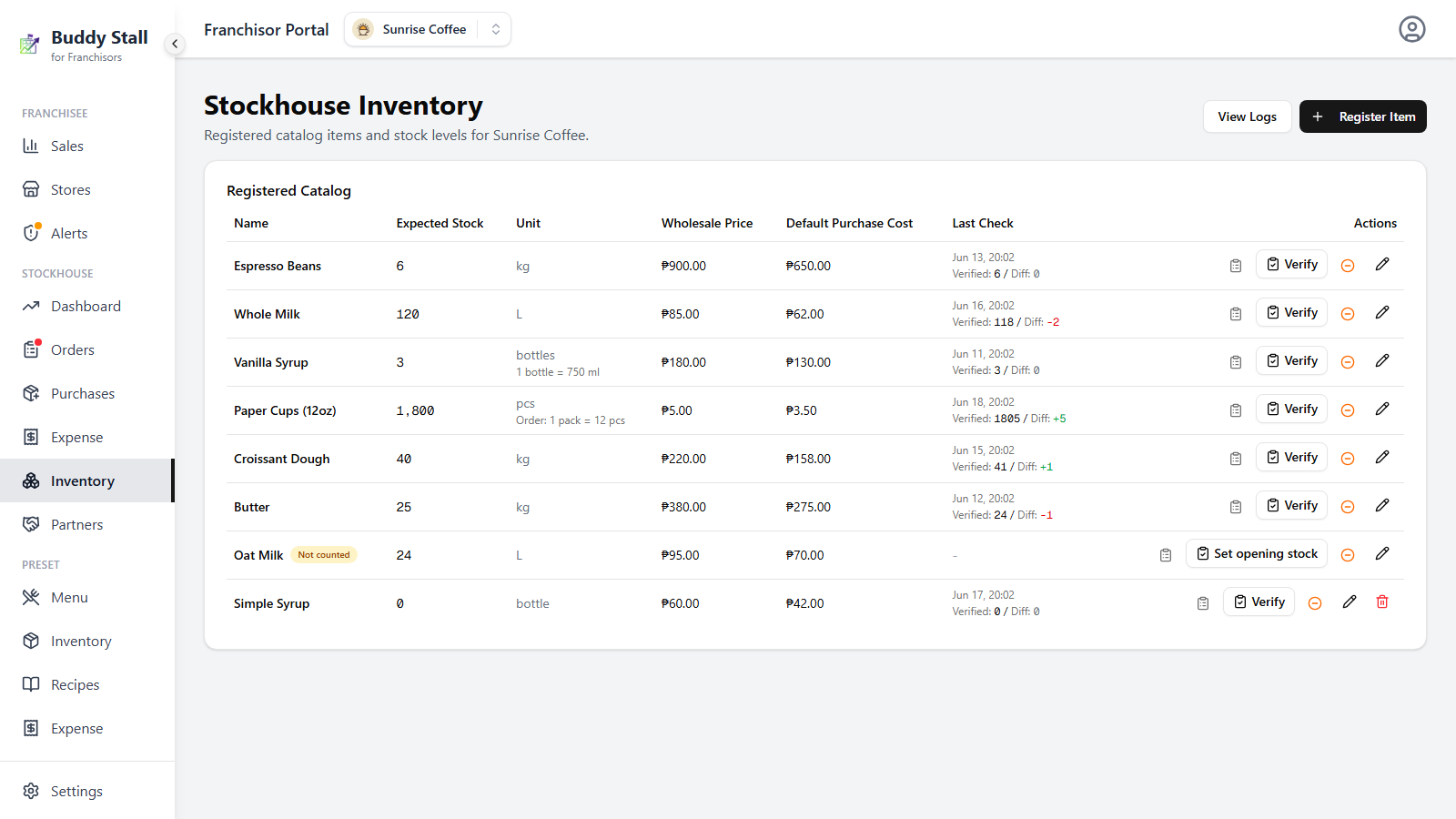
Open a franchise and, under StockHouse, click Inventory. The header reads Stockhouse Inventory — "Registered catalog items and stock levels" — with two actions in the top-right. Below it, the Registered Catalog card lists one row per registered item, each column reporting where the item stands.
 123456789
1 View Logs — opens the Inventory Logs audit trail: every quantity change on every registered item, in time order.
2 Register Item — opens the Register Item dialog to start tracking a preset item in your StockHouse.
3 Name — the item, taken from the preset item. An amber Not counted pill sits beside it until the item has its first stock count (see Stocktake & waste).
4 Expected Stock — the running balance the app has calculated from every purchase, shipment, waste entry, and correction since the last count. It is the system's ideal figure for how much should be on hand right now — the theoretical on-hand amount a physical count is checked against.
5 Unit — the item's stock unit, inherited from the preset item. A smaller line can sit beneath it, depending on how the preset item is set up: a content-per-unit line for packaged units (e.g. "1 pack = 500 g"), or an Order: line giving the order unit and how many stock units it holds (e.g. "Order: 1 case = 12 pcs"). These show on both desktop and mobile.
6 Wholesale Price — the preset item's cost per unit: what stores pay you when they order it.
7 Default Purchase Cost — your own cost basis for this item. See Edit below for what it drives and how it differs from Wholesale Price.
8 Last Check — the timestamp of the most recent stock count, with Verified: N and either Opening (the first count) or Diff: ±N (how far the count was from what was expected).
9 Actions — the five row actions, covered below.
With nothing registered yet, the card reads "No items registered yet."
Register an item
Click Register Item. The Register Item to Stockhouse dialog asks for:
- Preset Inventory Item — a select listing only preset items that are not already registered. If every preset item is registered, the dialog says so instead of showing the select.
- Wholesale Price — read-only, and appears once you pick an item: the preset item's cost per unit (what stores pay you). It sits here for reference while you set your own cost below.
- Default Purchase Cost (₱) — optional; your own cost basis, and can also be set later from Edit. When the picked item is bought in a coarser order unit (e.g. Cocoa Powder ordered by the box), an Enter per box toggle appears — see Entering cost by order unit below.
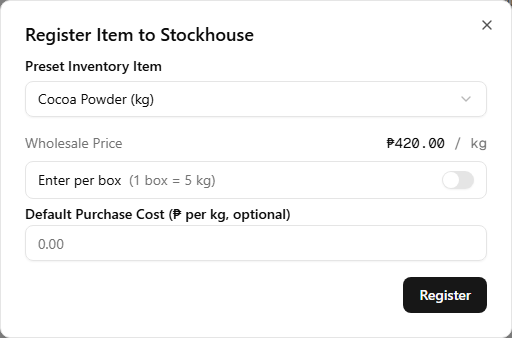
The list is limited to preset items because a StockHouse item is a preset inventory item — registering only turns tracking on for one that already exists in the preset inventory; it does not create a new one.
An unregistered item does not appear in a connected store's order catalog at all, even if it exists in the preset inventory. Registering it here is the step that lets stores order it from you.
You never register an exclusive item by hand. The moment you mark a preset inventory item as Franchisor-exclusive, it is registered into your StockHouse automatically — at quantity 0, ready to purchase, ship, and count — without a trip to Register Item. Because stores can only get an exclusive item from you, tracking it here is never optional, so the app turns it on for you.
The row actions
Each registered item's row ends with a strip of action buttons, left to right. The example below is the zero-stock Simple Syrup row, so it shows all five — including Unregister, which only appears when Expected Stock is exactly 0.
 12345
123451 View History — opens the item's report history.
2 Verify (labelled Set opening stock until the item has a baseline) — runs a stock count. Covered in Stocktake & waste.
3 Log Waste — records stock that was thrown away or spoiled. Also covered in Stocktake & waste.
4 Edit — see below.
5 Unregister — only shown when Expected Stock is exactly 0. If the item still carries stock, ship it out or write it down to zero with a Verify count first.
Edit an item
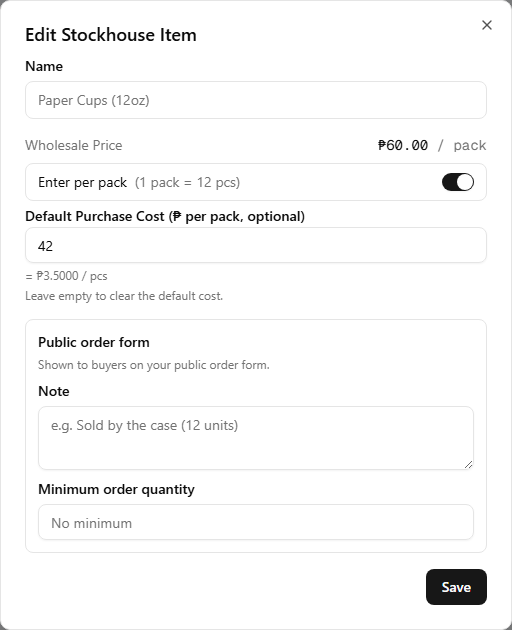
Click the pencil icon to open Edit Stockhouse Item:
- Name — read-only. It comes from the preset item; rename it on the preset inventory page instead.
- Wholesale Price — read-only, for reference: what stores pay you per unit.
- Default Purchase Cost (₱) — your own cost basis; leave the field empty to clear it. For items bought in a coarser unit, see Entering cost by order unit below.
- Public order form — a boxed section for what buyers see on your public order form: a Note (e.g. "Sold by the case (12 units)") and a Minimum order quantity.
Entering cost by order unit
When the item is stocked in one unit but ordered in a coarser one (e.g. Paper Cups counted in pcs but bought by the pack of 12), an Enter per pack toggle appears above the cost field. Turn it on to type your Default Purchase Cost per order unit: the Wholesale Price flips to the same basis (₱60.00 / pack), and a line under the field shows the equivalent per stock unit (= ₱3.5 / pcs). The value is always stored per stock unit — the toggle only changes how you type it. Items with no order unit show the cost field on its own.
These are two different numbers and easy to mix up. Wholesale Price comes from the preset item — it is what stores pay you when they order this item, the price on their orders. Default Purchase Cost is yours: it prefills the unit cost when you record a new purchase, it is the cost basis when you log waste against the item, and it is the fallback unit cost in the Dashboard's item profit ranking (badged Std there) whenever no purchase was recorded in the selected period. Changing one never changes the other.
Unregister an item
With Expected Stock at 0, the trash icon opens an Unregister Item? confirm. Unregistering takes the item off the active catalog. You can register it again from Register an item whenever you need it back.
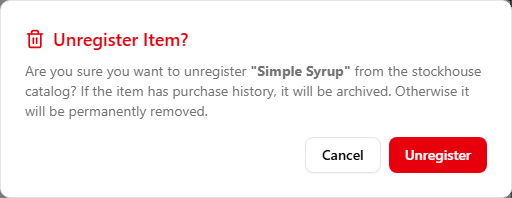
Unregistering also removes the item from the Dashboard's item profit ranking, including for past periods — the ranking only ever reflects currently registered items.
Inventory logs
View Logs opens Inventory Logs — the audit trail of every quantity change on every registered item, 100 rows per page: Date, Item, Reason, and a signed Change.
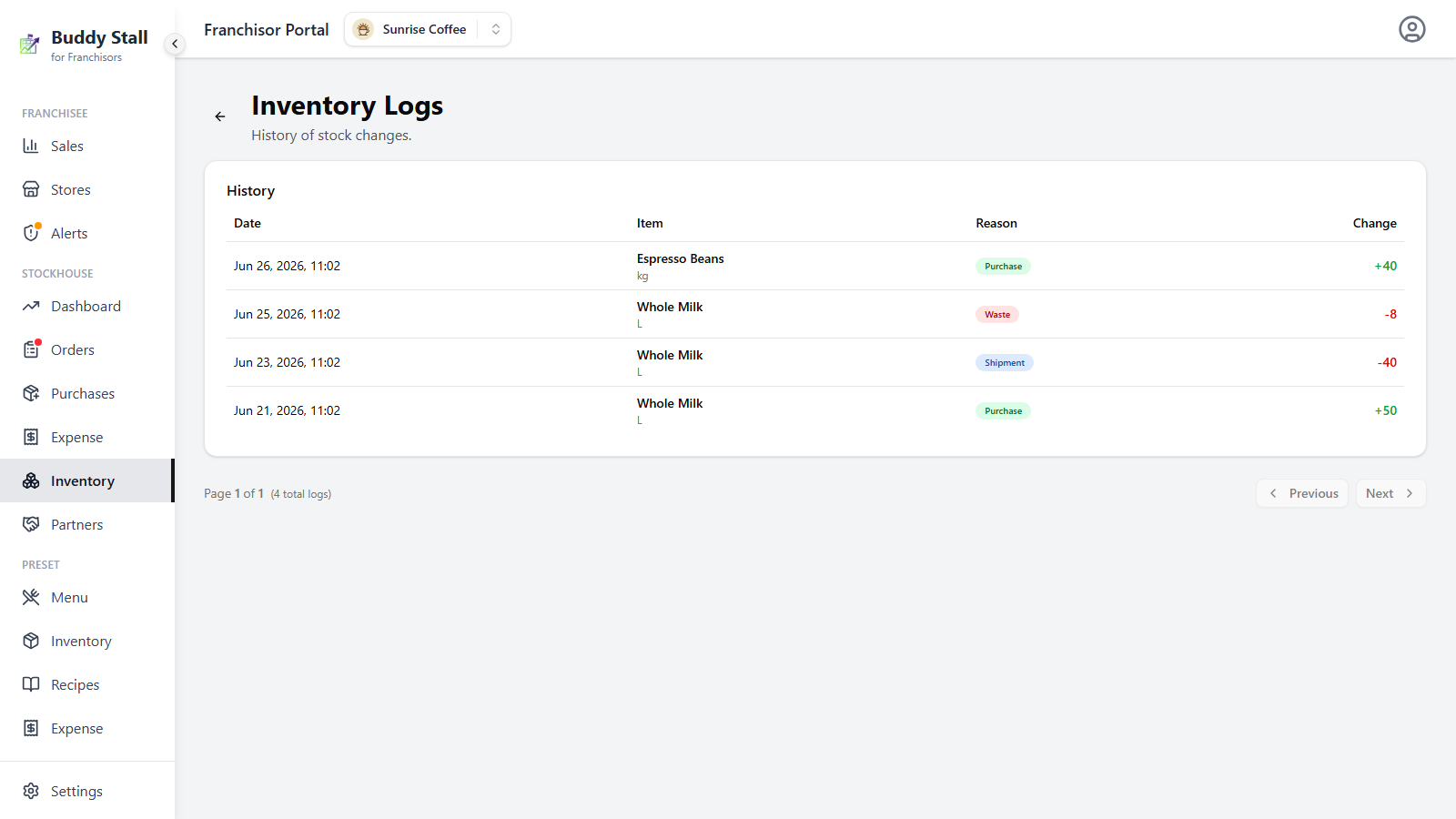
The Reason pill tells you what moved the stock:
- purchase (green) — stock you bought in.
- shipment (blue) — stock you shipped out to a store's order.
- waste (red) — stock logged as wasted.
- shipment return (grey) — stock that came back from a shipped order.
- correction (grey) — a manual adjustment to the count.
- initial (grey) — the opening count that first established the baseline.
See the StockHouse overview for how these fit together.
Item report history
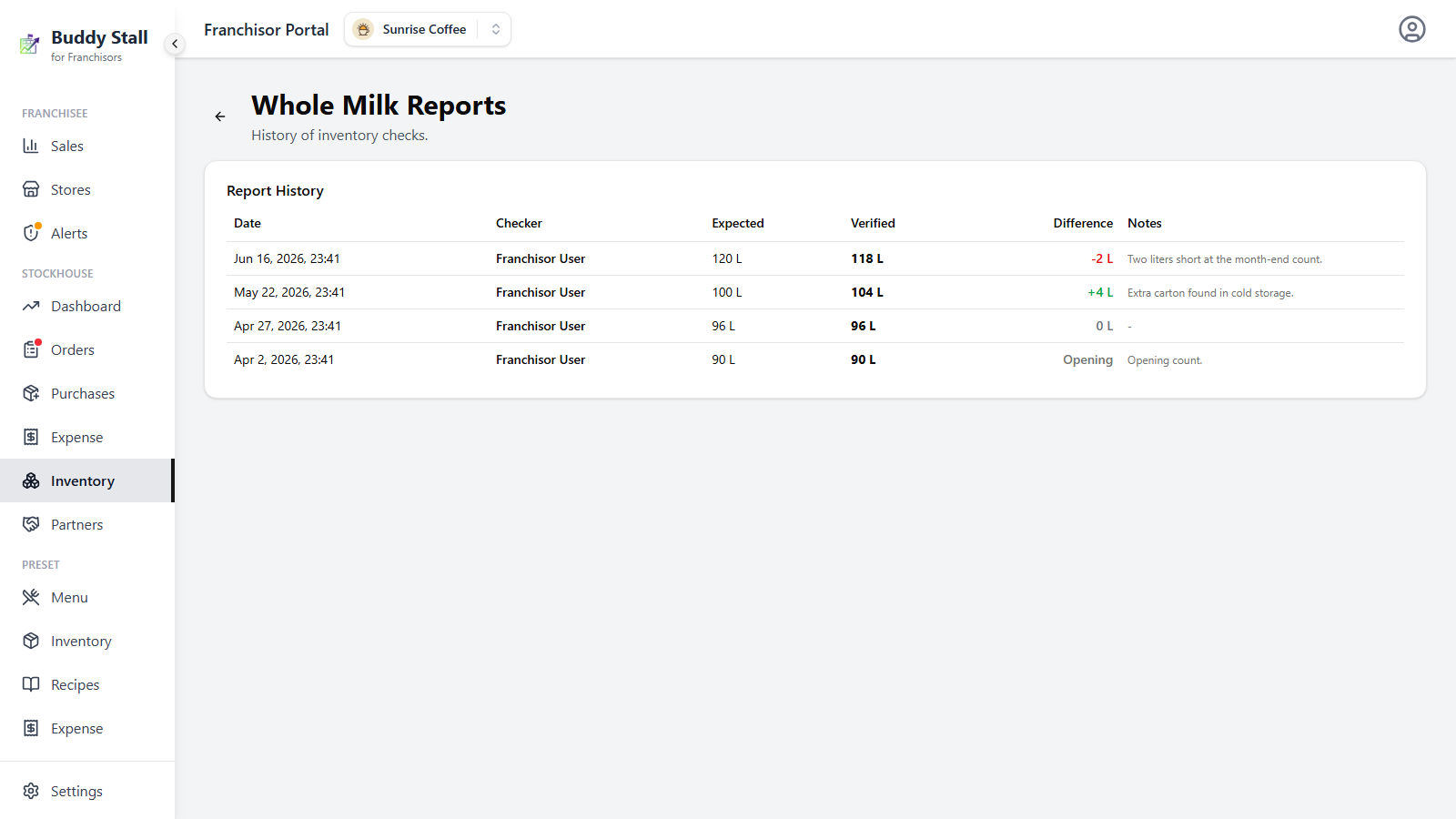
An item's View History action (the clipboard icon) opens a report page named after the item — e.g. Whole Milk Reports. It is the item's stocktake history: one row for every time this item's physical count was verified, most recent first (up to 100).
 123456
1 Date — when the count was taken.
2 Checker — who ran the count.
3 Expected — what the app calculated should have been on hand at that moment.
4 Verified — the physical count that was entered. It became the new baseline the next difference is measured from.
5 Difference — Verified minus Expected: green for a surplus, red for a shortfall, grey for an exact match. The very first count reads Opening instead — it sets the baseline, so there is nothing to compare it against.
6 Notes — anything the checker typed when submitting the count; a dash when they left it blank.