
Branding & settings
A brand's name, logo, and shareable links live on its Settings screen — open a brand from the franchises home, then click Settings at the bottom of the sidebar. Everything here belongs to that one brand, so check the header switcher before you change anything.
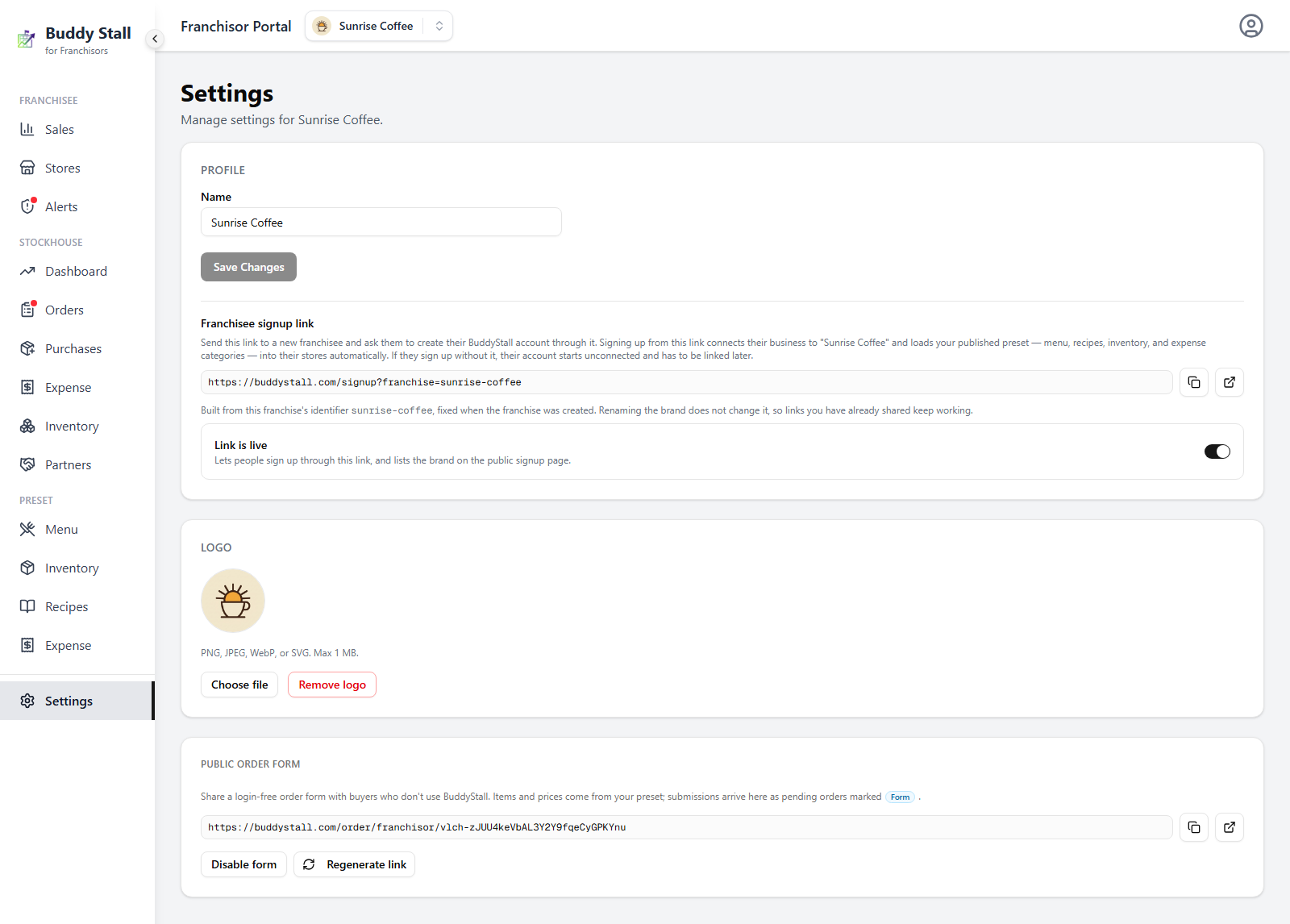
Profile
The Name appears everywhere the brand does: its card on the franchises home, the header switcher, the banner a franchisee sees at signup, and the heading on your public order form. Edit it and click Save Changes.
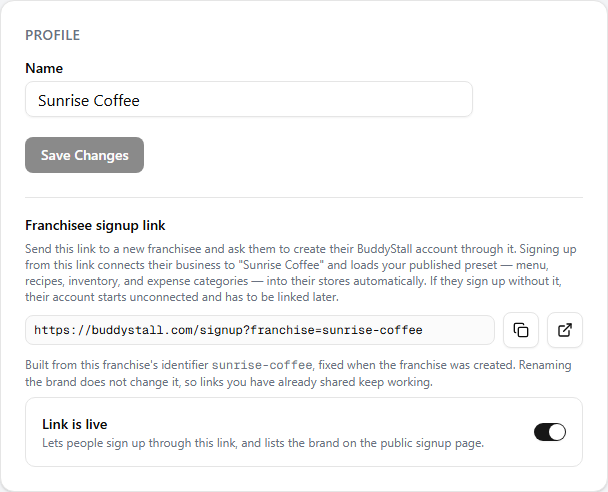
The franchisee signup link
Below the name is the brand's franchisee signup link — the complete URL, ready to copy, with a button that opens it in a new tab to preview what a franchisee sees.
Have new franchisees create their BuddyStall account through this link: it connects their business to your brand and loads your published preset into their stores automatically. Signing up without it leaves the account unconnected.
The identifier is fixed when the brand is created, so renaming does not change it — links you have already shared keep working.
Link is live
The switch beside the link controls whether it works at all. A new brand starts off, and while it is off anyone opening the link is told the franchise was not found.
Switch it on once your preset is ready to hand over. The preset is copied into a franchisee's stores at signup, so whoever joins gets whatever it holds at that moment — build the menu, recipes, inventory, and expenses first, then publish. Changes you make afterwards still reach them, as preset updates rather than a fresh setup.
Switching on also lists the brand on BuddyStall's public signup page. Switching back off breaks every copy of the link already shared, so BuddyStall asks you to confirm; turning it on again revives the same link.
Sharing the link, and what a franchisee sees step by step, are covered in Invite franchisees.
Logo
Choose file picks an image and previews it beside the current logo; Upload commits it. Remove logo clears it after a confirmation, and the brand falls back to a coloured initial. PNG, JPEG, WebP, or SVG, up to 1 MB.
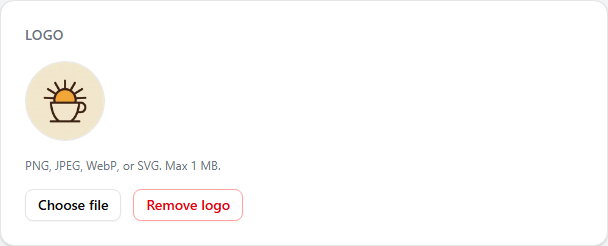
The logo is displayed as a circle, and the preview crops to the centre of the image. A square (or near-square) file keeps the whole mark inside the circle; a wide banner will lose its edges.
The logo then follows the brand everywhere it appears — the franchises home, the header switcher, the signup page opened with your link, and your public order form.
Public order form
The third card switches on a login-free order page for buyers who are not on BuddyStall. It has its own walkthrough — see Public order form.