
Preset recipes
A recipe tells the store app what a menu item is made of — which inventory items it consumes, and how much. Ship recipes with your preset and every sale in every connected store deducts the right stock automatically, with the item's cost worked out for free.
This walkthrough links your preset menu items (and add-on options) to your preset inventory items.
The recipes screen connects what the other two preset pages define. Have your preset menu items and preset inventory items in place before you start here.
1. Open the preset recipes
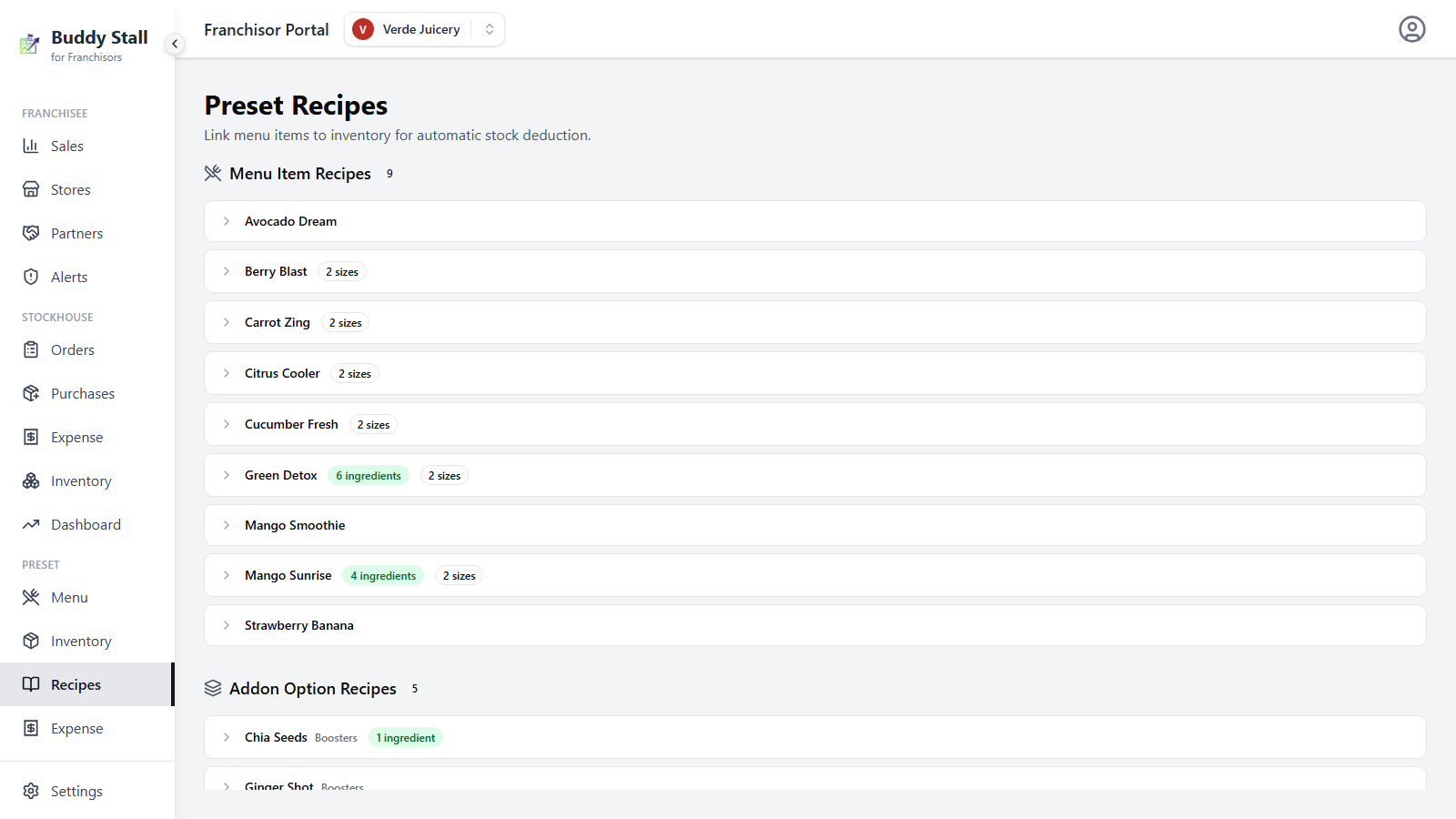
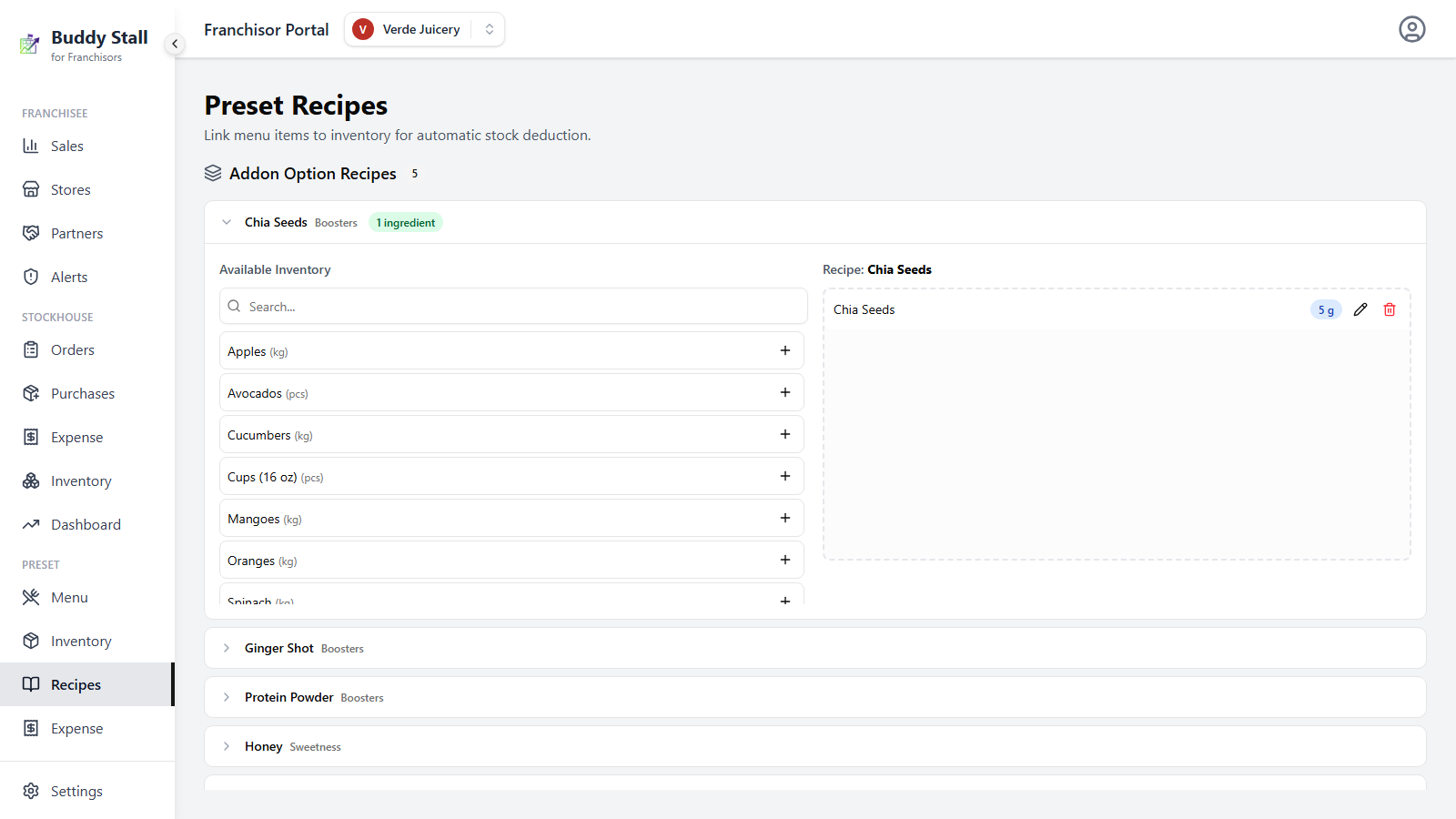
Open the franchise you want to work on. In the sidebar, under the Preset group, click Recipes. The Preset Recipes screen lists two sections:
- Menu Item Recipes — one collapsible row per preset menu item.
- Addon Option Recipes — one collapsible row per add-on option.
Each row shows at a glance how many ingredients its recipe holds and, for sized items, how many sizes it covers. Combo items do not appear — a combo deducts stock through the recipes of the items inside it.
2. Expand the item you want to work on
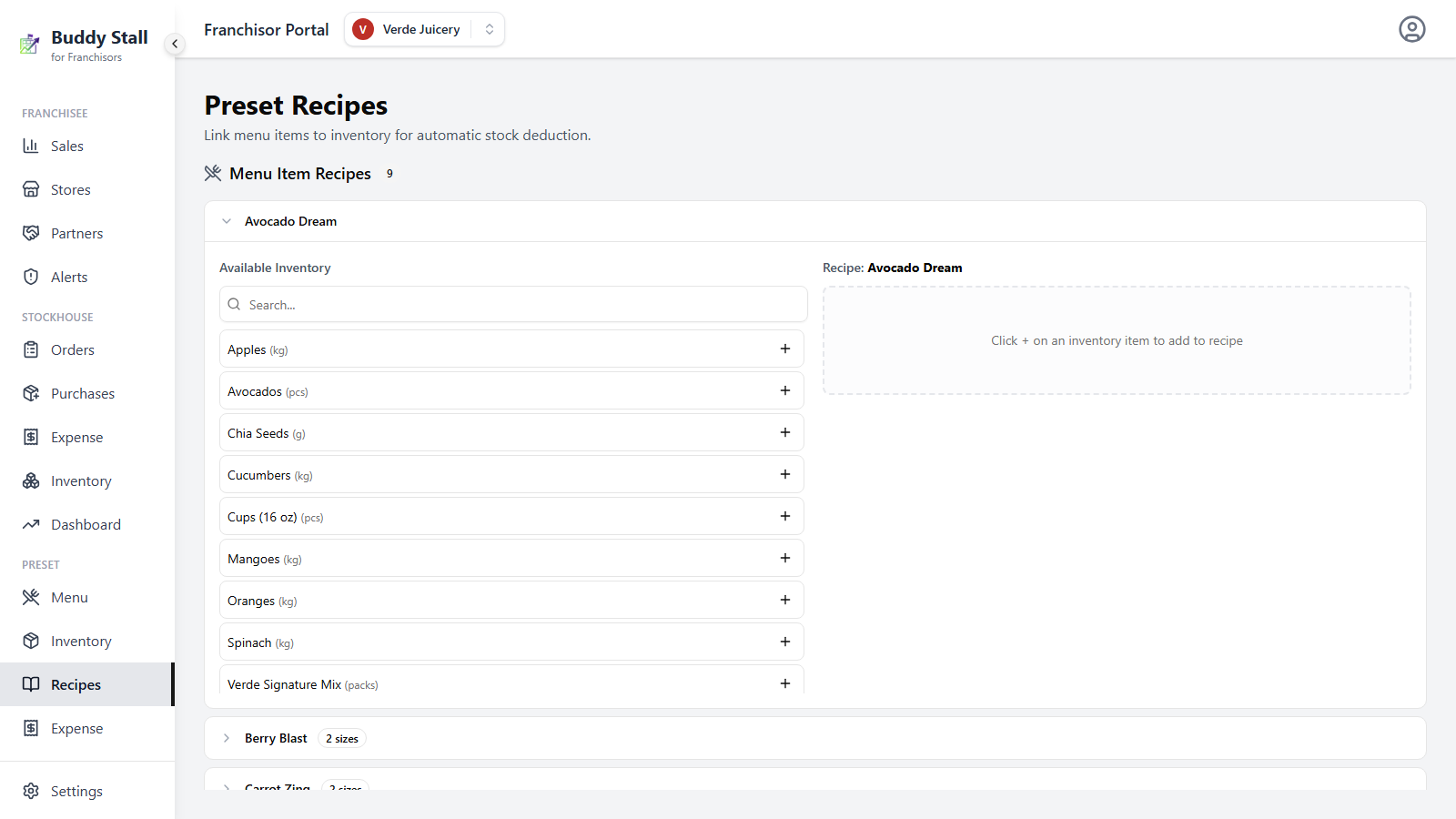
Click a menu item's row to expand its recipe editor — a two-panel layout with Available Inventory on the left and Recipe on the right. The left panel lists every inventory item from your preset inventory, with a Search box for long lists.
3. Add an inventory item
Click the + on an inventory item's row in the Available Inventory panel. A
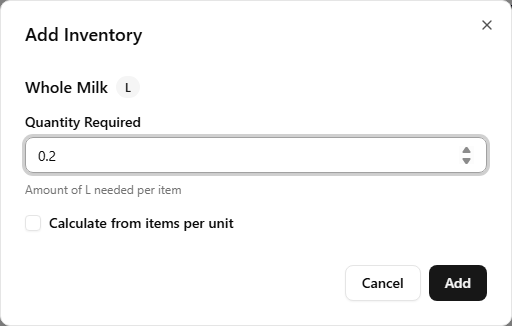
quantity dialog opens — enter the Quantity Required: how much of the
item one sale consumes, in the item's unit (0.15 kg,
1 pcs, 50 ml, …), then confirm.
Each line saves the moment you add, edit, or remove it — there is no separate save button, and a toast confirms every change.
If it's easier to think in terms of yield — "this pack makes N servings" —
tick Calculate from items per unit in the quantity dialog. The field flips
to ask how many items one unit of the inventory item makes, and the per-sale
amount is stored for you. For a 1 kg dough ball that yields 10 pizzas, enter
10 instead of working out the 0.1 kg fraction yourself.
4. Per-size recipes (sized categories only)
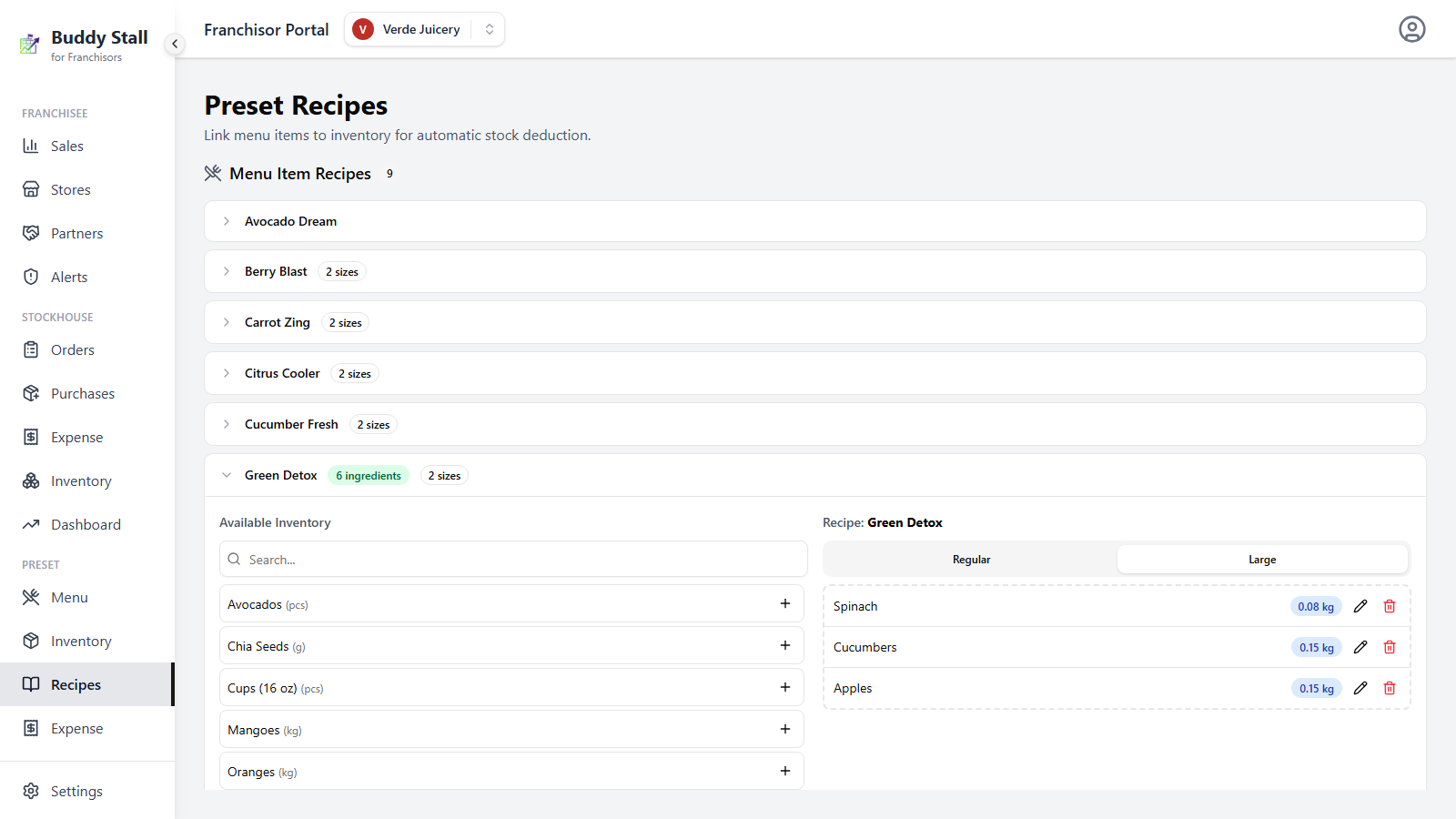
If the item's category has sizes, the Recipe panel shows one tab per size, so a Large can consume more than a Small. Adding an inventory item while you are on the default size tab adds it to every size at once, with the same starting quantity — build the recipe on the default size first, then switch tabs and fine-tune the quantities that differ. Edits and deletes apply only to the tab you are on.
5. Give add-on options recipes too
Scroll to the Addon Option Recipes section and expand an option — "Extra cheese", "Extra shot". The editor works the same way, minus the size tabs: one list per option.
When you click the + on an inventory item, the dialog asks for an Effect. An add-on can change the item's recipe in three ways. Pick the one that fits:
- Add — choose this when the add-on puts something extra into the item. Enter the Quantity Required for a single selection. For example, "Extra Shot" adds one more shot of coffee.
- Remove — choose this when the add-on leaves out something the item normally has. There is nothing else to fill in. For example, "No Coffee" makes Coffee Milk without the coffee.
- Replace with — choose this when the add-on swaps something in the item for something else. Pick the Replacement Ingredient and a Multiplier. The multiplier starts at 1. For example, "Decaf" makes the drink with decaf beans instead of regular coffee beans.
With Remove and Replace with, the inventory item you clicked is the one in the item's own recipe that the add-on acts on. The small info icon beside Effect shows these same descriptions in the dialog.
When a customer picks the same option more than once on an order, an Add line is multiplied at sale time. A Remove or Replace with line applies once per item, however many times the option is picked.
Stores get these lines as you set them. The effect, the replacement and the multiplier always follow your preset, and the store owner cannot change them. The only thing an owner can change is the quantity of an Add line. See Add-on recipe lines for how that looks in the store's review.
Watch for exclusive ingredients without a recipe
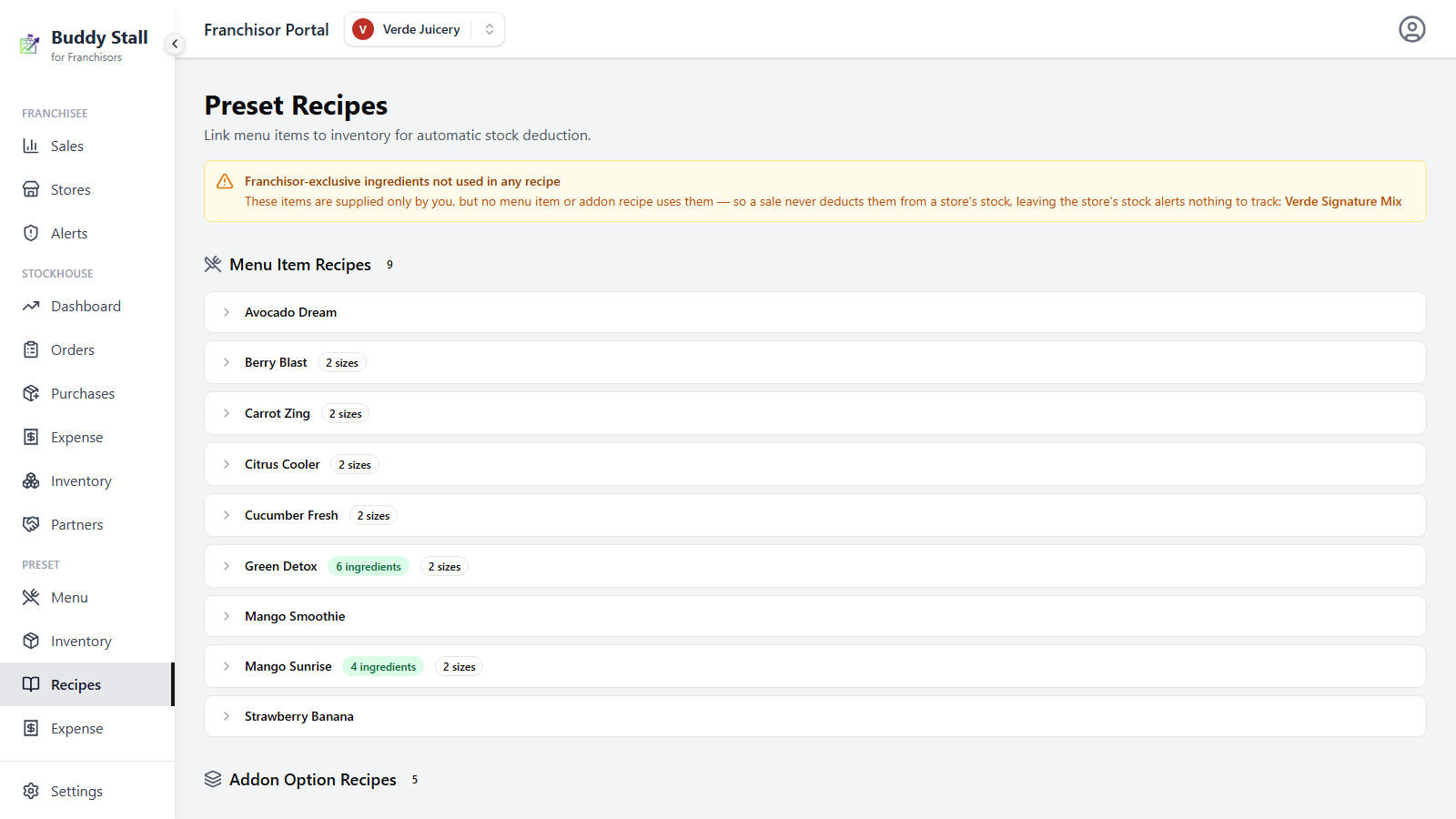
Some preset inventory items are Franchisor-exclusive — only you supply them, so a store can source them nowhere else (you set this on the preset inventory page). When an exclusive item isn't linked to any recipe, a sale in a connected store never deducts it from that store's stock — the automatic, sales-driven deduction never runs for it, so the store's low-stock and variance alerts have nothing to track. Almost always it means a recipe is unfinished.
To catch this, the Preset Recipes screen shows an amber banner at the top of the list whenever one or more exclusive items are used in no menu-item or add-on recipe, naming each one. Add the named item to a recipe (Sections 3–5 above), and the banner clears itself once every exclusive item is in use.
An add-on line counts as using an item only when it consumes it. That means an Add line for the item, or a Replace with line that uses the item as the replacement. A Remove line does not count, and neither does the item a Replace with line swaps out.
What connected stores receive
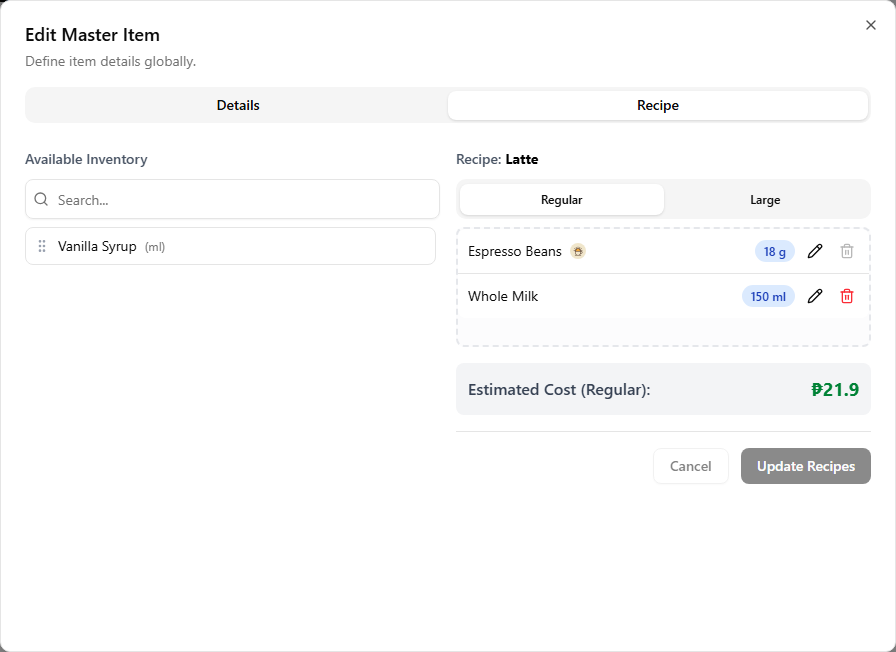
Recipes travel with the menu preset. In the store app, your recipe lines carry the franchise's logo badge and are locked — a store cannot remove them — while the owner stays free to add their own lines alongside. The deduction always hits the selling store's own inventory.
Removing a recipe line
Deleting a line here removes it from connected stores on their next reload — and unlike a menu, inventory, or expense removal, it carries no approval checkbox.
That is not an oversight. A recipe line is not something a store stocks or sells; it is the link that says how much one sale consumes. There is no version of "keep it" that makes sense once you have taken the ingredient out of the product, so there is nothing for the store to decide.
It is still visible before it happens: the review dialog's Recipe tab lists the line struck through and badged Removed, so the store sees the change coming rather than discovering it afterwards. Deleting a line does not delete lines the store wrote itself.
Publishing changes
Edits here save immediately and mark the franchise as having an update available; each connected store re-pulls the preset from its own Franchise Connections settings. See How updates reach stores.