
Preset expenses
The preset expenses catalog is the brand's expense standard — the named items connected stores record their spending against, so "Cooking Gas" means the same thing in every store's expenses. This walkthrough sets that catalog up.
It is a short one: inventory items get their expense items automatically (see below), so this page is only for the expenses not tied to inventory that you want standardized across the brand.
1. Open the preset expenses
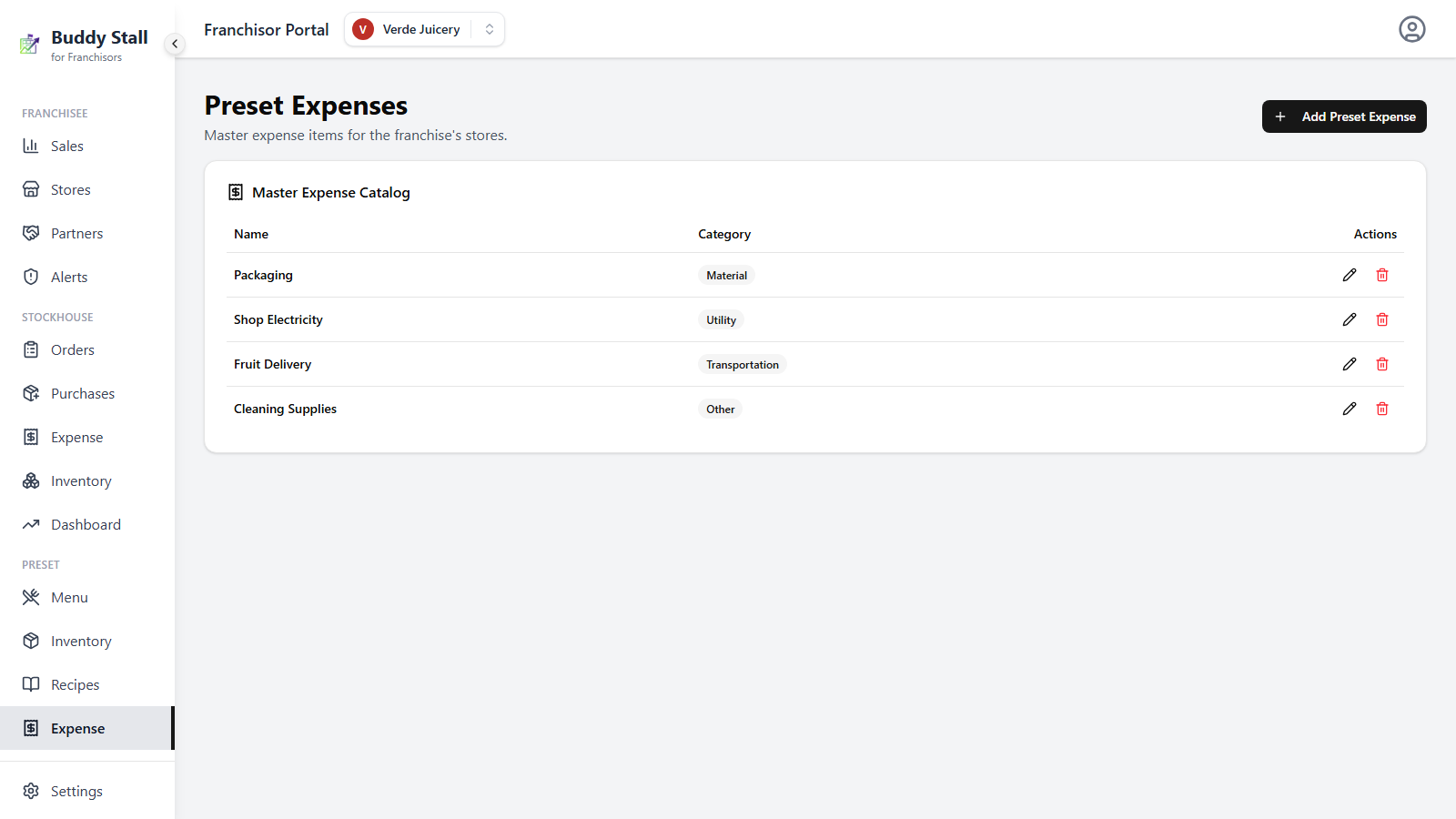
Open the franchise you want to work on. In the sidebar, under the Preset group, click Expense. The Preset Expenses screen lists the Preset Expense Catalog — one row per item, with its Name and Category.
2. Add a preset expense item
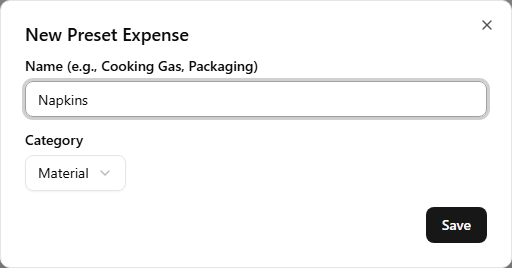
Click Add Preset Expense in the top-right. The New Preset Expense dialog asks for just two things:
- Name — the expense as stores will record it (e.g. "Cooking Gas", "Packaging").
- Category — one of Material, Labor, Rent, Utility, Transportation, Government Fee, or Other.
Repeat for every expense you want every store to book under the same name.
Inventory items don't need expense items here
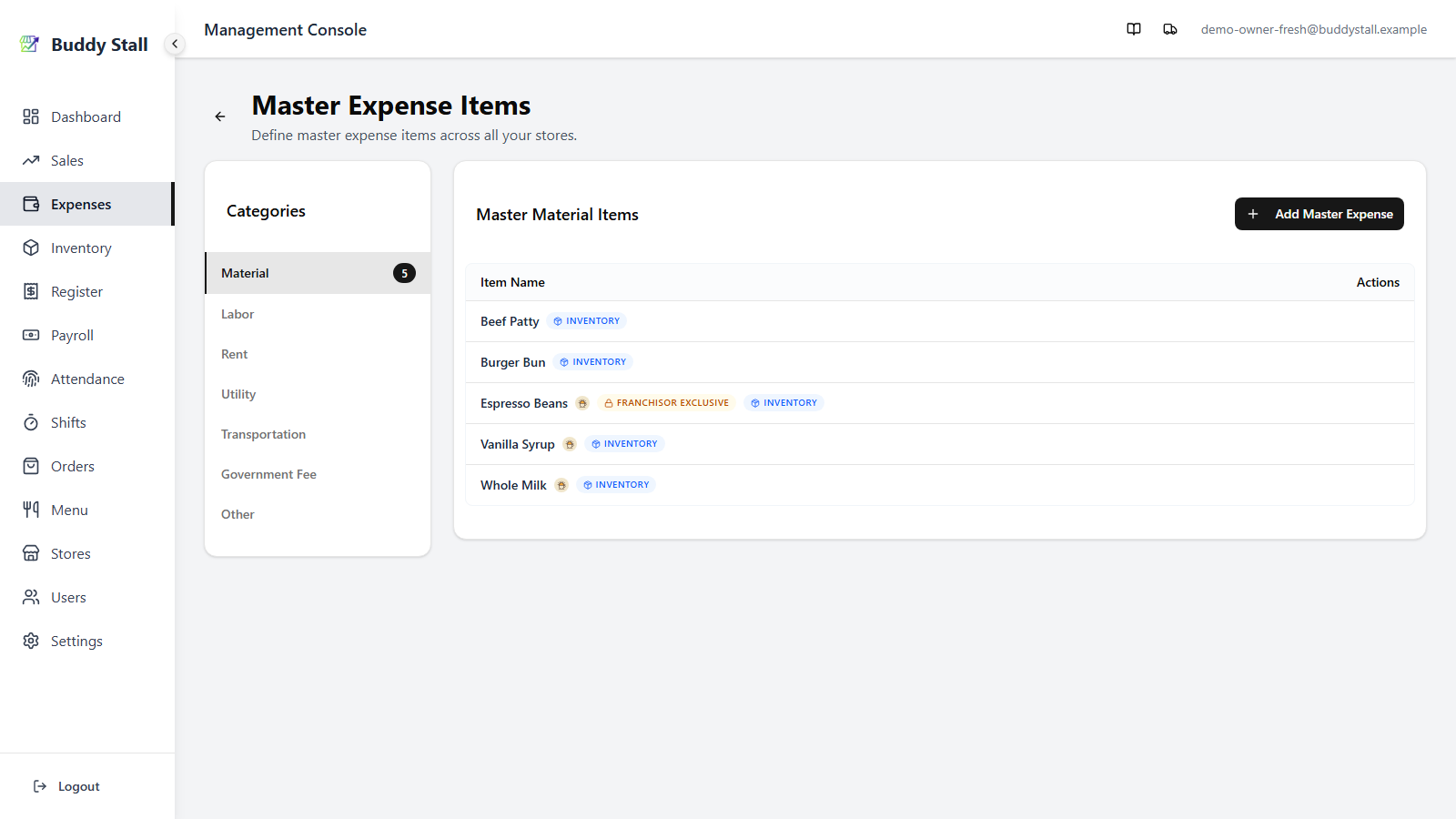
Every inventory item you define in the preset inventory automatically arrives in each store with a paired Material expense item wired to its stock — a purchase recorded against it restocks the store's inventory. Define those items on the Inventory page and keep this catalog for everything else: gas, packaging, fees, and other recurring costs.
What connected stores receive
When a store loads the preset, your expense items land in the owner's Master Expenses carrying your franchise's logo badge, and every store inherits them automatically. Stores can add their own expense items alongside. An expense item paired to a franchisor-exclusive inventory item is marked accordingly in the store app.
Deleting an expense item here reaches connected stores. A store still carrying it is asked to accept the removal on its next reload, under Removed by the franchisor in the review dialog's Expense tab; accepting hides the item from its lists while past cost entries stay intact. An expense paired to an inventory item is the exception — it has no decision of its own and travels with that inventory item's removal instead. See How updates reach stores.
Removing an item
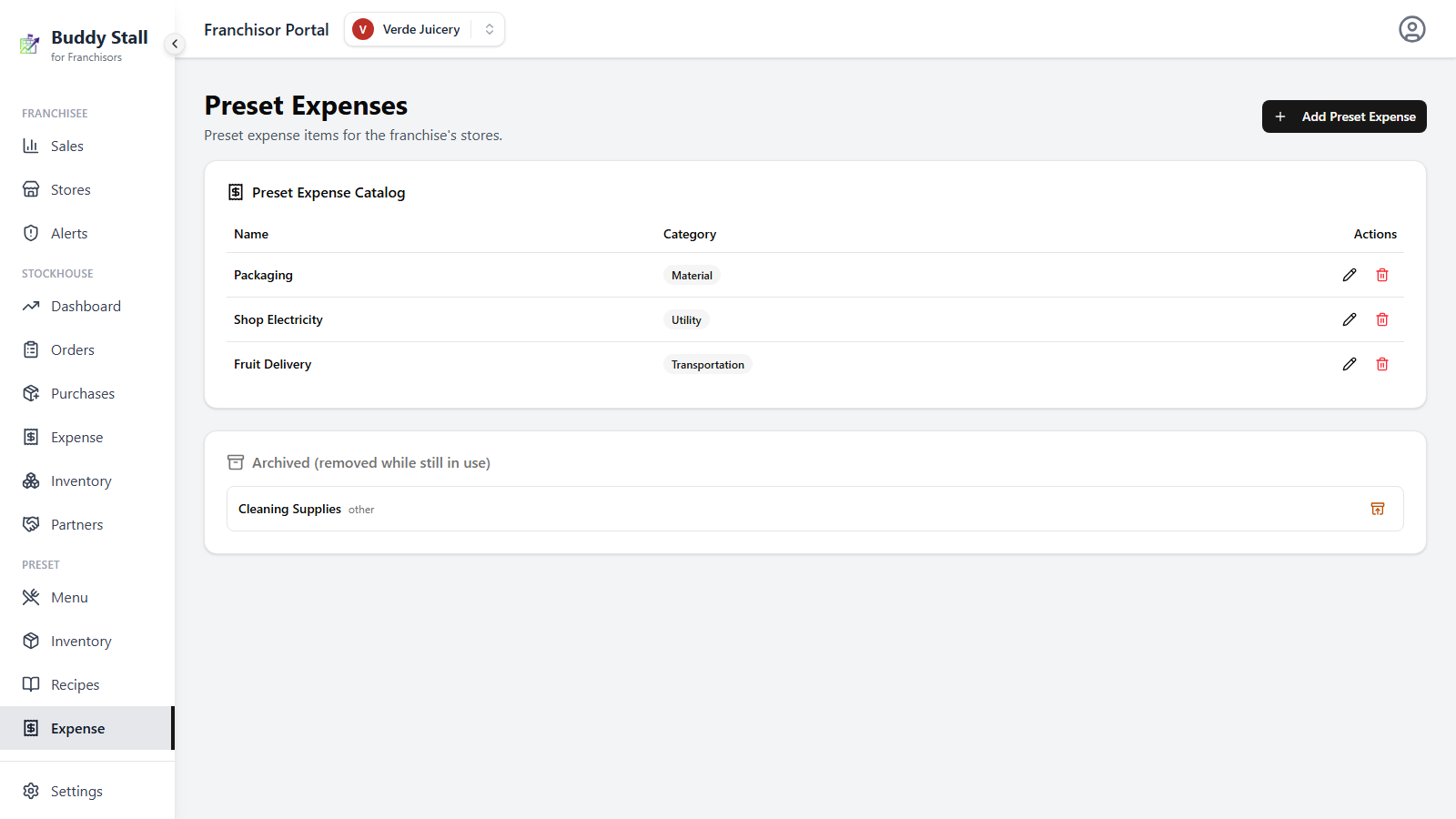
Deleting an item no store carries removes it outright. If a connected store still has it, the delete dialog says so and archives the row instead, so the store can be asked about it on its next reload. Archived rows drop out of the catalog into an Archived (removed while still in use) section below it, each keeping a Restore control.
Publishing changes
Edits here save immediately and mark the franchise as having an update available; each connected store re-pulls the preset from its own Franchise Connections settings. See How updates reach stores.